How to Make a Board Meeting Presentation with AI (Step-by-Step)

For a first-time deck preparer or an experienced board secretary working to a deadline, AI can help turn approved reports into a clearer first draft—but it cannot resolve conflicting figures or approve a recommendation. This workflow takes you from a source-controlled brief to a reviewed outline, validated slides, and a final approval check.
Start a Board Meeting Presentation with AI by Defining the Decision
Start with what directors need to do, not a broad topic such as “quarterly update.”
Write a decision brief before opening a slide tool
Classify each agenda item as an approval, a discussion, or an information update. For an approval, state the exact action requested. For a discussion, frame the question and the trade-offs; do not imply that directors are being asked to approve something. If the agenda contains several requests, list each separately and give each its own evidence and proposed outcome. Follow your organization’s board-pack conventions and governance requirements.
A compact brief should capture:
- Audience and context: What directors already know and what has changed since the last meeting.
- Purpose: The specific approval, discussion question, or update.
- Sources and cutoff: Approved files, reporting period, data-as-of date, and any exclusions.
- Meeting constraints: Agenda order, live discussion time, pre-read expectations, and required format.
Example brief: “At the November meeting, ask the board to approve a 12-month customer-retention investment capped at $400,000. Compare it with the no-new-spend option using approved renewal, support-cost, and forecast data through September 30. Show the expected benefits, assumptions, risks, and decision deadline.” That request calls for a costed comparison and a clear approval slide—not a general customer update.
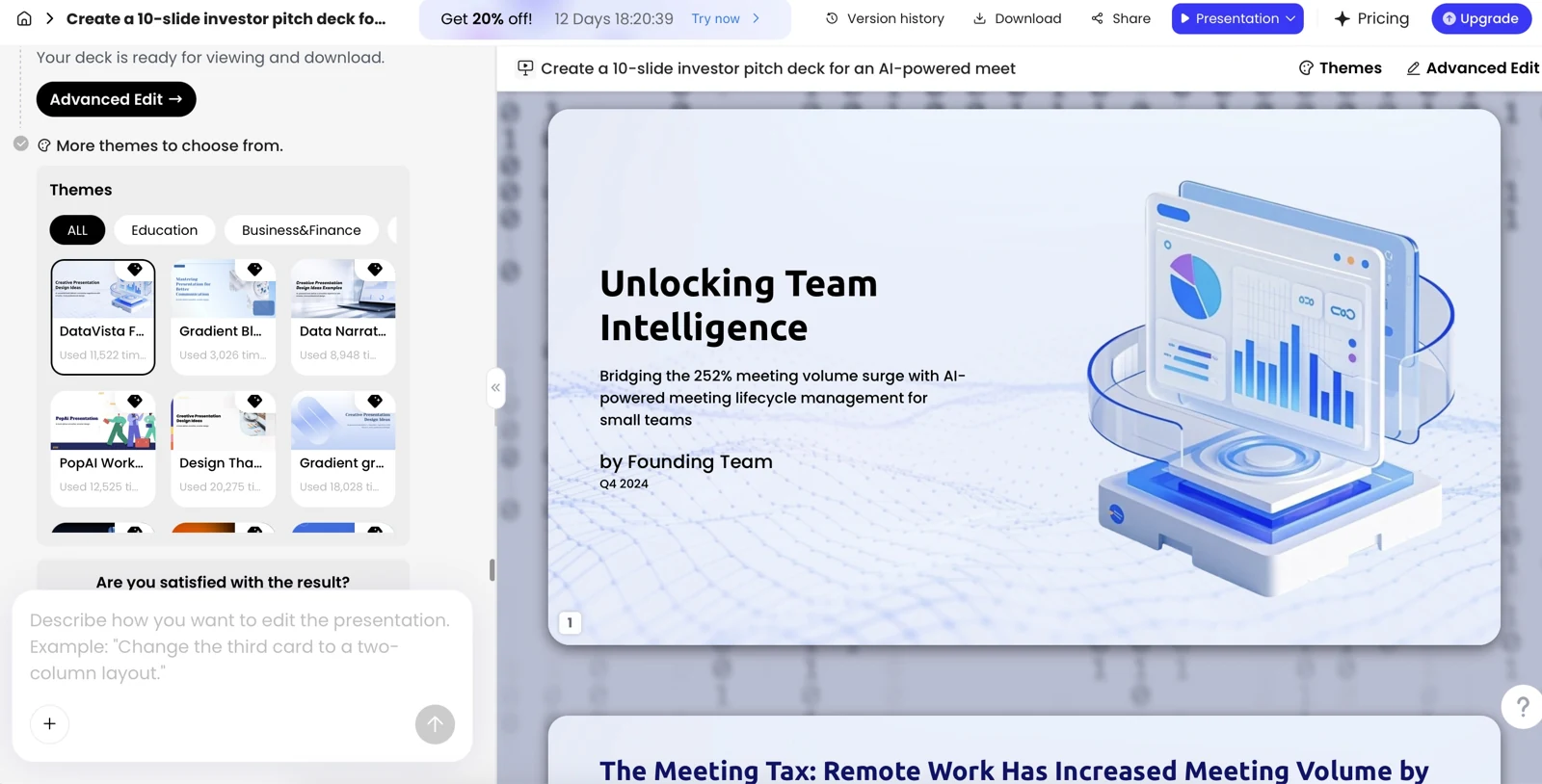
Once the brief and approved sources are ready, PopAi AI Presentation can be used to help organize material into a presentation draft. Treat any generated wording or analysis as a working draft, subject to your organization’s data and approval rules.
Write the requested action in one sentence. If it is unclear whether the board is being asked to approve, discuss, or note something, clarify the brief before generating slides.
Prepare Sources and Protect Board Information
For a broader view of available tools, compare the latest AI presentation makers before choosing the workflow that best fits your team.
Build a small, approved evidence pack before asking AI to summarize the situation.
Map each source to the question it supports
Choose materials for the agenda item rather than uploading every file available. A financial performance discussion may need actuals, budget, forecast, and the assumptions behind them; a risk discussion may need the current risk register and accountable owners. A prior deck or minutes can provide context, but should not override current approved reporting. Record each source’s owner, reporting date, version, and approval status.
- Remove duplicate drafts and clearly mark superseded files.
- For conflicting or stale figures, ask the data owner which source governs; do not ask AI to choose.
- Keep a source-to-slide note, such as “Slide 5: September finance pack, page 12; forecast: version 3, approved October 8.”
- Exclude sensitive detail that is not necessary to the decision; use redacted or summarized material where appropriate.
Before uploading anything, confirm with your security, legal, or IT team that the tool and account are approved for that information. Check the permitted data classification, whether inputs or outputs may be retained or used to improve services, who can access the workspace, and how deletion and sharing are controlled. A tool’s ability to accept a file does not mean your organization permits that file to be uploaded. Check current product documentation for supported formats and handling terms; both can change.
Workflow checkpoint: Name the authoritative sources, data cutoff, finance reviewer, and final approver before drafting. Keep the source log and working deck in an approved location, with one clear version convention.
For a broader comparison of tools, see this guide to AI presentation makers. Check compatibility and current security terms against your organization’s requirements before selecting a workflow.
Use a Reusable Board Meeting Presentation with AI Prompt
Ask for a traceable outline first, then correct it before generating slides.
Request evidence, uncertainty, and a reviewable outline
Include the agenda item, decision brief, approved sources, and any required board format. Tell the AI to identify where each material claim came from and to flag missing or conflicting evidence rather than filling gaps. A reusable prompt:
“Draft an outline for a board presentation about [issue] for [company/team] covering [period], using only the attached approved sources. The board is being asked to [approve / discuss / note] [specific request]. Follow this agenda order: [items]. State the data cutoff. For each proposed slide, give a conclusion-style headline, key evidence, source file and page or table where available, implication, and action or discussion question. Separate actuals, budget, and forecast; list assumptions and flag conflicting, stale, or missing information. Do not introduce facts, causes, or recommendations that are not supported by the sources. Put detailed calculations and secondary metrics in a proposed appendix.”
Illustrative outline review: For the $400,000 retention request in the brief, an initial outline might include renewal performance, support-cost trends, two investment options, forecast assumptions, risks, and the approval request. The reviewer should check that each section answers the decision question and that the proposed benefits are supported. If the source pack has renewal data but no evidence linking the investment to improved renewals, ask for that gap to be flagged—not for a confident benefit estimate.
Choose the slide count from the agenda, evidence, and time available; 12–18 slides is only a planning range, not a board standard. A pre-read can carry definitions and supporting context, while the live deck can focus on decisions and discussion. Move detailed reconciliations to an appendix, but keep them available to support questions.
Review the Outline, Then Build the Slides
Approve the sequence and evidence before spending time on slide design.
Use an outline checkpoint before generating pages
A board-ready sequence usually includes:
- Agenda and decisions requested.
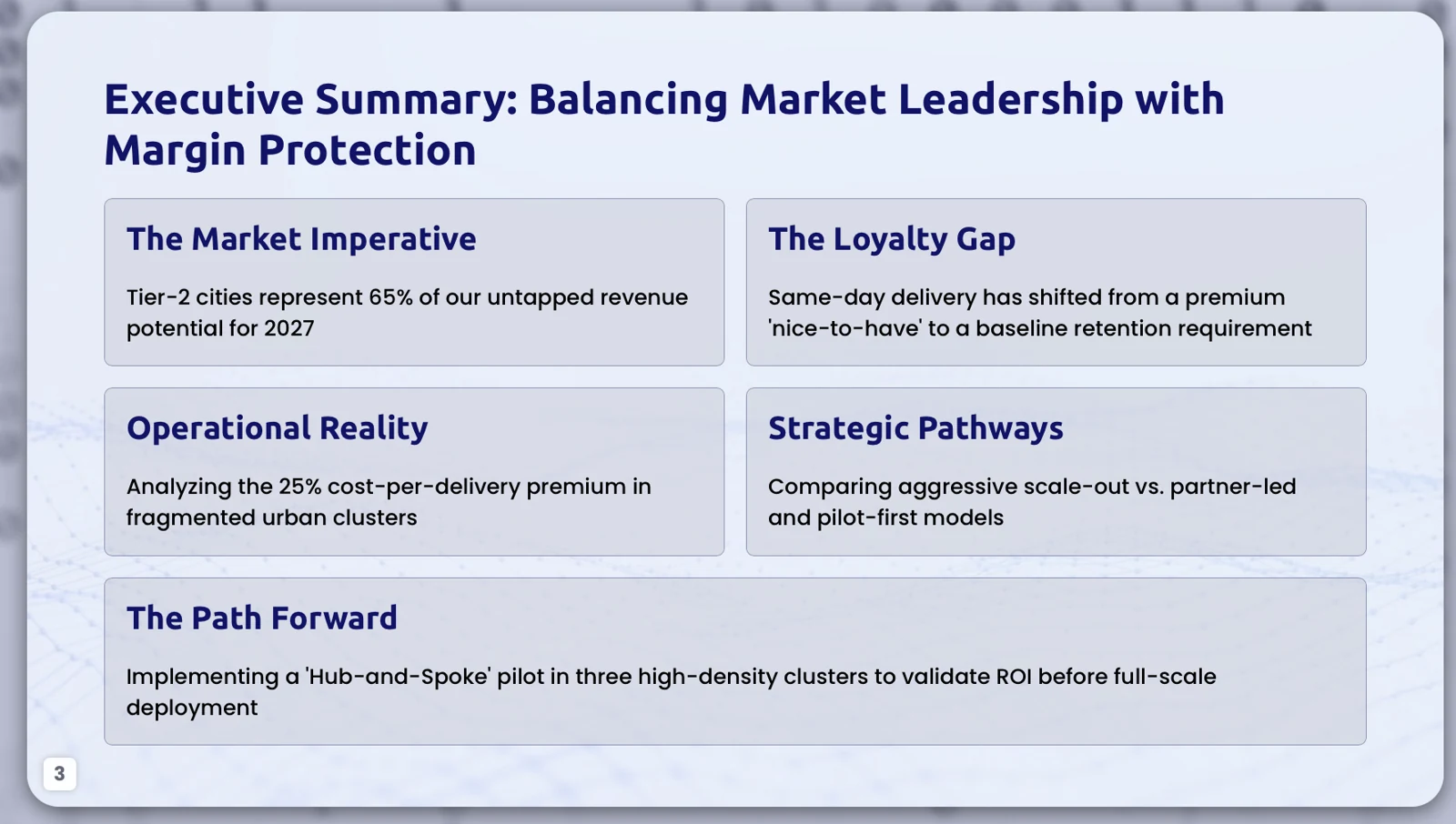
- Executive summary, with the most important changes since the previous meeting.
- Performance against plan and the main, evidenced drivers of variance.
- Forecast and assumptions, including relevant scenarios.
- Material risks, mitigations, and unresolved trade-offs.
- Recommendation or discussion questions, with owners and deadlines where applicable.
At the checkpoint, confirm the sequence matches the board agenda, each conclusion has an approved source, and the requested action is consistent with the brief. If a necessary section lacks evidence, mark it as an open item and assign an owner; do not let AI fill the gap. Move background or secondary analysis to the appendix when it does not help directors reach the decision.
Check every slide for conclusion, evidence, implication, and action
Illustrative slide: A decision page for the retention example might use the headline “Renewals are below plan; a capped pilot is proposed to test targeted retention support.” It could show the verified renewal trend beside the approved cost comparison, state the forecast assumptions and main risk, then ask directors to approve or decline the $400,000 cap. The headline and recommendation are not facts just because AI produced them: management must confirm the interpretation and own the proposal.
Once the outline is approved, generate or revise the slides and review them one page at a time. Replace topic-only titles such as “Customer update” with a supported takeaway, simplify dense pages, and check that chart labels and footnotes remain legible. Use the tool’s current documentation for specific generation or editing capabilities; interfaces and features can change.
Verify Financial Data, Charts, and Claims
Reconcile each material figure to its source before approving the slide narrative.
Trace the number, calculation, definition, and explanation
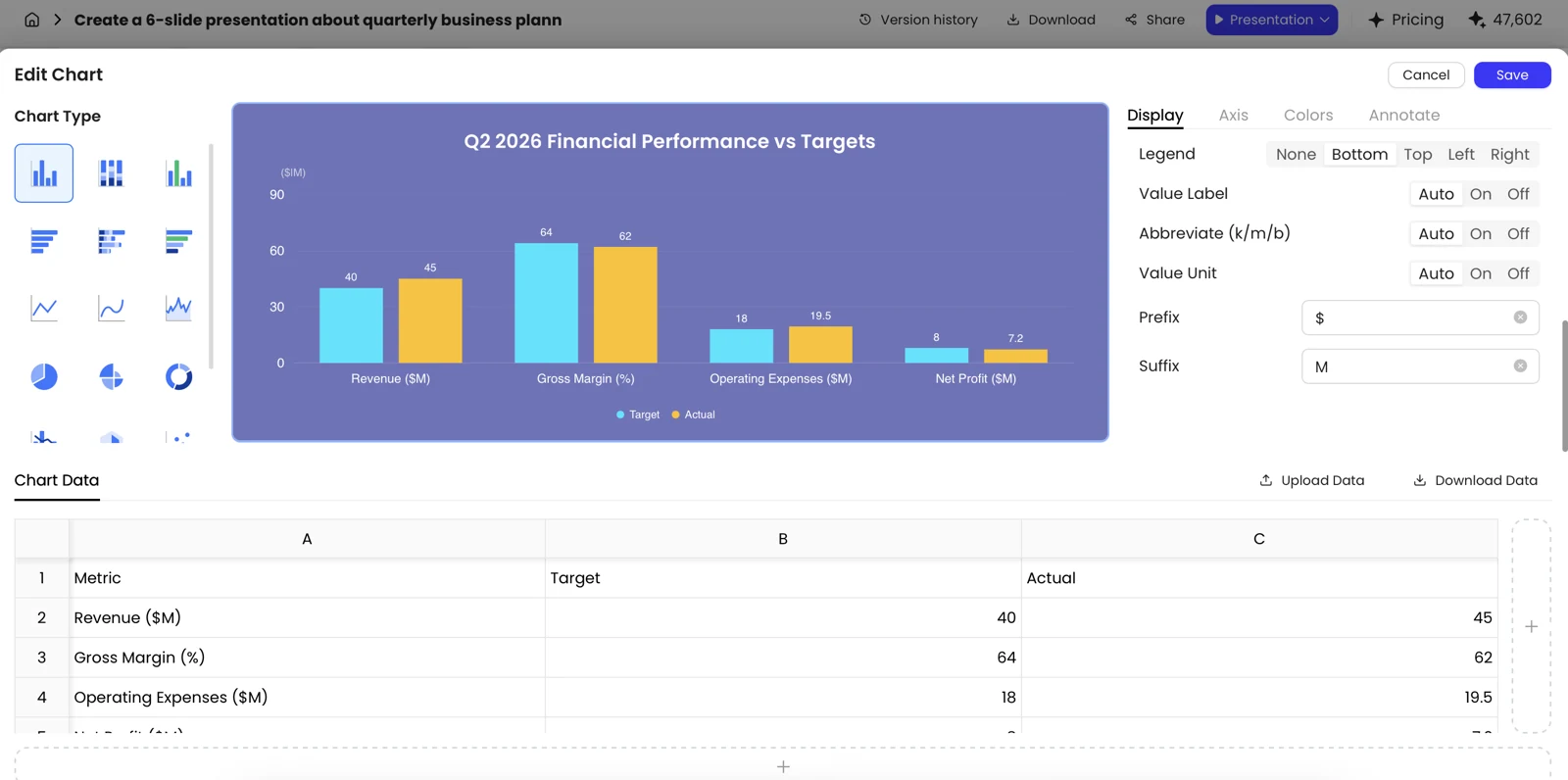
For each financial slide, record the source, period, currency, units, and whether the figure is actual, budget, prior period, or forecast. Check that comparisons use consistent definitions and denominators. Recalculate variances independently, then compare chart values and labels with the approved workbook after any visual edits. A presentation editor can help change how data is displayed; it does not establish that the data or business explanation is correct.
Illustrative reconciliation: Suppose the approved September report shows actual revenue of $9.2 million against a budget of $10.0 million. The variance is $9.2 million − $10.0 million = −$0.8 million, or −8% of budget. The reviewer should confirm the report’s period and revenue definition, check that the slide labels the comparison “September actual vs. budget,” and verify the plotted values against the workbook. “Renewals caused the shortfall” is a separate causal claim and should appear only if an approved analysis supports it.
For forecasts, label assumptions and scenarios explicitly. Distinguish a verified variance from an explanation that is still a management hypothesis, and identify the model owner. Maintain enough source detail for a reviewer to trace a slide claim back to the relevant file and table or page.
Sign-off checkpoint: Have the finance or data owner confirm the calculation and definition; have the accountable business owner confirm the explanation and implication. Record unresolved assumptions instead of presenting them as established causes.
Review, Rehearse, and Deliver the Board Deck
Review the argument, evidence, approval status, and delivered file—not just the in-tool preview.
Rehearse for discussion time, not slide count
Have finance review financial content, functional owners review operational claims, and the designated executive or company secretary check the decision request and agenda alignment. Rehearse against the time actually allocated: reserve explicit pauses for board discussion, and move material that cannot be covered live into the pre-read or appendix. The final slide should state the action, owner, and timing—or the question directors are being asked to discuss.
- Confirm material claims have approved sources and the same data cutoff.
- Check slide order, definitions, legibility, confidentiality markings, and version number.
- Inspect the exported file in the application and on the device likely to be used; check charts, fonts, page breaks, and text wrapping.
- Record the final approver and distribute only through the organization’s approved channel.
Check the tool’s current export documentation for the formats available to your account, then inspect the actual exported file. If a key figure changes after distribution, issue a clearly versioned replacement through the approved channel, identify the affected page, notify recipients, and obtain re-approval where required. Do not silently overwrite a circulated deck.
For recurring board cycles, use one checklist and source log with named owners, versions, cutoff dates, and approvals. This keeps the review trail in one place and makes later updates easier to trace without repeating governance checks across every stage.
Board Meeting Presentation with AI: FAQ
How do I create a board meeting presentation with AI from scratch?
Define the decision or discussion goal, provide approved source materials, and prompt the AI with the audience, page count, required sections, tone, and source constraints. Review the outline before generating slides, then verify facts, edit, rehearse, and export.
What should a board meeting presentation include?
A useful board deck usually includes an executive summary, agenda, strategic and operating updates, financial results, risks and mitigations, explicit decisions or discussion points, and owners with dates for follow-up. Adapt it to the meeting agenda and governance requirements.
How can I verify AI-generated financial data and forecasts?
Reconcile every figure with the approved financial system or source workbook, confirm period and units, recalculate variances, and label assumptions and forecast scenarios. Have the accountable finance owner approve the final numbers and narrative.
Is it safe to upload confidential board materials to an AI tool?
Check your organization's information-security policy and the tool's current data-handling terms before uploading. Use only approved tools, minimize or redact sensitive data where possible, and keep access, versions, and approvals controlled.
Create your presentation with one click now
Start with your board brief or source material, then review, refine, and prepare the deck for your meeting.
Create your presentation