Create Consistent Slide Style: Brand Kit Checklist
Updated August 5, 2026 · Alex Rivera
To create consistent slide style brand kit checklist decisions should come before slide design: logo placement, colors, fonts, image style, grid, and repeated layouts.
This guide turns those rules into design principles, common mistakes, before/after fixes, reusable checks, AI-assisted steps, examples, FAQ, and a link back to the PopAi presentation pillar.
Create Consistent Slide Style with a Brand Kit Checklist
A consistent deck reduces visual noise. When the audience knows where titles, charts, logos, and notes will appear, they can focus on the message instead of decoding the layout.
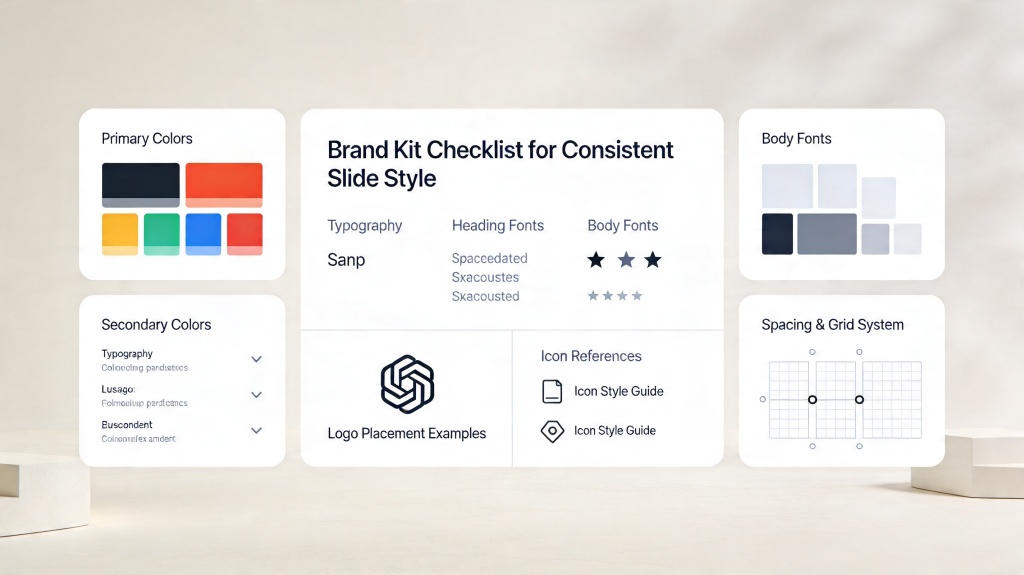
Design Principles for a Brand Kit
- Define fewer rules, then apply them everywhere.
- Use colors consistently: one meaning per accent color.
- Make typography hierarchical, not decorative.
- Use one image or icon style family across the deck.
- Keep master-slide grid positions stable.
| Brand kit item | Rule to define | Slide risk if missing |
|---|---|---|
| Logo | Placement, size, clear space | Logo jumps between slides |
| Colors | Primary, accent, neutral HEX values | Random color use weakens hierarchy |
| Typography | Title, subtitle, body, caption styles | Text appears to change voice |
| Imagery | Photo, icon, or illustration style | Visual assets feel stitched together |
| Grid | Margins, columns, footer and chart zones | Layouts look manually assembled |
Common Mistakes and Before/After Fixes
Before: patchwork deck
A QBR uses one title size on KPI slides, another on roadmap slides, three icon styles, and chart colors with no shared meaning.
After: brand kit controlled deck
Titles use one hierarchy, KPI charts use consistent colors, icons share the same style, and every section follows the same grid.
Where AI Can Help Apply the Checklist
- Ask AI to audit title sizes, font families, colors, logo placement, and icon style.
- Ask AI to propose a master-slide grid for repeated content types.
- Ask AI to rewrite image prompts so visuals share one style.
- Ask AI to flag slides that break spacing or hierarchy rules.
Examples, Checklist, and Related Guides
- Sales deck: repeat customer quote, case study, and pricing layouts.
- Research deck: keep methods, results, and limitations sections visually distinct but consistent.
- Executive report: use the same KPI card style across every metric slide.
For deck-wide style automation, read AI presentation builder keep consistent style. For broader polish, use presentation design tips.
Frequently Asked Questions
What should a slide brand kit checklist include?
It should include logo rules, colors, fonts, typography hierarchy, image style, icon style, chart colors, grid, spacing, and CTA placement.
How do I create consistent slide style quickly?
Define the brand kit first, apply it to master layouts, then review the deck in thumbnail view for any slide that visually breaks the pattern.
Can AI check whether a deck follows a brand kit?
Yes. AI can flag mismatched colors, title sizes, image styles, layout drift, and inconsistent CTA placement if you provide clear brand rules.
What is the biggest brand kit mistake?
The biggest mistake is defining colors and fonts but ignoring layout roles, image style, chart treatment, and repeated slide types.