How to Convert a Video Transcript into a Presentation with AI

A video transcript should not be treated like a podcast transcript. Video has visual evidence: screen recordings, demos, slides, gestures, product frames, scenes, captions, and timestamps. The strongest AI workflow maps transcript moments to visuals before writing the deck.
Timestamp-to-Visual Mapping
| Timestamp | Transcript moment | Visual evidence | Slide output |
|---|---|---|---|
| 00:00-00:25 | Speaker introduces the problem. | Opening frame, title card, or product context. | Problem framing slide. |
| 01:10-02:05 | Demo shows three steps in the workflow. | Key screen frames or numbered screenshots. | Process slide with 3 steps. |
| 03:20-04:00 | Presenter compares before and after results. | Before/after frames or chart shown in video. | Evidence slide. |
| 05:30-06:10 | Q&A reveals common objection. | Question caption or speaker frame. | FAQ or objection-handling slide. |
Example: Demo Video to Training Deck
Suppose a 7-minute product demo explains how to upload a document, review an AI outline, choose a theme, and export a deck. The AI transcript alone may produce generic sections. A better input packet includes the transcript plus a timestamp table: 01:12 upload screen, 02:24 outline screen, 03:05 theme picker, 04:10 export menu. Each timestamp becomes a slide candidate with a screenshot or frame reference.
| Video material | Deck decision | Human review |
|---|---|---|
| Screen recording frame | Use as visual proof if UI is current and allowed. | Check product version and remove private data. |
| Subtitle text | Use for draft bullets and speaker notes. | Correct misheard terms and punctuation. |
| Presenter explanation | Compress into slide title and one key message. | Do not quote unless wording is approved. |
| On-screen chart | Recreate as clean slide visual if data rights allow. | Verify numbers and source. |
Remove Podcast-Style Transcript Filler
For video, do not spend most of the article on generic transcript cleanup. The differentiator is aligning words with frames. Keep only the transcript cleaning that supports the visuals: speaker names, timestamps, demo steps, subtitles, and captions. Remove filler words only after checking that the edited text still matches the video sequence.
Screenshot Rights and Caption Accuracy
Before using frames from a video, confirm rights. Internal training videos may include employee names, customer screens, private dashboards, or unreleased product UI. Public videos may include third-party footage, music, faces, or branded assets. If rights are unclear, use a paraphrased diagram instead of a screenshot.
A useful video transcript to presentation workflow turns one recording into a deck with a clear purpose: a 60-minute webinar becomes a 12-slide recap, a customer interview becomes an insights deck, a training video becomes a lesson module, or a product demo becomes a sales follow-up. The input is not the video itself in many workflows; it is the transcript, timestamps, speaker labels, and a few notes about the audience.
The main risk is treating the transcript as slide copy. Transcripts contain filler words, repeated explanations, false starts, incorrect subtitles, and off-topic Q&A. The job is to extract the argument, evidence, examples, objections, and next steps—then rewrite them into slide language your audience can scan in seconds.
A practical final output usually includes slide titles, short body copy, speaker notes, visual placeholders, and timestamp references for important claims. The AI can create the first structure quickly, but the best results come from a human-led workflow: clean the transcript, prompt precisely, review the outline, add visuals from the video, and verify the deck before sharing.
Why AI Works for a Video Transcript to Presentation Workflow
AI is useful because transcripts already contain the signals needed for slide structure, but those signals are buried in conversational text.
When the transcript is prepared well, AI can identify topic shifts, repeated ideas, speaker emphasis, examples, objections, decisions, and conclusions. It then clusters related points, ranks the strongest claims, turns each cluster into a slide section, rewrites spoken language into slide language, suggests visuals, and flags claims that need verification.
In a manual workflow, a 60-minute webinar often requires two to four hours to rewatch, outline, rewrite, and format, depending on transcript quality and subject complexity. In an AI-assisted workflow, the first outline or deck draft can often be produced in minutes; the saved time should go into editorial judgment—checking facts, choosing screenshots, cutting weak slides, and adapting the story for the audience.
The best AI slide deck is not the most complete transcript summary. It is the clearest decision about what to keep, what to compress, and what to remove.
For example, in a sales webinar transcript, AI may see the same objection mentioned at 08:20, 27:40, and 48:15. A human editor would not want three separate slides. A better deck turns those repeated moments into one “Top Buyer Objections” slide, keeps the strongest quote, and places the remaining details in speaker notes or an appendix.
Tools differ in how they accept inputs. Some start from a video URL, some require a transcript file, and some support file-to-slides workflows. PopAi AI Presentation, for example, supports starting from prompts and multiple material types, including text-based inputs, then organizes the content before generating the deck. That planning step is useful for long transcripts because you can correct the structure before the design is built.
AI still has limits. It may over-compress nuanced arguments, invent statistics if the prompt asks for unsupported “insights,” flatten speaker tone, or miss visual moments that were obvious in the video but not described in the transcript. Long recordings may also exceed input limits in some tools, so chunking and timestamp discipline matter.
Compress Long Videos into Slide Architecture
Compression is the editorial work of deciding what becomes a slide, what becomes speaker notes, and what gets cut.
As a rough guideline, a one-hour transcript may contain 8,000 to 12,000 words, while a readable presentation may contain only 500 to 1,200 words on slides. Live decks usually need even less visible text because the presenter supplies context. Self-read decks can carry more explanation, but they still need clear slide titles and visual structure.
Case note: In an editorial test using a 58-minute B2B webinar transcript of about 10,400 words, the first AI outline produced 18 slides and repeated the same market challenge in three places. After merging repeated themes and moving minor Q&A into the appendix, the final client-ready structure used 12 main slides and 4 appendix slides. The strongest improvement came from reviewing the outline before generating final slide designs.
Choose the deck type before choosing the slide count
Think in slide ratios. A 5-slide deck should communicate the executive version: context, problem, insight, recommendation, next step. A 10-slide deck can include a short narrative arc with two or three proof points. A 20-slide deck can preserve instructional depth, examples, exercises, or supporting data. If you do not specify the ratio, AI may create too many slides or squeeze too much text onto each page.
A practical mapping model
| Transcript source | Best deck type | Recommended slide count | What to preserve |
|---|---|---|---|
| 30-minute product demo | Sales follow-up deck | 8-12 slides | Problem, workflow, screenshots, objections, call to action |
| 60-minute webinar | Thought leadership recap | 10-15 slides | Framework, examples, data points, audience questions |
| 90-minute training session | Learning module | 20-30 slides | Objectives, steps, scenarios, practice tasks, checklist |
| 45-minute user interview | Research insights deck | 8-12 slides | Themes, quotes, pain points, product implications |
Use a repeatable compression rule
- One slide per major theme: combine repeated comments from different timestamps into a single synthesized point.
- One proof slide per key claim: use a quote, statistic, screenshot, or example to support important assertions.
- One visual slide per demo moment: product screens, whiteboards, and charts deserve their own slides when they change understanding.
- One summary slide per major section: useful for training, workshops, and long webinars.
- Appendix for detail: move full Q&A, extra quotes, setup steps, and secondary evidence out of the main story.
Chunk long transcripts without losing the story
If the transcript is too long for your AI tool, split it by chapters rather than by arbitrary word count. For each chunk, ask for: major points, evidence, quotes, visuals, unresolved questions, and timestamps. Then paste the chunk summaries into a second prompt and ask AI to create a full-deck outline. This two-pass method reduces the chance that early sections disappear from the final deck.
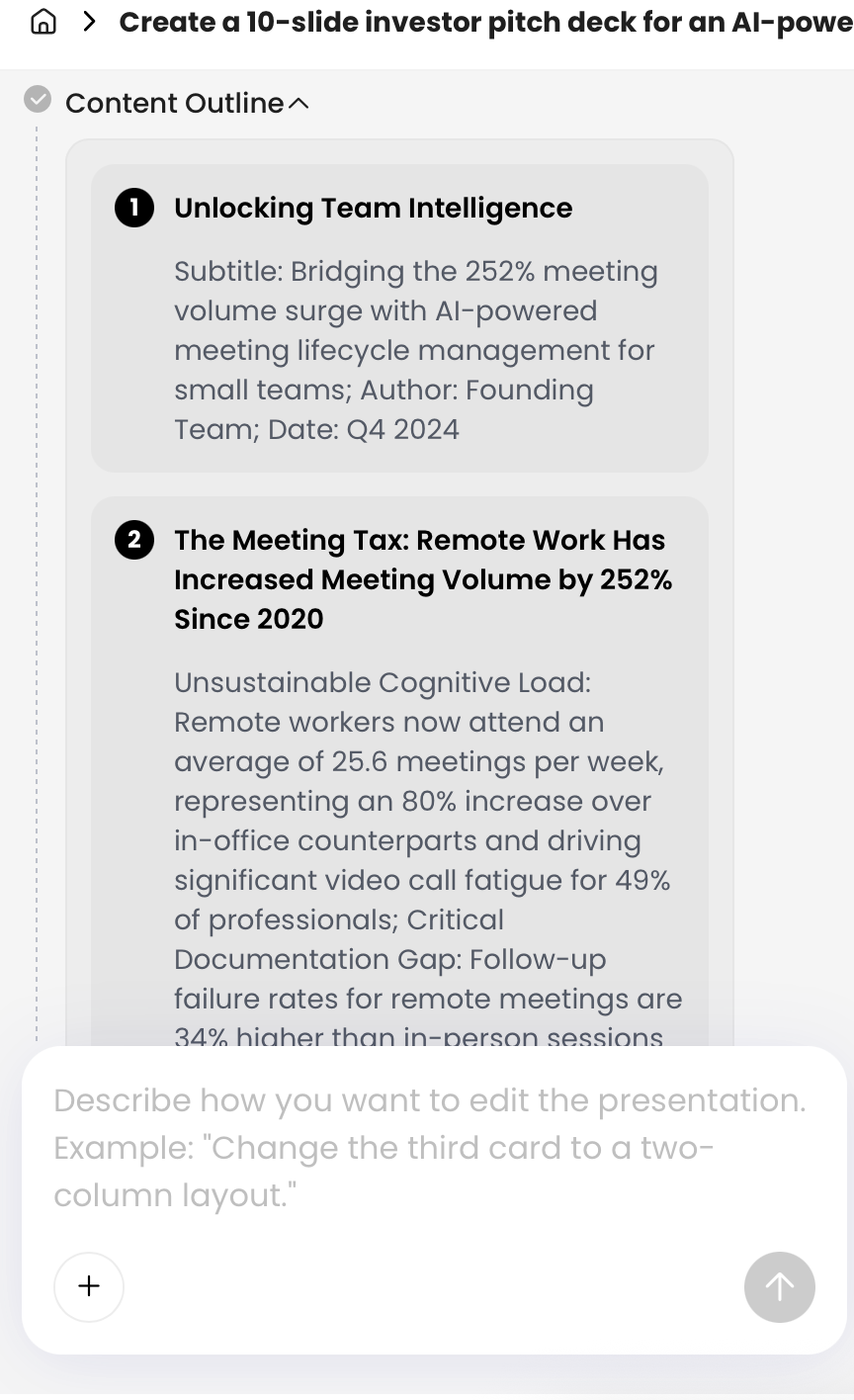
For long videos, ask AI to produce an outline first rather than a finished deck immediately. In PopAi, the generation flow can show a content plan or outline before the final presentation is created. Reviewing that intermediate structure helps you remove minor tangents, merge repeated points, and ensure the deck has a beginning, middle, and end.
Use PopAi to Convert a Transcript into Slides
Use PopAi as a transcript-to-deck drafting environment, then apply human review for accuracy, structure, and brand polish.
A reliable workflow is to treat the transcript as source material, not final slide copy. Start with a text-based input or a detailed prompt, tell the AI your audience and desired structure, review the outline, then generate and refine the deck.
Step-by-step workflow
- Get the transcript. Export subtitles from your video platform, meeting recorder, transcription service, or notes tool. Keep the original file for verification.
- Clean the transcript. Remove filler, correct names and numbers, keep important speaker labels, add chapter headings, and redact confidential details.
- Open a file-to-slides or prompt workflow. PopAi provides entry points for turning materials such as Text, PDF, Word, Image, HTML, and PPTX into slides. Format availability may vary, so check the upload screen for your file type.
- Paste the transcript with instructions. Specify audience, language, slide count, tone, must-cover sections, timestamp requirements, and visual requirements.
- Review the AI outline. Check whether the story is logical before generating final slides. Remove repeated points and move secondary detail to an appendix.
- Choose a theme, template, ratio, or layout. Match the presentation format to the channel: live talk, client follow-up, classroom, or internal memo.
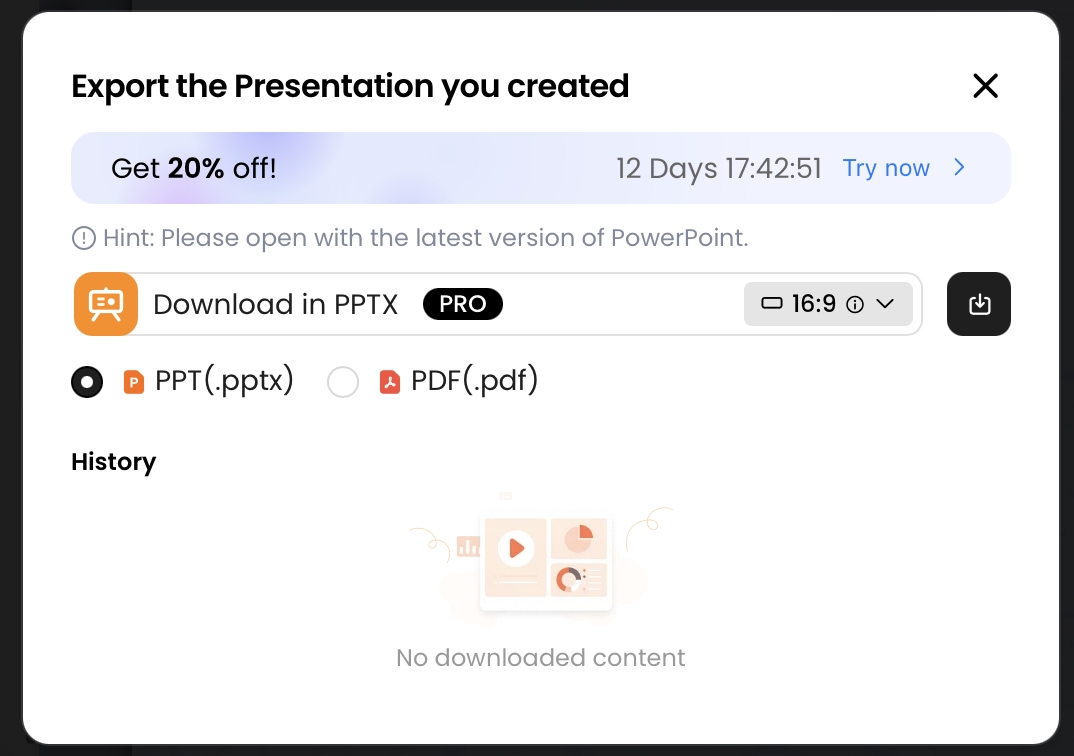
- Edit with natural language or advanced tools. Ask for shorter titles, stronger section transitions, more visual slides, or a different tone. PopAi also includes editing areas such as themes, layout, AI writing, charts, icons, and AI image options.
- Export or share. Download PPTX or PDF, or use a share link when you want online review without sending large attachments.
Editorial test notes and limitations
Case note: In a March 2026 browser-based test, a cleaned 2,300-word product-demo transcript was pasted into a text-to-slides workflow with instructions for a 9-slide sales follow-up deck. The first outline correctly separated the buyer problem, workflow demo, proof point, objections, and next step. Manual edits were still needed to shorten titles, replace generic icons with actual screenshots, and verify one activation metric against the source video.
In the same test, an exported PPTX opened in Microsoft PowerPoint for Microsoft 365, and sample text boxes remained editable. Basic slide text and layout objects were easier to revise than generated decorative elements. As with any AI-generated deck, test the exported file in your destination tool before sending it externally, especially if your team needs strict brand templates, custom fonts, legal footers, editable charts, or speaker notes.
Do not assume that AI has watched the video unless the tool explicitly processes video or URL input. If you provide only the transcript, it cannot know what appeared on screen unless the transcript or your notes describe it. Add screenshot instructions such as “[Use dashboard frame at 18:22]” or “[Recreate whiteboard funnel as a clean diagram].”
Add Visual Evidence from the Original Video
Transcript-based slides need visual proof from the recording, especially for demos, charts, whiteboards, interviews, and training walkthroughs.
A strong video-to-presentation workflow pairs text and visuals. For example, a product demo slide might use the transcript to summarize the customer problem, then include a screenshot of the dashboard at the exact moment the speaker demonstrates the solution. A training slide might use the transcript to explain a process, then show the whiteboard diagram from the video. A research deck might use an anonymized quote from the transcript, then pair it with a theme label and severity rating.
Build a timestamp-to-visual log
Visual workflow: While reviewing timestamps, create a list such as “03:10 title frame,” “14:25 pricing table,” “21:50 workflow demo,” and “42:05 audience poll.” Then ask AI to include slide placeholders for those visuals so you can insert screenshots during editing.
Use screenshots when the original frame is clear and authoritative: product UI, chart results, poll outcomes, process diagrams, or before/after comparisons. Recreate the visual when the frame is blurry, crowded, handwritten, low-resolution, or visually inconsistent with your brand. A clean diagram is often better than a poor screenshot.
Capture and prepare screenshots carefully
- Capture high resolution: use the highest available playback quality and pause on a sharp frame.
- Crop to the evidence: remove browser bars, empty margins, and irrelevant UI.
- Add callouts: arrows, boxes, or labels should point to the exact part of the frame that supports the slide message.
- Protect private data: blur names, emails, account IDs, revenue figures, customer logos, and unreleased product areas.
- Add captions: include a short source note such as “Source: Product demo recording, 18:22.”
- Write alt text: describe the meaning of charts, screenshots, and diagrams for accessibility.
Be careful with copyright, consent, and permissions. A webinar you own, an internal training recording, or a customer interview with documented consent is usually easier to repurpose than a third-party YouTube video. If you use external video material, confirm that you have the right to quote, screenshot, summarize, and redistribute it in a deck.
Quality Checklist for AI-Generated Video Slides
Use a slide-level QA process before you present, publish, or send an AI-generated deck to a client.
Accuracy and attribution checks
- Fact accuracy: verify statistics, dates, product claims, prices, names, and quoted statements against the original video.
- Quote integrity: compare every direct quote with the transcript and original audio; do not “improve” quotes without labeling them as paraphrases.
- Attribution: keep speaker names for expert claims, customer stories, or decisions; anonymize research participants when needed.
- Timestamp traceability: retain a private review note linking important slides back to the video moment.
- Hallucination check: search the transcript for every number and strong claim. If it is not present, verify from another source or remove it.
Design and readability checks
- Text density: remove transcript-like paragraphs; live presentation slides often work best under 30-40 visible words.
- Message titles: replace vague titles such as “Overview” with conclusion-based titles such as “Shorter onboarding reduced setup friction.”
- Audience fit: adapt vocabulary for executives, students, prospects, employees, or technical reviewers.
- Visual proof: add screenshots, charts, diagrams, icons, or process visuals where text alone is weak.
- Speaker notes: move context, caveats, examples, and timestamps into notes instead of crowding the slide.
- Accessibility: check contrast, font size, reading order, alt text, and whether color is the only way information is communicated.
Privacy, compliance, and delivery checks
- Brand consistency: apply your template, colors, logo rules, typography standards, and approved chart styles.
- Privacy: remove confidential names, unreleased product details, personal data, and sensitive meeting content.
- Legal or compliance review: route sales, medical, finance, HR, or regulated content through the required approval process.
- Self-read test: send the deck to one reviewer who did not watch the video and ask what they think the main point is. If they cannot explain it, the deck needs stronger titles and transitions.
- Export test: open the deck in PowerPoint, Google Slides, or PDF preview before delivery to catch layout shifts, missing fonts, broken charts, or cropped screenshots.
For multilingual videos, add one more review layer. Transcripts that mix English with another language often mistranscribe technical terms or brand names. Create a short glossary before generation, then tell the AI whether to preserve original terms, translate them, or include both. This is especially useful for global training decks and localized sales enablement.
FAQ: Video Transcript to Presentation with AI
Can AI turn any video transcript into a PowerPoint?
AI can turn most well-structured transcripts into a presentation, especially when the transcript includes topic breaks, speaker labels, examples, and conclusions. You should still review the deck for accuracy, missing visuals, and context that may not appear in the text.
Do I need the video file, or is the transcript enough?
A transcript is enough for a text-to-slides workflow. The video file becomes useful when you want screenshots, charts shown on screen, product demos, or visual evidence from key moments.
How many slides should I generate from a one-hour video?
For a one-hour webinar or lecture, 10 to 15 slides usually works for a recap, 20 to 30 slides for training material, and 5 to 8 slides for an executive summary. The best slide count depends on audience, depth, and whether the deck is presented live or read asynchronously.
Will the AI-generated PPTX be editable?
Exported PPTX files should be opened in Microsoft PowerPoint or the team's preferred editor before publishing. Do not assume every object, chart, animation, or layout will be perfectly editable in every workflow.
How do I handle multilingual or inaccurate subtitles?
Clean the transcript before generating slides. Add a glossary for names and technical terms, correct repeated subtitle errors, and specify the desired output language, tone, and audience in your prompt.
Create your presentation with one click now
Turn transcripts, documents, and ideas into structured slides, then export or share your deck when it is ready.
Start creating with PopAi