How to Generate a Full Presentation from Plain Text Using AI
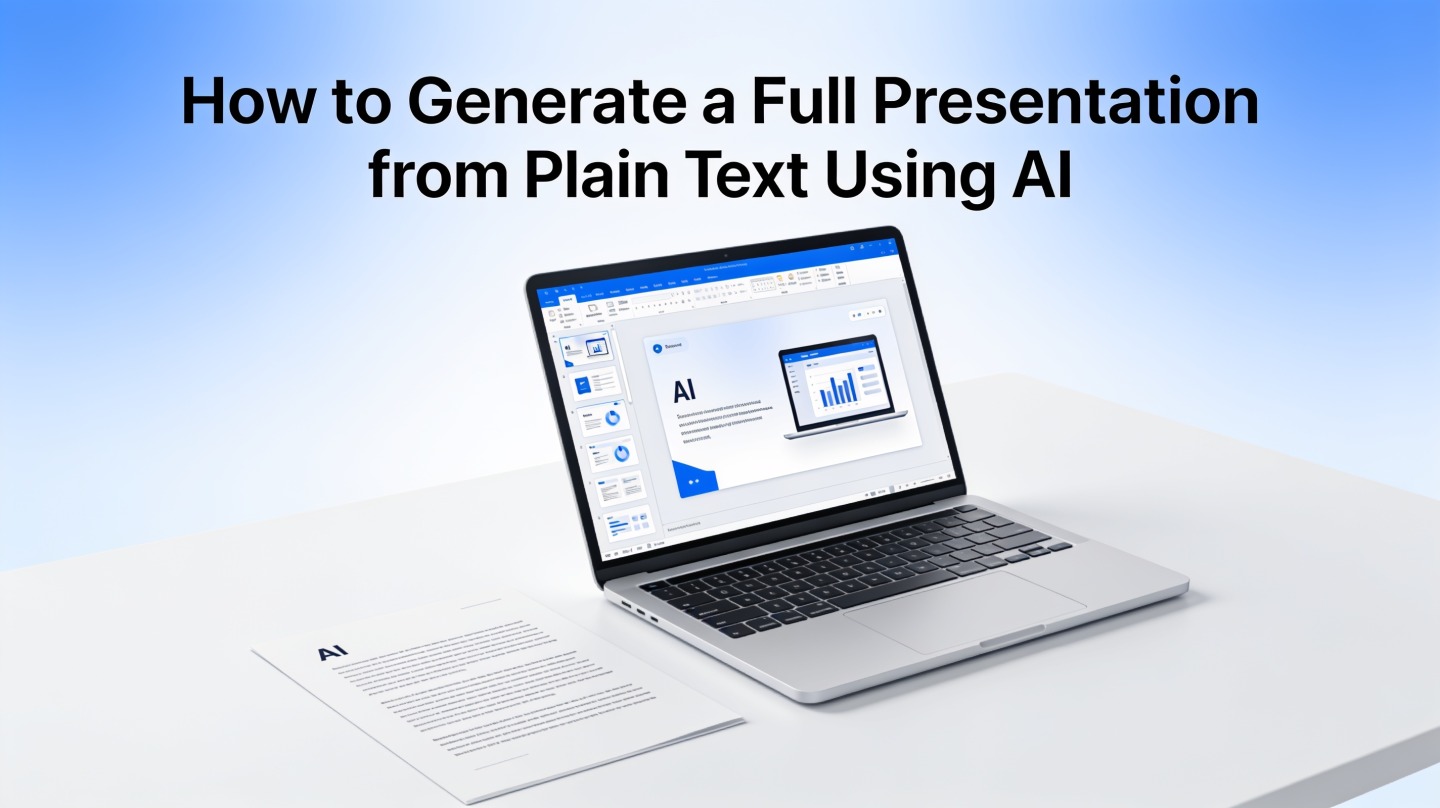
If you have a dense report, meeting transcript, lesson plan, or proposal notes, the hard part is rarely opening slide software. The hard part is deciding what belongs on each slide, what to cut, and how to make the story clear.
An AI presentation generator from text helps by converting plain text into a deck outline, slide titles, talking points, and visual layout suggestions. Used well, it gives busy founders, students, consultants, educators, and team leads a faster first draft without forcing them to design every slide from scratch.
What an AI Presentation Generator from Text Actually Does
This section explains the practical job of text-to-slides AI, so you know what to expect before pasting your content.
It finds structure inside messy text
A good generator does not simply paste paragraphs onto slides. It identifies hierarchy: the central topic, major supporting points, evidence, examples, and likely section breaks. That is why a pasted product brief can become a title slide, problem slide, solution slide, proof slide, roadmap slide, and closing slide.
The most useful systems also infer presentation intent. A training deck needs definitions and examples. A sales deck needs pain points, value, proof, and next steps. A project update needs status, risks, decisions, and owners.
It drafts slides, not final truth
Think of the output as a structured first draft. The AI can organize ideas and propose design, but it cannot know your internal politics, confidential details, or which metric your audience trusts most. You still need to review claims and adjust the tone.
The fastest workflow is not “AI makes the perfect deck.” It is “AI creates the first clear version, then you apply judgment.”
Prepare Plain Text Before Using an AI Presentation Generator from Text
Better input produces better slides, and a few minutes of cleanup usually saves more time during editing.
Remove noise before pasting
Plain text works best when it includes the message, not the formatting clutter. Delete repeated headers, legal boilerplate, copied navigation labels, irrelevant email signatures, and long tables that do not need to become slides.
In a hands-on deck-building test with a 1,200-word internal project brief, leaving every detail in the input produced a 17-slide draft with several crowded slides. Reducing the brief to about 650 words, while keeping goals, constraints, results, and decisions, produced a cleaner 10-slide draft with less rewriting. That is not a universal benchmark, but it reflects a common pattern: concise input improves slide focus.
Use a simple source-text format
You do not need a perfect outline. You do need visible signals that help the AI separate ideas. Before generating slides, format your plain text like this:
- Audience: who will watch the presentation and what they care about.
- Goal: inform, persuade, teach, update, or request approval.
- Key message: the one idea the audience should remember.
- Supporting points: three to five major claims or sections.
- Evidence: numbers, customer examples, research, or decisions to include.
- Desired length: approximate slide count or speaking time.
Pro tip: If your notes are scattered, paste a cleaned brief into PopAi AI Presentation and ask for a deck structure before polishing the final wording.
Step-by-Step: Turn Plain Text into a Complete AI Slide Deck
This workflow keeps the process controlled, so the generated deck matches your goal instead of becoming a generic presentation.
1. Start with the audience and decision
Before you paste text, write one line that defines the audience and the action you want. For example: “Audience: department leaders. Goal: approve a three-month pilot budget.” This tells the AI how to frame content and what kind of ending the deck needs.
2. Paste the cleaned source text
Add the plain text after your audience and goal. If the source is long, split it into logical sections with short labels such as “Problem,” “Current process,” “Evidence,” “Recommendation,” and “Risks.” These labels often become better slide groupings than raw paragraphs.
3. Ask for a slide-by-slide outline first
Generating the full designed deck immediately is convenient, but reviewing the outline first gives you more control. Look for missing logic, weak ordering, repeated points, and slides that would be too dense.
4. Generate the designed presentation
After approving the structure, generate the slides. Tools such as PopAi AI Presentation can help turn your source text into a designed presentation draft, including slide titles, summarized bullets, and a visual layout direction.
5. Edit for voice, evidence, and delivery
Your final pass should focus on the human layer: the phrasing you would actually say, the proof your audience needs, and the transitions between slides. AI can compress text, but you decide which sentence deserves emphasis.
Prompt Templates for Text to Slides AI
Use prompts that describe the outcome, audience, and constraints instead of only saying “make slides.”
Business update prompt
Use this when turning status notes or a project document into a leadership update:
Create a 10-slide executive update from the plain text below. Audience: senior leadership. Goal: explain progress, risks, decisions needed, and next steps. Keep each slide concise, use action-oriented titles, and include a final decision slide.
Teaching or training prompt
Educational decks need sequencing, definitions, and practice moments. Ask the AI to build learning flow rather than just summarize content.
- “Create a 12-slide beginner-friendly lesson.”
- “Include one example after every major concept.”
- “Add a recap slide and three discussion questions.”
- “Avoid jargon unless it is defined on the slide.”
Sales or proposal prompt
Sales decks should not read like internal documentation. They need audience pain, business impact, proof, and a next step. Tell the AI what the buyer cares about and which claims require support.
| Input detail | Why it improves the deck |
|---|---|
| Audience role | Changes tone, depth, and examples. |
| Slide count | Prevents overlong or underdeveloped decks. |
| Decision needed | Gives the closing slide a clear purpose. |
| Required evidence | Keeps claims grounded and reviewable. |
Quality Checklist Before You Present AI-Generated Slides
The generated deck can look polished while still needing factual, strategic, and delivery edits.
Check the storyline first
Read only the slide titles in order. If the titles do not tell a coherent story, the audience will struggle even if the slides look attractive. Strong slide titles should make claims, not just label topics. “Pilot reduced manual review time” is stronger than “Pilot results.”
Verify every number and named claim
AI tools can summarize numbers from pasted text, but the presenter owns accuracy. Compare each metric against the original source. If a statistic came from a public source, keep the source name in your speaker notes or on the slide where appropriate.
In one practical editing pass on a generated quarterly-review deck, the biggest improvements came from removing duplicated bullet points and replacing vague labels with decision language. The slide count stayed the same, but the deck became easier to present because each slide had a defined job: context, result, risk, or ask.
Use this final review list
- Does the first slide make the topic and audience benefit obvious?
- Can someone understand the main story by scanning the slide titles?
- Are dense paragraphs converted into bullets, diagrams, or speaker notes?
- Are confidential details removed or approved for sharing?
- Does the final slide ask for a decision, action, or discussion?
Common Mistakes When Generating Presentations from Plain Text
Avoid these issues if you want the AI output to feel intentional rather than automatically assembled.
Pasting too much source material
Long input can be useful, but unfiltered input often leads to bloated slides. If the source document is several pages long, create a short brief first. Tell the AI what to prioritize and what to ignore.
Skipping the outline stage
The outline is where most strategic mistakes are easiest to fix. Rearranging ten slide titles takes seconds. Rearranging a fully designed deck takes longer and can break layout consistency.
Using generic design without audience context
A classroom explainer, investor update, board memo, and product launch deck should not look or sound identical. Add tone guidance such as “executive and concise,” “visual and beginner-friendly,” or “persuasive but evidence-led.”
Forgetting speaker notes
Not every detail belongs on the slide. Put nuance, caveats, and backup explanations in speaker notes when possible. This keeps slides readable while preserving your talking points.
FAQ: AI Presentation Generator from Text
These are the questions teams usually ask before trusting plain text as the starting point for a full deck.
Can AI really generate a complete presentation from unformatted plain text?
Yes. A text-to-slides tool can turn notes, reports, outlines, meeting transcripts, or lesson content into a structured deck by detecting the topic, hierarchy, key claims, and slide sequence. The result still needs review, but it usually gives you a usable first draft much faster than starting from a blank slide file.
How much text should I paste into an AI presentation generator from text?
For best results, paste enough content to show the argument but not so much that every detail competes for space. A concise brief of 300 to 900 words often works well for a short business or classroom deck. For longer source material, summarize it first or split it into sections.
What should I check before presenting AI-generated slides?
Check the story flow, audience fit, factual accuracy, source attribution, slide density, and visual consistency. AI can draft the structure and design, but the presenter remains responsible for claims, numbers, examples, and final judgment.
Is plain text better than uploading a file?
Plain text is often better when you want control over the input. It removes irrelevant formatting, headers, footnotes, and repeated text that can confuse the deck structure. Uploading a file is useful when the document is already clean and well organized.
Create your presentation with one click now
Paste your notes, brief, lesson plan, or report and turn it into a structured presentation draft with AI-powered slide creation.
Start creating with PopAi