How to Convert a PDF into an AI PowerPoint Presentation Automatically
Published on June 09, 2026
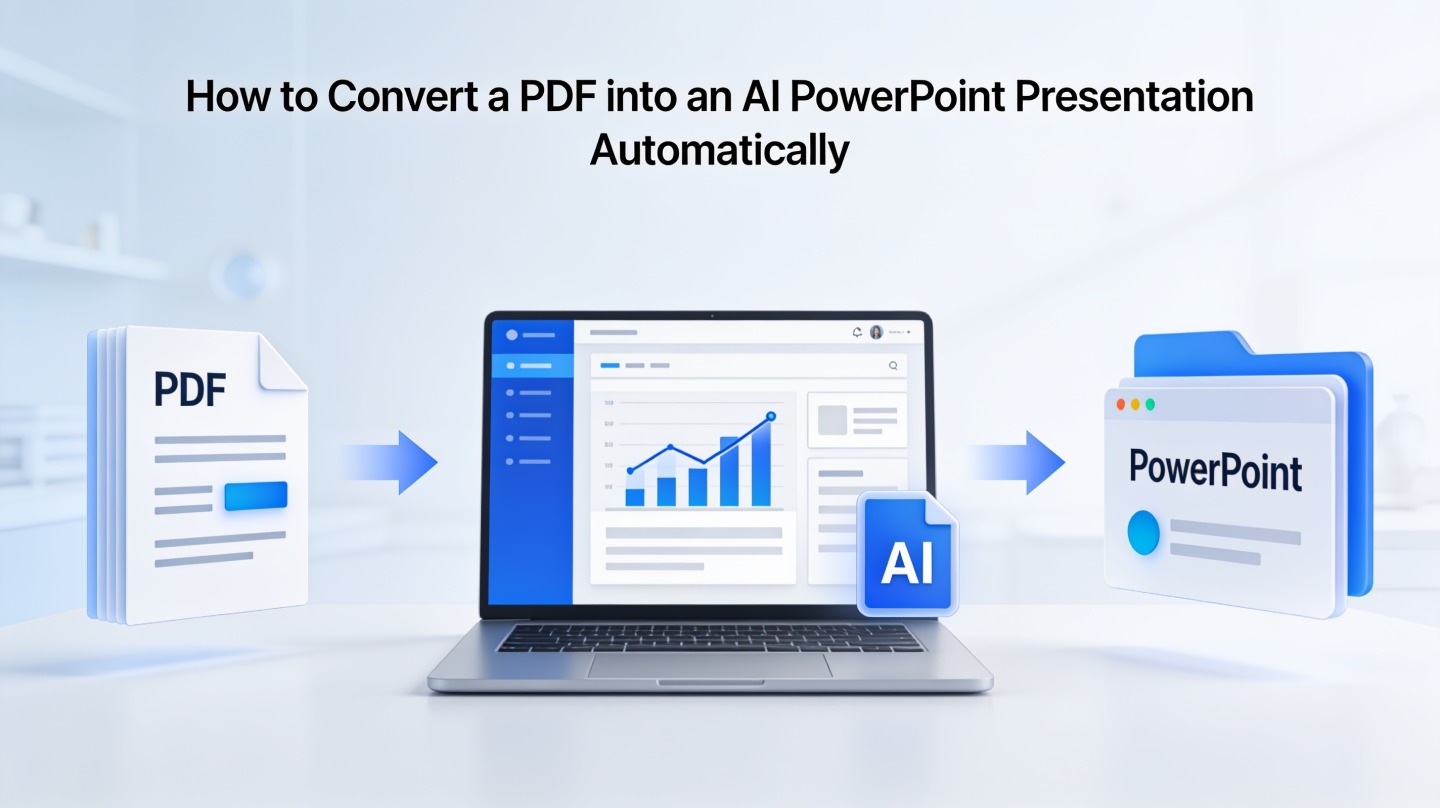
If you have a research report, proposal, handbook, or white paper trapped inside a PDF, rebuilding it slide by slide is slow and error-prone. An AI PowerPoint from PDF workflow helps consultants, educators, analysts, and business teams extract the main ideas, organize them into a storyline, and generate editable slides automatically.
The goal is not to copy every PDF page into PowerPoint. The goal is to turn a static document into a presentation people can understand in a meeting, class, webinar, or executive review. Tools such as PopAi AI Presentation make that process faster by reading the document, summarizing key points, and creating slide-ready structure from the source content.
Why Convert PDF to AI PowerPoint Instead of Copying Pages?
This section explains the practical difference between a document replica and a presentation people can actually follow.
PDFs preserve pages; presentations guide attention
A PDF is usually designed for reading. It may include long paragraphs, footnotes, tables, appendices, and page-level formatting. A PowerPoint deck has a different job: it needs to sequence ideas, emphasize decisions, and support a speaker.
That is why a simple “export PDF to PPT” command often disappoints. You may get a slide for each page, but the result can look like screenshots pasted into a deck. Text is too small, charts lack context, and the audience has to read instead of listen.
Good AI conversion is not page duplication. It is document interpretation: extracting what matters, grouping related points, and building a slide narrative.
Where AI saves the most time
The biggest time savings come from eliminating repetitive judgment calls. Instead of manually deciding which paragraphs become slide titles, which details become bullets, and which sections can be merged, AI can produce a first draft in minutes.
- Summarization: turns dense sections into concise slide copy.
- Structuring: converts headings and subheadings into an agenda or deck outline.
- Slide grouping: combines related ideas into logical sections.
- Design drafting: applies visual hierarchy so the deck is easier to review.
Prepare Your PDF for AI PowerPoint Conversion
A cleaner source document leads to a stronger AI PowerPoint from PDF result, especially when the file is long or technical.
Check whether the text is selectable
Open the PDF and try selecting a sentence. If you can highlight and copy the text, the file is text-based and easier for AI to parse. If the page behaves like a flat image, it is probably scanned and may need optical character recognition before conversion.
In a hands-on test with a 14-page onboarding PDF, the selectable-text version produced a coherent 12-slide draft with section titles matching the original document. The scanned image version required OCR first; without OCR, it missed several policy details because the content was embedded as pixels rather than readable text.
Remove clutter before uploading
You do not need to perfect the PDF, but you should remove content that does not belong in the final deck. Repeated disclaimers, blank pages, long appendices, and low-value cover sheets can distract the AI from the central message.
| PDF element | Keep, edit, or remove? | Reason |
|---|---|---|
| Executive summary | Keep | Often becomes the opening storyline and key takeaways. |
| Dense tables | Edit or summarize | AI can extract meaning, but huge tables may need a slide-level takeaway. |
| Appendices | Remove unless needed | Appendices often create unnecessary slides. |
| Scanned pages | Run OCR first | Readable text improves extraction accuracy. |
Pro Tip: If your PDF is long, upload the document with a short instruction such as “create a 10-slide executive briefing for senior managers.” You can start faster with PopAi’s AI presentation maker and refine the draft after generation.
Steps to Convert PDF to AI PowerPoint Automatically
Use this workflow when you need a usable deck draft quickly but still want control over the final message.
Step 1: Upload the PDF and define the presentation goal
Start by uploading the PDF to an AI presentation tool. Then give the AI context: audience, desired length, tone, and objective. A sales enablement deck, a university lecture, and a board update should not use the same structure even if they come from the same source document.
- Audience: executives, students, customers, internal team, or investors.
- Purpose: explain, persuade, train, summarize, or report progress.
- Length: for example, 8 slides for a quick briefing or 20 slides for a workshop.
- Style: concise, visual, formal, teaching-focused, or data-heavy.
Step 2: Let AI extract the outline before designing slides
The best conversions usually begin with an outline. Review the proposed slide titles before focusing on colors and layouts. If the outline is weak, the deck will still feel weak even with attractive visuals.
For example, a 30-page market analysis PDF should not become 30 slides. A better AI-generated outline might include market context, customer problem, trend evidence, competitor movement, strategic options, and recommended next steps.
Step 3: Generate slides, then verify facts
After the outline looks right, generate the slides. Review any statistics, financial figures, product claims, and compliance language against the original PDF. AI can compress wording well, but human review is still required for sensitive or high-stakes content.
Use AI for the first 70% of the presentation build: extraction, structure, draft copy, and initial design. Use human expertise for the last 30%: judgment, accuracy, emphasis, and delivery.
What AI Extracts from a PDF for Slide Creation
Knowing what AI looks for helps you predict whether your document will convert cleanly or need extra guidance.
Headings become the skeleton
Clear headings and subheadings are the strongest signals in a PDF. They tell the AI where one idea ends and another begins. If your PDF uses consistent heading hierarchy, the generated deck usually has better sectioning and more logical flow.
Paragraphs become speaker-friendly slide copy
Long paragraphs are usually compressed into slide titles, bullets, or short explanation blocks. The AI may remove repeated phrases and merge overlapping details. This is helpful for readability, but you should check whether any nuance was lost.
Tables and charts become visual candidates
Tables can become comparison slides, metric summaries, or decision matrices. Charts may be summarized into key takeaways when the original graphic is too complex for slide display. If the source PDF includes a critical chart, consider keeping the chart image and adding a plain-language takeaway above it.
In a practical before-and-after review of a 22-page training PDF, the manual copy-paste process created 18 crowded slides because every subsection felt important. The AI draft reduced it to 11 slides by grouping repeated safety procedures and turning long instructions into checklist slides. The shorter version was easier to teach because each slide had one job.
Fix Common AI PowerPoint from PDF Issues
Automatic conversion is powerful, but the best results come from a quick quality-control pass after generation.
Problem: too many bullets
If the deck feels text-heavy, convert bullet lists into diagrams, timelines, comparison tables, or “three key takeaways” slides. A presentation should not force the audience to read the entire source document again.
Problem: weak slide titles
Replace label-style titles with message-style titles. “Market Data” is vague. “Demand is shifting toward self-service buying” tells the audience what to notice. Strong titles make the deck easier to skim and easier to present.
Problem: missing context from the original PDF
Sometimes AI summarizes aggressively and removes background that a live audience needs. Add a context slide near the beginning if readers do not know the project, customer, methodology, or decision being discussed.
- Check that the opening slide states the purpose of the deck.
- Verify that every number matches the PDF source.
- Remove slides that repeat the same point in different words.
- Add speaker notes when the slide needs verbal explanation.
Best Use Cases for PDF to PPT AI Conversion
AI conversion works especially well when the PDF already contains strong source material but needs a presentation format.
Business reports and executive briefings
Annual summaries, market reports, customer research, and internal strategy documents often contain more detail than leaders need in a meeting. AI can extract the narrative and convert it into a concise briefing deck with recommendations and supporting evidence.
Training manuals and educational content
Teachers, trainers, and enablement teams can turn manuals into lesson decks. The strongest drafts usually include learning objectives, key concepts, examples, recap slides, and discussion prompts.
Proposals, white papers, and customer documents
Sales and consulting teams often receive long PDFs from clients or research teams. Converting them into slides helps teams explain findings, present options, and align stakeholders without forcing everyone to read the whole document first.
Workflow reminder: Ask the AI to build for the meeting, not for the PDF. A 40-page document might become a 12-slide decision deck, a 25-slide training module, or a 6-slide client summary depending on the audience.
FAQ: Converting a PDF into an AI PowerPoint
These are the questions teams usually ask before relying on AI for PDF-to-slide generation.
Can AI convert a scanned PDF into PowerPoint slides?
Yes, but quality depends on whether the PDF text is selectable or image-based. For scanned PDFs, run OCR first or use a tool that can recognize text from images before generating slides.
Will the AI PowerPoint from PDF keep my original formatting?
It usually keeps the meaning and key structure rather than copying every layout detail. This is useful when you want a presentation, not a page-by-page PDF replica.
What type of PDF works best for automatic slide generation?
Structured PDFs with headings, short paragraphs, tables, captions, and clear section breaks produce the best decks. Long legal-style PDFs may need a short prompt to guide the AI.
How much editing should I expect after conversion?
Plan to review slide order, tighten titles, verify numbers, and add speaker context. A good AI draft can remove most of the manual copy-paste work, but final judgment still matters.
Create your presentation with one click now
Upload your PDF, generate a structured slide draft, and refine it into a polished presentation without rebuilding every page manually.
Start creating with PopAi