How to Edit AI-generated Slides (Style, tone, length)

Published on April 23, 2026

Professional editing a digital presentation deck on a laptop
The refinement stage is where your AI-generated draft becomes a professional masterpiece.

Artificial Intelligence has revolutionized the way we build decks, but the secret to a truly persuasive presentation lies in the "human touch." For startup founders, marketing managers, and students alike, the ability to effectively edit AI-generated slides is the difference between a generic sequence of images and a compelling narrative that wins over an audience. While AI can handle the heavy lifting of structure and initial content, it often lacks the nuanced understanding of your specific brand voice or the unique constraints of your meeting time.

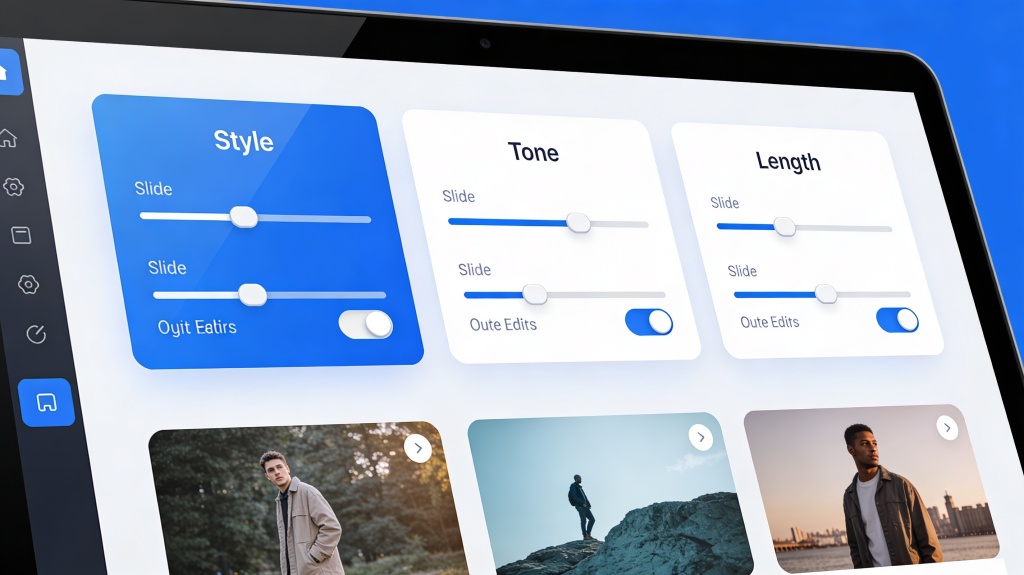
In this guide, we will explore the systematic approach to refining your AI drafts, focusing on three critical pillars: visual style, linguistic tone, and structural length. By mastering these edits, you ensure that your presentation doesn't just look "AI-made," but looks expertly crafted by you.

The Art of Refining: Why You Must Edit AI-generated Slides

When you first use an AI tool to generate a deck, the result is often a "logical average." The AI pulls from vast datasets to provide what it thinks a typical presentation on your topic should look like. However, your audience isn't looking for average; they are looking for your unique perspective. Editing is the process of injecting that perspective back into the machine's output.

The primary reason to edit AI-generated slides is alignment. Does the content align with your specific goals? Does the design align with your brand guidelines? Often, AI might include "hallucinations" or generic filler text that adds no value. By auditing every slide, you eliminate fluff and ensure that every bullet point serves a strategic purpose. Think of the AI as your junior researcher—it provides the raw material, but you are the editor-in-chief who signs off on the final product.

Adjusting the Tone: From Robotic to Relatable

One of the most common complaints about AI content is that it can feel "robotic" or overly formal. To truly connect with your audience, you need to adjust the linguistic tone. Start by identifying your target persona. Are you presenting to a board of directors (Formal/Authoritative) or a creative team (Casual/Inspiring)?

  • Vocabulary Check: Replace generic AI-isms like "delve into" or "transformative" with words you actually use in your daily professional life.
  • Active Voice: AI often defaults to passive voice. Change "The strategy was implemented by the team" to "Our team launched the strategy." This adds energy and accountability.
  • Personalization: Add "we," "our," and specific names. AI doesn't know your company's internal culture, so you must bridge that gap manually.

Pro Tip: Use the PopAi presentation tool to set a custom tone profile before you generate, which significantly reduces the amount of manual rewriting needed later.

Styling Your Slides for Maximum Visual Impact

Visual consistency is the hallmark of a professional deck. While AI chooses a theme, it might not always get the hierarchy right. When you edit AI-generated slides for style, focus on the "Rule of One": one main idea, one primary visual, and one clear call to action per slide.

Modern minimalist slide design layout with clean typography
Consistent styling ensures your audience focuses on the message, not the distractions.

Pay close attention to font pairings and color contrast. If the AI-generated background is too busy, it will distract from your text. Use high-quality imagery that matches the mood of your talk. If the AI provided a stock photo of people shaking hands, consider replacing it with a data visualization or a more authentic photo of your actual team or product.

Managing Length: Trimming the Fat and Filling the Gaps

Length is where most AI decks fail. They are either too long (including every possible sub-topic) or too short (skipping the nuances). A 10-minute pitch should not have 40 slides. To manage length, use the "Salami Method": slice away anything that doesn't directly support your core thesis.

If the AI has generated a slide with six bullet points, try to break it into two slides or, better yet, condense it into three powerful words. Conversely, if the AI missed a crucial step in your process, this is where you manually insert a "Gap Slide." Ensure the flow between slides feels natural. A good presentation should feel like a story with a beginning, middle, and end, not just a list of facts.

Advanced Customization: Personalizing AI Content for Your Brand

To take your deck to the next level, you must integrate your specific brand assets. This goes beyond just adding a logo in the corner. It involves using your brand's specific iconography, custom charts, and proprietary data that an AI wouldn't have access to.

Dashboard showing brand customization options for presentation slides
Integrating brand-specific elements transforms a generic template into a corporate asset.

When you edit AI-generated slides, look for opportunities to replace generic icons with your own. If the AI suggests a "growth" icon, use your company's specific "upward trend" graphic. This level of detail signals to your audience that you've put in the work and that the presentation is tailor-made for them.

Common Pitfalls to Avoid When Editing AI Slides

Despite the best intentions, many users make mistakes during the editing phase. The most common is "Over-Editing," where you change so much that the structural benefits of the AI (like logical flow) are lost. Another pitfall is ignoring the speaker notes. AI-generated speaker notes can be incredibly helpful, but they often need "humanizing" just as much as the slides themselves.

Finally, avoid the "Font Soup" trap. When manually adding new slides to an AI-generated deck, ensure you are using the exact same font family and size as the rest of the presentation. Inconsistency is the quickest way to lose credibility with a professional audience.

FAQ: Mastering AI Slide Refinement

Can I change the overall theme after the AI generates the slides?

Can I change the overall theme after the AI generates the slides?

Yes, most modern AI tools allow you to switch templates or global styles even after the content is generated. This ensures your visual branding remains flexible and consistent across different use cases.

How do I make AI-generated text sound more like me?

How do I make AI-generated text sound more like me?

Focus on the tone adjustment. Replace generic adjectives with industry-specific terminology and inject personal anecdotes or specific company data to ground the AI's logic in reality. Reading the text out loud is the best way to spot "robotic" phrasing.

What is the ideal slide length for a professional deck?

What is the ideal slide length for a professional deck?

While it varies, aim for 10-15 slides for a 20-minute presentation. If the AI generates 30 slides, use the 'trimming' techniques discussed to consolidate key points and keep the audience engaged without overwhelming them.

Create your presentation with one click now

Stop struggling with manual formatting. Let our AI build the foundation, and use your expertise to perfect the finish.

Get Started for Free

Julian Sterling

Expert Presentation Strategist with over 10 years of experience in visual storytelling and AI-assisted design for Fortune 500 companies.

Related Articles