AI Presentation Builder: Build Slides Like a Pro
Published May 25, 2026

If you are building a sales deck, class presentation, stakeholder update, or internal strategy proposal, the hardest part is rarely opening PowerPoint. It is turning scattered notes into a persuasive slide sequence without spending hours on layout, wording, and visual polish.
An AI presentation builder can compress that first-draft process, but only if you use it like a presentation strategist rather than a magic button. This guide shows a practical workflow for prompting, structuring, editing, and polishing AI-generated slides so the final deck feels deliberate, not automated.
What an AI Presentation Builder Does Best
This section clarifies where AI speeds up presentation work and where human judgment still matters.
Use AI for structure, not just decoration
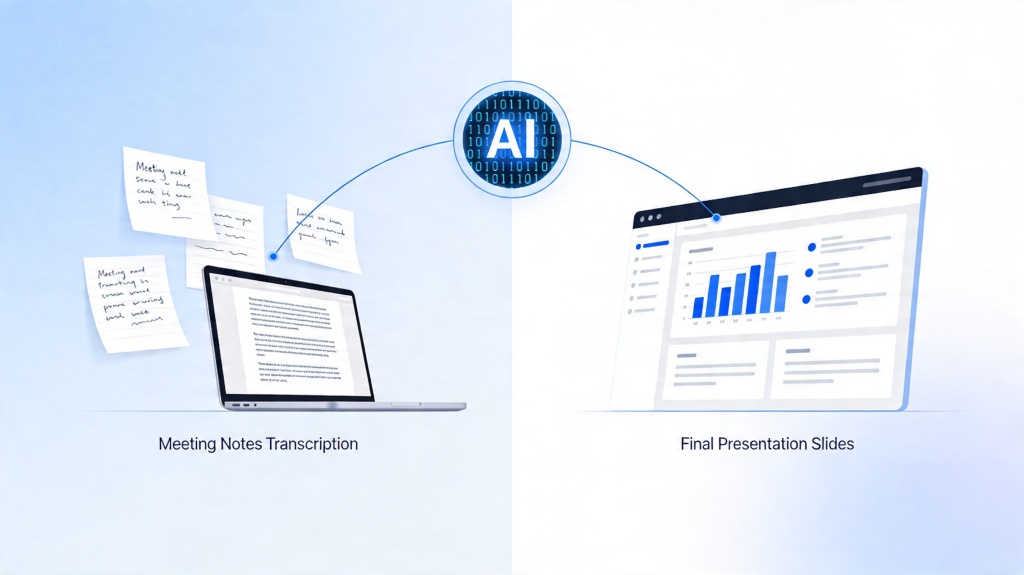
The strongest use case is not “make this pretty.” It is “turn my messy material into a logical argument.” A good builder can transform meeting notes, research bullets, an outline, or a document into slide titles, section breaks, visual hierarchy, and speaker notes.
For example, when drafting a 12-slide quarterly business review from a 900-word brief, a practical AI-assisted workflow can create the first outline in minutes. In a manual workflow, teams often spend that same time only deciding what slide should come first. The time saved is not just typing time; it is decision fatigue reduced at the beginning of the project.
Know what the tool should not decide alone
AI does not know the politics of your meeting, the objections in the room, or which numbers are confidential. It can suggest a structure, but you should still decide the message priority, evidence, and final ask.
Use AI to accelerate the blank-page stage. Do not outsource the business judgment that makes a presentation credible.
| Task | Let AI help | You should review |
|---|---|---|
| Outline | Agenda, storyline, section flow | Audience relevance and decision logic |
| Design | Layouts, icons, image suggestions | Brand fit and readability |
| Content | Draft titles, summaries, speaker notes | Accuracy, evidence, and tone |
AI Presentation Builder Workflow: From Prompt to Deck
A professional-looking deck starts with a prompt that gives the builder enough context to make smart trade-offs.
Step 1: Write the presentation brief first
Before generating slides, create a short brief. This prevents vague outputs and helps the AI choose the right structure. If you use PopAi AI Presentation, you can start from a topic, pasted notes, or an existing document, but the same principle applies: better input creates a stronger first draft.
- Audience: Who will view the deck, and what do they already know?
- Goal: Inform, persuade, train, sell, or secure approval?
- Slide count: 6 for a short update, 10 to 12 for a standard pitch, 15+ for training.
- Required sections: Problem, insight, plan, timeline, budget, risks, or next steps.
- Tone: Executive, educational, persuasive, analytical, or conversational.
Step 2: Generate the outline before the full deck
Ask for an outline first when the topic is important. This gives you a low-cost checkpoint before the builder commits to slides. Review whether the order feels natural: context first, then insight, then recommendation, then proof, then action.
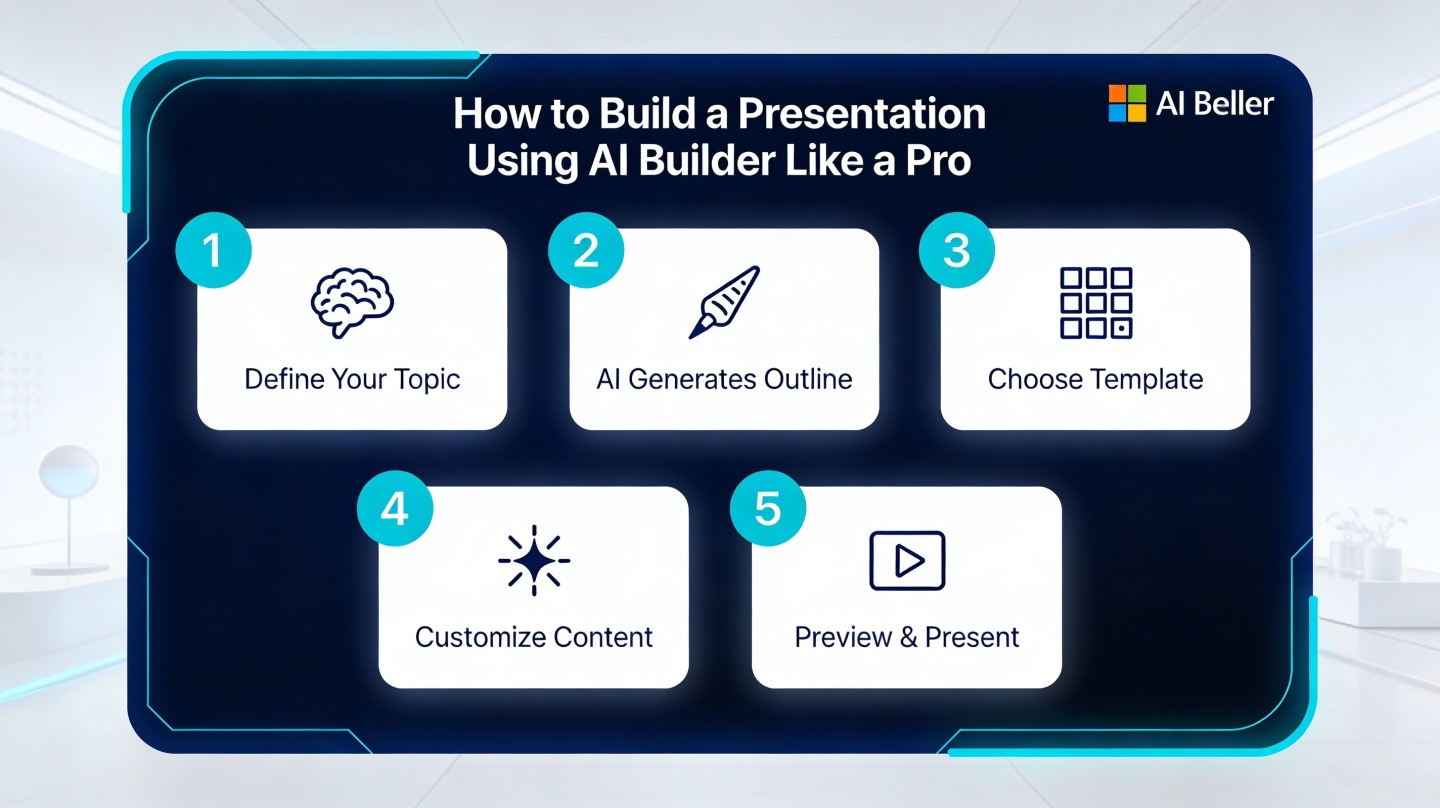
Step 3: Generate, then edit by slide purpose
After the deck is generated, do not edit randomly. Read each slide and ask: what job does this slide perform? A slide should introduce a problem, prove a point, compare options, explain a process, or ask for a decision. If it does none of those, cut it or merge it.
Prompt Formulas That Produce Better Slides
The fastest way to improve AI slide quality is to stop using one-line prompts and start using structured instructions.
The executive update prompt
Use this when leadership needs a concise readout and a decision. The focus should be signal over detail.
“Create a 9-slide executive update for [audience]. Goal: explain progress, risks, and the decision needed. Use a direct tone. Include slides for context, key metrics, what changed, risks, options, recommendation, timeline, and next steps.”
The persuasive proposal prompt
Use this when your deck must move someone from interest to approval. Ask the builder to organize the story around pain, opportunity, proof, and action.
- Start with the audience’s current problem.
- Show why the problem matters now.
- Introduce your proposed solution.
- Support the recommendation with evidence or examples.
- End with a clear decision request.
The teaching or training prompt
Training decks need pacing. Ask for learning objectives, examples, exercises, recap slides, and speaker notes. A deck for teaching should not be a document chopped into slides; it should help people understand one concept at a time.
Design Polish: Make AI Slides Look Human-Made
AI can create a clean baseline, but the final 20% of polish is what makes the deck look intentional.
Reduce text before adjusting colors
The most common AI-generated slide problem is density. If a slide has a long paragraph, convert it into three bullets, a process flow, or a comparison table. A useful rule: one slide should make one main point, and the title should state that point clearly.
For readability, check contrast and font size before presenting. The W3C Web Content Accessibility Guidelines recommend a contrast ratio of at least 4.5:1 for normal text. Even though slides are not web pages, the principle is practical: if the deck is projected in a bright room, low-contrast text will fail fast.
Use visuals to explain, not decorate
Replace decorative imagery with visuals that carry meaning. Use a timeline for a rollout plan, a matrix for prioritization, a funnel for pipeline conversion, and a before-after layout for transformation stories. The visual should reduce explanation time, not add noise.

Run a five-minute slide audit
Before presenting, scan the deck in slide sorter view. This reveals rhythm problems quickly: too many text slides in a row, repeated layouts, missing transitions, or an ending that does not ask for action.
- Read only the slide titles. Do they tell a coherent story?
- Check whether every chart has a takeaway, not just data.
- Remove any slide that repeats a previous idea.
- Make the final slide specific: decision, next step, owner, or deadline.
Common Mistakes When Building Presentations with AI
Most weak AI decks fail for predictable reasons, and each one is easy to fix before the meeting.
Mistake 1: Asking for slides before clarifying the audience
A board update, sales pitch, and classroom lecture may cover the same topic but need different proof, pacing, and language. If the audience is missing from the prompt, the deck will sound generic.
Mistake 2: Keeping every generated slide
AI often over-includes because it is trying to be helpful. Strong presenters cut aggressively. If a slide does not support the decision or learning goal, remove it.
Mistake 3: Accepting unsupported claims
Check every factual statement, especially market claims, financial estimates, and competitor comparisons. If you do not have a source, rephrase the claim as an assumption or remove it. This is especially important for investor decks, academic work, and executive decisions.
A professional AI-built deck is not the first output. It is the reviewed version where structure, evidence, and design all point to the same outcome.
The Pro Checklist for an AI Presentation Builder
Use this checklist when you want the deck to feel finished, not merely generated.
Before generation
- Define one outcome for the presentation.
- Write the audience and context in the prompt.
- Provide source notes, data, or a document when possible.
- Specify slide count and tone.
After generation
- Rewrite titles so they communicate takeaways.
- Replace vague examples with real examples from your work.
- Convert dense slides into diagrams, charts, or grouped bullets.
- Verify numbers, names, dates, and claims.
- Practice the opening and closing out loud.
In hands-on production work, the biggest quality jump usually comes from title rewriting. When slide titles change from labels like “Market Trends” to claims like “Budget pressure is shifting buyers toward automation,” the deck becomes easier to skim and easier to present.
FAQ: Building Presentations with AI
These are the questions presenters usually ask once they move from experimenting with AI to using it in real work.
Can an AI presentation builder replace manual slide design?
It can replace much of the first-draft work: structure, slide titles, visual layout suggestions, and speaker notes. You still need to review accuracy, sharpen the argument, and customize the deck for your audience.
What should I put in the prompt before building a deck?
Include the audience, goal, slide count, tone, source material, required sections, and the action you want the audience to take. The more specific the business context, the better the first draft.
How many slides should I ask the AI to create?
For most business presentations, start with 8 to 12 slides. Use fewer slides for executive updates and more slides for training, workshops, or detailed research reports.
How do I make AI-generated slides look less generic?
Add your own examples, replace vague claims with specific evidence, use consistent typography, and convert text-heavy slides into charts, timelines, or comparison layouts.
Create your presentation with one click now
Turn your topic, notes, or document into a structured, polished deck faster with PopAi’s AI presentation workflow.
Start building with PopAi