Can You Use AI Presentation Tools Offline? Practical Workflow Guide
Published on September 10, 2026
If you are preparing a client pitch, board update, lecture, trade-show demo, or government briefing, the practical answer is: most AI presentation tools cannot generate new decks offline, but exported decks can often be edited or presented offline. The difference depends on the tool, plan, export format, desktop software installed, and whether your deck contains web-only assets.
The phrase “offline mode” causes confusion because it can mean several different things: offline AI generation, offline editing in PowerPoint or Keynote, offline playback as a PDF, cached access to a browser deck, or mobile app behavior. This guide focuses on mainstream cloud-based AI presentation tools, not custom enterprise or air-gapped deployments unless noted.
| What you want to do offline | Usually works? | Best practical path |
|---|---|---|
| Present a finished deck | Yes, if exported | Download PPTX and PDF; test with Wi-Fi off |
| Edit slide text locally | Often | Export PPTX and open in PowerPoint, Keynote, or LibreOffice |
| Use AI rewriting or slide generation | Usually no | Finish AI edits before travel, or use a separate local LLM workflow |
| Use live charts, web embeds, analytics, collaboration | No or limited | Convert web elements to static images or local media before export |
What offline mode really means for AI presentation tools
Offline readiness is a stack of capabilities, not a single feature. Separate the creative phase from the delivery phase: AI-generated outlines, summaries, chart recommendations, image generation, translation, and layout decisions usually happen in cloud systems; the finished deck only becomes offline-friendly if the export preserves enough structure.
Five offline capability levels, with real examples
- Offline playback: You can present locally after downloading the deck, usually as PPTX or PDF. A PDF is safest for appearance; PPTX is better when you need presenter view, notes, animations, or last-minute edits.
- Offline editing: You can modify text, shapes, speaker notes, and basic layouts in installed software such as Microsoft PowerPoint, Apple Keynote, or LibreOffice Impress. This only helps if the export is not flattened into images.
- Offline export: You can create additional local files without reconnecting, such as saving a PPTX to PDF inside PowerPoint or exporting handouts after the deck is already downloaded.
- Local AI assistance: You use a local model through tools such as Ollama or LM Studio to draft slide copy, but you still assemble or repair the deck manually in PowerPoint, Keynote, Marp, or another slide workflow.
- True local AI slide generation: The language model, document parser, layout engine, fonts, brand assets, and export pipeline all run on your machine or private infrastructure. This is still uncommon for mainstream web-based AI deck tools.
Offline rarely means “the AI keeps designing new slides without internet.” In most workflows, it means “the finished presentation can survive without the web.”
Method note: For offline evaluation, the useful test is not “does the app have an export button?” but “what survives after export?” In practical deck reviews, check seven items with the network turned off: editable text, speaker notes, embedded images, chart behavior, fonts, video/audio playback, and slide aspect ratio. A file that opens is not necessarily a usable offline deck.
How AI presentation tools work before you go offline
Most AI slide workflows follow the same pattern: provide a topic or source file, let the AI organize the argument, choose a theme, generate the deck, refine content, and export or share. The online step matters because that is where the model reads documents, proposes the storyline, creates summaries, and applies design logic.
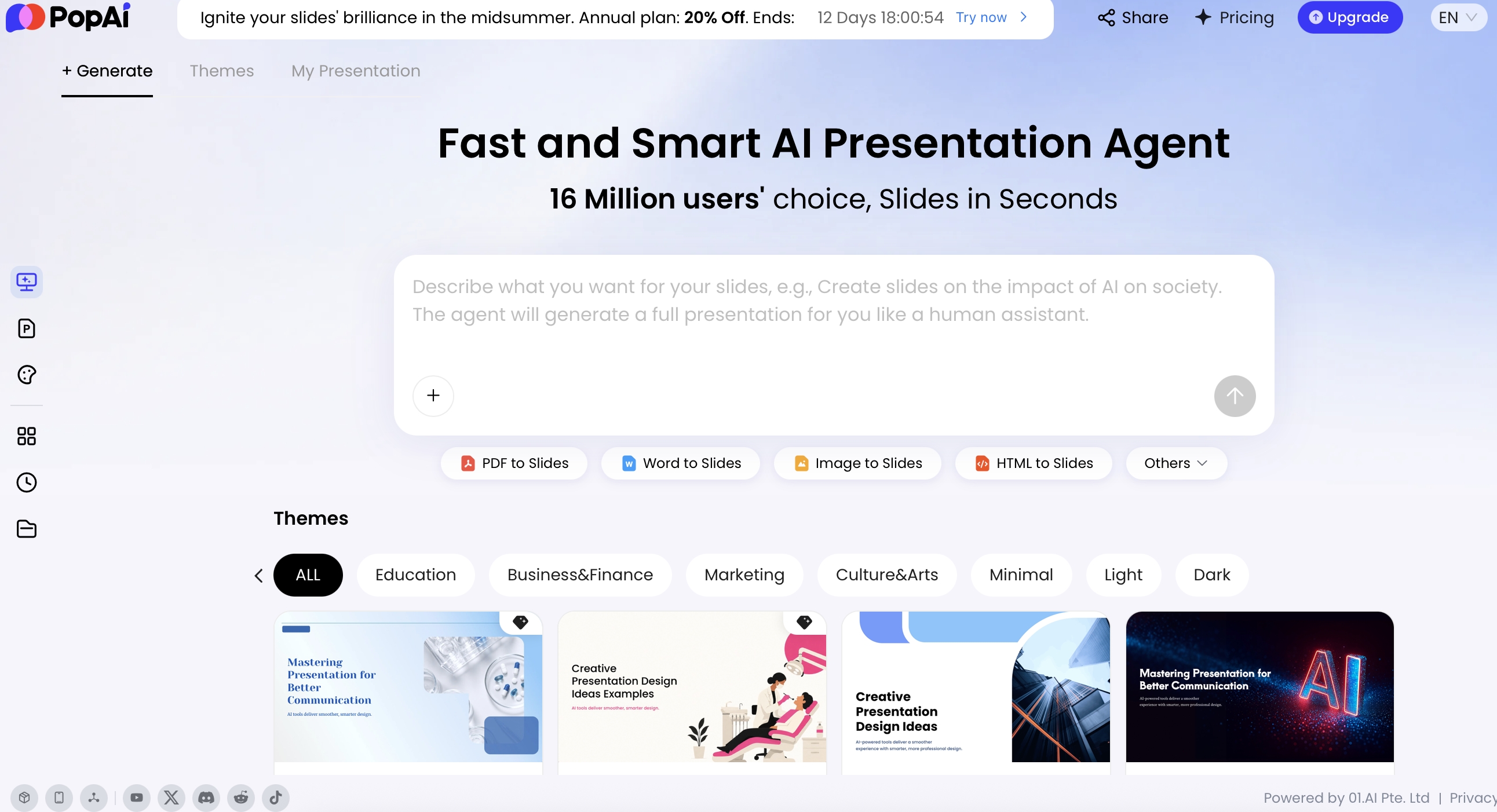
For example, PopAi AI Presentation supports prompt-based generation and source-based workflows from files such as PDFs, Word documents, images, HTML pages, text files, and existing PPTX decks. Before generation, it may show planning signals such as a thought process, draft, outline, content plan, or theme selection. Those signals are worth reviewing carefully: they reveal whether the AI understood the audience, hierarchy, evidence, and intended storyline before the deck becomes visually polished.
Use the right source file before export
- PDF reports: Best for board updates, research summaries, policy briefings, and consulting readouts where the source already contains evidence and section structure.
- PPTX uploads: Useful when you need to reuse an approved template, brand look, or prior internal deck structure.
- DOCX, TXT, or MD files: Good for lectures, training decks, scripts, and long-form notes that need to become a slide outline.
- HTML pages: Useful for turning web reports, product pages, help documentation, or analytics summaries into a presentation structure.
- Images, audio, or video: Helpful for extracting talking points, but review the output more closely because visual or spoken context can be misread.
What to check while you are still connected
- Slide hierarchy: Confirm that the deck has a clear opening, argument, evidence, and conclusion rather than a list of loosely related slides.
- Audience fit: Ask for executive, technical, classroom, sales, or investor framing before export; offline rewriting is usually unavailable.
- Claims and citations: Verify numbers, source links, chart labels, and assumptions while you can still access source material online.
- Speaker notes: Add or regenerate notes before downloading, then confirm whether they appear in the exported PPTX.
- Visual licensing: Replace questionable stock images or web screenshots before moving to a restricted or client-facing environment.
- Export behavior: Download early, open the PPTX locally, and identify whether text, charts, icons, and tables remain editable.
Broad file support is most valuable before you disconnect. Once a cloud tool has parsed the material and generated the deck, your offline reliability depends less on the AI prompt and more on the exported file: whether it embeds assets, preserves layout, and opens predictably in the software you will actually use in the room.
Offline support compared across AI presentation tools
The table below measures offline readiness by delivery risk, not by design quality. Because vendor features and plan limits change, treat this as a verification checklist and confirm the current export rules in each product before relying on it for a live presentation.
If you are comparing AI presentation makers, prioritize export fidelity, editability, and backup formats over prompt speed alone.
Offline criteria that matter most
- AI generation offline: Can the tool create or rewrite slides without a network?
- PPTX export: Can you download a file that opens in PowerPoint desktop?
- PDF export: Can you preserve appearance when editability is less important?
- Editable objects: Are text boxes, charts, tables, icons, and shapes editable, or are slides flattened?
- Presenter reliability: Do speaker notes, animations, embedded media, fonts, and slide size survive?
- Plan limits: Is export available on your current plan, or only on a paid tier?
| Tool or workflow | AI generation offline? | Offline-friendly path | What to verify before relying on it |
|---|---|---|---|
| PopAi | No for cloud AI generation, parsing, sharing, and natural-language revisions | Generate and revise online; export PPTX for local editing and PDF for stable playback | Check whether text, charts, icons, speaker notes, fonts, and media behave as expected after export |
| Canva presentations | No for Magic Design, cloud editing, stock assets, and collaboration | Download PPTX or PDF where your plan supports it; prepare any offline presenting mode in advance | Cloud fonts, animations, embedded apps, videos, and stock elements may not translate into editable PowerPoint objects |
| Microsoft PowerPoint with Copilot | Copilot features require Microsoft cloud services and eligible subscription access | Edit and present local PPTX files in the PowerPoint desktop app without internet | Copilot rewriting, summarization, and generation are not the same as offline PowerPoint editing |
| Google Slides with Gemini | AI assistance requires online Google services | Use Google Slides offline only if offline access was enabled beforehand; export PPTX or PDF for safer delivery | Offline browser access is not the same as offline AI; add-ons, comments, fonts, and linked media may be limited |
| Gamma | No for generation, AI editing, analytics, and web sharing | Export to PDF or PPTX if available on your plan | Card-style pages, embeds, and web-native interactions may become static or lose layout fidelity |
| Beautiful.ai | No for cloud-based design automation and collaboration | Export to PowerPoint or PDF where supported | Smart templates may not remain “smart” after export; verify editability of diagrams and charts |
| Pitch | No for cloud collaboration, AI features, and analytics | Export PPTX or PDF for local use if your workspace permissions allow it | Comments, analytics, sharing permissions, and some interactive elements are online-only |
| Prezi-style web presentations | No for AI creation, online zooming paths, analytics, and collaboration | Use vendor-supported offline app/export options or export static files | Nonlinear motion and web-native navigation may not survive as a conventional editable slide deck |
| Adobe Express and document-to-deck tools | No for cloud AI generation, Adobe assets, and collaborative editing | Download PDF or PowerPoint when available | Converted documents may look correct but contain flattened pages or limited editable objects |
| Apple Keynote without cloud AI | Not an AI generation tool by itself | Strong for offline presenting and editing once a deck is local | PPTX imports can shift fonts, animations, charts, and layouts; test on the actual Mac or iPad |
Field observation: The most common failure pattern in offline deck handoffs is not a missing file; it is a misleadingly successful export. The deck opens, but charts are static images, icons cannot be edited, a web font is replaced, or a video points to an online source. For client-facing or executive work, export quality and object editability are as important as the AI-written content.
How to prepare AI presentation tools for offline delivery
The safest offline workflow is boring, repeatable, and completed early. Treat export as part of slide production, not the last task after you arrive at the venue.
A reliable pre-flight workflow
- Generate and revise online: Finish AI outlining, rewriting, theme changes, layout fixes, and chart edits while connected.
- Export two formats: Save a PPTX for editing and a PDF for emergency playback. PDF protects appearance; PPTX protects editability.
- Open the PPTX locally: Test it in the exact app you plan to use: PowerPoint desktop, Keynote, LibreOffice, or a conference-room machine.
- Turn Wi-Fi off: Do a complete run-through without internet. If anything loads slowly or disappears, it was probably web-dependent.
- Click every slide: Check line breaks, missing icons, chart labels, animations, transitions, speaker notes, and hidden overflow text.
- Replace web dependencies: Download videos, convert embeds to screenshots, paste live charts as static images if necessary, and avoid live webpages unless the venue guarantees internet.
- Test the actual hardware: Verify HDMI/USB-C adapters, resolution, audio output, presenter view, clicker behavior, and slide aspect ratio on the projector or external display.
- Carry backups: Keep files on your laptop, cloud drive, and a USB drive; send a PDF to yourself and a co-presenter.
Failure-mode fixes before the meeting
- If text wraps differently: Install the missing font, switch to a common font such as Aptos, Arial, or Calibri, or export a PDF for playback.
- If a video does not play: Confirm it is embedded, not linked. In PowerPoint, use local video files and test audio with the venue output device.
- If icons disappear: Replace them with local SVG/PNG assets or convert the slide to a stable image in the PDF backup.
- If charts are not editable: Decide whether editability matters. If not, use a high-resolution static chart; if yes, rebuild the chart in PowerPoint or Excel before travel.
- If speaker notes are missing: Copy critical notes into PowerPoint manually and export a presenter PDF or printed notes backup.
- If animations break: Simplify transitions, remove web-native motion effects, and test in slideshow mode rather than normal editing view.
- If the deck is image-only: Use it as a visual backup, but do not rely on it for last-minute text edits.
Treat offline readiness as a delivery requirement, not a technical afterthought. The best AI deck is the one you can still present when the network disappears.
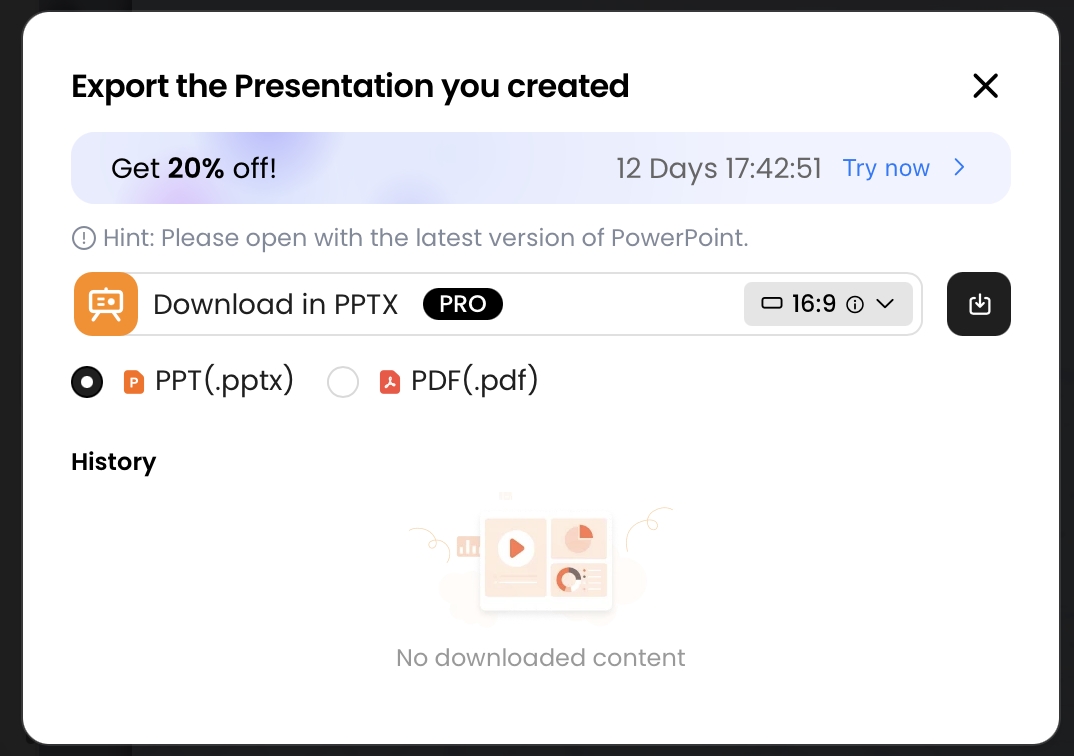
In PopAi, export options such as PPTX and PDF support this handoff. PPTX is useful when you may need local edits; PDF is useful when design fidelity matters more than editability. For a boardroom, classroom, secure facility, or conference stage, keeping both versions gives you a graceful fallback: edit the PPTX if possible, present the PDF if something breaks.
What usually stops working offline
Offline limitations are predictable once you identify which parts of the workflow depend on cloud services. The AI layer is usually the first thing to stop; design assets, collaboration, and live data are the next risks.
AI and cloud features
- AI text edits: Rewrite, summarize, expand, change tone, translate, and restructure commands typically need the cloud.
- AI images and video: Generating new visuals, avatars, animations, or clips generally requires online models.
- Real-time collaboration: Comments, simultaneous editing, link sharing, version history, and permission changes depend on servers.
- Analytics: Viewer tracking, engagement data, lead capture, and share-link insights do not work from a local file.
Design, media, and data dependencies
- Cloud fonts and assets: Some fonts, icons, photos, and templates may not be embedded in exported files.
- Connected data: Live charts, Google Sheets integrations, dashboards, and web widgets may freeze or fail.
- Interactive web formats: Nonlinear canvases, embedded webpages, forms, polls, and browser-native animations may not survive as editable PPTX objects.
- External media: YouTube videos, hosted audio, and linked files need to be replaced with local files or screenshots.
Security and regulated environments
For teams in finance, healthcare, government, legal, defense, and enterprise procurement, offline needs often overlap with privacy requirements. Before uploading sensitive content to any cloud AI presentation tool, check the vendor’s data processing terms, retention policy, model-training policy, deletion controls, access permissions, SSO/admin features, audit logs, encryption posture, and relevant certifications such as SOC 2 or ISO 27001 where required by your organization.
A safer workflow for confidential work is to separate structure from sensitive content: upload only a sanitized outline or public report, replace client names with placeholders, remove restricted numbers, generate the slide structure online, export the deck, and then add confidential details locally inside approved software. This approach is slower than uploading the full source document, but it reduces exposure and makes review by security or legal teams easier.
Tip: If you expect to work in a secure or low-connectivity environment, decide what must be AI-assisted and what can be manual. Use cloud AI for structure, summarization, and first-draft design before entering the restricted setting, then complete sensitive edits offline under your organization’s policy.
A practical PopAi workflow for offline presentations
This section is PopAi-specific: it shows how to use a cloud AI deck workflow when the final presentation must work offline. PopAi’s strongest offline-adjacent value is producing a structured deck while online, then handing you PPTX and PDF files for local delivery and final checks.
Test setup for an offline handoff
- Input: Start with a prompt, PDF, DOCX, TXT, MD, HTML, PPTX, image, audio, video, or supported source file.
- Planning review: Check the generated thought process, draft, outline, or content plan before slides are built.
- Entry point: Use AI Presentation for broad prompt-and-file workflows, Creative Slides for visual storytelling, or AI PowerPoint for template-oriented work with official, personal, or uploaded .pptx templates.
- Online refinement: Complete content revision, layout changes, theme switching, chart cleanup, and visual replacement before disconnecting.
- Export: Download PPTX for local editing and PDF for stable playback.
- Offline validation: Open the PPTX in PowerPoint with Wi-Fi off and check editability, notes, fonts, images, charts, and slide size.
Case study: In an HTML-to-slides workflow, a low-network meeting packet containing a title, executive summary, key metrics, and a risk register was organized into an offline-ready review deck. The risk table became a slide table with risk, severity, owner, and mitigation fields. The useful lesson is not just that HTML can become slides; it is that structured extraction should be completed before travel, because rebuilding that logic offline would be slow and error-prone.
Case study: In an audience-shortening workflow, a user asked the editor to shorten a page for executives while keeping three key points. The system showed rewritten and original versions for selection. Once the shorter version was accepted and exported, the deck no longer depended on cloud AI rewriting during the meeting. This is the right pattern for sales calls and executive briefings: use AI for judgment-heavy editing before the room goes offline.
What to check after exporting from PopAi
- Text: Confirm that key text boxes are editable in PowerPoint, especially titles, agenda slides, and conclusion slides.
- Charts and tables: Check whether they remain editable objects or export as static visuals; rebuild critical charts locally if you expect last-minute data changes.
- Icons and images: Verify that visuals are embedded and visible without internet.
- Fonts: Look for substituted fonts or changed line breaks on the presentation laptop.
- Speaker notes: Confirm whether notes exported as expected; copy essential notes manually if needed.
- Animations and media: Test slideshow mode, not just editing view. If motion or video matters, keep a PDF or screen-recorded backup.
PopAi’s limitations are the same practical limitations you should expect from most cloud AI deck tools: AI revisions require connectivity, export fidelity can vary by slide element, and a PPTX should be tested in the exact desktop software used for delivery. Do not assume that every chart, icon, animation, or custom design element will behave like a hand-built native PowerPoint object.
When “True Offline AI Generation” Is Actually Required
True offline AI generation means the model, source-document processing, slide structure, visual creation, and file export all work without sending data to a cloud service. That is possible, but it is a technical production stack rather than a typical AI presentation web app.
What local AI can and cannot do well
- Local text generation: Strong for drafting outlines, slide titles, summaries, and speaker notes from approved local material.
- Local document summarization: Possible with local models, but quality depends on parsing PDFs, tables, scanned text, and long documents reliably.
- Local slide file creation: Possible through Markdown-to-slides, Pandoc, Marp, Reveal.js, python-pptx, or LibreOffice command-line conversion, but setup and cleanup are manual.
- Local visual generation: Possible with local image models, but hardware requirements, brand consistency, and licensing review become your responsibility.
- Local brand enforcement: Harder than in cloud design tools unless your team builds templates, style rules, and automated QA checks.
Possible local routes
- Local LLM plus PowerPoint: Use a locally hosted model to draft outlines, slide titles, and speaker notes, then build the deck manually in PowerPoint.
- Markdown pipeline: Generate Markdown locally, convert with Marp, Pandoc, or Reveal.js, then export to PDF or PPTX where supported.
- Python automation: Use python-pptx to populate a corporate template with generated titles, bullets, tables, and images.
- LibreOffice workflow: Generate structured content locally and use LibreOffice Impress or command-line conversion for open-format slide production.
- Private deployment: Larger organizations may evaluate internal AI infrastructure for air-gapped or regulated environments, but this requires security, model operations, document parsing, template engineering, and design QA expertise.
The trade-off is clear: local AI gives more control over connectivity and data location, but you usually lose the integrated design pipeline, stock assets, collaboration, and one-click polish that web-native tools provide. Local models may also be slower without sufficient RAM or GPU resources, and they often require prompt templates, slide templates, and manual review to produce professional decks.
For most business, education, and consulting users, the practical answer is hybrid: use cloud AI to draft and design while online, export robust local files, test them with Wi-Fi off, and present from PowerPoint or PDF with a backup. True offline generation is best reserved for highly regulated teams, air-gapped environments, defense or government workflows, and organizations with internal AI infrastructure.
Offline Readiness Matrix for AI Presentation Workflows
Most AI generation and cloud collaboration require internet. Offline readiness usually means preparing reliable deliverables before you disconnect.
| Need | Prepare before going offline | Failure risk if skipped |
|---|---|---|
| Editable deck | Export and open the PPTX on the exact laptop or tablet you will use. | Fonts, layouts, and charts may break during last-minute presentation. |
| Locked handout | Save a PDF copy and confirm the page size and hyperlinks. | The audience may see formatting different from your editor. |
| Media playback | Download videos, audio, GIFs, and large images locally. | Embedded web media may fail without internet. |
| Fonts and brand assets | Install required fonts and check icon/image licensing. | Fallback fonts can shift line breaks and slide hierarchy. |
| Backup plan | Carry a PDF, PPTX, and screenshot/image version on local storage. | One broken export can stop the whole presentation. |
For important meetings, test in airplane mode. If the deck cannot open, present, and advance offline during rehearsal, it is not ready for the room.
FAQ: AI presentation tools and offline mode
Can AI presentation tools generate slides without internet?
Most cannot generate new AI slides offline because the core language, design, image, and layout models usually run in the cloud. Offline use normally means exporting the completed deck and presenting or editing it locally.
Can I edit an AI-generated PPTX offline in PowerPoint?
Yes, if the tool exports PPTX and the exported objects remain editable. PopAi supports PPTX export, and exported files can be opened in Microsoft PowerPoint where text objects may continue to be edited.
Which AI presentation features usually stop working offline?
AI rewriting, new slide generation, AI image creation, real-time collaboration, cloud assets, online fonts, link sharing, live charts, and embedded webpages usually need internet access.
What should I download before presenting in a low-connectivity room?
Download both PPTX and PDF versions, test the PPTX locally, verify videos and fonts, keep a USB backup, and bring a static PDF in case animation or formatting issues appear.
Create a presentation draft faster
Generate your deck online, refine the structure, and export presentation-ready files before you walk into the room.
Start creating with PopAi