Best AI Presentation Software for Mac Users (2026)
July 14, 2026
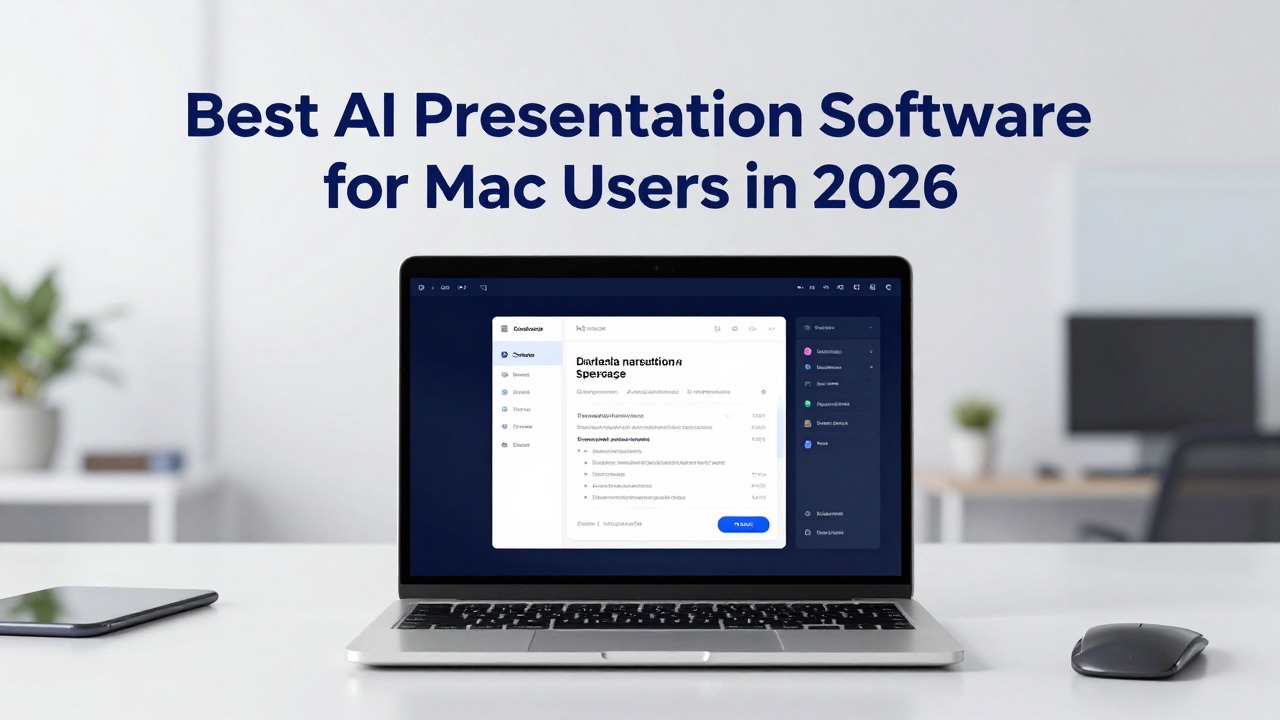
The best AI presentation software for Mac is not simply the tool with the flashiest templates. It is the one that fits how you create, edit, export, and present decks on macOS. For most Mac users, that means reliable browser or Mac compatibility, editable slides, clear prompt-to-deck generation, document-to-presentation support, speaker notes, and a practical path into PowerPoint, Keynote, PDF, or a team review workflow.
If you often start from rough notes, a source document, a business idea, or a class topic, PopAi AI Presentation is worth considering because it is built around turning prompts, documents, notes, and early ideas into structured deck drafts faster. If your priority is advanced visual control, strict brand systems, or deep team collaboration, you may want to compare tools around those needs before choosing.
This guide focuses on how Mac users should evaluate AI presentation tools in 2026: what to test, which features matter, where AI helps most, and what to review before trusting any generated deck for a class, sales meeting, pitch, lesson, or executive update.
When you are ready to turn the workflow into slides, PopAi AI Presentation can help transform rough notes, documents, or prompts into an editable deck structure.
Quick Answer: What Mac Users Should Look for in AI Presentation Software
This section gives Mac users a practical checklist for choosing a tool without getting distracted by vague AI claims.
AI presentation software for Mac should help you create, structure, design, edit, and export presentation decks from a Mac-friendly workflow. That may mean a browser-based tool that runs smoothly on your Mac, a PowerPoint-centered workflow, a Keynote-friendly process, or a platform that helps you generate a strong first draft before finishing the file elsewhere.
The best choice depends on your workflow, not brand popularity. A student preparing a research talk has different needs from a founder building a pitch deck, a marketer turning campaign notes into slides, or a sales manager updating a reusable client deck. The right tool should remove the slowest part of your process while still leaving you with slides you can edit and trust.
- Mac access: Check whether the tool works reliably in Safari or Chrome on macOS, or whether it requires a desktop app, extension, or add-on.
- Export path: Confirm whether the final deck can move into your preferred workflow, such as PowerPoint, Keynote, PDF, or a browser-based presentation mode.
- Editable output: Avoid tools that give you attractive slides but make text, layout, or visuals difficult to revise.
- Prompt-to-deck creation: Look for the ability to turn a topic, goal, audience, and slide count into a coherent first draft.
- Document upload or source-based drafting: Prioritize this if you often work from reports, research papers, meeting notes, product briefs, or lesson material.
- Design control: Check whether you can adjust themes, layout, image direction, slide density, and visual hierarchy after generation.
- Speaker notes: Choose tools that help you prepare what to say, not just what appears on the slide.
- Collaboration and review: Teams should check commenting, sharing, version control, and approval workflows before committing.
PopAi AI Presentation fits especially well when the hard part is getting from a blank page to a usable deck structure. For example, a Mac user can start with a rough product idea, a research summary, or a meeting note set and use PopAi to shape it into a presentation draft. That draft still needs human review, but it can reduce the early work of deciding what each slide should say.
Choose a prompt-to-deck or document-to-presentation tool when structure is your bottleneck. Choose a design-heavy tool when visual storytelling is your bottleneck. Choose a collaboration-heavy tool when review and approval are your bottlenecks.
Mac AI Presentation Software Comparison Table
Mac users should compare AI presentation tools by browser support, PowerPoint/Keynote compatibility, export needs, collaboration, and whether the workflow fits Apple-first habits.
| Tool | Mac access | PPTX / Keynote compatibility | Best for | Limits to verify | Last checked |
|---|---|---|---|---|---|
| PopAi AI Presentation | Browser-based workflow on Mac. | Generate an AI deck and verify available export/share options in your workspace; test in PowerPoint or Keynote if handoff matters. | Turning prompts, PDFs, Word documents, PPTX files, or web pages into draft decks. | Credits, file import/export options, template availability. | July 14, 2026 |
| Canva | Browser app plus Mac-friendly web workflow. | Download/export presentation files, but test PPTX editability and premium asset behavior. | Design-rich decks, social/marketing visuals, brand assets. | Premium assets, AI access, brand kit, team limits. | July 14, 2026 |
| Gamma | Browser-based AI-native deck/document workflow. | Gamma states PowerPoint and PDF export support; Keynote handoff should be tested through PPTX import. | Fast narrative drafts and web-style presentations. | AI credits, export behavior, layout changes after PPTX. | July 14, 2026 |
| Keynote | Native Apple presentation app on Mac. | Apple documents export from Keynote to PowerPoint and other formats. | Apple-first presenters who want native polish and offline editing. | No built-in full AI deck generator comparable to AI-native tools; PowerPoint export formatting can shift. | July 14, 2026 |
| PowerPoint + Copilot | Microsoft PowerPoint on Mac / web with Microsoft 365 Copilot availability depending on account. | Native PPTX workflow; Keynote can import PPTX but formatting should be checked. | Corporate teams already standardized on Microsoft 365. | Copilot availability, admin settings, subscription, enterprise data rules. | July 14, 2026 |
| Plus AI | Add-on workflow for Google Slides and PowerPoint. | Works inside host apps; export through Google Slides or PowerPoint. | Teams that want AI inside existing slide tools. | Trial rules, credits, theme controls, account permissions. | July 14, 2026 |
| SlidesAI | Google Slides / PowerPoint-oriented workflow. | Exports through host presentation tools such as Google Slides/PowerPoint. | Students, educators, and teams already working in Google Slides. | Annual presentation limits, character limits, document upload. | July 14, 2026 |
| Beautiful.ai | Browser-based presentation platform. | Pricing pages list PDF and editable PowerPoint export in plan comparisons; Keynote handoff requires PPTX testing. | Teams that need polished smart-slide layouts and brand consistency. | Plan level, workspace libraries, brand guardrails, team seats. | July 14, 2026 |
Official pages to verify before publishing: Apple Keynote export guide, Microsoft Copilot for PowerPoint, PopAi, Canva, Gamma, SlidesAI, Plus AI, and Beautiful.ai.
How to Choose the Best AI PPT Tool for Mac in 2026
This section turns the selection process into concrete criteria you can apply before paying for or relying on any AI presentation tool.
Mac users should begin with workflow compatibility. A tool can generate impressive sample slides and still be a poor fit if it does not work well in your browser, cannot move into your final presentation app, or requires too much manual cleanup. Before you compare design styles, ask how the tool fits into the actual path from idea to delivered deck.
- Confirm where you will create the deck: browser, desktop app, PowerPoint add-on, or another workspace.
- Confirm where you will finish the deck: Keynote, PowerPoint, PDF, browser presentation mode, or team workspace.
- Confirm how you will feed the AI: short prompt, detailed prompt, pasted notes, uploaded document, outline, or existing slide content.
- Confirm who must review it: only you, a teacher, a manager, a client, investors, or a cross-functional team.
- Confirm what is non-negotiable: export format, brand consistency, privacy requirements, image control, speaker notes, or collaboration.
Browser-based tools can be convenient for Mac users because they reduce dependence on a specific desktop app. If you move between a MacBook, iMac, or shared device, a browser workflow may also make it easier to resume work. Still, you should test performance in the browser you actually use. Safari and Chrome can behave differently with web apps, file uploads, exports, and large decks.
PowerPoint-centered tools may be better suited to teams that already standardize on Microsoft workflows. If your company shares PPTX files, uses existing slide masters, or expects final edits in PowerPoint, an AI tool that supports that workflow may reduce friction. Keynote-centered users should pay close attention to whether the output can be opened, recreated, or polished in Keynote without breaking layout or requiring full redesign.
- AI outline generation: Useful when you know the topic but not the structure. Look for logical sequencing, not just a list of slide titles.
- Slide writing: Useful when you need concise titles, bullets, section transitions, and speaker-friendly phrasing.
- Design layout: Useful when you want visual balance, but it should not lock you into layouts you cannot edit.
- Image suggestions: Helpful for mood and clarity, but still review whether visuals match the audience and message.
- Document-to-deck conversion: Valuable when the source is a report, article, research summary, transcript, lesson plan, or business brief.
- Speaker notes: Important for teachers, founders, sales teams, and anyone who must explain ideas verbally.
- Editing flexibility: Critical because AI-generated slides almost always need tightening, correction, or audience adjustment.
- Export formats: Essential for Mac users who may present in Keynote, PowerPoint, PDF, or a shared business environment.
- Collaboration: Necessary when multiple people must comment, revise, approve, or reuse the deck.
Different users should weight these criteria differently. Students usually need fast structure, clear explanations, and easy revision. Teachers need lesson flow, age-appropriate language, speaker notes, and visual explanation. Founders need a persuasive pitch narrative with problem, solution, market, business model, traction, and ask. Marketers need visual consistency and audience-specific positioning. Sales teams need reusable messaging, account-specific customization, and reliable export. Business teams need clarity, collaboration, and compatibility with existing review processes.
Do not choose a tool based on old pricing screenshots or unverified plan claims. AI tool pricing, feature limits, export rules, and document upload allowances can change, so check the official pricing page before deciding.
The best AI PPT tool for Mac is the one that reduces the slowest part of your deck workflow without creating a new cleanup problem at the end.
Where PopAi AI Presentation Fits in a Mac Presentation Workflow
This section explains when PopAi AI Presentation is a practical fit for Mac users who want faster deck structure and content drafting.
PopAi AI Presentation is positioned for users who want to turn prompts, documents, notes, and rough ideas into structured presentation decks faster. That makes it relevant for Mac users who do not want to spend the first hour staring at a blank Keynote or PowerPoint file, deciding what the deck should contain before they can even start designing.
Its most natural role is early-stage deck creation: shaping the storyline, proposing slide sections, summarizing source material, drafting slide copy, and giving you an editable structure to refine. It should not be treated as a substitute for your judgment. You still need to check facts, adjust tone, refine visuals, and make sure the final slides match the audience and setting.
- Start with a clear prompt that includes the audience, goal, topic, and desired length.
- Add source material when your deck depends on notes, a document, a summary, or a report.
- Generate a first draft focused on structure rather than perfection.
- Review the slide order and remove anything that does not support the main message.
- Tighten slide titles so each one makes a point, not just labels a topic.
- Move into your preferred final editing and presentation workflow after checking current official export and feature details.
Workflow example 1: A Mac-using graduate student needs a 7-slide class presentation from a dense research summary. Instead of manually copying paragraphs into slides, the student can use PopAi to turn the source notes into a presentation structure: background, research question, method, key findings, interpretation, limitations, and discussion questions. The student should then verify terminology, add proper citations outside the slide tool as required, simplify long bullets, and rehearse the speaker notes.
Workflow example 2: A founder has rough notes for a productivity app aimed at remote teams. The notes include the problem, product idea, target users, early feature list, and possible pricing assumptions. PopAi can help turn those notes into a pitch deck outline with slides such as problem, current alternatives, solution, product workflow, market opportunity, go-to-market direction, team, milestones, and ask. The founder should then remove unsupported claims, refine the narrative, update any numbers from verified sources, and tailor the deck for the specific investor or meeting.
Workflow example 3: A sales manager on a Mac has meeting notes from a client discovery call and needs a short update deck for an internal account team. PopAi may be useful for turning those notes into a cleaner narrative: client context, pain points, decision criteria, proposed next steps, risks, and follow-up actions. The manager should check names, dates, commitments, and sensitive details before sharing.
Workflow example 4: A teacher preparing a lesson on climate adaptation has rough topic notes and wants a structured classroom presentation. PopAi can help draft a lesson flow with definitions, examples, discussion prompts, and recap slides. The teacher can then adjust reading level, add local examples, and decide where images, diagrams, or class activities are needed.
- PopAi may be useful when your source material is messy and you need a structured first draft.
- It may be useful when you need to quickly compare several possible deck outlines before choosing one.
- It may be useful when the presentation is document-heavy, such as research, reports, proposals, meeting summaries, or lesson content.
- It may be useful when you are comfortable doing final review yourself but want AI help with the first pass.
- It may be less ideal as the only tool if your main requirement is strict brand governance, complex animation, or a deeply customized native design system.
For any AI-generated PopAi deck or draft from another tool, review structure, facts, tone, design consistency, slide density, source interpretation, and final formatting before presenting.
Best-Fit AI Presentation Workflows for Students, Teachers, Founders, and Teams
This section matches AI presentation features to the real scenarios Mac users face most often.
A one-size-fits-all ranking is less helpful than a workflow match. The same AI tool can feel excellent for a student research deck and inadequate for a brand-controlled enterprise sales deck. Start by identifying the job you need the tool to perform: create a first draft, summarize source material, improve design, generate talking points, standardize a repeatable deck, or help a team review slides.
- Students: Prioritize outline generation, simple editing, clear slide titles, source-aware drafting habits, and fast revision before class deadlines.
- Teachers: Prioritize lesson structure, speaker notes, visual explanation, adjustable complexity, and the ability to turn plans or reading material into slides.
- Founders: Prioritize pitch narrative, concise slide copy, investor-ready editing control, and the ability to test multiple storylines quickly.
- Marketers: Prioritize campaign storytelling, visual consistency, audience-specific messaging, and repurposing briefs, reports, or content plans into decks.
- Sales teams: Prioritize reusable structures, client-specific customization, collaboration, export options, and quick conversion of notes into meeting decks.
- Business teams: Prioritize clarity, shared review, compatibility with existing apps, and reliable movement from AI draft to final presentation format.
For students, AI should be treated as a drafting assistant, not an academic shortcut. A good tool can help turn a topic into a logical presentation structure, but students still need to understand the material, verify sources, and follow course rules on AI use. The most useful features are outline generation, simplification, speaker notes, and quick revision. Overly decorative slides matter less than clarity and accuracy.
For teachers, AI presentation software can help with planning and adaptation. A teacher might start with a lesson objective, reading passage, or rough outline and generate a first version of the slide sequence. The real value is not just speed; it is the ability to create a lesson flow, add discussion prompts, prepare speaker notes, and adjust complexity for different student levels.
For founders, the deck is not just information. It is a persuasion tool. AI can help create alternative pitch structures, tighten slide titles, and reduce rambling notes into concise points. However, investors and partners will notice unsupported market claims, vague traction slides, or generic positioning. Founders should use AI to accelerate drafting, then apply hard editorial judgment to the narrative.
For marketers and content creators, presentation AI is useful when content already exists in scattered forms: campaign briefs, performance summaries, customer research, blog posts, webinar notes, or product messaging documents. A document-to-presentation workflow can help turn those assets into a story for stakeholders. The final deck still needs brand voice, visual consistency, and audience-specific examples.
For sales and business teams, the biggest value is often repeatability. A strong AI workflow can help turn discovery notes, quarterly updates, meeting transcripts, or internal reports into clear slide narratives. Teams should check whether the tool supports the review and export process they actually use. A fast draft is less valuable if the file cannot be edited by the people who need to approve it.
PopAi AI Presentation fits many of these scenarios when the user has a prompt, rough notes, or a source document and needs a structured first draft quickly. It is especially relevant for document-heavy, prompt-driven, and time-sensitive workflows. For example, a marketer can turn a campaign planning document into a stakeholder update deck, while a teacher can turn topic notes into a lesson presentation draft.
If you present mostly polished brand decks, prioritize design control and asset consistency. If you present mostly research, reports, lessons, or internal updates, prioritize document-to-deck structure and easy editing.
A Practical Test Before You Commit to Any Mac Presentation AI Tool
This section gives you a repeatable test to compare tools based on output quality and cleanup effort.
Before using any AI presentation tool for an important deck, run a small controlled test. Do not judge tools only by demo galleries, template screenshots, or marketing language. Use your own topic, your own source material, and your own final presentation workflow. The goal is to measure whether the tool saves time after cleanup, not just whether it generates slides quickly.
- Choose one realistic topic you might actually present.
- Write the same prompt for each tool, including audience, goal, tone, slide count, and preferred structure.
- If the tool supports source material, paste or upload the same notes, report summary, or outline.
- Generate a deck without over-editing the prompt after seeing the first result.
- Edit three representative slides: one title slide, one content-heavy slide, and one conclusion or recommendation slide.
- Try to move the output into your preferred workflow, such as PowerPoint, Keynote, PDF, or a team review process, based on the tool's current supported options.
- Record how much cleanup was needed for content, design, export, and presentation readiness.
Use practical prompts rather than abstract ones. For a business test, try: Create a 10-slide pitch deck for a productivity app for remote teams. Include the problem, solution, target users, product workflow, business model, go-to-market plan, risks, and next steps. For an education test, try: Turn this research summary into a 7-slide class presentation for undergraduate students, with clear slide titles, concise bullets, and speaker notes.
If you are evaluating PopAi for a Mac workflow, use a prompt that reflects its practical strengths. For instance, paste rough meeting notes and ask for a client update deck, or provide a short research summary and ask for a classroom presentation. Then judge the result on structure, source interpretation, and how quickly you can turn the draft into something presentable.
- Storyline: Does the deck have a beginning, middle, and ending that match the audience goal?
- Source interpretation: Does the tool accurately capture the meaning of your notes or document?
- Slide logic: Does each slide have one clear purpose, or does the deck feel like a random outline?
- Readable titles: Do slide titles make claims or guide the listener, rather than just label topics?
- Concise bullets: Are slides written for presentation, or are they overloaded with paragraph text?
- Speaker notes: Are notes useful for delivery, or do they simply repeat the slide?
- Editable design: Can you change layouts, text, visuals, and hierarchy without fighting the tool?
- Export reliability: Does the output preserve enough formatting when moved into your final workflow?
- Cleanup effort: Does the time saved during generation outweigh the time spent fixing the result?
Pay special attention to factual content. AI tools can misread source material, overstate claims, invent unsupported details, or smooth over uncertainty. Verify numbers, names, citations, customer claims, financial statements, market statements, legal language, and technical descriptions before presenting. If a slide makes a claim that matters, trace it back to a trusted source.
Never rely on a first AI-generated deck for a client pitch, investor meeting, graded presentation, board update, or public talk. Generate, edit, verify, export-test, and rehearse.
Common Mistakes When Using AI Presentation Software on Mac
This section helps you avoid the errors that make AI-generated slides look generic, inaccurate, or hard to use.
Most poor AI presentation results come from weak inputs, skipped review, or workflow assumptions. The tool may be capable, but if the prompt is vague, the audience is undefined, or the final export path is untested, you can end up with a deck that looks finished but fails in practice.
- Choosing a tool only because it says AI: Check creation, editing, export, and review workflows before committing.
- Ignoring Mac compatibility: Test the tool in the browser or app you actually use on macOS.
- Accepting the first outline: Adjust audience, goal, length, tone, and presentation setting before refining slides.
- Using too much AI-written text: Turn paragraphs into speaking points and move detail into notes or handouts.
- Trusting generated facts: Verify citations, financial claims, market statements, technical details, and named examples.
- Forgetting visual hierarchy: Make sure the most important idea is visually obvious on every slide.
- Ignoring accessibility basics: Check font size, contrast, chart readability, and whether visuals can be understood quickly.
- Testing export too late: Confirm compatibility with PowerPoint, Keynote, PDF, or your team workspace before the deadline.
Another common mistake is asking for a deck before defining the decision you want the audience to make. For example, a sales update deck should not read like a general company overview. A founder pitch should not be a feature catalog. A class presentation should not dump the entire research paper onto slides. AI works better when you specify the job of the presentation.
Mac users should also avoid assuming that a beautiful browser preview will behave the same way after export or conversion. Fonts, spacing, images, charts, and slide dimensions may shift when moving between tools. This does not mean browser-based tools are a bad choice; it means export testing should happen early, especially when someone else will present or edit the deck.
- Define the audience and decision before generating slides.
- Ask for a specific slide count and structure.
- Review the outline before polishing design.
- Shorten every slide until it supports live speaking.
- Verify factual claims against reliable sources.
- Test your final file in the app and device you will use to present.
AI can accelerate the first draft, but it cannot know your audience, your credibility standards, or your final delivery environment unless you build those requirements into the workflow.
Final Recommendation: Match the Tool to Your Mac Workflow, Not the Hype
This section summarizes how to choose the right tool and where PopAi fits as a practical next step.
The best AI presentation software for Mac is the one that fits your creation, editing, and delivery workflow. If you usually start with a blank slide and struggle to form the storyline, choose a prompt-to-deck tool. If you start from reports, papers, meeting notes, or long documents, choose a document-to-presentation workflow. If your slides must follow strict brand rules, prioritize design control. If many people review your decks, prioritize collaboration and export reliability.
- Choose prompt-to-deck generation when you need a fast first draft from an idea, topic, or presentation goal.
- Choose document-to-presentation support when your best source material already exists in reports, notes, briefs, or research summaries.
- Choose design-heavy software when visual polish, layout variation, and brand expression matter more than source summarization.
- Choose a PowerPoint-centered workflow when your team edits and shares PPT files as the standard.
- Choose a Keynote-centered workflow when your final polish, animations, or delivery style depends on Apple's presentation environment.
- Choose collaboration-friendly tools when multiple reviewers must comment, approve, reuse, or localize the deck.
PopAi AI Presentation is a strong practical option for Mac users whose main bottleneck is moving from documents, notes, rough ideas, or prompts into an editable deck structure. It is especially relevant for students preparing research talks, teachers building lesson decks, founders shaping pitch narratives, marketers repurposing campaign material, and business teams turning notes or reports into presentation-ready drafts.
The balanced approach is to test PopAi and any other shortlisted tools with your own material before using them for a high-stakes presentation. Use the same prompt, compare the slide logic, edit three slides, check the cleanup effort, and confirm the current official details for export, collaboration, and pricing. A tool that saves twenty minutes in generation but creates an hour of formatting cleanup is not the right fit.
Pick one real upcoming deck and run a side-by-side test. The winner is the tool that gives you a credible, editable, audience-ready draft with the least friction in your Mac workflow.
FAQ
What is the best AI presentation software for Mac users?
The best option depends on your workflow. Use a prompt-to-deck tool for fast first drafts, a document-to-presentation tool for reports and research, a design-focused tool for visual storytelling, and a collaboration-friendly tool for team review. PopAi AI Presentation is a practical option for Mac users who want to turn documents, notes, ideas, or prompts into structured deck drafts quickly.
Can AI presentation tools replace Keynote or PowerPoint on Mac?
Usually, they are better seen as drafting and structuring tools rather than full replacements. AI tools can help with outlines, slide copy, design direction, source summarization, and speaker notes. Keynote or PowerPoint may still be useful for final formatting, presenting, animations, brand adjustments, file sharing, or team compatibility.
Should I use a browser-based AI presentation tool on Mac?
A browser-based tool can be convenient if you want to work across Mac devices without installing a desktop app. Before relying on one, test it in your preferred browser, check current export options, review privacy needs, and confirm whether the final deck can be edited or presented in your normal workflow.
Is PopAi AI Presentation suitable for Mac users?
PopAi may suit Mac users who want to generate structured decks from prompts, documents, notes, or rough ideas, especially when they need a fast first draft. It is a good fit for document-heavy and time-sensitive workflows, but you should check the official product page for current features, export details, collaboration options, and plan limits.
What should I check before presenting an AI-generated deck?
Verify facts, numbers, names, citations, and business claims. Tighten slide titles, reduce text-heavy bullets, adjust visuals for the audience, review tone, test export formatting, check readability, and rehearse speaker notes. Treat the AI draft as a starting point, not the final presentation.
Create your presentation with one click now
Turn your prompt, notes, or document into a structured deck draft and refine it for your next Mac presentation workflow.
Try PopAi AI Presentation