AI Presentation Export Formats: PPTX, PDF, HTML, Video & QA
Published September 10, 2026
If you use an AI presentation maker for sales decks, training slides, executive reports, investor updates, or pitch materials, the export choice is not a small technical detail. It decides whether your deck stays editable, prints cleanly, works offline, preserves links or animations, passes procurement review, and can be shared without exposing more than you intended.
In a practical export QA pass, a 12-slide 16:9 business deck behaved differently in each format: the PPTX preserved editable text but needed font and spacing checks in PowerPoint; the PDF kept layout fidelity but removed presentation behavior; the web link was fastest for review but depended on access settings; and image/video exports were useful for repurposing but poor for revision. Those trade-offs are normal across AI presentation tools because many start from a web or canvas-based design model and then translate it into Office, PDF, or media formats.
This guide is written for creators and teams who need to do more than “download the deck”: sales and marketing teams shipping client files, trainers publishing learning assets, executives preparing board packets, educators sharing handouts, and operations teams standardizing presentation workflows.
Fast answer: choose PPTX if the next person must edit the deck; PDF if layout fidelity, printing, or archiving matters more than animation; HTML or a web link if browser access and permissions are acceptable; PNG for single-slide visual assets; and MP4 when narration or timed playback matters more than interactivity. Always check which formats your tool and plan actually support.
What AI Presentation Export Formats Really Mean
Export is the point where an AI-generated presentation becomes a working business asset.
AI presentation export formats are not just download buttons. A generated deck may begin as structured text, slide cards, HTML, a proprietary canvas, or a prompt-driven layout system. Export converts that internal model into a portable format such as PPTX, PDF, an image sequence, a video file, or a shareable browser experience.
What can change during export
The conversion is where surprises happen. Text boxes may remain editable or become flattened images. SVG-style icons may rasterize. Charts may export as true Office charts, grouped shapes, or screenshots. Tables may become native tables or individual positioned objects. Speaker notes, comments, hyperlinks, alt text, and metadata may or may not survive depending on the tool and export path.
- Fonts: if the recipient does not have the font installed, PowerPoint may substitute it and change line breaks.
- Charts: editable chart data is more useful for analysts; flattened charts are safer visually but harder to update.
- Animations: PDF and image exports usually remove them; PPTX may preserve only supported effects.
- Slide masters: AI layouts often export as positioned objects rather than clean corporate master layouts.
- Accessibility: reading order, alt text, captions, and tagged PDF support need separate checking.
- Security: web links can be convenient, but access controls, indexing, downloads, and revocation matter.
The best export format is not the one with the longest feature list. It is the one that matches the next action: edit, approve, present, archive, embed, or replay.
A realistic AI-to-export workflow
In PopAi, the practical workflow is not only “generate then download.” A typical sequence is: enter a topic or upload materials, let the system organize an outline, choose a theme or layout direction, generate the slides, revise wording and visuals, inspect charts or tables, then export PPTX/PDF or share by link. The same export decision changes depending on whether the deck started from a PDF report, Word document, image, HTML page, text brief, or existing PPTX.
Testing note: when reviewing AI exports, open the result in the destination environment, not just the source tool’s preview. PowerPoint desktop, PowerPoint web, Google Slides, Preview on macOS, Adobe Acrobat, and a mobile browser can render the same deck differently.
AI Presentation Export Formats Matrix: PPTX, PDF, HTML, PNG, MP4
For a broader view of available tools, compare the latest AI presentation makers before choosing the workflow that best fits your team.
Use the matrix below to choose by workflow risk, not just file extension.
If you are still selecting a platform, compare the export behavior of several AI presentation makers before committing your team to one workflow. “Supports PPTX” is not enough; the real question is what remains editable, secure, and reviewable after export.
| Format | Best recipient | Editability | Offline use | Animation / media | Accessibility and security notes | Common failure mode |
|---|---|---|---|---|---|---|
| PPTX | Internal editors, sales teams, trainers, PowerPoint users | High for text and many objects; charts and tables vary by tool | Strong | Some animations may survive; media should be tested | Can support alt text and notes, but check reading order and hidden metadata | Font substitution, shifted layouts, flattened charts, weak slide masters |
| Clients, boards, procurement, archives, print vendors | Low; intended as fixed output | Strong | Usually removes transitions and interactive behavior | Ask whether export is tagged/accessible; consider password protection for sensitive review | Clickable links, notes, video, and accessibility tags may be missing | |
| HTML / Web link | Reviewers, distributed teams, public viewers, mobile audiences | Depends on platform permissions | Weak unless cached or separately exported | Often better for browser-native interaction | Check public/private status, download permissions, indexing, analytics, expiration, and revocation | Reviewer cannot access link, link exposes draft content, meeting room has no internet |
| PNG / image | Marketers, bloggers, social teams, LMS thumbnails | None for text or objects | Strong | Static only | Needs separate alt text wherever posted; not screen-reader friendly by itself | Wrong resolution, blurry text, no accessible text layer |
| MP4 / video | Learners, asynchronous teams, social viewers | None after rendering | Strong after download | Strong for timed playback, narration, and transitions if rendered correctly | Add captions/subtitles; manage hosting permissions and retention | Large file size, no interactivity, expensive to revise |
| Google Slides workflow | Cloud collaborators and comment reviewers | Good after conversion, but formatting may change | Limited unless offline mode is enabled | Animations and charts need manual checking | Govern through Drive permissions, shared drives, and download controls | PPTX import changes fonts, icons, charts, and spacing |
Case-study range: in routine business-deck testing, a 20-slide deck with compressed images and no embedded video often lands around 5–15 MB as PPTX and 2–8 MB as PDF. Image exports commonly range from about 1–3 MB per slide. MP4 can jump from tens to hundreds of megabytes depending on 720p/1080p/4K resolution, narration, frame rate, and duration. Treat these as planning ranges; one embedded product demo video can dominate the entire file size.
When evaluating export support, ask specific questions: Are free exports watermarked? Do speaker notes export? Are hyperlinks clickable? Are charts editable? Can links be revoked? Does the platform produce accessible PDFs? Can admins restrict sharing? These details matter more than a long list of file icons.
When to Export PPTX from an AI Presentation Maker
PPTX is the right export when the deck still has a working life after generation.
If colleagues will rewrite headlines, apply a corporate template, adjust speaker notes, rebuild charts, merge slides into a master sales deck, or present offline from a conference-room laptop, PPTX gives you the highest chance of keeping that work practical. In PopAi exports, editable text objects can be opened and revised in Microsoft PowerPoint, which is useful for teams that use AI for the first draft but still rely on human review before a client meeting, classroom session, or leadership presentation.
Choose PPTX for active collaboration
- Editable slides: revise text, resize objects, replace visuals, and tune layouts.
- Offline presenting: open the deck without depending on browser access.
- Brand governance: move generated content into official templates or uploaded .pptx themes.
- Reviewer comments: use PowerPoint comments, tracked versions, and familiar approval habits.
- Speaker preparation: inspect notes, presenter view, slide order, and backup slides.
PPTX inspection checklist before sending
| Check | What to verify | Fix if it fails |
|---|---|---|
| Text | Text is selectable, no overflow, correct font, no unexpected line breaks | Install brand fonts, replace theme fonts, or reduce text density |
| Layout | 16:9/4:3 size, margins, alignment, grouping, image crops | Use PowerPoint alignment tools and reset slide size before final edits |
| Charts | Chart is editable with data, not only a flat picture | Rebuild high-stakes charts as native PowerPoint charts using source data |
| Tables | Table cells are editable and readable | Simplify tables or recreate them with native table tools |
| Media | Video/audio plays on the presenting machine | Use PowerPoint’s media compatibility check or export MP4/PDF backup |
| Accessibility | Alt text, reading order, contrast, and slide titles are usable | Run PowerPoint Accessibility Checker before external delivery |
PPTX is also where format conversion issues are most visible. If a tool starts from a web-card layout or highly dynamic HTML model, the PPTX export may flatten some elements or require manual cleanup. PowerPoint desktop and PowerPoint web may not behave identically, and Google Slides conversion can introduce another round of font and object changes.
PPTX review checklist: open the file on the machine you will present from, test charts and tables, confirm brand fonts are installed, inspect notes, run accessibility checks, use “Inspect Document” for hidden metadata if the deck is confidential, and export a PDF backup for safety.
When PDF Is the Best AI Presentation Export Format
PDF is the format for finality, proof, and controlled distribution.
Use PDF when you want recipients to see the deck exactly as approved, without accidental edits, missing fonts, or object shifts. For board packets, client proposals, course handouts, government briefings, legal approvals, and archived decisions, PDF is often the safest deliverable.
Not all PDFs serve the same purpose. A compressed PDF is useful for email or portal uploads. A high-resolution PDF is better for print review. A tagged PDF is needed for accessibility. PDF/A may be required for long-term archiving. Password-protected or watermarked PDFs can help during sensitive draft review, although protection is not a substitute for a secure sharing process.
If the audience needs to comment and revise, send PPTX. If the audience needs to approve, print, forward, or archive, send PDF.
Analysis: PDF usually wins on visual fidelity because it fixes the presentation into pages. Usually lost: animations, transitions, editable chart data, object-level editing, and most embedded video behavior. Sometimes preserved depending on export settings: clickable hyperlinks, bookmarks, speaker-note pages, tags for accessibility, document metadata, and password restrictions.
In a PopAi workflow, a common pattern is to generate the deck, use editing tools to tighten wording and visuals, export PPTX for a final PowerPoint pass when human collaboration is needed, and then export PDF for stakeholder delivery. For sensitive approvals, keep the PDF as the record and store the editable PPTX as the controlled source file rather than circulating multiple editable copies.
HTML, Web Links, and Browser-Based Presentation Sharing
Web sharing is strongest when speed, access, and lightweight review matter more than offline control.
HTML and web-link sharing are sometimes dismissed as “not a real deck,” but that is too narrow. Browser-based delivery works well for fast review, product teasers, portfolios, lightweight distribution, mobile viewing, and cases where you do not want to send a bulky attachment. It can also preserve browser-native interactions better than a static PDF.
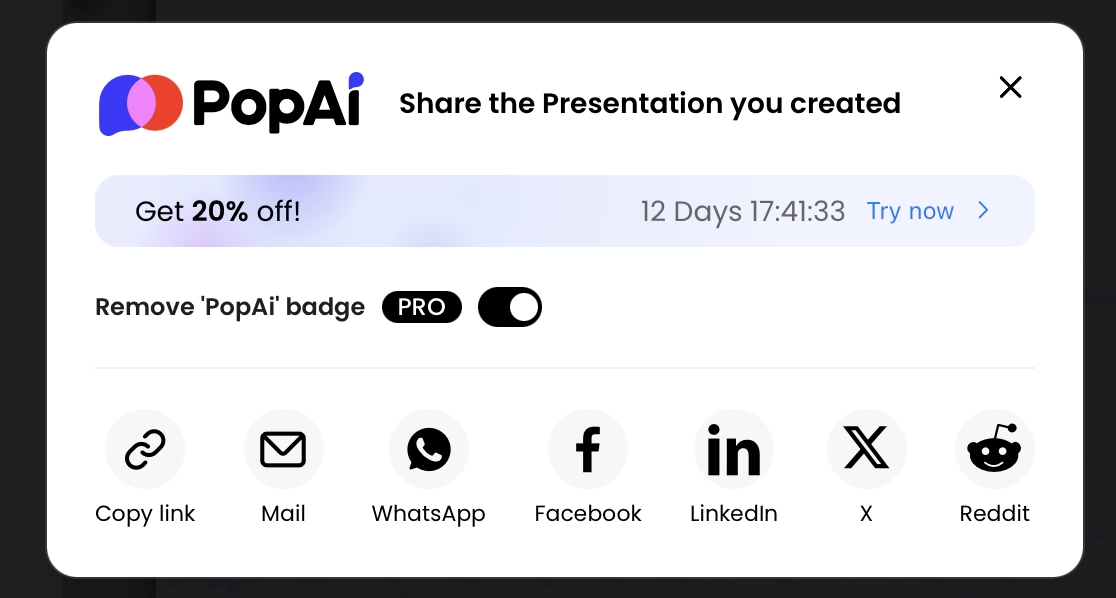
PopAi supports share-link workflows, including copy-link and common channel sharing options. The operational question is not simply where the link can be posted; it is who can open it, whether the deck can be downloaded, whether a later edit updates the shared version, and whether access can be revoked when the review period ends.
Use web links when access is more important than file ownership
- You need quick feedback from a distributed team.
- The deck is a draft, teaser, portfolio, or public narrative rather than a formal record.
- You want to avoid attachment size limits and file-version confusion.
- Reviewers are likely to open the deck from mobile devices.
- The presentation benefits from browser-native interaction or live updates.
Governance checks before sharing a link
- Visibility: public, private, workspace-only, password-protected, or invite-only?
- Revocation: can you disable the link after the review window?
- Versioning: does the link update when the deck changes, or does it freeze a copy?
- Downloads: can viewers download PPTX/PDF or only view in browser?
- Indexing: can search engines discover the page?
- Analytics: are viewer events tracked, and is that acceptable under your privacy policy?
- Fallback: do you have a PDF or PPTX backup if the room has no internet?
Case example: in an HTML-to-slides test, the source report used an H1 title, an executive-summary section, three metric bullets, and a risk-register table. PopAi organized it into six slides: title, summary, metrics, risk overview, mitigation plan, and next steps. The table structure was useful, but the exported deck still needed manual review for column width, severity-label color, and whether the table should remain editable in PPTX or be treated as a fixed visual in PDF.
For formal meetings, treat web links as complementary. If the audience may be offline, procurement requires an archived file, legal needs a final record, or the meeting room network is unreliable, export PPTX or PDF as a backup.
For teams that want one workspace for generation, editing, PPTX/PDF export, and link distribution, PopAi AI Presentation can fit the full prompt-to-delivery workflow, but the final file should still be checked in the recipient’s environment.
Beyond PPTX, PDF, and HTML: Images, Video, Google Slides, Word, and Excel
Secondary formats turn a deck into reusable content for other channels.
Once your team matures beyond basic deck generation, export decisions expand into learning systems, social campaigns, knowledge bases, sales enablement libraries, analytics workflows, and documentation. Support varies by AI presentation platform, so distinguish formats a tool exports directly from formats you can create through conversion or downstream editing.
PNG, JPEG, SVG, and image exports
Images are best for individual slide moments: a product roadmap in an email, a quote card for social media, a webinar thumbnail, a release-note graphic, or a chart embedded in a blog post. PNG is usually better for crisp UI, text, and transparency; JPEG is smaller for photo-heavy slides; SVG is valuable for diagrams and icons when supported, but many presentation tools do not export full slides as editable SVG.
- Social and web: export at least 1200 px wide for general sharing; use higher resolution for retina displays.
- Email: compress aggressively and avoid tiny text that becomes unreadable in mobile inboxes.
- LMS thumbnails: use consistent naming such as
course01_module03_slide-thumb.png. - Accessibility: image-only slides need alt text or accompanying text wherever published.
- Batch exports: use slide numbers in filenames so downstream teams do not reorder assets accidentally.
MP4 and video exports
Video is best for asynchronous communication: narrated product updates, compliance lessons, onboarding walkthroughs, sales enablement clips, and social previews. The cost is revision friction. If one number changes, you may need to update the source deck and re-render the video.
- Resolution: 720p is smaller for internal drafts; 1080p is the practical default; 4K is usually unnecessary unless text-heavy visuals must remain sharp on large screens.
- Captions: add captions or subtitles for training, accessibility, and muted mobile viewing.
- Hosting: use YouTube/Vimeo for public reach, an LMS for courses, or an internal knowledge base for confidential material.
- Compression: if email fails, host the file and share a controlled link instead of sending a huge attachment.
- Versioning: keep the editable source deck and script next to the rendered MP4 so revisions are traceable.
Google Slides conversion
Many AI presentation tools do not export directly to native Google Slides. The usual workflow is PPTX → Google Drive upload → Open with Google Slides → decide whether to keep it as a PowerPoint file or convert it to Google Slides format. Conversion is convenient for comments and collaboration, but it adds rendering risk.
- Export PPTX from the AI presentation tool.
- Upload the PPTX to Google Drive.
- Open with Google Slides and review every slide at 100% zoom.
- Check fonts, icon alignment, grouped objects, charts, tables, animations, and speaker notes.
- Save a PDF proof from the approved version so external recipients see the intended layout.
Word, Excel, Keynote, ODP, Markdown, and LMS packages
Some teams want a deck to become a handout, report, spreadsheet, or course asset. Word is useful for speaker scripts, training guides, and course packets. Excel is usually relevant to chart data, tables, and source analysis rather than a whole-deck export. PopAi’s chart editing features support data-table editing and Excel upload/download for charts, with options such as chart type switching, colors, axes, legends, units, prefixes, suffixes, and selected data-point annotations.
For Apple Keynote or ODP, the common path is still PPTX import, followed by manual inspection. For LMS delivery, a PDF handout and MP4 lesson are widely accepted, while SCORM/xAPI packages are more specialized and not universally supported by AI presentation tools. Markdown export is useful for repurposing scripts and outlines, but it does not replace a designed slide file.
Troubleshooting AI Presentation Export Format Problems
Most export issues are predictable if you know where translation usually fails.
Problems happen when a design made in one environment is translated into another with different fonts, rendering rules, object models, accessibility behavior, or media support. Build a short quality-control pass into your presentation process before sending a file to a client, executive, learner, or procurement team.
Symptom-to-fix export troubleshooting matrix
| Symptom | Likely cause | How to check | Fix | Prevent next time |
|---|---|---|---|---|
| Fonts changed | Recipient machine lacks the font or theme font mapping changed | Open on the presenting machine and compare against PDF proof | Install brand fonts, replace theme fonts, or send PDF | Use approved fonts and test before final export |
| Text shifted or overflowed | Font substitution, different rendering engine, or too much text | Review in PowerPoint desktop, PowerPoint web, or Google Slides | Shorten copy, increase box size, adjust line spacing | Keep slide copy concise and avoid tight text boxes |
| Charts became images | Export flattened chart objects | Click the chart and see whether data can be edited | Rebuild critical charts as native PowerPoint charts from Excel data | Use editable chart workflows for data-heavy decks |
| Animations disappeared | PDF/image export or unsupported animation translation | Run slideshow mode in the target app | Use PPTX or MP4 depending on whether editing or playback matters | Avoid relying on complex motion for essential meaning |
| File is too large | High-resolution images, embedded video, audio, or fonts | Check media-heavy slides and file properties | Use PowerPoint Compress Pictures, reduce video resolution, remove unused media, or export compressed PDF | Compress images before upload and separate long videos from the deck |
| Links break | Relative links, private sources, or PDF export settings | Click every external and internal link in the final file | Replace with full URLs and re-export | Create a link QA step before approval |
| Accessibility fails | Missing alt text, poor reading order, low contrast, no captions | Run PowerPoint Accessibility Checker or Acrobat accessibility tools | Add alt text, slide titles, captions, and tagged PDF where possible | Design with accessibility before export, not after |
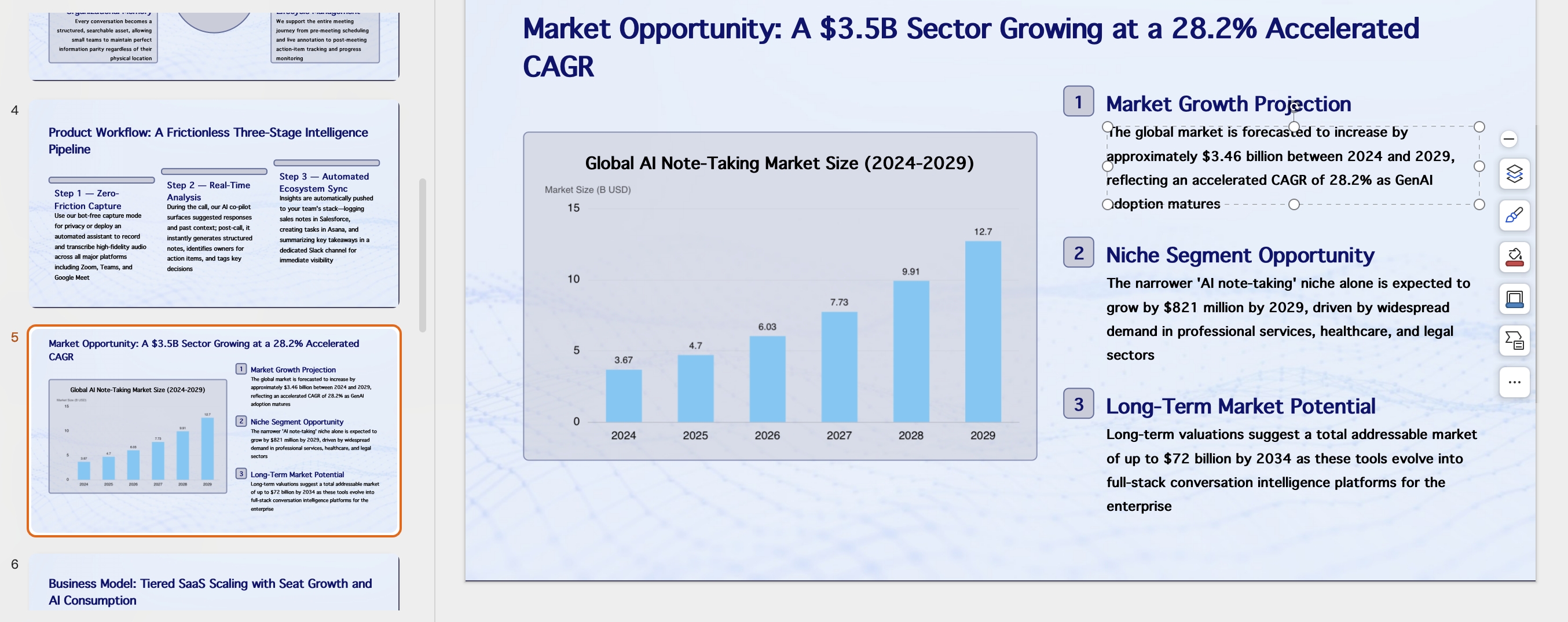
PopAi’s generation flow can show content planning before slides are created, and its editing options allow users to revise wording, themes, layouts, charts, icons, cards, and logic frames after generation. A practical troubleshooting habit is to fix structure first, then visual design, then chart accuracy, then export. If you export too early, you may end up correcting the same issue across PPTX, PDF, link, and media versions.
Do not make the exported file your first QA checkpoint. Review the outline, slide logic, charts, and permissions before you create final deliverables.
Trainer’s tip: for workshops and live training, carry three versions: the editable PPTX for facilitation, a PDF handout for learners, and a web link for participants joining from mobile devices. If the course is asynchronous, add an MP4 with captions.
Enterprise Export Governance: Security, Brand, and Scale
For enterprise teams, export format is a governance decision, not just a user preference.
A sales leader may care about editable territory decks; legal may care about locked PDF records; enablement may care about link-based distribution; IT may care about permissions and data retention; brand teams may care about template enforcement. The right export standard reduces rework, compliance risk, and version chaos.
Security and access control
- Which export formats are available by pricing tier?
- Do free or trial exports add watermarks?
- Can admins control public links, downloads, link expiration, and revocation?
- Are SSO/SAML, workspace permissions, audit logs, and data-retention settings available where required?
- Do exported files contain hidden metadata, source-file names, comments, or speaker notes?
- Can confidential files be archived offline without relying on a live web link?
Brand governance
- Can teams use approved templates, brand colors, logos, and fonts?
- Can templates be locked or restricted by workspace?
- Does PPTX export map cleanly into corporate slide masters?
- Are icons, charts, and diagrams editable enough for brand cleanup?
- Can admins prevent off-brand themes from becoming external client files?
Archiving, compliance, and scale
Procurement teams should evaluate whether files can be archived offline, whether web links can be disabled, whether generated decks have version history, and whether export formats fit legal hold, data-loss prevention, records management, and regulated-industry requirements. If your team generates many decks from reports, meeting notes, product documentation, or call transcripts, ask whether the tool supports repeatable source-file parsing and consistent brand output, not just attractive one-off generation.
PopAi is relevant for teams that start with varied source material because it can work from documents, images, audio, video, URLs, and cloud files before slides are generated. For governance, however, the key evaluation point is downstream control: what can be exported, who can access it, what remains editable, what becomes a record, and how the organization prevents unmanaged public sharing.
Operational insight: standardizing on “PPTX for collaboration, PDF for record, link for review” gives most organizations enough flexibility without creating format chaos. Add PNG for marketing snippets and MP4 when the deck must stand alone without a presenter. Document exceptions so teams do not invent a new export workflow for every project.
Recommended Workflows by Role and Use Case
The best export workflow starts with the person who must use, approve, or store the deck.
A sales rep, professor, founder, analyst, and corporate trainer rarely need the same final format. Use the role-based workflows below as starting points, then adapt them to your approval process, file naming rules, and security requirements.
Role-based export workflow table
| Use case | Source input | Working format | Review format | Final format | Special checks |
|---|---|---|---|---|---|
| Sales proposals | CRM notes, discovery call summary, pricing notes | PPTX for account-team edits | Web link or PDF proof | PDF proposal plus controlled PPTX if edits are expected | Legal-approved claims, customer name, pricing, version number |
| Executive reports | Metrics, meeting notes, KPI dashboards | PPTX for leadership edits | PDF proof for approval | PDF board packet | Appendix handling, confidential metadata, chart accuracy |
| Training materials | Lesson outline, SOP, policy document | PPTX facilitator deck | PDF learner handout | PDF plus MP4 for asynchronous modules | Captions, alt text, contrast, LMS file-size limits |
| Investor pitches | Business plan, market analysis, traction metrics | PPTX for live pitch refinement | PDF send-ahead version | PDF in data room; PPTX only for trusted live use | Financial chart editability, appendix, no-edit external copy |
| Product updates | Release notes, roadmap docs, launch brief | PPTX for all-hands delivery | Web link for stakeholder comments | PNG assets for release notes, PDF for archive | Access permissions, public/private feature names, image resolution |
| Data reports | Spreadsheet, dashboard export, analyst notes | PPTX with editable charts where possible | PDF proof with source data attached separately | PDF report | Excel source control, chart labels, audit trail, date stamps |
A strong modern workflow looks like this: draft in prompt, Markdown, HTML, or source documents; let the AI organize the outline; review the logic; generate slides; edit design and charts; run accessibility and link checks; export PPTX for collaboration; export PDF for delivery; share a controlled link for fast access; and create MP4 only when the presentation must be watched without a speaker.
For file naming, use a simple convention such as Client_Project_Deck_v03_internal.pptx, Client_Project_Deck_v03_approved.pdf, and Client_Project_Deck_v03_video_1080p.mp4. The source of truth should be explicit: usually the reviewed PPTX for editable work and the approved PDF for the official record.
Export Decision Matrix Before You Send the Deck
Pick the export format based on what the recipient needs to do next: edit, approve, present, archive, embed, or track engagement.
| Format | Best use | Final check |
|---|---|---|
| PPTX | Internal editing, client revisions, branded templates, workshop facilitation. | Open in PowerPoint and check fonts, speaker notes, hidden slides, chart editability, and object alignment. |
| Final approval, handouts, legal records, predictable viewing, board packets. | Check page size, hyperlinks, accessibility tags if needed, file name, and whether comments or hidden metadata were removed. | |
| HTML / web link | Fast sharing, mobile viewing, analytics, embedded pages, async review. | Verify permissions, expiration, tracking disclosures, external asset loading, and whether recipients can download the file. |
| PNG / JPEG | Slide thumbnails, social posts, email previews, documentation screenshots. | Confirm text remains readable and images are not mistaken for editable source files. |
| MP4 / video | Async training, product walkthroughs, webinars, narrated decks. | Check captions, audio levels, timing, aspect ratio, and whether updates require regenerating the video. |
Do not treat export as the last click. Treat it as a QA gate: the same deck can pass as a PDF but fail as a PPTX if fonts shift, charts flatten, or speaker notes disappear.
Common Export Formats vs. PopAi Verified Exports
Separate general presentation industry formats from what the current PopAi workflow visibly supports.
| Format | General use in the market | PopAi editorial treatment | QA before publishing |
|---|---|---|---|
| PPTX | Editable handoff, client revision, classroom reuse, internal templates. | Write as a PopAi-supported export only when the current product UI or official page shows it. | Open in PowerPoint and verify fonts, text boxes, charts, icons, and speaker notes. |
| Stable viewing, email handoff, compliance archive, print-friendly review. | Write as a PopAi-supported export only when verified in the product or official page. | Check page size, hyperlinks, image clarity, and whether confidential notes are excluded. | |
| HTML / web link | Browser presentation, review link, lightweight sharing, possible analytics in some tools. | Do not imply PopAi has slide-level analytics or web-publishing controls unless verified. | Check permissions, version, search-indexing settings, and whether the link exposes private content. |
| PNG / JPG / MP4 | Social previews, thumbnails, videos, LMS upload, async review. | Treat as industry-common possibilities unless current PopAi evidence confirms the exact export. | Check resolution, aspect ratio, accessibility, captions, and whether media stays synchronized. |
PPTX vs. PDF QA on the Same Deck
Instead of repeating an HTML-to-slides scenario, test one real deck in two exports. In PPTX, confirm whether title text, bullets, tables, and charts remain editable. In PDF, confirm that the same deck is visually stable on another device. If the PPTX is editable but shifts layout, use it for internal revision and send PDF for viewing. If the PDF is stable but cannot be edited, keep the source deck for future changes.
FAQ: AI Presentation Export Formats
Can AI-generated presentations be exported as PPTX?
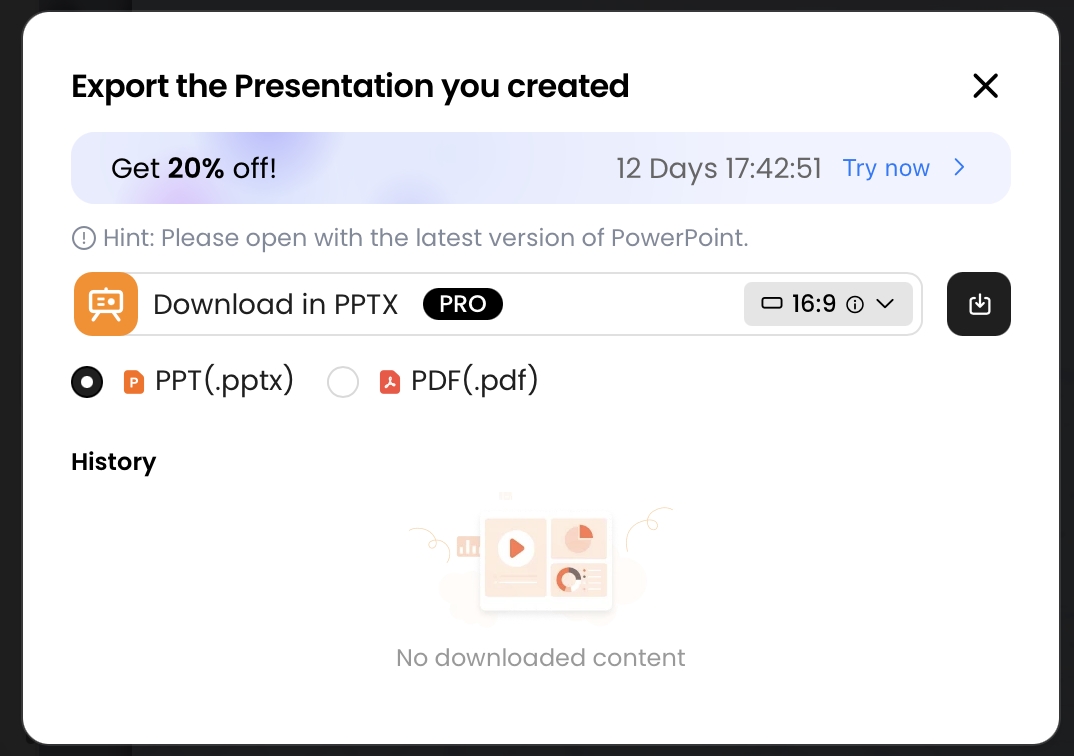
Yes. Many AI presentation tools support PPTX export. In PopAi, generated presentations can be exported as PPTX and opened in Microsoft PowerPoint, where text objects can continue to be edited.
Does exporting to PDF keep animations and video?
Usually no. PDF is best for visual fidelity, printing, archiving, and client delivery, but it generally flattens dynamic elements such as animations, embedded video, and interactive navigation.
What is the best format for sharing a presentation without attachments?
A web link or HTML-style share page is usually best when you want quick access without sending a file attachment. It is useful for review, lightweight distribution, and social sharing, but it may not be ideal for offline meetings or formal records.
How do I move an AI presentation into Google Slides?
The common workflow is to export the deck as PPTX, upload it to Google Drive, open it with Google Slides, and then review fonts, spacing, charts, and any complex elements before presenting.
Which export format should enterprises standardize on?
Most teams standardize on PPTX for editable working decks and PDF for locked client delivery or archiving. Web links can support fast review, while video works for asynchronous training or updates.
Create a presentation draft faster
Turn prompts, documents, reports, HTML, images, audio, or video inputs into polished slides, then export to PPTX/PDF or share by link.
Create with PopAi