AI PowerPoint Creator: How to go from 0 to deck in 10 min
Published on April 21, 2026
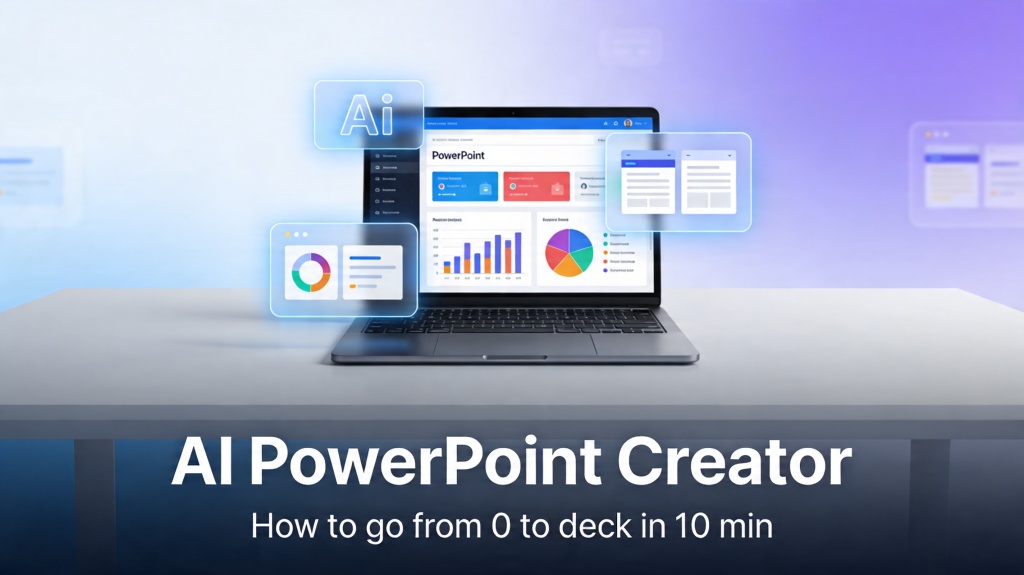
We have all been there: it is 9:00 PM on a Sunday, and you have a high-stakes meeting tomorrow morning. You open PowerPoint, stare at the "Click to add title" box, and realize you have absolutely nothing prepared. The traditional workflow of outlining, researching, formatting, and sourcing images can take upwards of five to eight hours for a high-quality deck. However, the emergence of the AI PowerPoint creator has fundamentally changed this math.
For startup founders, marketing managers, and students alike, the pain points of presentation design are universal: the time sink of manual formatting, the difficulty of visual storytelling, and the sheer mental block of starting from scratch. In this guide, we will show you how to leverage AI to move from a blank screen to a finished, professional deck in exactly 10 minutes.
Why Use an AI PowerPoint Creator?
The transition from manual slide creation to using an AI PowerPoint creator is similar to the shift from hand-drawn blueprints to CAD software. It isn't just about speed; it's about consistency and cognitive offloading. When you use AI, you aren't just "generating" slides; you are collaborating with a design-intelligent partner that understands color theory, hierarchy, and narrative flow.
Modern tools like PopAi don't just paste text onto a background. They analyze your topic, suggest a logical sequence of ideas, and apply professional design principles automatically. This allows you to focus on what actually matters: your message and your delivery.
Step 1: Setting the Foundation with the Right Prompt
The quality of your deck is directly proportional to the quality of your initial input. An AI PowerPoint creator needs context to be effective. Instead of a vague prompt like "make a deck about marketing," try to include the audience, the goal, and the key tone.
- Context: "I am a SaaS founder pitching to Seed-stage investors."
- Topic: "The growth of our AI-driven customer service platform."
- Style: "Minimalist, professional, and data-focused."
Pro Tip: If you already have a document or a PDF, use the AI Presentation Maker to upload the file directly. The AI will extract the core concepts and build the slides based on your existing research.
Step 2: Refining the AI-Generated Outline
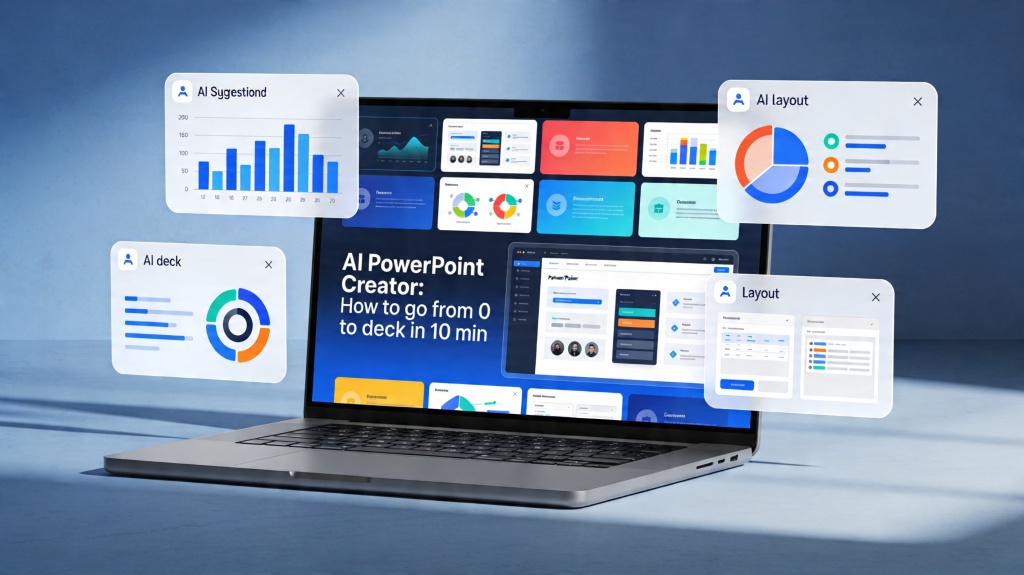
Once you enter your prompt, the AI PowerPoint creator will typically generate an outline. This is a critical junction. Many users make the mistake of clicking "Generate" immediately. Instead, take 60 seconds to review the slide titles. Does the story flow? Is there a clear problem-solution-result arc?
You can add, delete, or reorder slides at this stage. If the AI missed a crucial point about your competitive advantage, add it now. The AI will then generate the specific content for that new slide, ensuring it matches the visual style of the rest of the deck.
Step 3: Customizing Visuals and Branding in Minutes
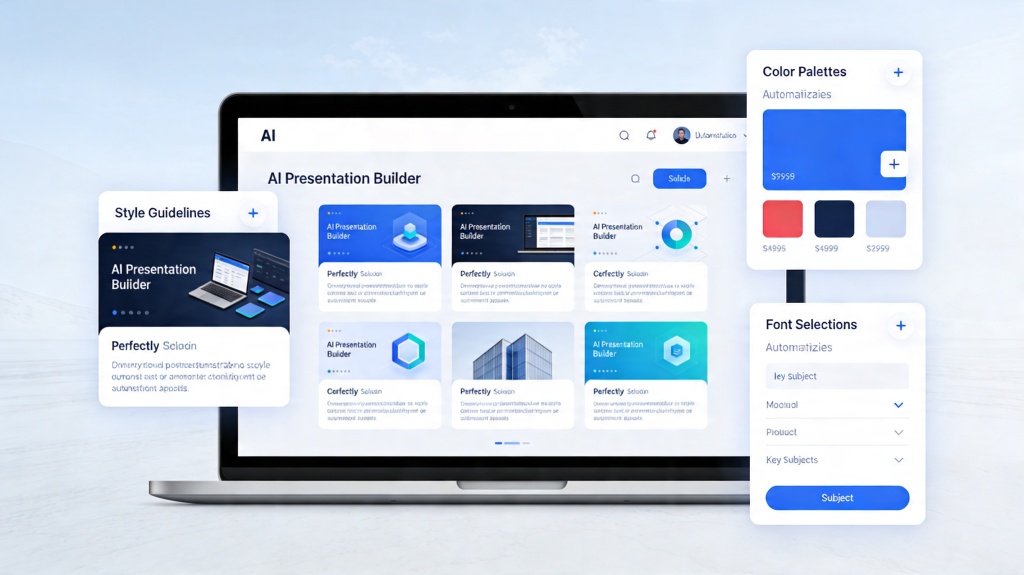
After the content is generated, the AI PowerPoint creator applies a theme. The beauty of AI-driven design is the ability to swap entire visual identities with a single click. If the "Modern Corporate" look doesn't fit, you can switch to "Creative Tech" or "Elegant Classic" without having to manually change a single font size or color hex code.
AI also helps with image sourcing. Instead of scouring stock photo sites, the tool can suggest or even generate relevant icons and imagery that align with the text on each slide. This ensures a cohesive visual language across all 15+ slides.
Common Pitfalls to Avoid When Using AI for Slides
While an AI PowerPoint creator is powerful, it is not a "set it and forget it" tool. To ensure your presentation is truly world-class, avoid these three common mistakes:
- Over-Reliance on Default Text: AI is great at drafting, but your unique voice is what sells the idea. Always spend the last 2 minutes of your 10-minute window personalizing the key takeaways.
- Ignoring Data Accuracy: If your deck includes specific statistics, double-check them. AI is better at structure and design than it is at real-time fact-checking of niche data.
- Slide Stuffing: AI might try to put too much text on one slide. Use the tool's editing features to break long paragraphs into digestible bullet points.
Frequently Asked Questions
Can an AI PowerPoint creator really build a deck in 10 minutes?
Yes, by automating the structure, content generation, and layout design, modern AI tools can reduce the time spent on a presentation from hours to just a few minutes. The AI handles the heavy lifting of formatting and research, leaving you to simply review and refine.
Is the content generated by AI accurate?
While AI is highly capable of structured drafting and summarizing general knowledge, you should always review and fact-check the data, especially for technical or niche industry presentations. Think of the AI as a high-speed researcher that needs a final editorial eye.
Can I export AI-generated slides back to Microsoft PowerPoint?
Most premium AI tools, including PopAi, allow you to export your generated decks as .pptx files. This gives you the flexibility to do final tweaks in the software you're most comfortable with or to present offline.
Create your presentation with one click now
Join thousands of professionals who save hours every week using our AI PowerPoint creator to build stunning, high-impact decks.
Get Started for Free