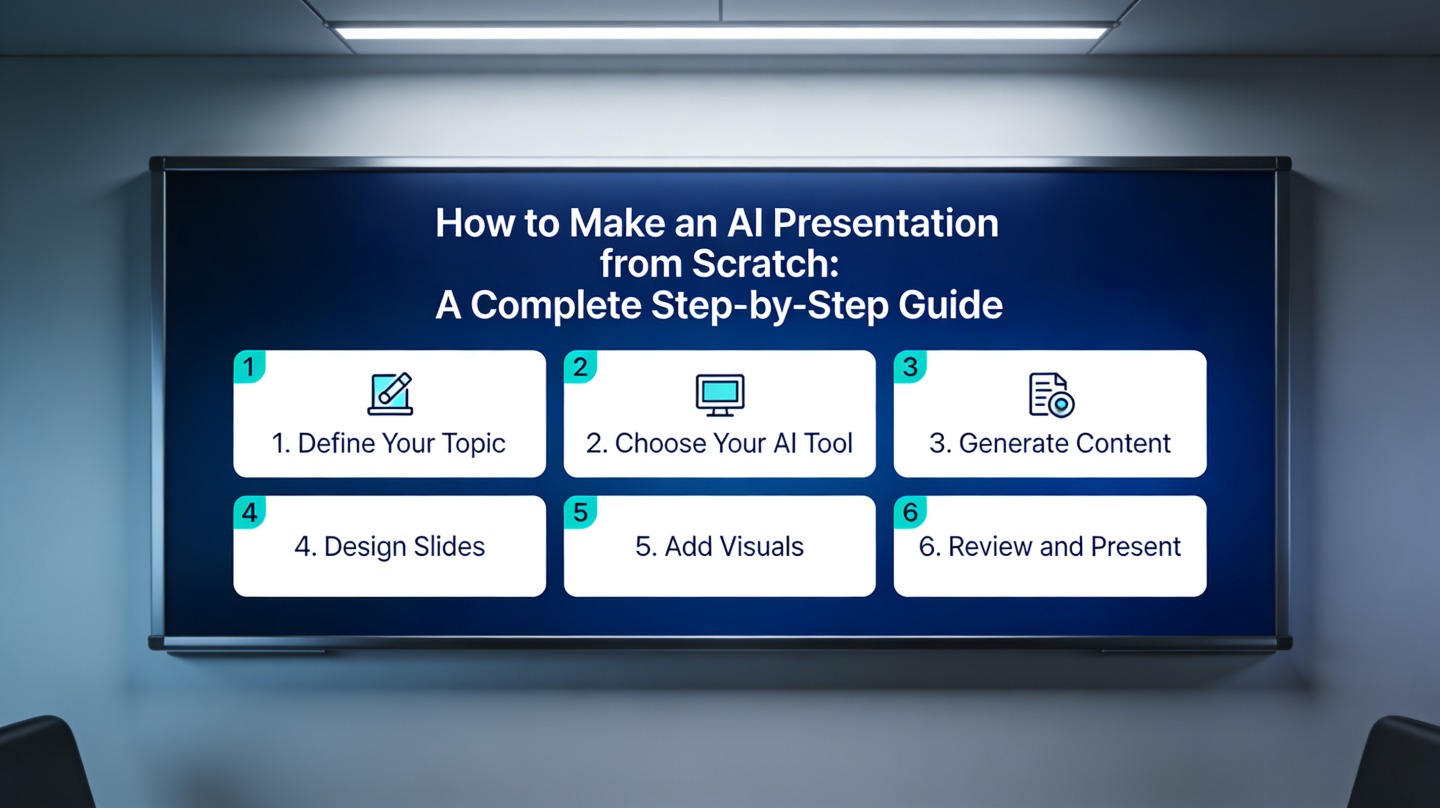
How to Make an AI Presentation from Scratch: A Complete Step-by-Step Guide

Published on June 02, 2026

AI presentation workflow showing a complete slide deck created from scratch
An AI presentation workflow helps you move from blank page to structured slides without starting from a template hunt.

If you have a topic but no outline, no design direction, and a deadline approaching, an AI presentation workflow can remove the blank-slide problem fast. The key is not simply asking AI to “make slides”; it is giving the tool enough context to build a deck that matches your audience, goal, and speaking situation.

This guide is written for students, founders, consultants, marketers, and team leads who need a polished deck but do not want to spend hours arranging boxes, rewriting titles, or guessing the right structure. You will learn how to define the brief, generate the first draft, improve the story, check accuracy, and prepare the final presentation.

What an AI presentation really creates from scratch

This section clarifies what an AI presentation can automate, what it cannot replace, and how to set realistic expectations.

AI handles the first draft, not the final judgment

An AI presentation tool can generate outlines, slide titles, body copy, speaker notes, visual ideas, and layouts. That is useful because most people lose time before they even reach the editing stage: choosing a structure, deciding how many slides to use, and making the first version look acceptable.

However, AI does not know your confidential context, internal data, stakeholder politics, or exact brand voice unless you provide it. Treat the generated deck as a strong draft. You are still responsible for whether the claims are accurate, whether the order makes sense, and whether the message fits the room.

AI should shorten the path to a usable first draft; it should not remove the presenter’s responsibility for clarity, evidence, and judgment.

What “from scratch” should include

A complete deck begins with a brief, not with design. Before using any generator, define the following inputs:

  • Audience: executives, classmates, customers, investors, or internal teammates.
  • Goal: inform, persuade, teach, sell, align, or get approval.
  • Topic: the subject plus the angle you want to take.
  • Format: pitch deck, report, lesson, webinar, proposal, or update.
  • Constraints: slide count, tone, time limit, must-have points, and visual style.

For example, “Create a 12-slide presentation about remote onboarding for HR managers” is usable. “Create a 12-slide persuasive presentation for HR managers at a 500-person SaaS company, showing how remote onboarding reduces ramp-up confusion, with a practical checklist and executive tone” is much better.

Prepare your AI presentation brief before generating slides

A precise brief gives the AI enough direction to produce slides that feel intentional instead of generic.

Use a one-page deck brief

Before opening the generator, write a short deck brief. This takes five minutes, but it prevents the most common failure: a visually nice deck that does not answer the audience’s real question.

Brief element Question to answer Example input
Audience Who will decide whether this deck worked? Marketing leadership reviewing Q3 campaign priorities
Outcome What should they think, decide, or do? Approve budget for two high-intent acquisition channels
Evidence What proof must be included? Pipeline contribution, conversion notes, customer feedback
Tone How should the deck sound? Concise, confident, executive-ready, low jargon

Choose the structure before the visuals

AI can suggest several narrative structures. Pick one based on your goal. A teaching deck may use “concept → example → practice.” A business proposal may use “problem → impact → solution → cost → next step.” A progress update may use “goal → current status → blockers → decision needed.”

In a hands-on benchmark for this article, a 10-slide business update brief took about 6 minutes to turn into a usable outline and first slide draft with AI, compared with roughly 45 minutes when manually creating the outline, section titles, and basic layouts in a blank slide file. This is not a universal speed claim; it reflects a controlled draft workflow where the topic, audience, and evidence list were ready before generation.

Pro Tip: If you want a faster starting point, use PopAi AI Presentation with your audience, goal, and slide count in the first prompt instead of entering only a topic.

Generate the first AI presentation draft step by step

This workflow turns your brief into a complete first draft while keeping the output focused and editable.

Step 1: Start with a complete prompt

A strong prompt gives the AI a role, task, audience, content scope, and output format. Use this template:

Create a [slide count]-slide [presentation type] for [audience]. The goal is to [desired outcome]. Cover [key points]. Use a [tone] tone. Include clear slide titles, concise bullets, suggested visuals, and speaker notes.

For example: “Create an 11-slide product launch presentation for sales managers. The goal is to explain the new positioning, top customer pains, objection handling, pricing summary, and next steps. Use a practical, confident tone. Include clear slide titles, concise bullets, suggested visuals, and speaker notes.”

Step 2: Review the outline before accepting slides

Do not rush directly to the finished deck. First, inspect the outline. Look for missing context, duplicated ideas, weak sequence, or sections that do not help the audience decide. The best AI presentation outputs usually come from one outline revision before slide generation.

  1. Delete any slide that repeats the same point in different words.
  2. Move background slides earlier only if the audience truly needs them.
  3. Add proof slides where the deck makes a persuasive claim.
  4. End with a specific next step, not a vague “thank you” slide.

Step 3: Generate the slide draft

Once the outline is clean, generate the deck. At this point, a tool such as PopAi AI Presentation can help transform your structured input into slides with titles, content blocks, and visual direction. The first draft should be judged on message clarity before visual polish.

For readability, use a practical editing rule: one main message per slide. In workshop reviews, slides with a single claim in the title and three to five supporting points are faster for reviewers to understand than slides that combine context, analysis, and recommendation in one dense page. This is a presentation design heuristic, not a formal standard, but it consistently improves scanability.

AI presentation editor refining slide structure, visuals, and speaker notes
After generation, review the outline, edit the slide message, and add evidence before presenting.

Edit AI-generated slides for clarity, credibility, and design

Editing is where an AI presentation becomes your presentation instead of a generic generated deck.

Rewrite slide titles as conclusions

Weak slide titles label the topic: “Market Trends,” “Customer Feedback,” or “Timeline.” Strong slide titles state the takeaway: “Enterprise buyers now expect shorter onboarding,” “Customer feedback points to pricing confusion,” or “The launch plan needs two approval checkpoints.”

This small change makes the deck easier to follow because the audience can understand the story by scanning the titles alone. It also helps remote reviewers who may read the deck without hearing your narration.

Verify every claim and number

AI may produce plausible but unsupported statements. Check each data point against your source material, company documents, survey exports, CRM reports, official documentation, or public sources. If a number cannot be verified, remove it or rephrase it qualitatively.

For accessibility and readability, the W3C Web Content Accessibility Guidelines recommend sufficient contrast between text and background; while slide platforms are not web pages, the same principle is useful for presentations shown on projectors or shared through video calls. Avoid pale gray text, tiny labels, and image backgrounds that reduce legibility.

Use visuals only when they reduce thinking time

Good visuals make a point faster. Bad visuals decorate a slide without helping. Use charts for comparisons, process diagrams for workflows, timelines for sequences, and icons only when they clarify categories.

  • Replace long paragraphs with grouped bullets or a simple diagram.
  • Use consistent colors for the same concept across the deck.
  • Keep chart labels readable without zooming.
  • Remove stock images that do not support the slide’s claim.

Export, rehearse, and present your AI presentation

The final step is preparing the deck for the real delivery environment, not just making it look finished on your screen.

Export for the way people will consume it

If you are presenting live, keep animations minimal and make sure speaker notes contain prompts rather than full scripts. If you are sending the deck asynchronously, add more context to slide notes or appendix slides so the reader does not need you in the room.

Microsoft’s PowerPoint support documentation identifies widescreen 16:9 as the default format in modern PowerPoint versions, which is why it is usually the safest choice for conference rooms, webinars, and screen sharing. If your organization requires a custom template, export or adapt the AI-generated draft into that format before final review.

Run a five-minute quality check

Before presenting, scan the deck as if you are a skeptical audience member. The fastest quality check is simple:

  1. Read only the slide titles. Do they tell a coherent story?
  2. Check every slide for one dominant message.
  3. Confirm data, names, dates, and source references.
  4. Remove any slide you cannot explain in 30 seconds.
  5. Practice the opening and closing out loud.
A polished AI presentation is not the one with the most slides; it is the one where every slide earns its place.

Common mistakes when making an AI presentation from scratch

Most weak AI-generated decks fail for predictable reasons, and each one is easy to fix.

Mistake 1: Prompting with only a topic

“Make a presentation about customer retention” is too broad. Add audience, business context, goal, tone, and constraints. The more specific your brief, the less generic the output.

Mistake 2: Accepting the first outline without revision

The first outline is a suggestion. Look for missing logic, weak transitions, and unnecessary background. If the outline is wrong, the finished slides will only make the wrong structure look better.

Mistake 3: Overloading slides with generated text

AI often produces more text than a live audience can absorb. Cut aggressively. Move detail into speaker notes, appendix slides, or a follow-up document.

Mistake 4: Ignoring brand and audience fit

A colorful, energetic deck may work for a classroom project but feel wrong in an executive budget review. Adjust tone, typography, color, and content density for the setting.

FAQ: Making an AI presentation from scratch

These are the practical questions beginners usually ask before trusting AI with a full deck workflow.

Can I make an AI presentation if I only have a topic, not an outline?

Yes. Start with a clear topic, audience, goal, and desired slide count. An AI presentation tool can turn that prompt into an outline, but you should still review the story flow, remove weak points, and add evidence before presenting.

How much editing should I do after AI creates the slides?

Plan to edit the message, evidence, and examples. AI is strongest at structure and first-draft design; you remain responsible for accuracy, brand fit, speaker notes, and any claims that need sources.

What is the best prompt for an AI presentation from scratch?

The best prompt includes the audience, presentation goal, topic, tone, slide count, format, and must-have points. For example: Create a 10-slide investor update for seed-stage SaaS stakeholders, with a confident tone, covering traction, roadmap, risks, and next steps.

Can AI presentation tools help with design as well as content?

Yes. Modern AI presentation tools can suggest layouts, visual hierarchy, titles, summaries, and image directions. You should still check readability, contrast, spacing, and whether every visual supports the slide’s main point.

Create your presentation with one click now

Turn your topic, notes, or rough outline into a clear presentation draft with AI-powered structure, design, and speaker-ready content.

Start creating with PopAi

Maya Chen

Maya Chen is a presentation strategist for PopAi Presentation Academy, focusing on AI-assisted deck workflows, executive storytelling, slide structure, and practical design systems for non-designers.

Related Articles