This guide is about creating presentations for teaching and education teams with AI—not only about giving a presentation on AI. A teacher starting with the objective “students can check an online claim using its source, evidence, and date” can use the workflow below to build a lesson deck with a worked example, partner task, and exit ticket. The same planning principles also apply to staff training and independent learning.
The templates and prompts are starting points, not ready-made curriculum. Use them to get from a learning goal or approved source material to a draft, then check that the activities, examples, and sources fit your learners and setting.
What Makes a Useful AI Education Presentation?
A useful deck makes it easier for learners to do something specific—not just remember a list of facts.
Write an observable outcome first. For example: “By the end of the lesson, students can name the source of a claim, identify what evidence supports it, and decide whether the evidence is current enough.” That objective gives you a way to check each slide: does it teach, model, or assess one of those actions? If not, cut it or move it to optional notes.
Lesson template: map the objective to the slides
- Open with a relevant question: Ask, “Would you share a surprising claim before checking it?” Use a familiar, low-stakes example.
- State the target: Tell learners what they will be able to do and how they will practise it.
- Teach in small steps: Introduce source, evidence, and date separately; define each term in language appropriate to the class.
- Model the thinking: Apply all three checks to one example aloud. Show what you would look for and what remains uncertain.
- Practise and check: Give learners a new example to assess, then use an exit question that tests the stated target.
Worked planning example (illustrative): For a 45-minute grade 8 lesson, reserve roughly 5 minutes for the hook and target, 10 for teaching the checks, 8 for a model, 15 for partner practice, and 7 for discussion and an exit ticket. If the class needs more time to read the example, shorten the opening discussion—not the practice that demonstrates whether learners can use the checks.
Change the sequence to suit the format. A lecture can spend longer on explanation and use brief retrieval questions between sections. A hands-on lesson should introduce the task early, with slides serving as concise instructions and checkpoints. For asynchronous learning, include written directions, accessible descriptions of visuals, and a self-check with feedback. In staff training, replace the student exit ticket with a commitment such as “one practice I will try this week.”
Build an AI Education Presentation Step by Step
Compare AI presentation makers against the actual task you need to complete, rather than choosing by template count alone.
A brief, outline review, and final classroom check make the workflow more reliable than generating slides in one step.
- Write a teaching brief. Specify audience, subject, prior knowledge, objective, duration, presentation format, and any curriculum or policy constraints. Ask for a slide count only after deciding what learners need to practise.
- Choose source material carefully. Use approved notes or public sources where possible. Do not include identifiable student information. If source material conflicts with your brief, ask the tool to flag the conflict; resolve it against the authoritative course or policy source rather than letting the model choose.
- Check the outline before design. Confirm that every slide serves the objective, concepts appear in a teachable order, and there is time for learners to practise. Remove duplicate explanations and unsupported claims before generating visuals.
- Review each slide for usability. Look for one main point, readable text, accurate labels, and a clear instruction or takeaway. In a classroom, project the deck or view it at presentation size; text that looks fine on a laptop may be too small from the back of the room.
- Rehearse and export. Check timing, links, speaker notes, and any charts or media in the final format. If exporting to PPTX or PDF, reopen the exported file to catch layout changes before presenting.
For example, if an outline proposes three slides defining “source” in slightly different words but no student practice, keep the clearest definition and use the saved space for a short source-comparison task. That is a more useful revision than polishing the repeated slides.
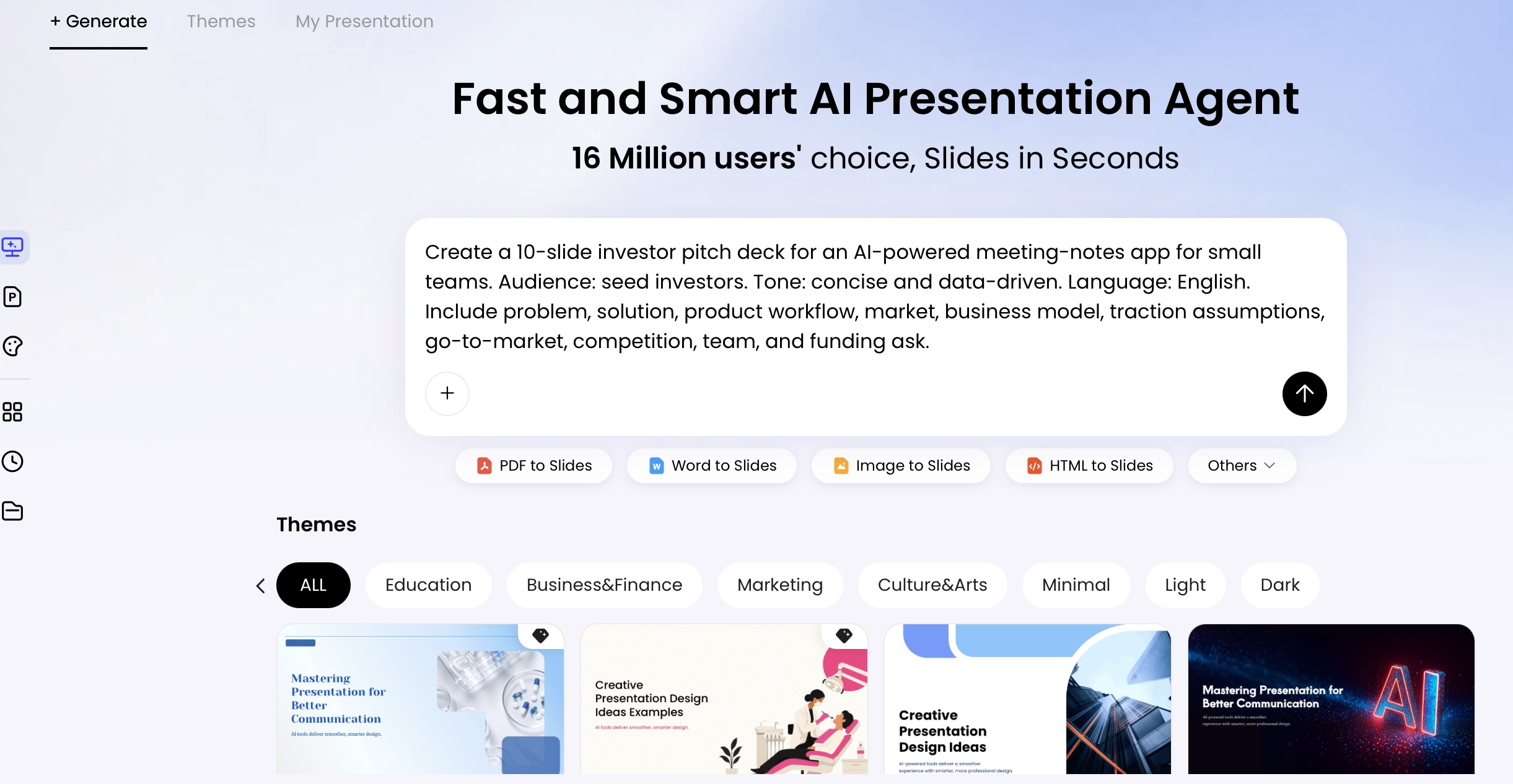
PopAi’s PopAi AI Presentation can be used to start a draft from a brief or source material and then revise its content and visual style. Available inputs, editing options, and exports can depend on the current product and plan, so check those details before building a workflow around them. Conversion may also change formatting or omit context; compare generated content with the original, especially for citations, tables, and images.
Planning principle: decide what learners should be able to do before asking for slide design. If a slide does not help them understand, practise, or demonstrate that outcome, revise or remove it.

AI Education Presentation Prompts and Example Outline
Reusable prompts specify the audience, learning task, source expectations, and what the output should include.
Prompt templates for different education tasks
- Classroom lesson: “Create a [number]-slide lesson for [grade/age] learners on [topic]. By the end, learners should be able to [observable outcome]. Include a brief hook, explanations of [key concepts], one worked example, [practice task], and an exit question. Use [reading-level guidance], include speaker notes with timing, and flag claims that need verification. Do not invent citations or statistics.”
- Staff workshop: “Create a [duration]-minute workshop for [staff group] on [practice or challenge]. Include a realistic scenario, a demonstration, a participant activity using [materials], discussion questions, and one action participants can take afterward. Distinguish recommendations from local policy; mark anything that needs confirmation against our current guidance.”
- Source-to-slides conversion: “Turn the supplied [document/notes] into a [number]-slide presentation for [audience]. Use only claims supported by the source. Preserve important qualifications, dates, units, and attribution. Do not fill gaps with outside facts. List omitted details and any unclear or conflicting passages for my review.”
- Differentiated version: “Adapt this lesson for [learner need or language level] without removing the essential terms [list]. Keep the same learning goal. Add a glossary, a worked example, and an optional scaffold; identify any wording whose meaning may have changed and needs review.”
Worked example: a complete nine-slide lesson
The following claim is a classroom practice example, not an established fact: “A school’s new morning reading routine improved reading scores.” Students should not be asked to accept it as true without evidence. The lesson uses it to practise asking what source reported the result, what data support it, and when the data were collected.
Prompt: “Create a 9-slide presentation for grade 8 students for a 45-minute lesson on checking claims. Learning goal: students will use source, evidence, and date checks to decide what can and cannot be concluded from a claim. Use the example claim ‘A school’s new morning reading routine improved reading scores’ as an unverified practice example, not as a fact. Include short slide text, a worked think-aloud, a 5-minute partner task, two discussion questions, an exit ticket, and speaker notes with suggested timing. Do not invent a school, data, study, citation, or policy. Clearly label information the teacher must supply or verify.”
Nine-slide sequence and sample teaching notes
- Hook: “Would you repeat this claim?” Display the reading-routine claim and ask learners to reserve judgment.
- Learning target: Explain that learners will use source, evidence, and date checks.
- Check 1 — source: Ask who made the claim, where it appeared, and whether the original source can be found.
- Check 2 — evidence: Ask what scores were measured, which students were included, and whether a comparison supports the conclusion. Do not supply invented results.
- Check 3 — date: Find when the data were collected and whether the information is current for the question being asked.
- Worked think-aloud: Model the result honestly: “We have a claim, but without the original report and its data, we cannot confirm that the routine caused an improvement.”
- Partner task: Give pairs a teacher-verified article or report. Have them record its source, one piece of supporting evidence, and the publication or data-collection date.
- Discussion: Ask, “What would you need to see before sharing this claim?” and “What can you say if the evidence is incomplete?”
- Exit ticket: “Name one check you used. What did it show, and what remains uncertain?”
Example exit-ticket response: “The report is the source, and it gives reading scores from one term. I still need to know whether the students were compared with a similar group before I can say the routine caused the change.” The answer demonstrates careful reasoning without inventing a result.
For the partner task, the teacher should select a real, age-appropriate source in advance. Check that the linked report contains the evidence students are asked to find; if it does not, change the task or provide a better source. Speaker-note timings are a planning aid, not a fixed pace for every class.
Adapt Education Slides for Subjects and Learner Needs
Keep the learning goal stable while adapting examples, scaffolds, and ways to participate.
Adapt examples and support to the learners
- Elementary learners: Use familiar, concrete situations and brief directions. Teach one new term at a time, but retain the essential vocabulary; pair a simple definition with the correct term rather than removing it.
- Middle and secondary students: Ask learners to compare examples, explain their reasoning, or identify missing evidence. Provide enough challenge to practise the target skill, not just recall the definition.
- Adult or staff learning: Start with a realistic work problem, model a process, then give participants time to apply it to a case from their own setting.
- Multilingual groups: Define subject-specific terms, avoid idioms where they obscure meaning, and provide a glossary or translated directions where appropriate. Have a qualified speaker review translations when small wording differences could change a safety instruction, assessment, or technical concept.
- Different ways to participate: Offer think time before discussion, written response options, or a partner rehearsal. Do not make speaking in front of the class the only way to demonstrate understanding.
Check accessibility and visual information
Use descriptive slide titles, strong text-to-background contrast, and text large enough to read from the back of the room; test the actual deck in the room or on the display where it will be used. Do not use color alone to distinguish categories—add labels, patterns, or symbols. Add meaningful alt text to informative images and charts, provide captions for video, and check reading order and keyboard access in any digital handout. For a fuller checklist, consult the W3C Web Content Accessibility Guidelines.
Make subject visuals and data trustworthy
In science, label diagrams with units and distinguish observed results from explanations. In history, show dates and identify whose perspective a source represents. In mathematics, include the scale and units on charts, and make sure the visual matches the underlying data.
Data-check example (hypothetical): If a chart compares reading scores before and after a new routine, check that both bars use the same scale, the score measure is named, and the time periods and group sizes are stated. A before-and-after difference alone does not establish that the routine caused a change; the slide should say what the data show and what they cannot establish. Attribute the figures to the original report, not to the AI-generated deck.
When comparing tools for a brief or source-to-deck task, consider input formats, how much editing is needed, export behavior, privacy terms, and whether you can inspect the result against the original. A tool that creates a polished layout may still be a poor fit if it obscures source details or makes charts difficult to verify.
Quality Checks for AI-Generated Education Slides
Review the deck in risk order: first check whether it teaches the right thing, then verify claims and sources, and finally test access, privacy, and presentation details.
1. Confirm instructional alignment
Match the objective to the practice and assessment. If the goal is for students to evaluate evidence, a slide that only asks them to define “evidence” is not enough; include a task where they inspect an example and explain their judgment. Remove attractive but unrelated facts that use time without supporting the target.
2. Verify claims and references
Prioritize health, safety, legal, financial, and school-policy claims, along with precise statistics and advice that could affect student decisions. Trace each important statement to its original source. Check that the source is identifiable and relevant, that its date suits the topic, and that it supports the exact claim—not merely a nearby subject. A citation that exists but does not substantiate the sentence is still a citation failure.
Verification example: If a slide says a study found that a classroom practice “improved scores,” open the study or report and check which students and outcome were measured, what comparison was used, and whether the source supports a causal claim. If the source only reports a change over time, revise the slide to say that scores changed; do not say the practice caused the change.
Use AI to reduce blank-page work, not to transfer responsibility for what students see, hear, or are asked to do.
3. Check fairness, accessibility, and privacy
- Look for stereotypes, one-sided examples, or assumptions about learners’ family, culture, ability, or access to technology; replace examples that could exclude or misrepresent students.
- Check image rights and attribution. Do not assume generated or retrieved media is automatically cleared for your intended use.
- Inspect chart data, labels, units, scales, and source attribution. Check the exported deck as well as the editable version.
- Confirm that information is understandable without color, audio, or an uncaptioned video, and that images carrying meaning have useful descriptions.
- Follow school rules for AI tools and student data. Use the minimum information needed, and do not upload identifiable student work unless your institution has approved the tool and use.
A simple correction log helps prevent errors from returning: record the slide number, issue, source checked, change made, and reviewer or date. Ask a subject specialist or colleague for a second review when a claim is high-risk or outside your expertise. Estimate review time from the number of claims, charts, and source documents—not from slide count alone. The useful measure is time to reach a verified, teachable deck.
FAQ: AI Education Presentation
These practical questions cover source fidelity, privacy, and what to do when a generated deck needs substantial revision.
Can I use AI-generated slides without checking every source?
No. Treat generated references as leads to investigate, not as proof. Open the cited source and confirm that it exists and supports the specific statement. If you cannot verify a claim, remove it, qualify it, or replace it with information from a source you can check.
Is it safe to upload lesson materials or student work?
That depends on your institution’s policy and the tool’s current privacy and data-retention terms. Avoid uploading identifiable student information unless the tool and use have been approved. When possible, remove names and other identifying details and use only the material necessary for the task.
What should I do if the generated deck is incomplete or inaccurate?
Return to the outline and identify what is missing: a required concept, a worked example, a practice task, or a source. Give a focused revision instruction, then recheck the revised slides against the original brief and source material. If the output repeatedly distorts a complex topic, build that section manually rather than spending more time prompting around the problem.
Will an uploaded document become a presentation with citations and formatting intact?
Not necessarily. Conversion can alter layouts, omit context, or fail to preserve citation relationships, tables, and image attribution. Check each important claim against the original document and reopen the exported file to inspect formatting before presenting.