

Stop Memorizing: PopAI‘s AI Formula Does the Work
Excel formulas are the backbone of data analysis, yet they remain a source of frustration for most users. From forgetting VLOOKUP syntax to debugging nested SUMIF functions, hours are wasted on trivial formula tasks. But PopAI, a leading AI workspace driven by “design experience + vertical data” dual engine, changes the game with its intelligent AI excel formula feature. Unlike manual input or generic tools, PopAI translates natural language prompts into accurate Excel formulas in seconds, eliminating the need to memorize complex syntax or cross-check function rules.
Take a common scenario: A financial analyst needs to calculate the net present value (NPV) of a 5-year project with an initial investment of $50,000 and annual cash flows of $15,000, using a 8% discount rate. Instead of recalling the NPV formula or searching for its syntax, they type into PopAI: “Generate an Excel formula to calculate NPV with initial investment $50,000, annual cash flow $15,000 for 5 years, discount rate 8%.” PopAI instantly returns the formula: “=NPV(8%,15000,15000,15000,15000,15000)-50000” and explains the logic—subtracting the initial investment from the NPV of future cash flows. The analyst can directly paste this into Excel, saving 10+ minutes of research and syntax verification.
PopAI’s AI excel formula excels at nuance too. If you need a conditional formula, simply specify the rule: “Create an Excel formula to return ‘Over Budget’ if cell C2 exceeds $10,000, otherwise ‘On Track’.” PopAI generates “=IF(C2>10000,”Over Budget”,”On Track”)” and adapts to cell references or value changes you mention. This intuitive interaction makes advanced formulas accessible to everyone, regardless of Excel expertise.
Real-World Cases: PopAI Formula for Every Role
PopAI’s AI excel formula isn’t limited to one industry—it adapts to diverse roles, solving role-specific formula pain points with tailored solutions. Each case below demonstrates how PopAI simplifies daily tasks and ensures formula accuracy.
For HR professionals: An HR manager needs to calculate employee overtime pay—1.5x hourly rate for hours over 40 per week. They prompt PopAI: “Generate an Excel formula for overtime pay: hourly rate in D2, hours worked in E2; overtime is hours over 40, rate 1.5x. Calculate total pay.” PopAI delivers: “=IF(E2>40,(40*D2)+((E2-40)*D2*1.5),E2*D2)” and clarifies each part, so the manager understands how overtime is computed. This avoids errors from manual formula setup, which often miscalculate overtime thresholds.
For students: A college student working on a statistics project needs to calculate the correlation coefficient between two data sets in columns A and B. Instead of struggling with the PEARSON function, they ask PopAI: “Create an Excel formula to find the correlation coefficient between data in A2:A20 and B2:B20.” PopAI generates “=PEARSON(A2:A20,B2:B20)” and adds a note to ensure data ranges are correct. The student can focus on analyzing results rather than formula mechanics.
For retail managers: A store manager wants to calculate gross margin percentage for each product—(Selling Price – Cost Price)/Selling Price. They prompt PopAI: “Generate an Excel formula for gross margin percentage in F2, using selling price (D2) and cost price (C2); format result as percentage.” PopAI returns “=(D2-C2)/D2” and reminds the user to set the cell format to percentage, preventing common mistakes like forgetting to convert decimals to percentages.
PopAI vs. Manual Formulas: The Efficiency Gap
Manual formula creation isn’t just time-consuming—it’s prone to errors. A single missing parenthesis or wrong cell reference can invalidate an entire spreadsheet. PopAI’s AI excel formula eliminates these risks while slashing workflow time, outperforming manual methods and generic AI tools alike.
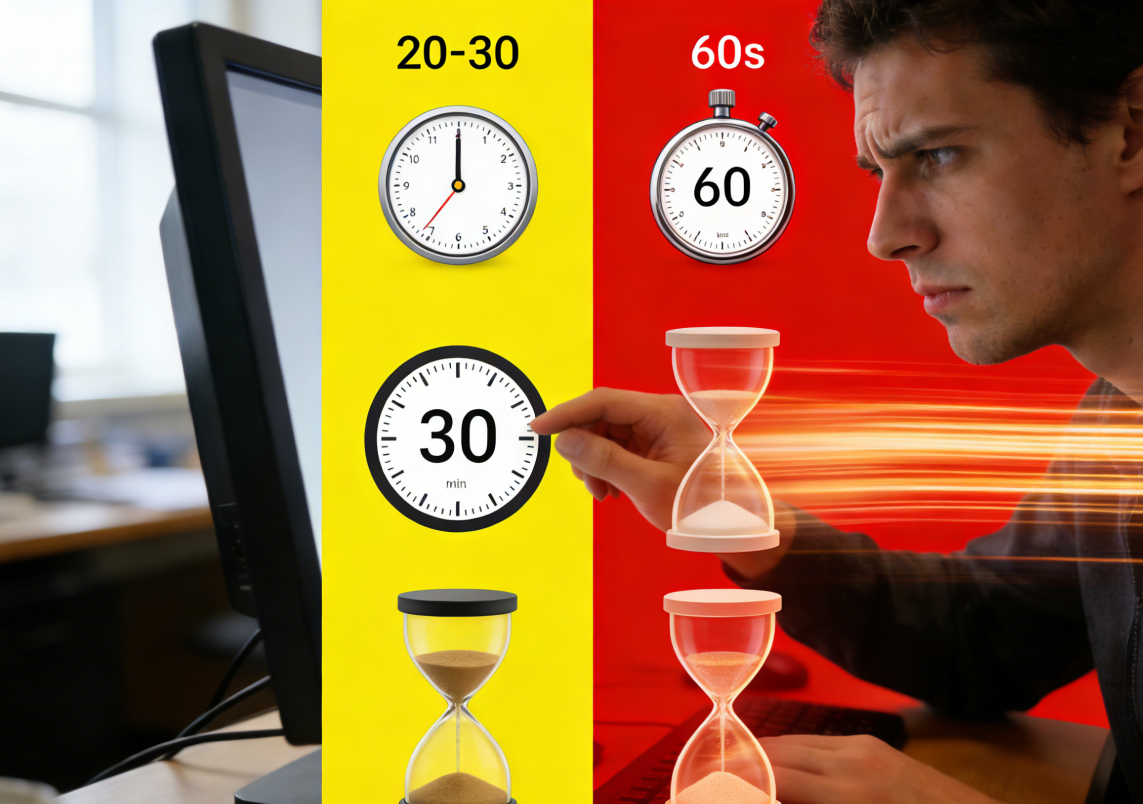
Manual formula setup for a complex task, like calculating monthly sales growth across 50 products, takes 20-30 minutes—you need to recall the growth formula ((Current – Previous)/Previous), apply it to each row, and verify results. With PopAI, you input: “Generate an Excel formula for monthly sales growth in E2: E51; current sales (D2:D51), previous sales (C2:C51); format as percentage.” PopAI generates the formula, applies it to the entire range, and flags any inconsistent data—all in 60 seconds.
Generic AI tools often produce “hallucinated” formulas or fail to adapt to context, but PopAI’s AI excel formula is trained on vertical data and integrated with OpenAI’s GPT models, ensuring accuracy. Unlike tools that only generate basic formulas, PopAI handles complex nested functions, cross-sheet references, and conditional logic—all with natural language prompts. It also explains each formula, so you’re never blind to how results are calculated.
Data security is another key advantage. Unlike some tools that store your data for training, PopAI only uses your input to generate formulas and never collects or shares sensitive information. This means finance teams, healthcare administrators, and other professionals handling confidential data can use PopAI’s AI excel formula with full peace of mind.
Debug Excel Formulas in Seconds With PopAI
Formula errors are inevitable—#VALUE!, #REF!, #DIV/0!—and debugging them manually can take hours, especially for nested functions. PopAI’s AI excel formula doesn’t just generate formulas; it diagnoses and fixes errors with simple prompts, turning frustration into efficiency.
Suppose you have a formula “=VLOOKUP(A2,B2:C100,2,FALSE)” that returns #REF!. Instead of troubleshooting cell ranges or column indexes, you paste the formula into PopAI and ask: “Why is this VLOOKUP formula returning #REF!? Fix it for data in B2:C100.” PopAI identifies the issue—likely a deleted column or incorrect range—and returns the corrected formula, e.g., “=VLOOKUP(A2,B2:C100,2,FALSE)” if the range was wrong, or adjusts the column index if needed. It also explains the error, so you learn to avoid it in the future.
For more complex errors, like a nested IF formula that returns incorrect results, PopAI breaks down the logic step by step. For example, if your formula “=IF(C2>1000,”High”,IF(C2>500,”Medium”,”Low”))” misclassifies values, PopAI reviews the conditions, identifies the order issue (high should come before medium), and corrects it. This not only fixes the immediate error but builds your formula literacy.
Pro Tips to Maximize PopAI‘s AI Excel Formula
To get the most out of PopAI’s AI excel formula, these practical tips help you generate precise formulas, avoid common pitfalls, and boost productivity. Each tip is tailored to real-world use cases and easy to implement.
First, include cell references and context. Vague prompts like “Make a growth formula” lead to generic results. Instead, specify: “Generate an Excel formula in F2 to calculate quarterly growth; Q3 sales in E2, Q2 sales in D2; use ((E2-D2)/D2) and format as percentage.” Specificity ensures PopAI generates a formula that fits your spreadsheet structure.
Second, ask for explanations. After generating a formula, add: “Explain this formula in simple terms.” PopAI breaks down syntax, logic, and potential edge cases—critical for learning and verifying accuracy. For example, if you generate a SUMIF formula, PopAI explains how the range, criteria, and sum_range work together.
Third, optimize existing formulas. Upload your spreadsheet to PopAI and prompt: “Optimize the formula in E2 to calculate total expenses; make it more efficient for 1000+ rows.” PopAI simplifies complex nested functions, replaces redundant syntax, and ensures the formula runs smoothly on large datasets—something manual optimization can’t match.
PopAI‘s AI Formula: For Beginners & Experts Alike
PopAI’s AI excel formula is designed for all skill levels, bridging the gap between Excel beginners and experts. It empowers beginners to create advanced formulas without training, while helping experts streamline workflows and reduce errors.
For beginners, PopAI eliminates the learning curve. If you’re new to Excel, you don’t need to master functions like INDEX-MATCH or PIVOTTABLE formulas—just describe what you need. For example, “Generate an Excel formula to find the highest sales value in B2:B50” returns “=MAX(B2:B50)” with a simple explanation. This builds confidence and allows you to focus on data analysis, not formula memorization.
For experts, PopAI boosts productivity. Even seasoned Excel users waste time on repetitive formula tasks—like applying the same nested function to multiple sheets. PopAI lets you prompt: “Apply the sales growth formula to sheets Q1, Q2, Q3; use respective data ranges and link results to the Summary sheet.” This automates cross-sheet workflows, freeing up time for high-value analysis.
PopAI’s AI excel formula is more than a tool—it’s a productivity partner that transforms how you work with Excel. By generating, debugging, and optimizing formulas with natural language, PopAI eliminates frustration, reduces errors, and slashes workflow time. Whether you’re a beginner struggling with basic functions or an expert managing complex spreadsheets, PopAI empowers you to work smarter, not harder. With its commitment to accuracy, data security, and user-centric design, PopAI sets the standard for AI excel formula tools—proving that Excel formulas don’t have to be a headache.