Professional Typography Tips for Presentations: Steps and Examples
Updated July 29, 2026 · Sarah Miller
Professional typography tips for presentations matter because text decides whether your audience can understand the slide quickly. Good typography is not about decorative fonts. It is about hierarchy, readability, spacing, contrast, and consistent style.
This tutorial explains when typography matters most, what inputs to prepare, the steps to improve slide text, copyable prompts, how to edit and export a readable deck, common typography failures, and FAQ.
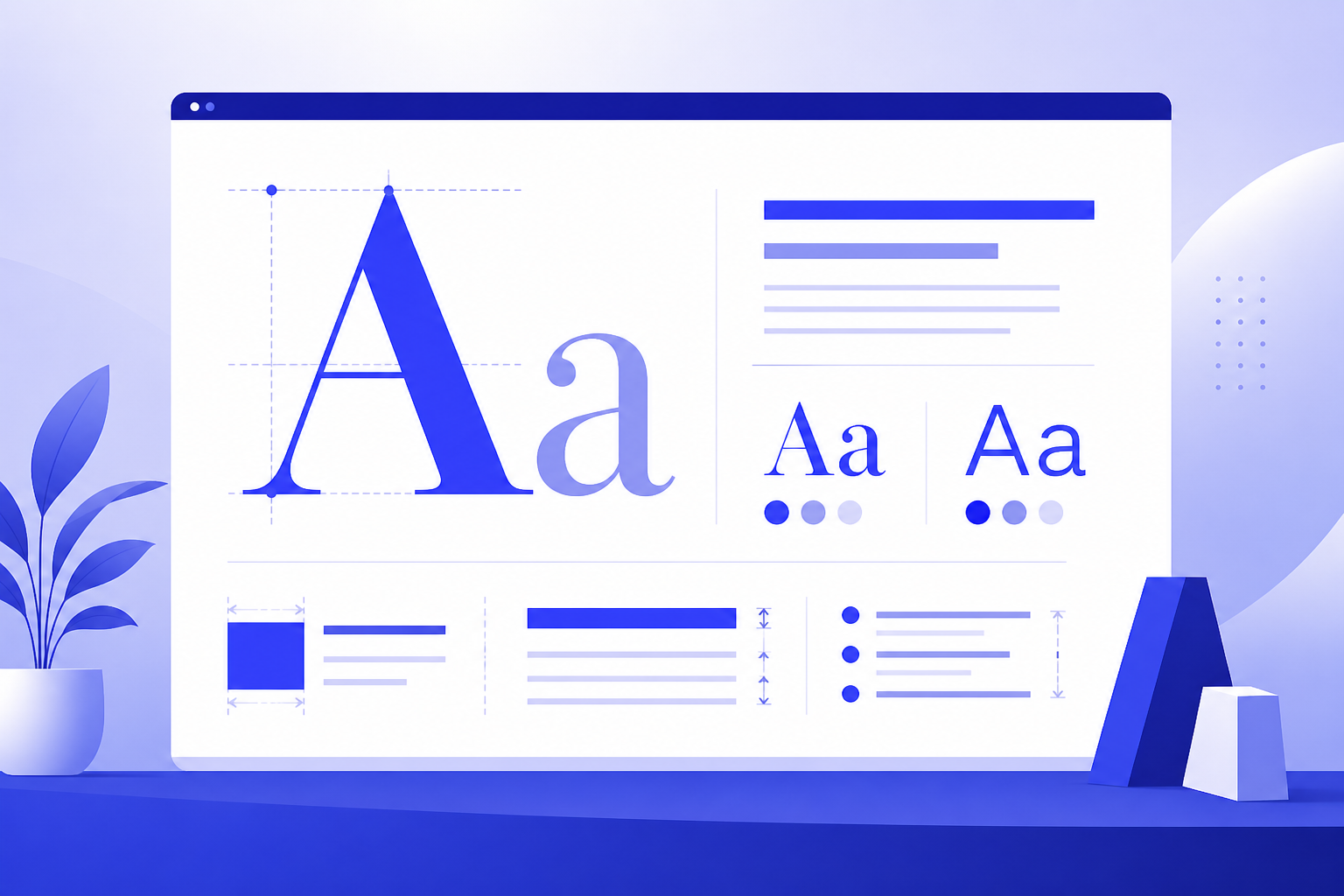
Professional Typography Tips for Presentations
Typography is the design system for your words. If slide text looks crowded, inconsistent, or hard to read, the audience will struggle even if the content is strong. Start by making the main message obvious, then support it with readable body copy and disciplined spacing.
The best typography choices are usually quiet. They help the viewer move from title to evidence to takeaway without noticing the font itself.
Best Scenarios and Inputs for Typography Improvement
Typography improvements are most valuable when the message is already good but the slide feels cluttered, inconsistent, or amateur. Prepare your slide text, audience, brand style, and export format before using AI suggestions.
- Business decks: make executive summaries and recommendations easier to scan.
- Student presentations: keep research slides readable from classroom distance.
- Pitch decks: create sharper hierarchy for problem, traction, and ask slides.
- Training decks: use spacing and headings to make learning sections clearer.
- Portfolio decks: keep captions minimal so visuals stay dominant.
Scenario 1: executive update
A project manager has dense status slides. Typography fixes turn labels into takeaway titles, reduce bullets, and make risk or decision text visually dominant.
Scenario 2: student research deck
A student has accurate content but too much small text. Better font sizes, spacing, and hierarchy make the findings easier for classmates and professors to follow.
5 Steps to Improve Presentation Typography
Use the steps below as a slide review pass. The goal is not to make the font more stylish. The goal is to make the message easier to see, read, and remember.
| Step | Typography decision | Practical rule |
|---|---|---|
| 1 | Choose font roles | Use one heading font and one body font, or one family with different weights |
| 2 | Set hierarchy | Make the takeaway title largest, supporting text smaller, and captions clearly secondary |
| 3 | Control line length | Keep body text short enough to scan from the back of a room |
| 4 | Check spacing | Use enough line height and margins so text blocks can breathe |
| 5 | Test contrast | Avoid low-contrast gray text or busy image backgrounds behind key copy |
After this pass, review the deck in slideshow mode. Typography that looks fine while editing may be too small when projected or shared on a smaller screen.
Copyable Prompt for Typography Review
AI can help review text hierarchy and spacing if you describe the slide goal and audience. Use the prompt below after you have draft slide text.
How to Edit, Export, and Check Typography
Before exporting, test the deck in the same setting where it will be used. A readable laptop slide may not be readable on a projector, in a webinar window, or on a PDF preview.
- Use takeaway titles instead of vague labels.
- Keep body copy short and move explanations into speaker notes.
- Avoid more than two font families in one deck.
- Check contrast on every slide with image backgrounds.
- Export a PDF and review whether line breaks, widows, or captions look awkward.
Common Typography Failures and Fixes
Most typography problems are easy to spot once you know what to look for. Fix readability before adding visual effects.
- Too many fonts: reduce to one family or one heading/body pair.
- Text too small: increase body size and remove low-value words.
- Weak hierarchy: make the slide takeaway visually dominant.
- Low contrast: use darker text, a simpler background, or a color overlay.
- Crowded bullets: split the idea across two slides or use speaker notes.
For broader design context, see presentation design trends 2026. For full deck creation, start from the AI presentation maker guide or the PopAi AI Presentation pillar page.
Frequently Asked Questions
What are the most important professional typography tips for presentations?
Use a clear hierarchy, limit fonts, keep body text large enough to read, add breathing room with spacing, maintain strong contrast, and write slide titles as takeaways rather than labels.
What font size should presentation body text use?
A common rule is to keep body text around 24pt or larger for projected slides. The exact size depends on room size, screen quality, and how much text is on the slide.
How many fonts should I use in a professional presentation?
Use one or two font families. A single family with multiple weights is often enough. Too many fonts make slides feel inconsistent and harder to scan.
Can AI help improve presentation typography?
Yes. AI can suggest stronger slide titles, shorter copy, hierarchy changes, spacing improvements, and contrast warnings. A human should still review the final deck in the actual presentation format.