Have you ever put together a meticulously prepared product demo, only to watch investors lose all interest because of lackluster slides? In an era of scarce attention, the traditional PPT creation process has become a shackle on creative showcase. This article uncovers a groundbreaking strategy: reconstruct the entire workflow from ideation to design with AI tools, allowing you to quickly craft mobile app showcase slides that stand out in both logic and visuals, and truly capture genuine attention.
Are Your Presentation Slides Guilty of These Fatal Flaws?
Be honest—this is how most of us prep a presentation, isn’t it? Open PPT, pick a “decent enough” template, copy and paste feature descriptions from a Word doc one by one, cram it full of screenshots and technical specs, and finish with a “Thank You” slide. The result? The audience is either scrolling their phones or staring into space. It’s not that your app is bad; your presentation style is driving people away.
A failed Mobile App Showcase Slides Presentation typically suffers from three critical issues: information overload, a lack of narrative, and bland visuals. It ends up reading like a product manual rather than painting a picture of an exciting future. Audiences won’t remember a long list of features, but they will remember a story, a scenario, or a feeling. Today, we’ll use concrete methods and tools to fix these problems for good.
Don’t Open PPT First! Refine Your Core Narrative with Mind Map–Style Brainstorming
Before opening any design software, answer this question: If your audience could only remember one thing about your app, what would you want it to be? Is it solving a unique pain point? Or boasting a revolutionary interaction design?
Traditional text outlines are linear and limit creativity. A more efficient approach is mind map–style brainstorming. You can use pen and paper, but AI tools are far better for structuring your thoughts. For example, you can input a direct prompt into PopAI’s Instant PPT Generation feature:
“Create a presentation framework for an AI–powered personal fitness coach mobile app. The core users are time–strapped office workers, and the key highlight is ‘3–minute personalized at–home workout plans’. The audience is potential investors; structure the deck around pain point resonance, solution offering, tech demo, business model, and team strengths.”
In seconds, PopAI will generate a logically structured draft of your slide deck based on your description. This draft isn’t the final design—it’s a polished content framework. It will intelligently suggest which sections need data backing, which work best with visual representation, and even recommend suitable layouts for different parts (e.g., comparison layout, timeline layout, data visualization layout). This step is like hiring a free presentation strategy consultant: it turns your scattered ideas into a compelling narrative arc, laying a solid foundation for your Mobile App Showcase Slides Presentation.
Design Phase: Give Your Slides a Visual Makeover – Remember These 3 Practical Tips
With the framework in place, it’s time to add substance and style. Ditch default templates and follow these actionable steps:
Tip 1: Build a Custom Color Palette – Ditch the Default Blue
How to do it: Extract one primary color and 1–2 secondary colors from your app’s icon or main interface. For a wellness–focused app, for instance, use a vibrant green as the primary color, accented with light gray and warm orange.
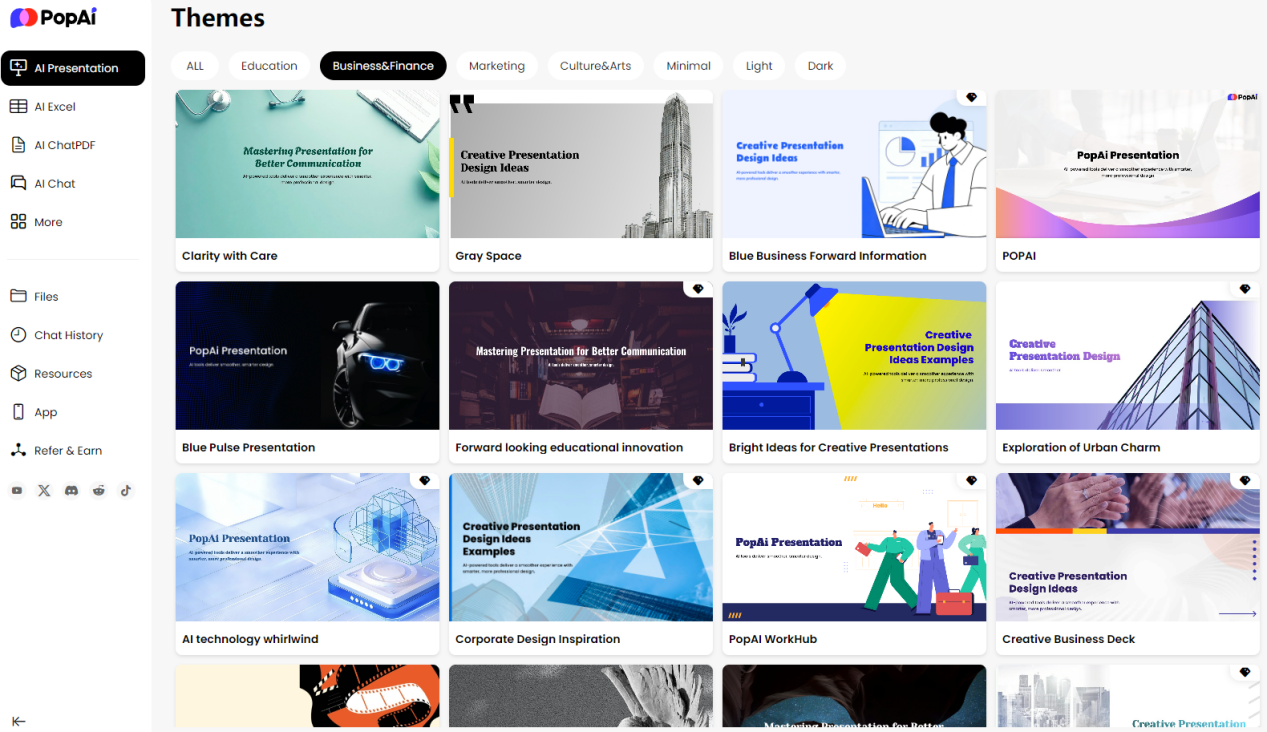
How to implement it: PopAI’s extensive template library automatically maintains this color consistency—no need to adjust every slide manually.
Tip 2: Fonts Are Your Voice – Speak Loud and Clear
How to do it: Stick to a single sans–serif font family throughout the deck, such as Source Han Sans or Microsoft YaHei. Distinguish content hierarchy using font weight:
l Titles: Heavy/Bold, font size 32–44
l Subtitles/Key Phrases: Medium, font size 24–28
l Body Text: Regular, font size 18–22, 1.5x line spacing
Golden rule: Never use more than three font styles on a single slide! PopAI automatically adheres to your font guidelines during generation and editing, ensuring every slide is polished and consistent.
Tip 3: Bring Screenshots to Life – Don’t Just Paste Them In
How to do it:
1. Use high–quality mobile device mockups: Download free, well–angled PSD mockups for iPhones or Android phones from design platforms like Freepik.
2. Showcase the user flow: Instead of placing three screenshots side by side, show your app’s home screen on one slide; on the next, use a smooth transition effect to “zoom in” on a button from the home screen and display the subsequent interface—this simulates a user’s tap action.
3. Add micro–animations: Insert fade–in or wipe animations on key buttons or data charts to guide the audience’s eye line.
How to Turn These Ideas into Reality Fast with PopAI
You might think these steps sound great but take too much time—that’s exactly the core problem tools like PopAI solve: democratizing and automating the creation of professional presentations.
Scenario 1: You Only Have a Rough Product Document
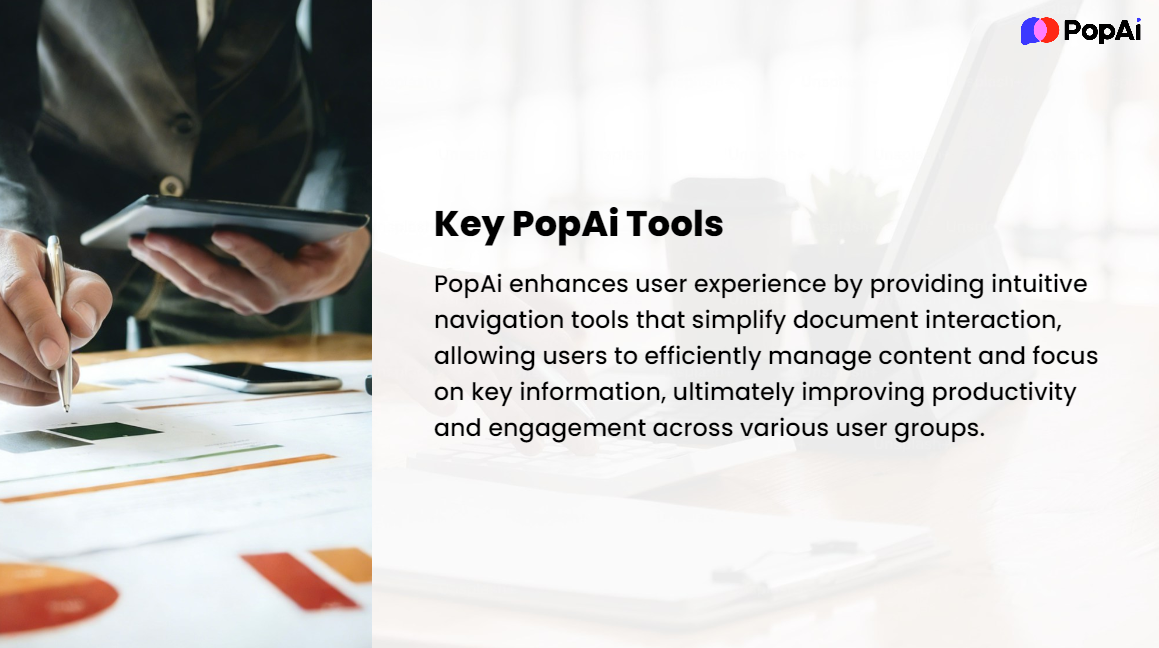
How to do it: Use PopAI’s Flexible Upload Options to upload your Word/PDF document directly, then activate the Auto–Convert to Presentation feature. PopAI’s AI acts like a seasoned editor, automatically analyzing the document structure, extracting key insights, and reorganizing the content into a beautifully designed, logically structured slide deck. What you get is not a shoddy first draft, but a polished semi–finished product with thoughtful typography and balanced image–text integration—you only need to tweak and refine it further.
Scenario 2: You Want to Build a Presentation from Scratch Fast
How to do it: Open PopAI and describe your needs in detail using natural language in the input box—the more specific, the better. For example: “Create a 10–slide presentation for a Sleep Meditation for Nighttime Relaxation app, targeted at the App Store Review Team. Highlight the unique natural soundscape fusion technology and user sleep quality improvement metrics. The style should be calm and professional, with heavy use of deep navy hues.” The AI will generate a complete deck based on your description, including a cover slide, table of contents, transition slides, content slides, and a closing slide—all highly aligned with your stylistic requirements.
Scenario 3: You’re Unhappy with Your Existing PPT and Want to Refine Its Content & Visuals
How to do it: Import your old PPT into PopAI. With the Seamless Editing feature, you can drag and drop to rearrange slides or merge redundant pages in the left–side outline view—just like managing a mind map. For slides with too much text, let the AI Polish Content to make it more concise and impactful. The entire process is grounded in an audience–centric design framework, with the AI continuously helping you ensure the effectiveness of your message delivery.
Final Rehearsal: 3 Critical Details to Check Before Taking the Stage
l Equipment & Backup
Test your computer, adapters, and projector at the venue in advance. In addition to the PPTX file, save a PDF copy on your mobile phone and cloud drive for contingencies.
l Presenter View
Master the Presenter View (check the box in PPT’s Slide Show settings). This lets you see next slide previews and speaker notes on your computer, while the audience only sees the current slide on the big screen.
l Timed Rehearsals
Rehearse aloud at least three times, sticking strictly to the official presentation time. Record yourself with your phone and review your speech rate, pauses, and verbal tics (e.g., “um… then… then…”). PopAI’s clear slide structure will help you memorize the presentation flow with ease.
Take Action – Make Your Next Presentation a Classic
Creating a stunning Mobile App Showcase Slides Presentation no longer requires you to be a design guru or a public speaking expert. All it takes is the right process, practical tips, and a powerful tool like PopAI to leverage your efforts. Its core value is liberating you from tedious typography tweaks, image hunting, and formatting fixes—letting you focus all your time and creativity on what matters most: polishing your core narrative and forging a genuine emotional connection with your audience.
Now, reassess the slides you’re preparing for your next product meeting, investor pitch, or App Store submission. Apply the methods in this article: start with mind map–style brainstorming, and use AI tools to quickly achieve professional design and content optimization. When you’re free from the constraints of tools and formats, your app’s core idea will truly shine on stage.