Part 1: Why You Urgently Need a “Living” Brand Guide PPT?
Stop envisioning brand guidelines as a thick, dusty manual locked in a drawer. In today’s fast–paced work environment, no one has time to sift through complex documents. What you need is a visual, explodable, resource–linkable, and easily updatable central file.
A brand guide created in PPT checks all these boxes:
l Easy to Understand: Combines text and visuals, with side–by–side comparisons of wrong and correct examples for instant clarity.
l Clear to Explain: Use it directly for onboarding new hires (projecting and walking through the slides) or quickly navigate to specific pages when communicating with external designers.
l Practical to Use: Insert clickable links directly in the PPT—team members can download official logo source files, color palettes, or PPT templates with one click.
l Simple to Update: Undergoing a brand refresh? Spotted an issue? Just update the relevant slides and send a group notification—no need to rewrite the entire document.
In short, a Brand Guidelines slides presentation isn’t an archive—it’s a daily working collaboration tool and communication bridge.
Part 2: Let’s Start Creating! Your Brand Guide PPT Must Include These 8 Sections
Open your PPT software (or PopAI, the intelligent tool we’ll introduce later) and create a new presentation. Now, let’s fill it page by page.
Page 1: Cover & Table of Contents
How to do it: Feature your company’s most standard and impactful logo and its applications on the cover. The table of contents should clearly list all subsequent sections, such as:
1. Who We Are
2. How to Use Our Logo
3. Our Brand Colors
4. Our Brand Fonts
5. Images & Graphics
6. How We Speak
7. Application Examples
8. Resource Downloads
Pages 2–3: Who We Are? — Speak Plainly, Set the Tone
Be specific: Avoid vague jargon here. Answer these questions in simple language—they define the “feel” of all your designs.
Three Core Questions:
l Why do we exist? (Not “to make money”—e.g., “To make financial management for small business owners as easy as chatting.”)
l Who do we aspire to be? (E.g., “To become the most trusted creative partner in the industry.”)
l What’s our personality? (Choose 2–3 keywords, e.g., “Professional, Reliable, Approachable,” and explain: “This means we avoid internet slang, keep our promises, and use ‘we’ and ‘please’ in communication.”)
Visualize: Add a team photo or scene image that reflects this personality alongside the text.
Pages 4–6: How to Use Our Logo? — Set Strict Rules, Zero Tolerance for Mistakes
This is the most critical section—attention to detail is key.
How to do it:
l Show Standard Versions: Display high–resolution images of the logo in three basic formats: full–color, reverse (white on dark background), and monochrome (black).
l Define Safe Space: Draw a “no–go zone” around the logo and label it “No elements allowed in this area” with a diagram.
l Show Mistake Examples (Most Important!): Create common incorrect usages with big red “X” marks:
1. Distortion: Stretching or squashing the logo.
2. Color Change: Arbitrarily altering a blue logo to purple or pink.
3. Cluttered Background: Placing a dark logo on a complex image, making it unreadable.
4. Misused Effects: Adding weird shadows, glows, or 3D effects to the logo.
l Provide Resources: In the slide notes or via an icon, link to a cloud storage folder containing logo files in .ai, .eps, and high–res .png formats.
Pages 7–8: Our Brand Colors — Provide a Set of “Magic Numbers”
Colors shouldn’t be based on feeling—always provide globally recognized codes.
How to do it:
l Primary Color: Select 1 main brand color (e.g., your logo’s signature color).
l Secondary Colors: Choose 1–2 frequently used complementary colors.
l Display Color Palettes: Create a color block for each shade and include the following mandatory codes below each:
1. CMYK Values: For print materials (e.g., “C:100 M:50 Y:0 K:0”).
2. RGB Values: For screen displays (e.g., “R:0 G:102 B:255”).
3. HEX Code: For web and UI design.
Pro Tip: Use your PPT’s color picker to extract these colors and set them as your template’s theme colors—ensuring consistent coloring throughout the presentation.
Page 9: Our Brand Fonts — No More Asking “Which Font Should I Use?”
How to do it:
l Chinese Fonts: Clearly state font names and usage rules, e.g., “Source Han Sans Regular for body text, Bold for headings.” If using paid fonts, provide a link to the official purchase page or internal installation package.
l English Fonts: Follow the same format, e.g., “Use Roboto or Arial.”
Font Size & Line Spacing Guidelines (Advanced): Simply specify rules like “Minimum font size for PPT body text: 24pt; Line spacing: 1.5x.”
Page 10: Images & Graphics — Define the “Vibe”
Be specific:
l Photography Style: Is it “authentic, natural customer scenario photos” or “bright, clean product stills”? Include 2–3 correct examples.
l Illustration/Icon Style: Is it “rounded–line illustrations” or “simple flat icons”? Again, add correct examples.
l Provide Shortcuts: Recommend 1–2 free or paid stock photo websites that match your style (e.g., Unsplash, Pexels) and include links.
Page 11: How We Speak — Write Your “Language Style Guide”
Be specific: Imagine introducing a new product.
l Incorrect Example: “This product is extraordinary, adopting cutting–edge technology to lead the trend of the times.” (All empty jargon.)
l Correct Example: “This new product solves your pain point in [XX scenario]. Through [XX technology], it helps you complete [YY task] more quickly—like having a reliable assistant.” (Specific, scenario–based, and uses a metaphor.)
List Forbidden Words: Based on your brand personality, list words to avoid, e.g., “deceive,” “best ever,” “crush the competition.”
Pages 12–13: Application Examples — “This Is How to Use It Correctly”
Combine the previous guidelines into real–world mockups.
How to do it: Find free Mock–up templates and apply your designs to showcase:
l Business cards and letterheads
l PPT cover and inner page designs
l Social media headers and post templates
l Employee IDs and culture shirts
Visual Impact: This page lets everyone intuitively feel the professional beauty of a “unified brand.”
Page 14: Resource Library — Everything at Your Fingertips
How to do it: Use large icons and buttons to list links to downloadable resources:
l Logo source file package
l Standard color palette file (.ase)
l Brand font package
l PPT/Word templates
l Common image asset library
Part 3: Double Your Efficiency! How to Intelligently Generate Your Brand Guide PPT with PopAI
Now you have a clear content framework, but designing each page from scratch—layout, image sourcing, format adjustments—can be time–consuming. This is where AI presentation tools like PopAI come in, making the creation process twice as fast with half the effort.
1. Quick Setup from Scratch
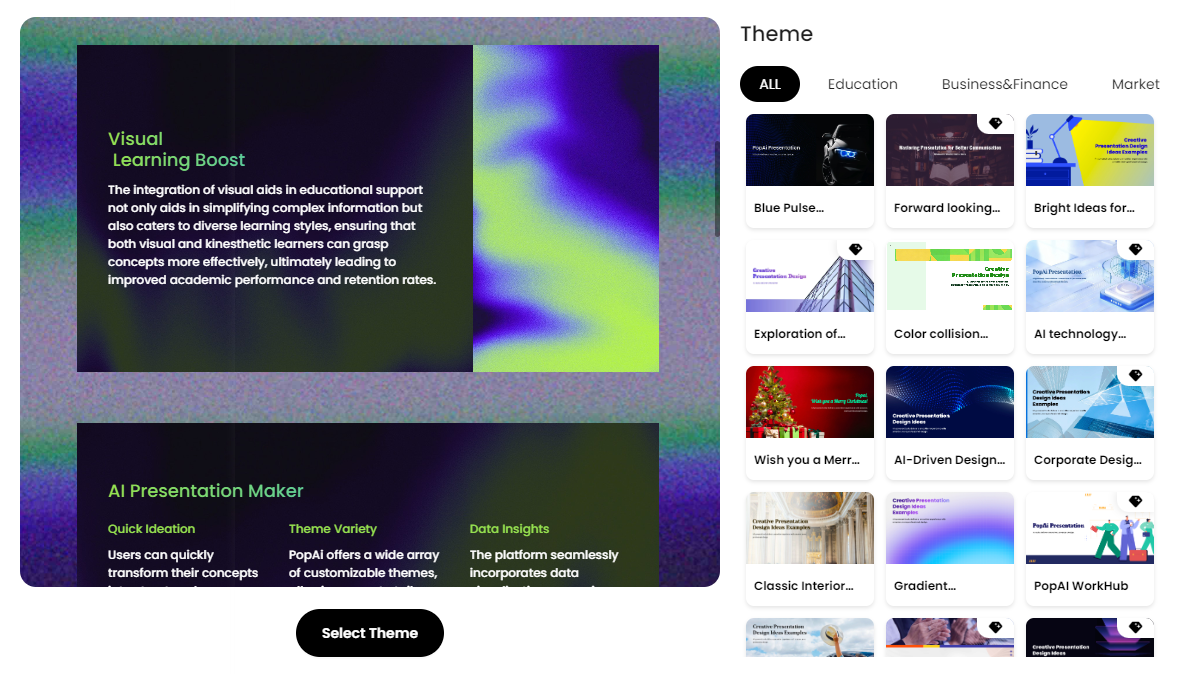
You don’t need to be a PPT expert. In PopAI, simply enter a core topic (e.g., “Create a brand visual guidelines presentation for [Your Brand Name]”) and select style preferences like “Professional” or “Clear.” PopAI will instantly generate a complete, uniformly designed PPT draft—its outline will likely include all the key sections we mentioned above. All you need to do is fill in your specific content on this high–quality draft.
2. AI as Your Design Consultant
When you need to find example images for the “Images & Graphics” page, PopAI’s AI–enhanced content feature shines. Directly input a prompt like: “Search for office scene photos that reflect ‘professionalism, reliability, and technological sense'”—it will quickly find and suggest high–quality, style–matching images, saving you the hassle of searching across multiple stock photo websites.
3. Maintain Overall Professionalism and Cohesion
Manually adjusting fonts, colors, and alignment across pages is prone to inconsistencies. PopAI’s intelligent layout and editing features help you unify the entire presentation effortlessly. For example, when you update your primary brand color, you can quickly apply it to the presentation’s theme—all charts and color blocks will automatically sync, ensuring your Brand Guidelines slides presentation itself becomes the best example of “design consistency.”
4. Quickly Adapt for Different Audiences
You may need to present this guide to different groups: designers need details, new hires need simplicity, and management needs conciseness. PopAI’s audience–centric design philosophy allows you to create different versions of the presentation quickly. Based on the same core content, you can generate a detailed version and a brief version—meeting communication needs for different scenarios and greatly improving the guide’s dissemination efficiency.
The key to creating a truly useful brand guide lies in being specific, visual, and usable. With the help of intelligent tools like PopAI, you can greatly simplify the cumbersome design and layout work, allowing you to focus your energy on polishing the content itself. In the end, what you get is not just a set of slides, but a powerful, communicative brand management tool. It ensures that everyone—from the marketing department to the reception desk, from internal employees to external partners—can easily “tell” the same compelling brand story. Now, open your tool and start creating your first PPT slide!