
Presentation Summary
From Pages to Collaboration - A Complete Tutorial for Startups and Teams Discover the all-in-one workspace advantage and why startups choose Notion for efficiency. Master the foundation: understanding the critical distinction between pages and databases in Notion. Visualize your workflow with drag-and-drop Kanban boards to track progress effortlessly. Accelerate setup with ready-made templates and enable seamless team collaboration in real-time. Replace 5-10 separate apps with one unified platform, reducing complexity and subscription costs.
Full Presentation Transcript
Slide 1: Introduction to Notion for Project Management
From Pages to Collaboration - A Complete Tutorial for Startups and Teams
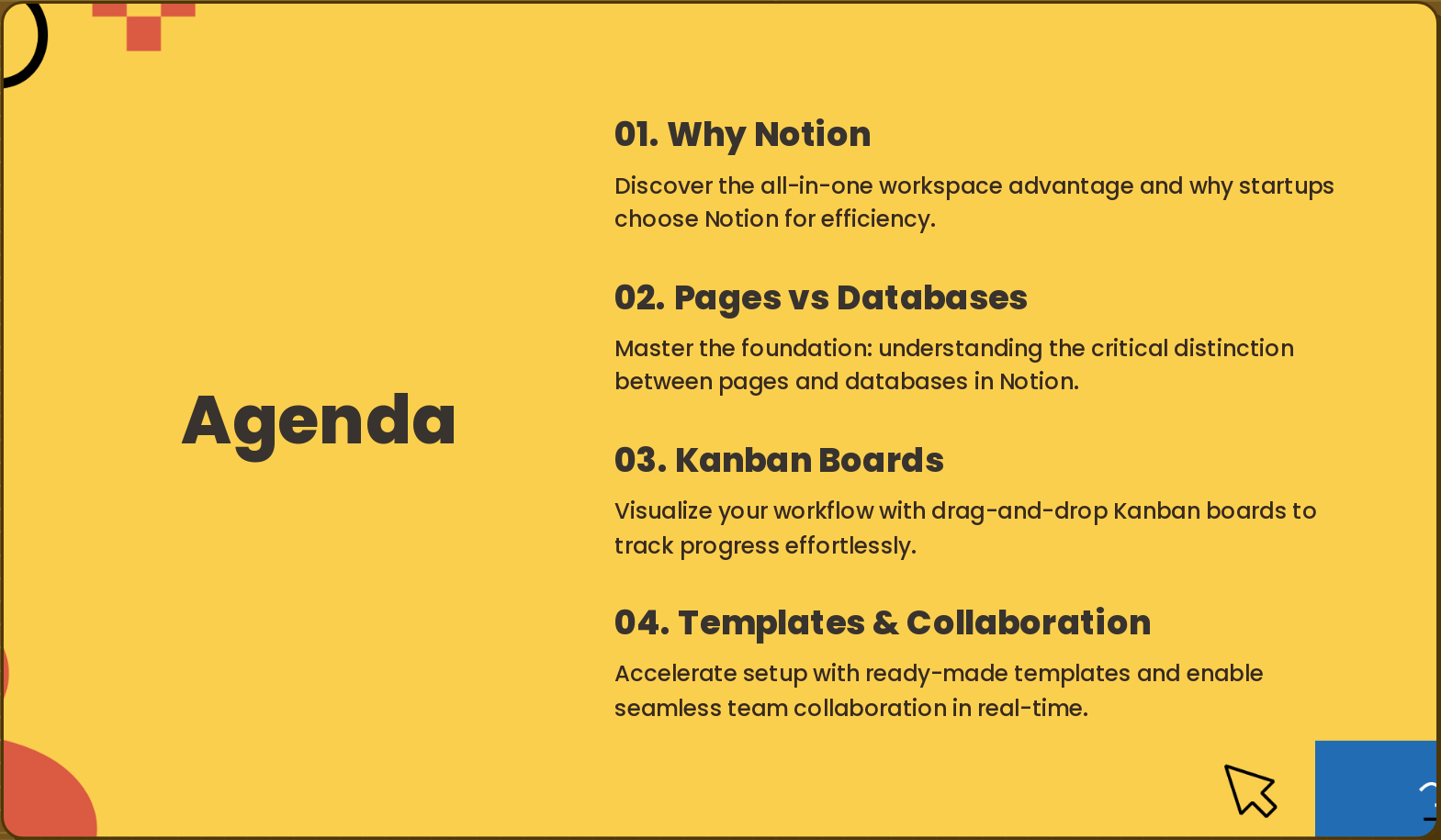
Slide 2: Agenda
- Why Notion: Discover the all-in-one workspace advantage and why startups choose Notion for efficiency.
- Pages vs Databases: Master the foundation: understanding the critical distinction between pages and databases in Notion.
- Kanban Boards: Visualize your workflow with drag-and-drop Kanban boards to track progress effortlessly.
- Templates & Collaboration: Accelerate setup with ready-made templates and enable seamless team collaboration in real-time.
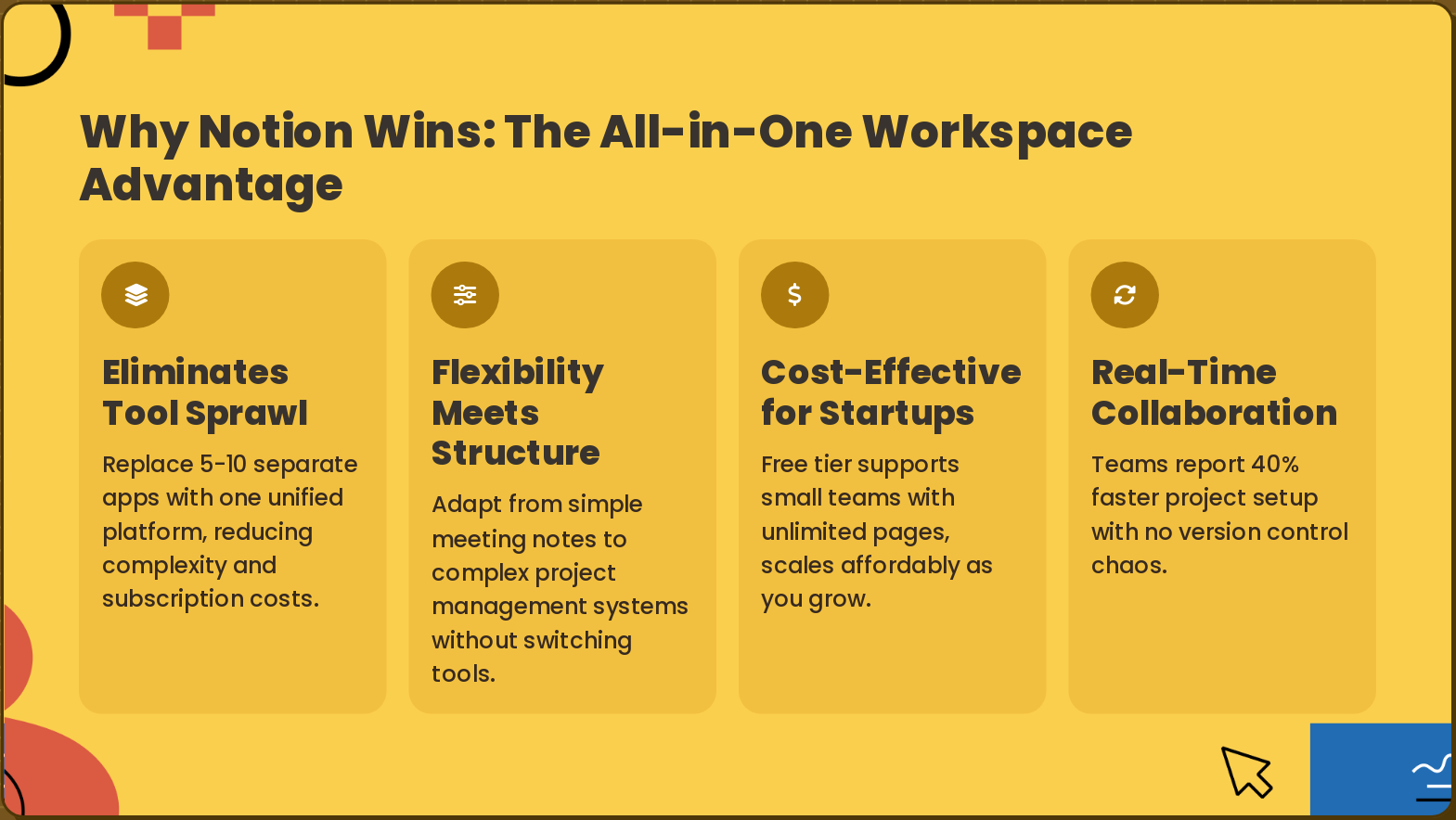
Slide 3: Why Notion Wins: The All-in-One Workspace Advantage
- Eliminates Tool Sprawl: Replace 5-10 separate apps with one unified platform, reducing complexity and subscription costs.
- Flexibility Meets Structure: Adapt from simple meeting notes to complex project management systems without switching tools.
- Cost-Effective for Startups: Free tier supports small teams with unlimited pages, scales affordably as you grow.
- Real-Time Collaboration: Teams report 40% faster project setup with no version control chaos.
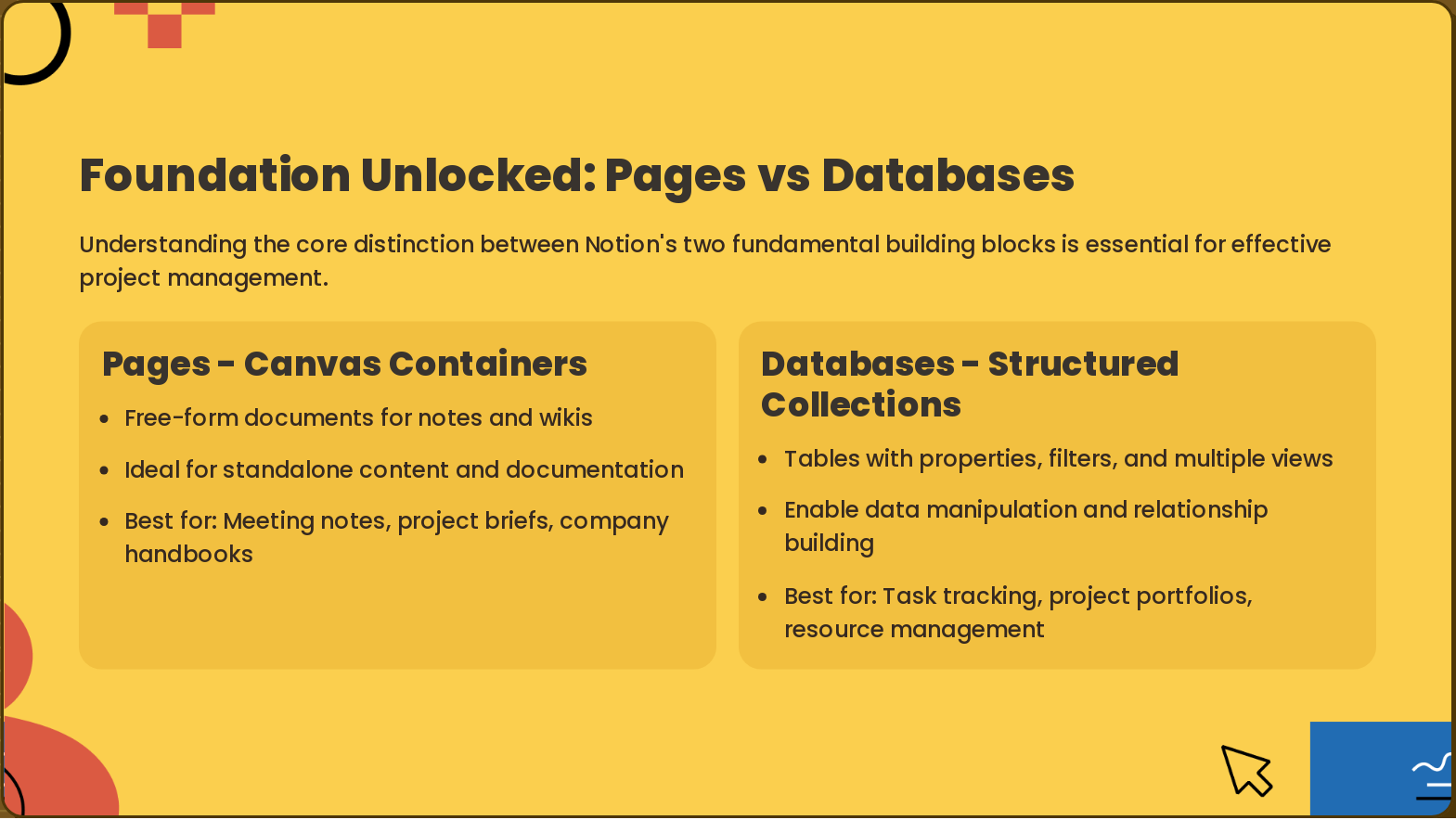
Slide 4: Foundation Unlocked: Pages vs Databases
- Pages - Canvas Containers: Free-form documents for notes and wikis
- Databases - Structured Collections: Tables with properties, filters, and multiple views
Understanding the core distinction between Notion's two fundamental building blocks is essential for effective project management.
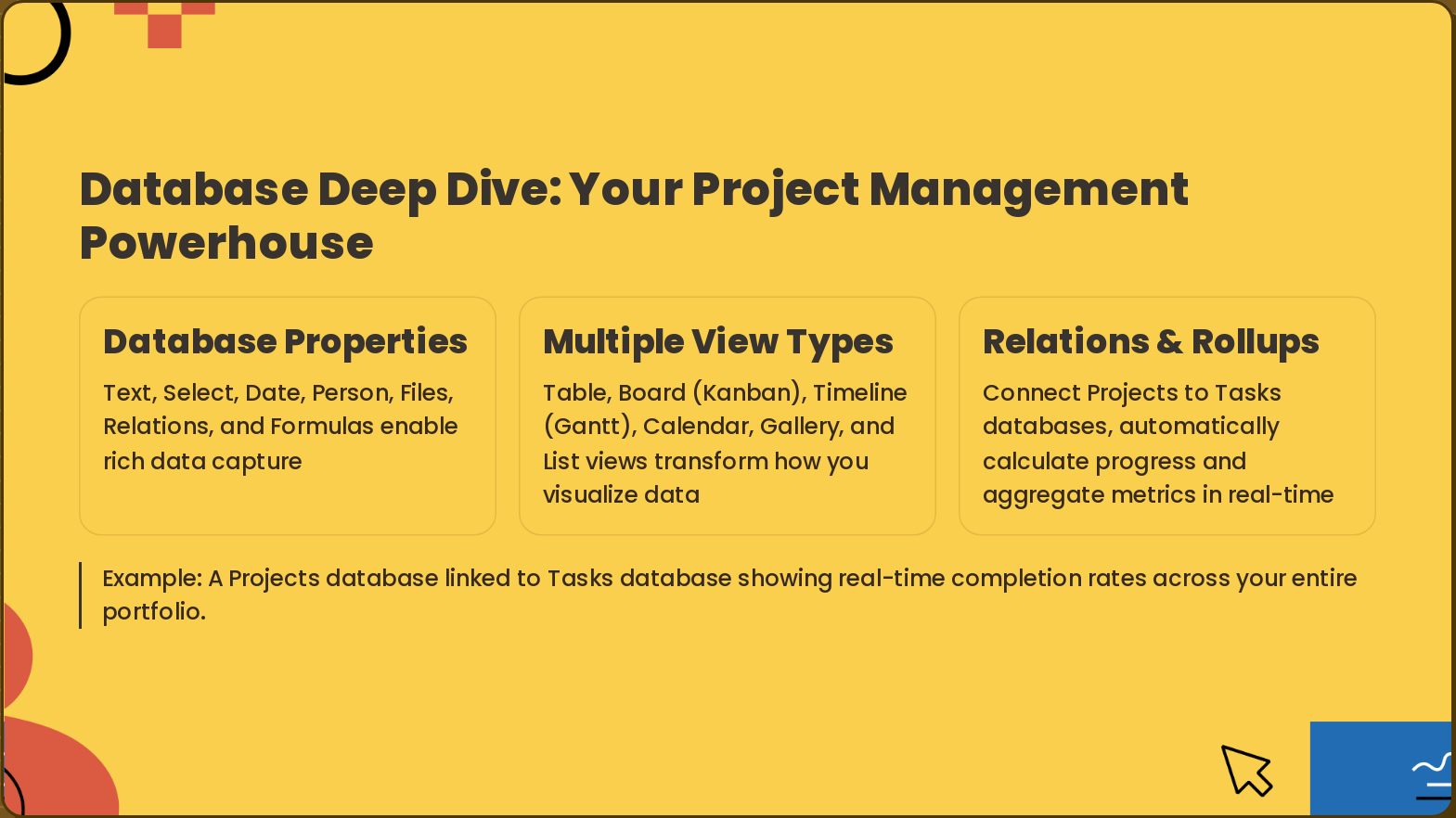
Slide 5: Database Deep Dive: Your Project Management Powerhouse
- Database Properties: Text, Select, Date, Person, Files, Relations, and Formulas enable rich data capture
- Multiple View Types: Table, Board (Kanban), Timeline (Gantt), Calendar, Gallery, and List views transform how you visualize data
- Relations & Rollups: Connect Projects to Tasks databases, automatically calculate progress and aggregate metrics in real-time
Example: A Projects database linked to Tasks database showing real-time completion rates across your entire portfolio.
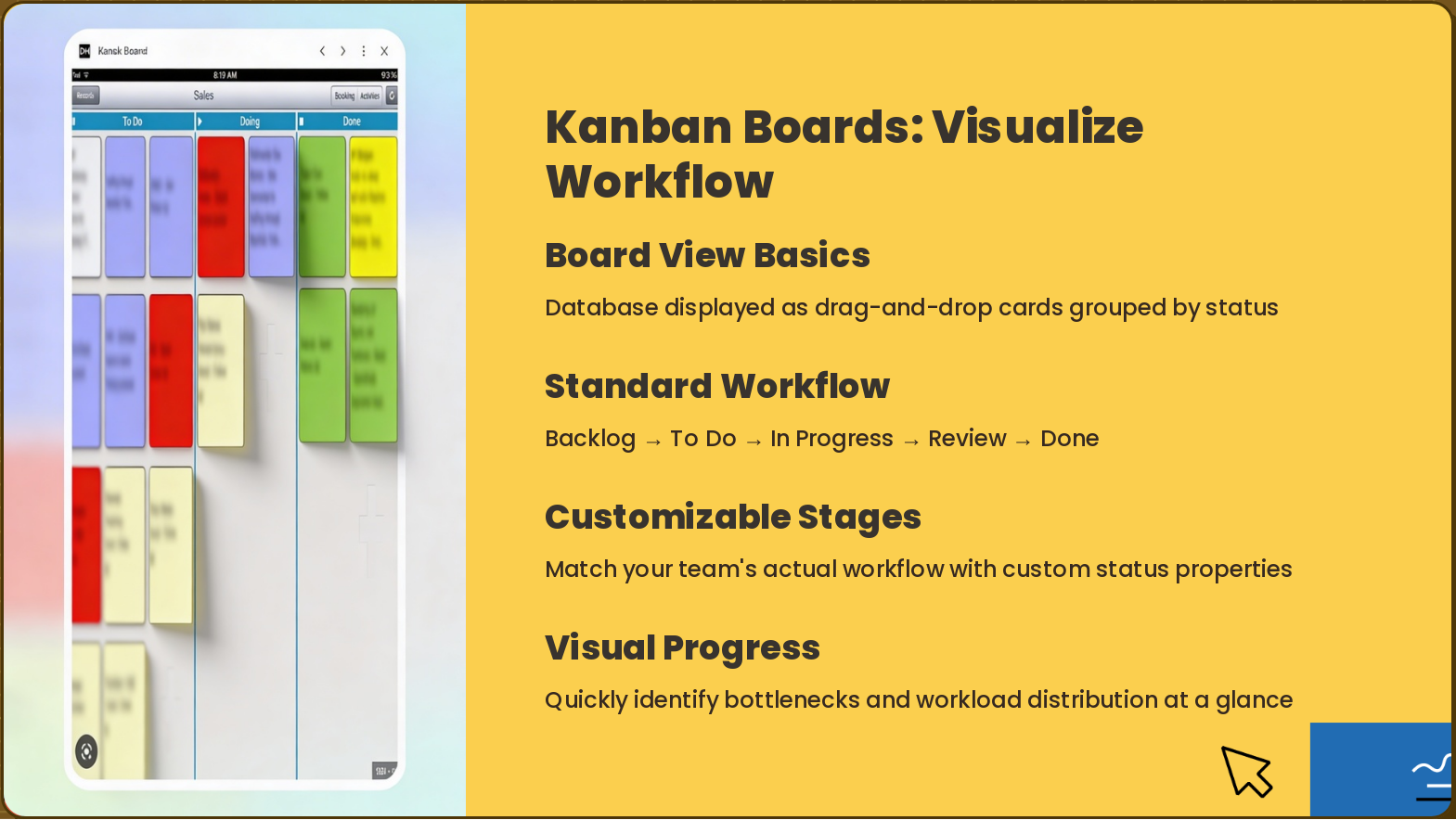
Slide 6: Kanban Boards: Visualize Workflow
- Board View Basics: Database displayed as drag-and-drop cards grouped by status
- Standard Workflow: Backlog → To Do → In Progress → Review → Done
- Customizable Stages: Match your team's actual workflow with custom status properties
- Visual Progress: Quickly identify bottlenecks and workload distribution at a glance
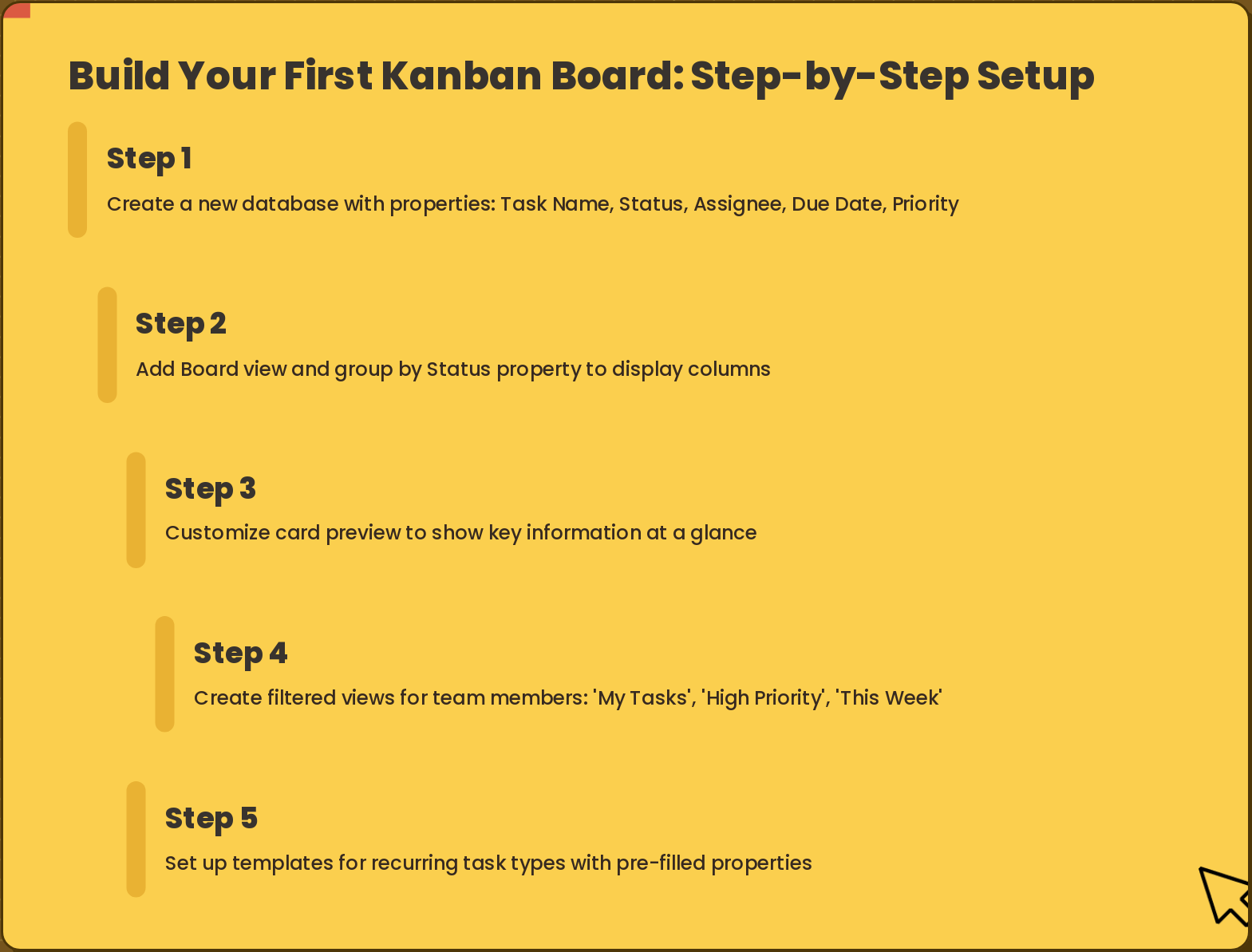
Slide 7: Build Your First Kanban Board: Step-by-Step Setup
- Step 1: Create a new database with properties: Task Name, Status, Assignee, Due Date, Priority
- Step 2: Add Board view and group by Status property to display columns
- Step 3: Customize card preview to show key information at a glance
- Step 4: Create filtered views for team members: 'My Tasks', 'High Priority', 'This Week'
- Step 5: Set up templates for recurring task types with pre-filled properties
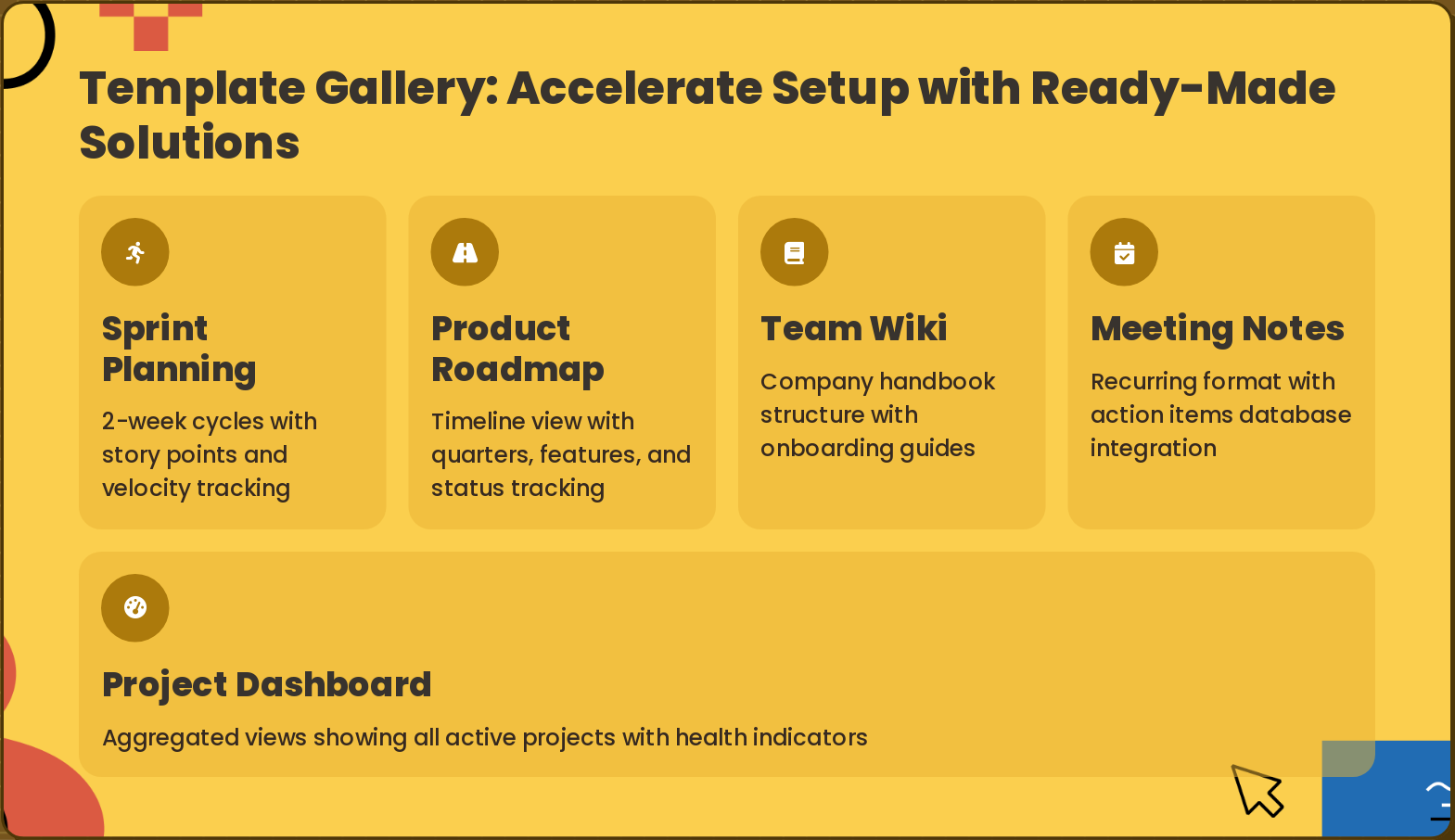
Slide 8: Template Gallery: Accelerate Setup with Ready-Made Solutions
- Sprint Planning: 2-week cycles with story points and velocity tracking
- Product Roadmap: Timeline view with quarters, features, and status tracking
- Team Wiki: Company handbook structure with onboarding guides
- Meeting Notes: Recurring format with action items database integration
- Project Dashboard: Aggregated views showing all active projects with health indicators
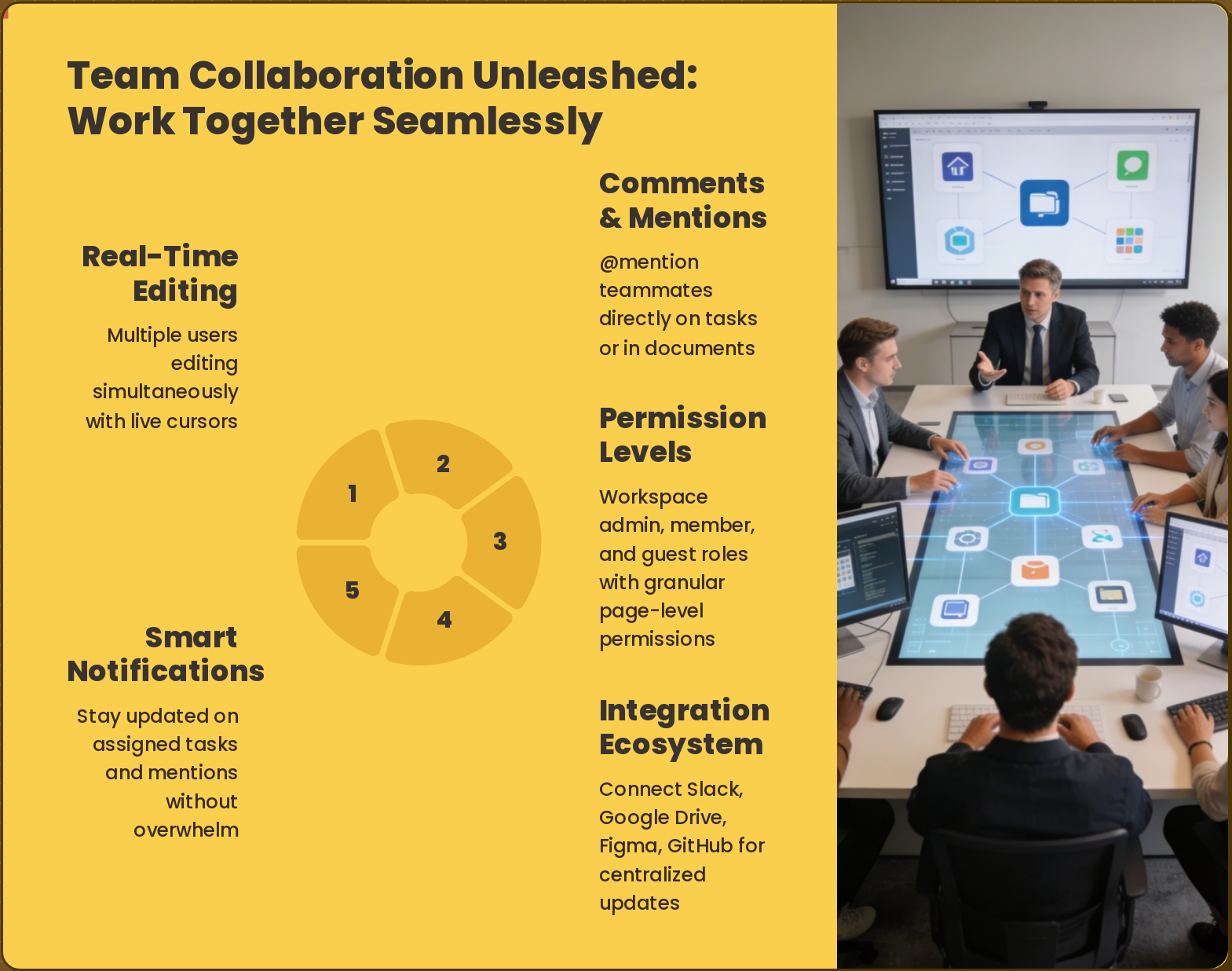
Slide 9: Team Collaboration Unleashed: Work Together Seamlessly
- Real-Time Editing: Multiple users editing simultaneously with live cursors
- Comments & Mentions: @mention teammates directly on tasks or in documents
- Permission Levels: Workspace admin, member, and guest roles with granular page-level permissions
- Integration Ecosystem: Connect Slack, Google Drive, Figma, GitHub for centralized updates
- Smart Notifications: Stay updated on assigned tasks and mentions without overwhelm
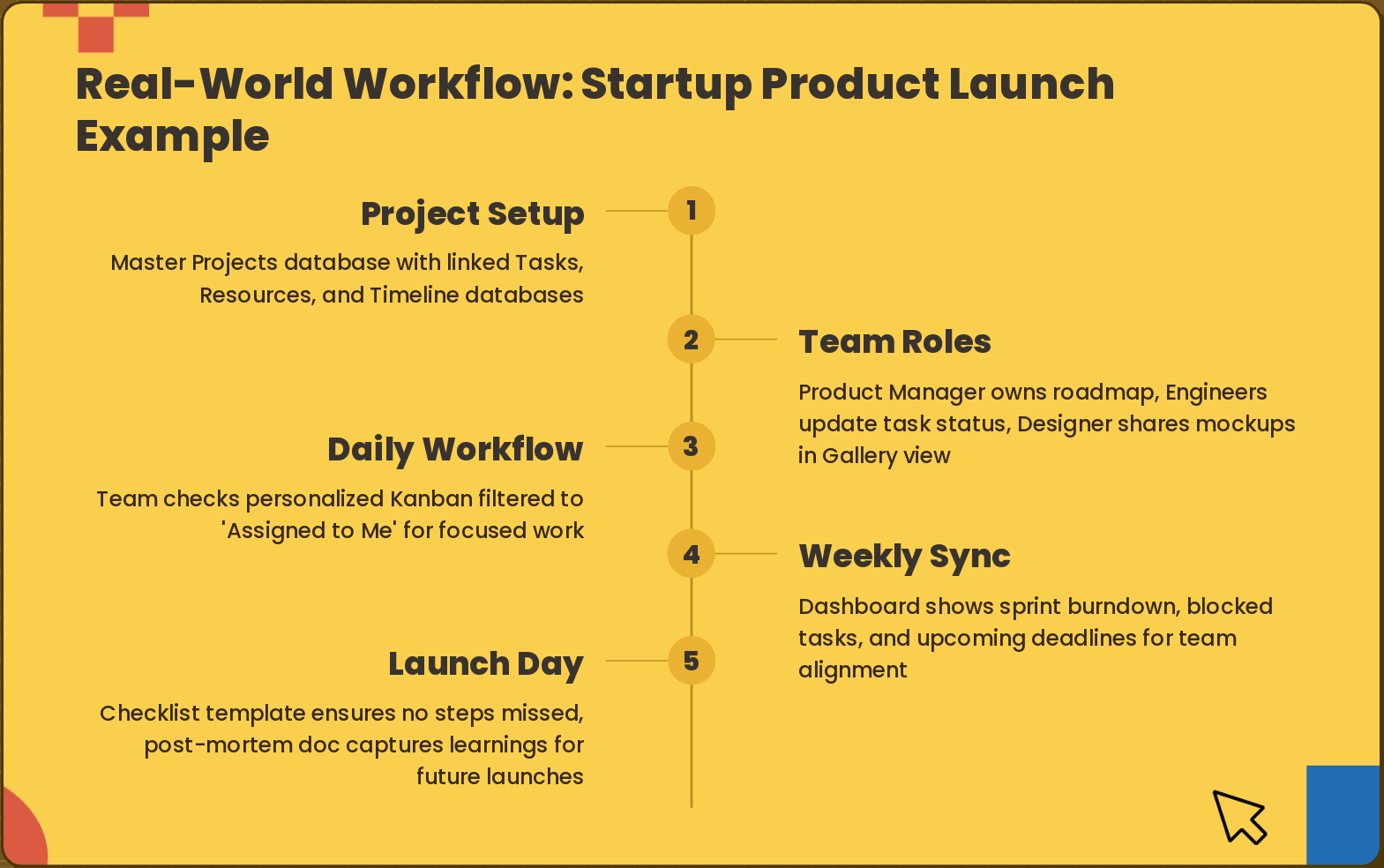
Slide 10: Real-World Workflow: Startup Product Launch Example
- Project Setup: Master Projects database with linked Tasks, Resources, and Timeline databases
- Team Roles: Product Manager owns roadmap, Engineers update task status, Designer shares mockups in Gallery view
- Daily Workflow: Team checks personalized Kanban filtered to 'Assigned to Me' for focused work
- Weekly Sync: Dashboard shows sprint burndown, blocked tasks, and upcoming deadlines for team alignment
- Launch Day: Checklist template ensures no steps missed, post-mortem doc captures learnings for future launches
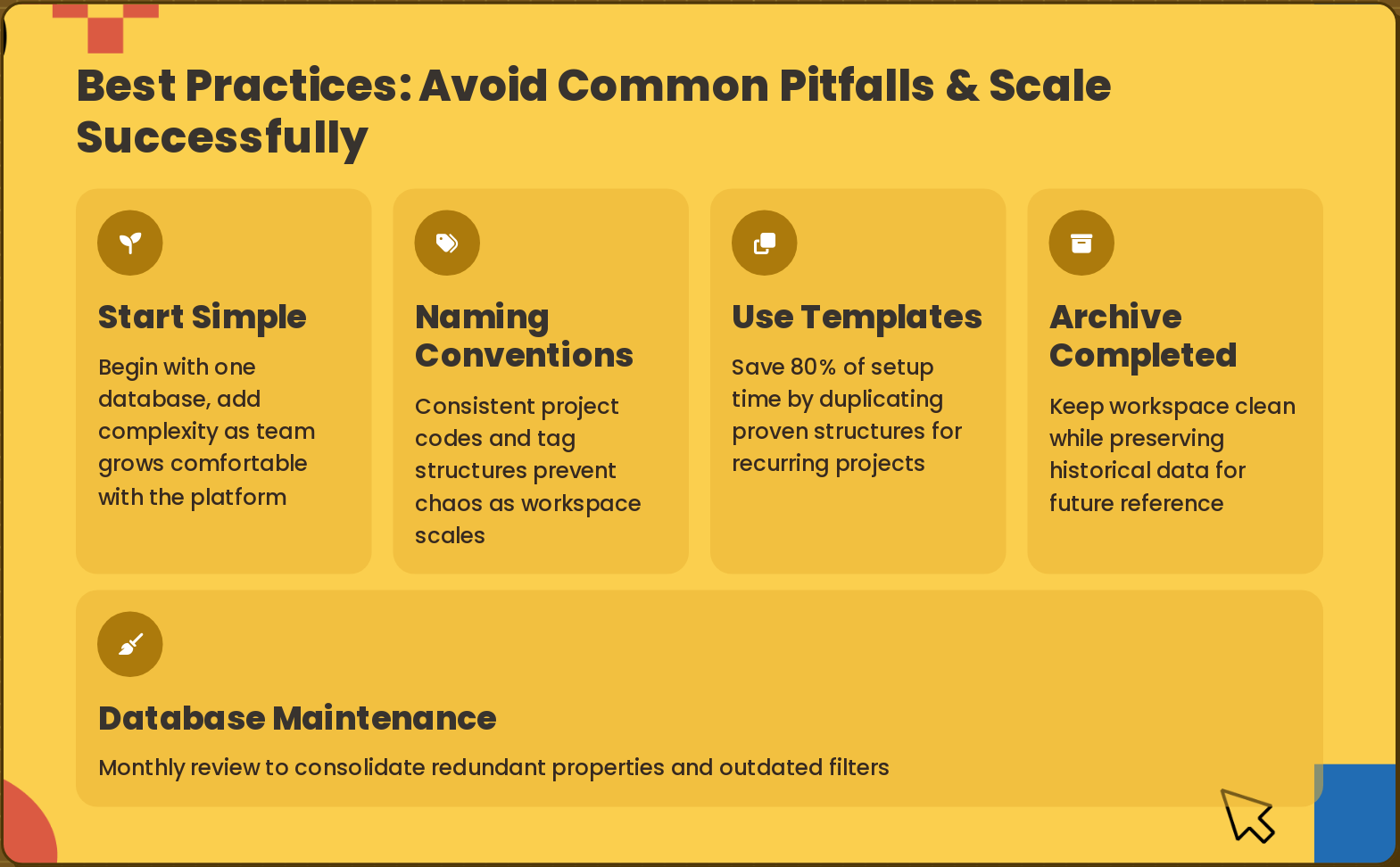
Slide 11: Best Practices: Avoid Common Pitfalls & Scale Successfully
- Start Simple: Begin with one database, add complexity as team grows comfortable with the platform
- Naming Conventions: Consistent project codes and tag structures prevent chaos as workspace scales
- Use Templates: Save 80% of setup time by duplicating proven structures for recurring projects
- Archive Completed: Keep workspace clean while preserving historical data for future reference
- Database Maintenance: Monthly review to consolidate redundant properties and outdated filters
Slide 12: Start Your Notion Journey Today
Start Your Notion Journey Today Create your first project database, share with your team, and experience the power of connected workflows.