Slide Design Mistakes to Avoid Before You Present
Updated August 18, 2026 · PopAi Academy Editorial Team
The fastest way to use a slide design mistakes avoid before presenting checklist is to review the message, hierarchy, spacing, and evidence in that order instead of decorating a weak slide.
This guide shows the design principles behind common errors, before-and-after fixes, a reusable checklist, AI-assisted review steps, and final presentation checks.
Slide Design Mistakes Avoid Before Presenting: Fix the Message First
A slide fails when the audience cannot tell what to notice, believe, or do. Start with a one-sentence takeaway, then make every visual support that sentence.
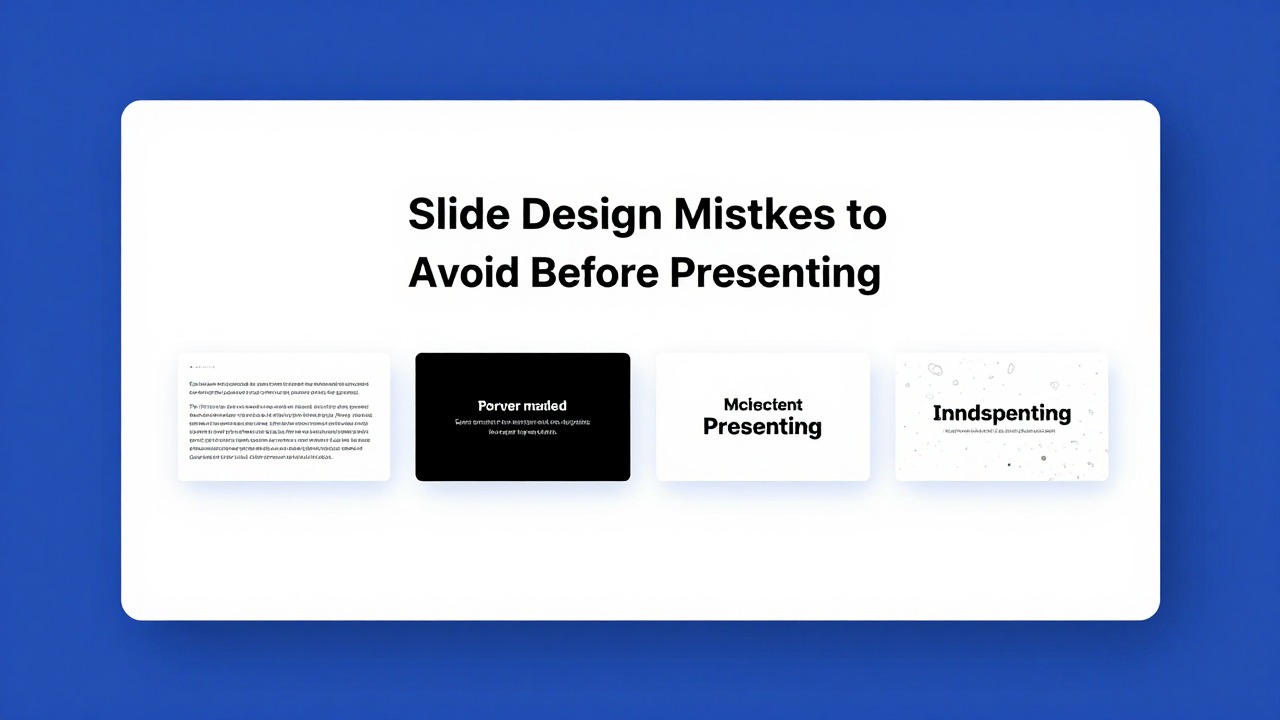
Design Principles and Before/After Fixes
Too much text
Before: a paragraph and six bullets compete with the speaker. After: a takeaway title, three short evidence points, and the detail in speaker notes.
Weak hierarchy
Before: title, chart, and callout have equal visual weight. After: the title states the conclusion, the chart proves it, and the callout names the implication.
Inconsistent styling
Before: every slide uses a different font size and accent color. After: one type scale, spacing rhythm, and controlled accent color create a reliable path.
Fix Alignment, Color, Charts, Images, and Animations
- Align objects to a visible grid and leave enough breathing room.
- Use contrast for meaning, not decoration; check the deck in grayscale.
- Label charts directly, remove unnecessary axes, and state the comparison.
- Use one purposeful image instead of several low-quality placeholders.
- Animate only when motion explains sequence, change, or attention.
Reusable Presentation Design Checklist
| Area | Pass condition |
|---|---|
| Message | Each slide has one clear takeaway title |
| Layout | Objects align and margins are consistent |
| Typography | Text is readable at presentation distance |
| Color | Contrast and meaning remain clear in grayscale |
| Data | Charts have labels, units, and a conclusion |
| Delivery | Notes, links, media, and transitions work after export |
Run the checklist once before rehearsal and again after exporting to PPTX or PDF. A last-minute font substitution or clipped chart can undo otherwise good design.
Frequently Asked Questions
What are the biggest slide design mistakes avoid before presenting?
Unclear messages, too much text, weak hierarchy, inconsistent spacing, low contrast, unreadable charts, and decorative visuals that distract from the point.
How do I know if my slide has too much text?
Read the title and takeaway aloud; if the audience must read a paragraph before understanding the point, shorten the slide and move detail to notes.
Can AI help fix slide design mistakes?
AI can identify repetition, hierarchy, and wording problems and suggest alternatives, but a presenter must judge readability, brand fit, and live delivery.
What should be in a final presentation checklist?
Check message, alignment, typography, contrast, charts, images, links, media, notes, export quality, and rehearsal timing.