Slide Animation Best Practices: Minimal and Clean
July 2, 2026
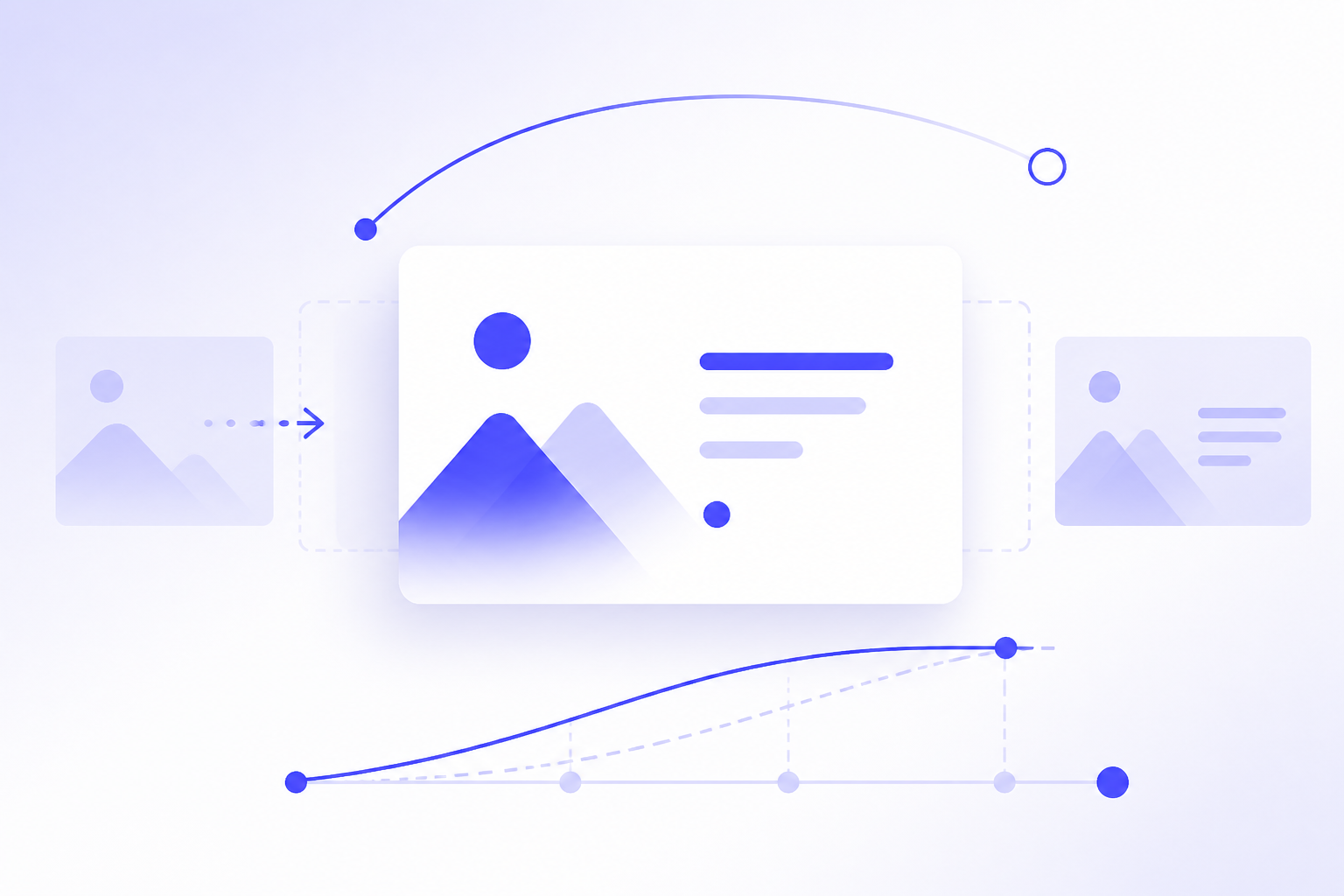
Clean slide animation starts with one rule: use motion only when it makes the message easier to understand. If an animation does not reveal information in the right order, direct attention, show change, or explain a relationship, remove it. A professional deck does not need spinning titles, bouncing icons, or a different transition on every slide.
The safest approach is to design the slide first, then add the minimum motion needed. Shorten text, align objects, create clear hierarchy, and make the key takeaway obvious before opening the animation panel. Effects such as Fade, Appear, Wipe, and subtle Morph-style movement usually look more professional than dramatic fly-ins, flips, zooms, or bounces.
This guide gives you a practical decision framework for PPT animations and presentation transitions: what to use, when to avoid motion, how to set timing and order, and how AI presentation tools can help you build cleaner slides that need less animation in the first place.
When you are ready to turn the workflow into slides, PopAi AI Presentation can help transform rough notes, documents, or prompts into an editable deck structure.
The Quick Rule: Use Motion Only When It Clarifies the Message
This section explains the core principle behind clean slide animation and gives you a simple keep-or-remove test.
Most ugly PPT animation starts with a familiar pattern: the title spins in, bullet points fly from different directions, an image bounces, a logo fades late, and the next slide uses a random transition that has no relationship to the story. The audience stops listening to the point and starts watching the software.
Good animation is not proof that you know where every PowerPoint effect lives. It is a reading aid. It controls what the audience sees first, second, and third. It can make a complex process easier to follow, help a chart reveal its main insight, or prevent people from reading ahead while you explain the current idea.
- Keep an animation if it reveals information in the same order you will explain it.
- Keep an animation if it directs attention to the most important object on the slide.
- Keep an animation if it shows movement, change, sequence, cause and effect, or comparison.
- Remove an animation if the slide is just as clear without it.
- Remove an animation if it makes the audience wait for decoration before seeing the message.
This keep-or-remove test is more useful than a fixed rule such as never use animation. Some slides should have no animation at all. Others, such as timelines, process diagrams, classroom explanations, or product demos, may become clearer when they build step by step.
The cleanest effects are usually the quietest ones. Fade works for most reveals because it does not imply a direction unless you need one. Appear is useful when a fast business deck needs crisp pacing. Wipe can help when the content itself has direction, such as a left-to-right timeline or a top-to-bottom process. Subtle Morph-style movement can work when it shows continuity between two states, but it should not feel like a magic trick.
Before adding motion, say the slide takeaway out loud. If the animation does not help the audience understand that sentence faster, simpler, or in the right order, skip it.
PPT Animations vs Presentation Transitions: What to Use Where
This section clarifies the difference between object-level animations and slide-to-slide transitions so you choose the right type of motion.
PPT animations are effects applied to objects on a slide. The object may be a title, bullet point, shape, icon, image, chart element, annotation, or callout. Animations control attention within a slide. They answer the question: what should the audience look at now?
Presentation transitions are effects applied between slides. They control the movement from one slide to the next. Transitions answer a different question: how should the presentation flow from this idea to the next idea?
- Use animation to reveal agenda items one at a time while you introduce the meeting structure.
- Use animation to show a process step only after you finish explaining the previous step.
- Use animation to fade in a chart callout after the audience has seen the full chart.
- Use a transition to move from the problem section to the solution section.
- Use a transition to give a section divider a polished but quiet sense of progression.
A common mistake is using transitions as entertainment. A cube, flip, ripple, or dramatic zoom between every slide may feel energetic while editing, but it often makes a formal business deck feel less controlled. In an academic presentation, it can distract from evidence. In a pitch deck, it can pull attention away from the value proposition.
For most professional decks, choose one subtle transition style and use it consistently. A simple Fade or a clean Push used sparingly can be enough. You can reserve a slightly more noticeable transition for major section changes if it matches the tone of the presentation.
Animations manage attention inside a slide; transitions manage continuity between slides. Mixing them up is one reason decks feel busy.
There are exceptions. A product launch, creative keynote, or youth-oriented classroom activity may support more expressive motion. Even then, the motion should fit the audience and the content. The question is not whether an effect is available. The question is whether it supports the presentation style on purpose.
Clean Animation Settings: Effects, Speed, Timing, and Order
This section shows how to set up minimal animation in a practical sequence, from effect choice to timing and reveal order.
Clean animation depends on four settings: effect, speed, timing, and order. If any one of these is wrong, even a simple Fade can feel awkward. If all four are handled well, the motion almost disappears because the audience experiences it as guidance rather than decoration.
- Use Fade for most text, image, callout, and chart reveals.
- Use Appear when you need fast, no-drama pacing in business, consulting, or executive decks.
- Use Wipe when direction matters, such as a process, timeline, funnel, or left-to-right sequence.
- Use subtle movement only when movement explains flow, change, before-and-after comparison, or spatial relationship.
- Avoid spins, bounces, flips, random fly-ins, and repeated zooms in serious business, education, or research settings unless the tone clearly supports them.
Timing should feel quick enough that the speaker is not waiting for the slide, but slow enough that the audience can perceive what changed. There is no universal duration that works for every room, screen, and speaking style. A dense chart callout may need slightly more time than a single bullet. A slide transition during a live pitch should usually feel faster than a transition in a self-running lobby presentation.
Consistency matters more than precision. If all bullet reveals use a similar pace, the audience learns the rhythm and stops noticing the mechanics. If one slide reveals bullets instantly, the next slowly floats them in, and the next makes each line fly from a different direction, the deck feels assembled from unrelated parts.
- Start with the title only if the title itself needs emphasis or if the slide opens from a blank state.
- Reveal the key visual early: chart, diagram, product screenshot, quote, or main image.
- Reveal the takeaway or main label before supporting details when the audience needs context first.
- Reveal supporting points in the order you will speak about them.
- Bring in annotations, arrows, or highlights after the audience understands the base content.
- Leave decorative objects unanimated unless they are part of the meaning.
Use On Click when you need speaker control. This is best for bullet reveals, classroom explanations, sales conversations, and any slide where questions may interrupt the flow. Use After Previous for small supporting objects that should appear automatically with the main object, such as a label attached to an icon or a small underline that belongs with a heading.
Be careful with long automatic chains. If ten elements appear After Previous and you cannot interrupt the sequence naturally, the presentation starts controlling you. Long chains are also risky when presenting through different software, video conferencing tools, or exported files.
Do not layer multiple effects on one object unless there is a clear reason. A bullet that flies in, changes color, pulses, and exits is usually four decisions where one simple reveal would do.
How to Animate Common Slide Types Without Making Them Busy
This section gives practical animation patterns for bullets, charts, timelines, processes, images, covers, and divider slides.
Different slide types need different motion decisions. A bullet slide usually needs pacing. A chart slide needs attention control. A timeline needs sequence. A product screenshot may need annotation. The cleanest approach is to match the animation to the structure of the slide rather than applying the same effect everywhere.
- Bullet slides: reveal one idea at a time when each point needs explanation, but shorten the text first. A reveal does not fix a paragraph disguised as a bullet.
- Chart slides: show the chart first, then reveal one highlight, label, or callout. Avoid animating every data point if it slows comprehension.
- Timeline slides: reveal milestones from left to right or top to bottom, matching the reading direction and sequence.
- Process slides: use Wipe, Fade, or step-by-step reveals to show progression. Keep arrows, numbers, and labels aligned so the motion follows the structure.
- Image-heavy slides: animate captions, contrast labels, or annotations instead of moving the image itself without purpose.
- Cover slides and section dividers: use a subtle transition or simple fade. Avoid over-animating logos, titles, and decorative shapes.
For bullet slides, the most important edit happens before animation. Cut each bullet to one idea. Increase font size for readability. Use bold or color for key terms only. Keep line breaks clean. If a slide has six long bullets, revealing them one by one only hides the clutter temporarily. A better fix is to split the content into two slides or convert it into a simple diagram.
For chart slides, reveal the chart as a complete visual first when the chart is simple enough to understand. Then use a colored label, arrow, or shaded region to show the insight. For example, in a quarterly sales chart, do not animate every bar. Show the full bar chart, then fade in a callout that says growth accelerated after the new channel launch. This keeps the audience focused on interpretation rather than mechanics.
For timelines, direction matters. If milestones run left to right, use a left-to-right reveal or a simple fade in sequence. If the timeline is vertical, reveal top to bottom. Do not make milestones fly in from random angles because the motion contradicts the reading path.
For process slides, animation is often useful because the audience needs to understand sequence. A four-step onboarding process can reveal step 1, then step 2, then step 3, then step 4. Keep the step numbers, icons, and labels in a consistent grid. If the layout is misaligned, animation will make the disorder more obvious.
For image-heavy slides, motion should add explanation. If you are showing a classroom photograph, a product interface, or a market example, keep the image still and fade in labels or highlight boxes. Moving the image itself often feels theatrical unless the movement is showing a before-and-after comparison or zooming into a detail in a controlled way.
White space, alignment, hierarchy, and contrast reduce the need for heavy animation. When the main message is already obvious because it is large, well-positioned, and visually distinct, you do not need dramatic motion to make people look at it. Increase contrast, align edges, group related elements, and remove decorative clutter before deciding that the slide needs more animation.
If you have a dense marketing slide with a screenshot, five callouts, and a paragraph, use AI presentation software to restructure the content into a cleaner slide outline first. Turn the paragraph into three short talking points, place the screenshot as the main visual, then add only one or two faded annotations during the live explanation.
A Practical Workflow for Adding Animation After the Slide Design Is Clean
This section gives you a repeatable slide-by-slide process for improving the deck before adding motion.
Animation should be one of the last design decisions, not the first. If a slide has no clear message, no hierarchy, inconsistent fonts, and crowded objects, motion will not rescue it. It may even make the weakness more visible because every awkward object arrives with extra attention.
- Clarify the one main message of each slide. Write it as a full sentence, such as customer onboarding time is falling because support content is clearer.
- Reduce dense text. Split overloaded slides, remove repeated points, and turn long paragraphs into short statements or visuals.
- Create visual hierarchy. Make the key idea larger, bolder, higher contrast, or better positioned than supporting details.
- Align and group related content. Use consistent spacing so the slide has an obvious structure before anything moves.
- Choose the minimum motion needed: none, reveal, highlight, or transition.
- Preview in presentation mode and speak through the slide. Check whether the motion supports your explanation or interrupts it.
- Remove inconsistent or decorative animations during final review.
The hierarchy step is where many non-designers get the biggest improvement. A strong title, one clear visual, and two or three supporting points often need only a simple reveal. A weak slide with equal-sized text boxes everywhere may tempt you to animate each object so the audience knows where to look. That is a sign the layout needs repair.
AI presentation software fits well before the animation stage because it can help turn rough ideas, notes, or documents into a structured deck foundation. Instead of pasting a report onto slides and then using animation to hide the density, you can summarize the source material into slide-ready sections and build from a cleaner starting point.
Workflow example 1: A consultant has a 12-page client discovery memo and needs a 10-slide briefing. A practical process is to use AI presentation software to convert the memo into a deck outline with sections such as context, problem, evidence, options, recommendation, and next steps. After reviewing the editable deck, the consultant can reduce each slide to one takeaway and add minimal animation only where pacing helps, such as revealing recommendation criteria one at a time.
Workflow example 2: An educator has lecture notes on a scientific process and wants students to follow the sequence. AI presentation software can help turn the notes into structured class slides with a process diagram, key terms, and summary points. After the layout is clear, the teacher can use Wipe or Fade to reveal each process stage in order, while keeping definitions and diagrams visually consistent.
Workflow example 3: A founder has rough pitch notes, product screenshots, and market positioning ideas. AI presentation software can help move from blank page to an editable pitch deck structure. Once the story is organized into problem, solution, product, market, traction, business model, and ask, the founder can use restrained transitions between sections and simple callout reveals on screenshots instead of trying to energize every slide with motion.
- Use no animation when the slide is already simple and the audience should scan it quickly.
- Use reveal animation when you need to control reading order.
- Use highlight animation or a faded callout when one part of a visual matters most.
- Use a transition when the deck moves to a new section or idea.
- Use redesign, not animation, when the slide is overloaded, misaligned, or unclear.
The best time to simplify animation is before you add it: reduce the slide until the message is obvious, then add only the motion that supports the spoken explanation.
Common Animation Mistakes That Make Slides Look Unprofessional
This section identifies the animation and transition choices that most often make presentations feel amateur or distracting.
Most animation problems are not caused by one bad effect. They come from inconsistent decisions across the deck. One slide may be calm, the next theatrical, the next slow, and the next overloaded with animated objects. The audience feels the inconsistency even if they cannot name it.
- Using a different transition on every slide, which makes the deck feel inconsistent and unplanned.
- Animating every object, which forces the audience to watch motion instead of understanding the point.
- Using dramatic effects such as spins, bounces, flips, or random fly-ins in serious business, academic, or investor contexts.
- Making animations too slow, causing the speaker to wait for the slide instead of controlling the pace.
- Revealing information in the wrong order, such as showing supporting details before the key takeaway.
- Animating decorative icons, background shapes, or logos when they do not add meaning.
- Relying on animation to fix weak content instead of simplifying the slide structure first.
Another common mistake is animating objects that should be grouped. For example, an icon appears, then its label appears, then its number appears, then its border appears. Unless there is a reason to separate those parts, group them and reveal them together. The audience understands the unit faster, and the slide feels cleaner.
Many presenters also animate based on object count instead of meaning. If a slide has eight objects, they assume it needs eight animations. A better approach is to think in idea groups. A product screenshot, its label, and its highlight box may be one idea. Three benefits may be three separate ideas. A background shape may not be an idea at all.
Watch for animation that contradicts the content. A process moving left to right should not have steps flying in from the bottom. A serious financial risk slide should not bounce. A calm closing recommendation should not spin into view. Motion has tone, and that tone should match the message.
If you inherit a heavily animated deck, do not edit effects one by one at first. Review slide sorter view, identify repeated slide types, then standardize transitions and remove decorative motion in batches.
Final Checklist: Decide What to Keep, Simplify, or Remove
This section gives you a practical review checklist and scenario-based recommendations before presenting.
The final review should happen in presentation mode, not just edit mode. Animation often feels different when you are speaking, clicking, and watching the slide on a full screen. What looked stylish while editing may feel slow in front of an audience.
- Purpose: Does each animation reveal, direct attention, show change, or explain a relationship?
- Clarity: Is the slide still understandable if the animation is removed?
- Order: Does information appear in the same sequence as the spoken explanation?
- Timing: Does the motion feel quick enough to avoid delaying the presenter?
- Consistency: Do similar slide types use similar effects and pacing?
- Readability: Does movement make text, charts, or images easier to read rather than harder?
- Audience fit: Does the motion match the formality, age group, industry, and room context?
- Device fit: Have you tested the deck on the actual presentation device, software, or display setup when possible?
Testing matters because animation playback can vary by software version, export format, conferencing platform, screen refresh behavior, or embedded media settings. A deck that works in PowerPoint on your laptop may behave differently as a PDF, in a browser-based viewer, or through a meeting platform. If animation is essential to understanding, test it early.
- Formal business deck: Use mostly no animation, Fade, or Appear. Keep transitions consistent and avoid theatrical effects.
- Classroom lesson: Use step-by-step reveals when they help students process one concept at a time. Keep the rhythm predictable.
- Sales pitch: Use controlled reveals to guide attention to customer pain, product value, proof, and next steps. Do not let motion compete with the conversation.
- Product demo: Use subtle highlights, annotations, and controlled zoom-like movement only when they clarify where to look in the interface.
- Conference talk: Use section transitions and occasional visual builds, but keep timing speaker-controlled so you can adapt to the room.
A useful final pass is to label each motion decision as keep, simplify, or remove. Keep animations that support sequence or attention. Simplify effects that are useful but too dramatic. Remove anything decorative, inconsistent, slow, or unrelated to the message.
Applying slide animation best practices means using motion to support the message, not decorate the deck. Start with a clean slide structure, choose simple effects, keep timing consistent, and preview the presentation as your audience will experience it. If the audience remembers your point instead of your animations, the motion did its job.
When in doubt, remove the animation and improve the design. Strong contrast, alignment, spacing, and hierarchy usually feel more professional than extra motion.
FAQ
What are the best animations to use in PowerPoint?
The safest professional animations are Fade, Appear, Wipe, and subtle movement when it supports meaning. Fade works for most reveals, Appear is useful for fast business pacing, and Wipe works well for timelines or process steps with a clear direction. Avoid dramatic spins, bounces, flips, and random fly-ins unless the presentation style intentionally calls for them.
How many animations should one slide have?
There is no fixed number. The better rule is to animate only what needs controlled attention or sequential explanation. A simple slide may need no animation. A process slide may need several reveals if each step must be explained separately. If every object moves but the audience does not understand the slide faster, there are too many animations.
Are slide transitions necessary in a presentation?
No. Presentation transitions are optional. They are most useful for maintaining smooth flow between slides or signaling major section changes. For formal decks, use one subtle transition style consistently, such as Fade, or skip transitions entirely if they add no value.
Should bullet points appear all at once or one by one?
Reveal bullets one by one when each point needs explanation and you want to prevent the audience from reading ahead. Show all bullets at once when the list is short, easy to scan, or meant to be compared as a group. Before animating bullets, shorten the text so each bullet contains one clear idea.
How can I make animations look more professional?
Use simple effects, keep timing quick but readable, reveal information in the same order you speak, and apply consistent motion to similar slide types. Remove decorative animation from logos, background shapes, and icons unless it adds meaning. Most professional animation is quiet enough that the audience notices the message, not the effect.
Build slides faster from your source material
Turn notes, prompts, documents, or rough outlines into a clearer presentation draft, then edit the story, facts, and visual details before presenting.
Try PopAi AI Presentation