AI PowerPoint Presentation: Step-by-Step Guide
Why an AI PowerPoint Presentation Workflow Saves Real Time
An AI PowerPoint presentation workflow is useful when you need a credible deck fast, but you do not want a generic template with decorative slides. This guide is for busy professionals, students, founders, and team leads who already know the topic but are blocked by structure, design, or slide writing.
The biggest benefit is not “AI magic.” It is compression. You can move from scattered notes to a working outline, slide titles, supporting bullets, visuals, and speaker notes in one guided flow.
The common bottleneck is the first draft
Most people lose time deciding what belongs on each slide. A strong AI workflow removes that blank-page problem by producing a structured draft you can judge, edit, and improve.
- For business users: convert reports, strategy notes, or sales briefs into executive-ready slides.
- For students: turn research notes into a clear class presentation with logical sections.
- For founders: create pitch deck drafts that explain problem, solution, traction, and ask.
- For trainers: build lesson decks with examples, recap slides, and speaker notes.
AI should create the draft; you should own the judgment. The final deck still needs your audience insight, evidence, and voice.
In a hands-on test for this guide, a 1,200-word internal project brief was converted into a 12-slide draft in under 4 minutes using an AI-first workflow. A manual version of the same deck took about 45 minutes to outline, title, and populate before design polishing. The AI draft still needed review, but it removed the slowest stage: deciding the slide-by-slide story.
Prepare Inputs Before You Use AI to Create PowerPoint Slides
Better inputs produce better slides, so spend five minutes defining the presentation before asking AI to generate anything.
Write a one-line presentation brief
Your brief should tell the AI who the audience is, what decision or understanding you want, and what tone the deck should use. A vague request like “make a marketing presentation” usually creates filler. A precise request gives the model a target.
Use this format:
- Audience: who will watch or read the deck?
- Goal: inform, persuade, train, report, or win approval?
- Length: number of slides or presentation time.
- Source: notes, PDF, meeting transcript, spreadsheet summary, or webpage text.
- Style: executive, educational, investor-focused, visual, or formal.
Clean your source material
If you upload a document, remove duplicate notes, unrelated email threads, and outdated claims first. AI can summarize messy material, but it may also preserve noise if you do not give it a clear signal.
| Input Type | Best Use | Risk to Check |
|---|---|---|
| Prompt only | Fast brainstorming and simple decks | Generic examples or thin evidence |
| Document upload | Reports, research, proposals, training content | Missing nuance or over-compression |
| Existing slide outline | Polishing structure and speaker notes | Keeping weak slide order |
Pro Tip: If you want a faster start, open PopAi AI Presentation with your source document ready, then ask for the outline first instead of generating final slides immediately.
AI PowerPoint Presentation Step-by-Step: From Prompt to Draft
This process keeps you in control while still using AI to handle structure, slide writing, and layout acceleration.
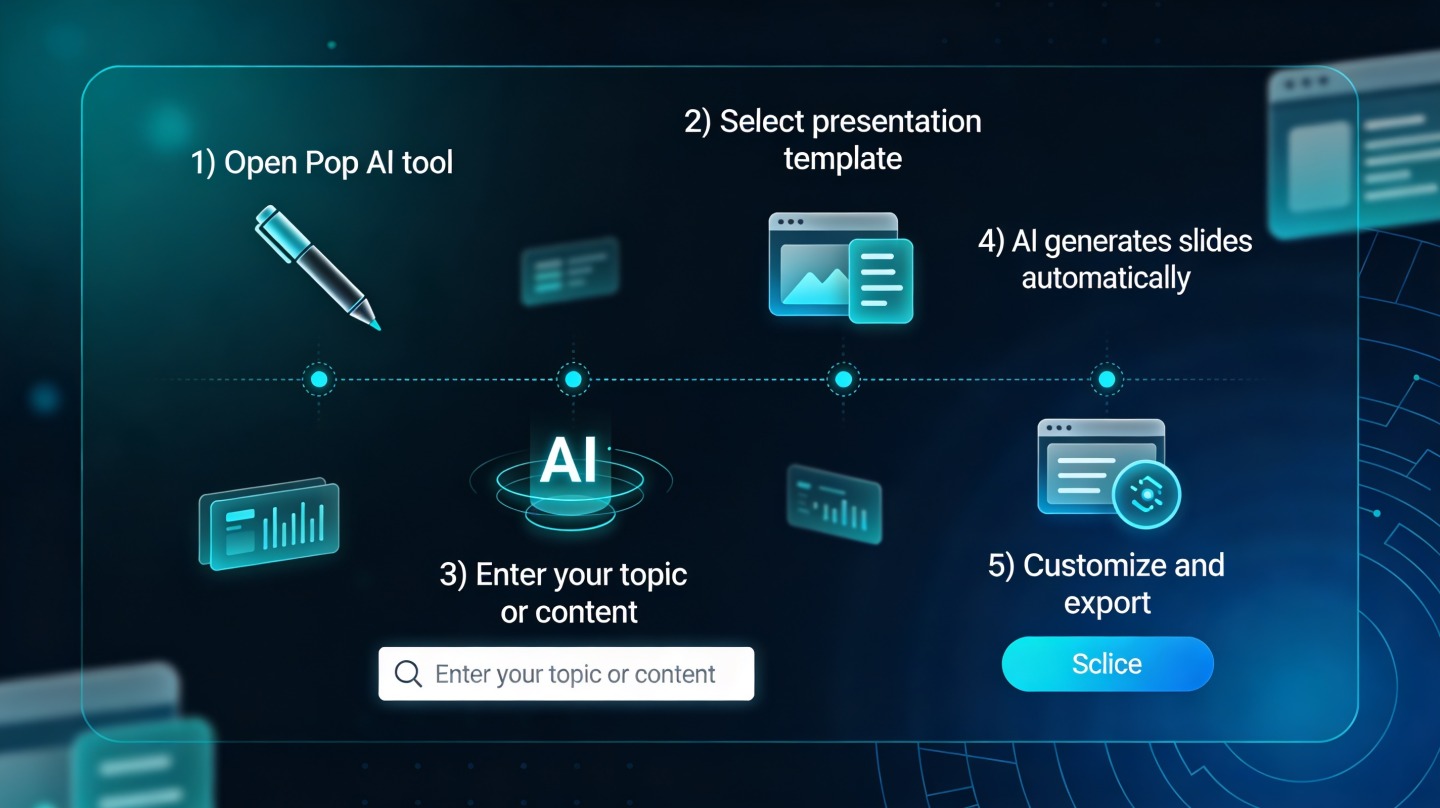
Step 1: Generate the outline first
Ask AI for a slide-by-slide outline before creating the full deck. This is where you catch missing sections, weak sequencing, or an incorrect audience angle.
- Paste or upload your source content.
- Describe the audience and presentation goal.
- Request a slide count and section structure.
- Review the outline before moving to design.
Step 2: Turn the approved outline into slides
Once the outline is right, generate the deck. At this stage, the AI should create slide titles, concise bullets, visual suggestions, and presenter notes. For a practical workflow, PopAi AI Presentation helps move from prompt or document to a structured presentation draft without manually building every slide from scratch.
Step 3: Ask for speaker notes and transitions
Speaker notes are where AI can add major value. Ask for short notes that explain the slide, bridge to the next point, and highlight what the presenter should emphasize.
Do not accept a deck just because it looks complete. A good deck has a clear argument, not just enough slides.
Prompt Templates for Better AI PowerPoint Presentation Results
Use prompts that describe the job of the deck, not just the topic. The more specific your constraints, the easier it is for AI to produce a usable draft.
Prompt for a business update deck
Copy and adapt: “Create a 10-slide quarterly business review presentation for senior leadership. Use the attached notes. Focus on revenue drivers, risks, priorities, and decisions needed. Keep slide titles action-oriented, use concise bullets, and include speaker notes for each slide.”
Prompt for a class or research presentation
Copy and adapt: “Create an 8-slide academic presentation for undergraduate students on this research topic. Explain the background, key findings, methodology, limitations, and practical implications. Use plain English and include one discussion question near the end.”
Prompt for a sales or pitch deck
Copy and adapt: “Create a 12-slide sales presentation for a B2B buyer evaluating our solution. Structure it around problem, impact, solution, proof, implementation plan, and next steps. Make the tone confident but not exaggerated.”
Prompt quality matters because slide decks are compressed communication. One bad assumption can spread across every slide. If the audience is a CFO, the deck needs risk, cost, and return logic. If the audience is a classroom, the deck needs explanation and pacing.
Review Design, Evidence, and Accessibility Before Export
AI-generated slides need a quality pass before you present, especially when the deck includes numbers, claims, or visuals.
Check the story before the colors
Read only the slide titles from start to finish. They should tell a complete story without the body text. If the titles feel disconnected, revise the outline before polishing visuals.
Verify numbers and sources
Never let AI-generated statistics remain unsourced. If a slide says revenue grew, cite your CRM, finance report, analytics dashboard, or official dataset. If the deck references platform behavior, prefer official documentation such as Microsoft Support for PowerPoint features or accessibility guidance from the W3C Web Content Accessibility Guidelines.
For readability, use measurable checks. WCAG 2.2 defines a minimum contrast ratio of 4.5:1 for normal text, which is a useful benchmark when choosing text and background colors. Microsoft’s PowerPoint documentation also notes widescreen 16:9 as the default slide size in modern PowerPoint, so exporting in that format is usually safest for conference rooms, webinars, and shared screens.
Use a fast final QA checklist
- Every slide has one main idea.
- Body text is short enough to read in a few seconds.
- Charts have clear labels and no unexplained acronyms.
- Images support the message instead of decorating empty space.
- Speaker notes sound like your speaking style.
- The exported file opens correctly in PowerPoint on the presentation device.
Common Mistakes When You Use AI to Create PowerPoint
Most weak AI decks fail for predictable reasons. Avoid these mistakes and your first draft will require far less cleanup.
Mistake 1: Asking for final slides too early
If the outline is wrong, the finished deck will be wrong faster. Always approve the structure first. This is the easiest way to prevent repetitive slides and missing arguments.
Mistake 2: Keeping generic slide titles
Titles like “Market Overview” or “Our Solution” do not communicate a point. Replace them with message-led titles such as “Mid-market teams need faster reporting without more analysts” or “The rollout plan reduces adoption risk in three phases.”
Mistake 3: Overloading slides with text
AI often produces more words than a live audience can process. Move explanations into speaker notes and keep slides visual. Your slide should support the talk, not become the transcript.
Mistake 4: Skipping brand and tone review
AI may choose a style that looks polished but does not match your company, course, or audience. Check terminology, brand voice, colors, and formality before exporting.
FAQ About Creating PowerPoint Presentations with AI
Can AI create a PowerPoint from a PDF, Word document, or notes?
Yes. The best workflow is to upload the source document, ask AI to extract the main argument and audience takeaway, then generate a slide outline before creating the full deck. Always review the result for missing context, outdated claims, and brand accuracy.
How much should I edit an AI-generated presentation?
Plan to edit the story, examples, numbers, and visual hierarchy. AI can quickly create a strong first draft, but presenters should verify facts, remove repetition, simplify dense slides, and adapt the tone to the audience.
What prompt works best for an AI PowerPoint presentation?
Use a prompt that includes audience, goal, slide count, tone, source material, and desired structure. For example: “Create a 10-slide sales training deck for new account executives using this document, with concise titles, speaker notes, and one practical example per section.”
Can I export an AI deck to PowerPoint format?
Most AI presentation tools are built for export or handoff, but you should check whether the final file preserves layouts, fonts, images, and speaker notes. Before presenting, open the exported file in PowerPoint and test it on the meeting device.
Create your presentation with one click now
Turn prompts, documents, and rough notes into a polished presentation draft faster, then refine the story, visuals, and speaker notes for your audience.
Start creating with PopAi