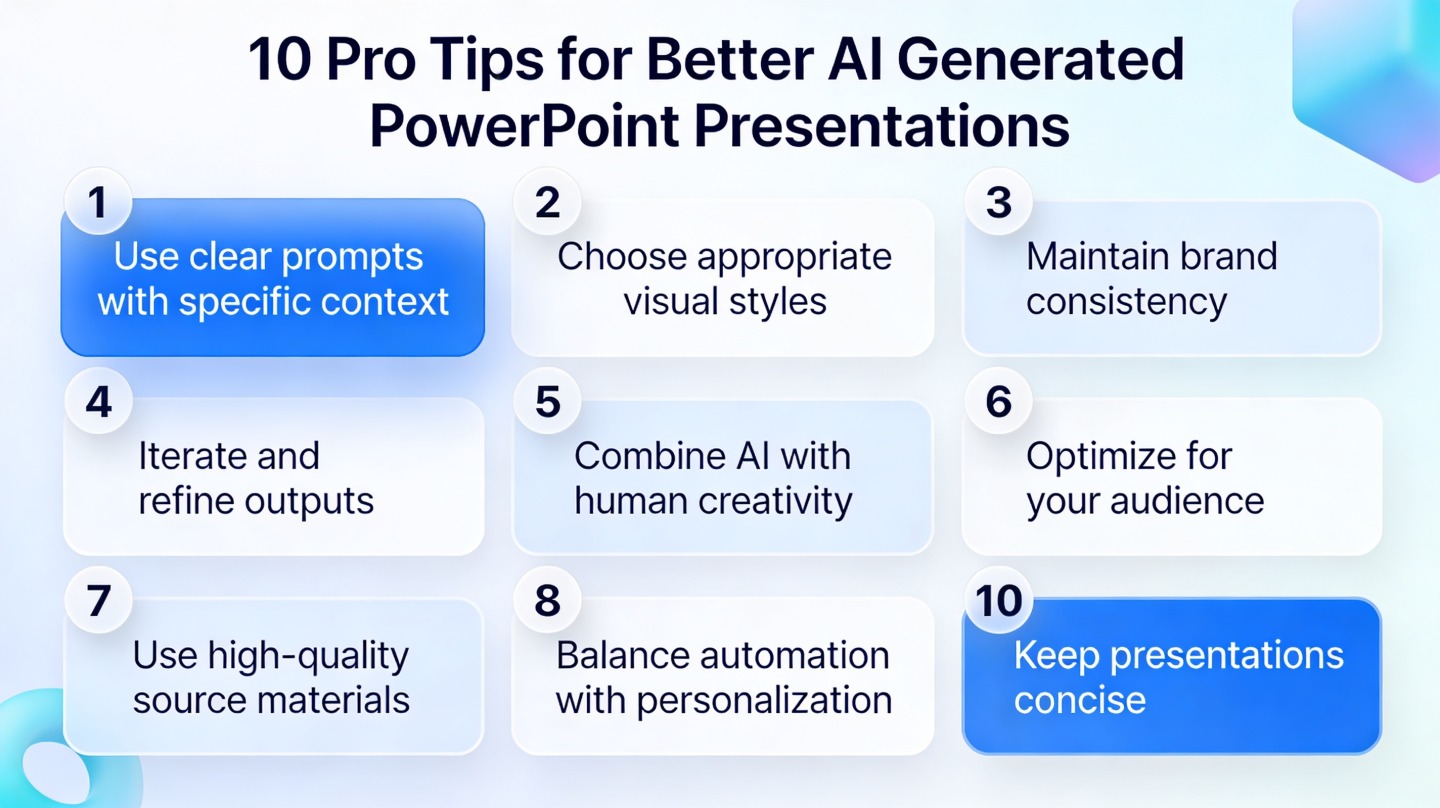
10 Pro Tips for Better AI Generated PowerPoint Presentations
If you use AI to create business presentations, the first draft often feels close but not quite ready: the structure is uneven, the titles sound generic, and the visuals may not match your brand. These AI generated PowerPoint tips are for founders, marketers, consultants, trainers, and team leads who need to turn a fast AI draft into a deck people will trust.
The goal is not to hand-edit every pixel. It is to build a repeatable review process that improves message clarity, slide design, evidence quality, and delivery confidence without losing the speed advantage of AI. Tools such as PopAi AI Presentation can quickly generate the foundation; your job is to shape that foundation into a persuasive story.
What Makes an AI Generated PowerPoint Better?
This section defines “better” in practical terms, so you can judge your deck before your audience does.
Tip 1: Start with the decision your audience must make
A professional AI deck is not measured by how many slides it has. It is measured by whether the audience understands the point, believes the evidence, and knows what to do next. Before editing, write one sentence that completes this prompt: “After this presentation, the audience should decide to…”
That sentence becomes your filter. If a slide does not help the audience make that decision, delete it, merge it, or move it to the appendix. This is especially important for sales decks, investor updates, quarterly business reviews, and training sessions where attention is limited.
Tip 2: Rewrite every slide title as a claim
AI often produces label-style titles such as “Market Overview” or “Key Benefits.” Replace them with claim-style titles: “Demand is shifting toward self-service onboarding” or “Automated reporting cuts manual follow-up.” Claim titles help skimmers understand the argument without reading every bullet.
A slide title should tell the audience what to think about the slide, not merely name the slide topic.
There is a usability reason for this. Nielsen Norman Group’s widely cited web-reading research found that many users scan rather than read word-for-word. Presentation audiences behave similarly: they catch titles, visuals, and highlighted numbers first. Make those elements carry the story.
When your AI draft feels broad, regenerate it with a tighter goal in PopAi AI Presentation: audience, context, decision, tone, and expected slide count.
AI Generated PowerPoint Tips for Stronger Structure
Structure determines whether your AI presentation feels like a coherent argument or a collection of slides.
Tip 3: Use a simple story spine
Most professional decks can be improved with a four-part spine: context, problem, recommendation, proof. AI may generate a plausible sequence, but it often over-explains background and under-develops the recommendation. Move the strongest recommendation earlier than feels comfortable.
- Context: What situation is the audience in?
- Problem: What is not working, changing, or at risk?
- Recommendation: What should be done?
- Proof: What evidence makes the recommendation credible?
Tip 4: Turn dense AI bullets into message blocks
AI-generated slides often contain five to seven bullets because the model is trying to be complete. Completeness is useful in a draft, but a live deck needs hierarchy. Group bullets into two or three message blocks with short labels, then remove repeated phrases.
| AI draft issue | Professional fix | Why it works |
|---|---|---|
| Seven bullets with equal weight | Three grouped takeaways | Improves scanning and reduces cognitive load |
| Generic section labels | Claim-based section headers | Makes the argument visible in the outline |
| Repeated benefit statements | One benefit plus one proof point | Creates credibility instead of repetition |
AI Generated PowerPoint Tips for Cleaner Design
Design polish comes from consistency, contrast, and restraint rather than decorative effects.
Tip 5: Lock your visual system before polishing slides
Choose one font pairing, one primary color, one accent color, and two layout patterns before you edit individual slides. This prevents the common AI-deck problem where every slide looks separately designed.
For accessibility, use contrast intentionally. The W3C Web Content Accessibility Guidelines recommend a contrast ratio of at least 4.5:1 for normal text and 3:1 for large text. Even if you are presenting in a meeting room rather than publishing online, these thresholds are a useful quality check for readability.
Tip 6: Replace decorative visuals with evidence visuals
AI may insert abstract illustrations that look modern but add little meaning. For a professional deck, prioritize visuals that prove or clarify the message: charts, annotated screenshots, workflow diagrams, customer journey maps, timelines, and before-after comparisons.
- Use a bar chart when comparing categories.
- Use a line chart when showing change over time.
- Use a process diagram when explaining steps or ownership.
- Use a screenshot when demonstrating product behavior.
Tip 7: Keep one main idea per slide
If a slide needs two titles to explain it, split it. If it needs a long paragraph, turn the paragraph into speaker notes. If it needs three charts, create a summary slide and move the detailed charts to backup. This discipline is what separates an AI draft from a boardroom-ready deck.
Good slide design is not about adding more visual interest. It is about removing anything that competes with the main point.
A Workflow for Polishing AI Slide Decks Fast
A repeatable workflow helps you improve AI-generated presentations without starting over.
Tip 8: Review in three passes, not one slow edit
Do not polish slide one, then slide two, then slide three. That approach hides structural problems until too late. Instead, review the deck in passes: story, design, then delivery.
- Story pass: Check the audience, decision, flow, slide titles, and missing proof.
- Design pass: Apply brand colors, align objects, simplify charts, and standardize layouts.
- Delivery pass: Add speaker notes, rehearse transitions, and mark optional slides.
Tip 9: Add proof where AI sounds too confident
AI can produce convincing statements that still need verification. Any slide that includes a market claim, performance claim, customer claim, or financial claim should have a source, internal data reference, or clear qualification. If you cannot verify it, rephrase it as a hypothesis or remove it.
For example, “Customers prefer automated onboarding” is too broad unless you have survey data, usage data, or customer interviews. A stronger version is: “Recent onboarding calls show customers want fewer manual setup steps,” followed by a note on the source. This keeps the slide honest and useful.
Common AI PowerPoint Mistakes to Avoid
These mistakes make AI-generated presentations feel automated, even when the topic is strong.
Tip 10: Remove AI fingerprints before sharing
Common AI fingerprints include overused phrases, symmetrical bullet lists on every slide, vague icons, stock-style metaphors, and transitions that do not match how a human presenter would speak. Read the deck aloud once. Awkward phrases become obvious when spoken.
- Replace “unlock potential” with the specific business outcome.
- Replace “seamless experience” with the actual workflow improvement.
- Replace generic icons with product screenshots or labeled diagrams.
- Replace long bullet lists with a visual hierarchy.
Use the appendix strategically
AI is useful for generating background slides, definitions, methodology notes, and extra examples. Do not force all of that into the main narrative. Move supporting detail into an appendix so the main deck stays persuasive while the backup remains available for Q&A.
A strong final deck usually feels shorter than the AI draft but more complete. That is because the main path is cleaner, the evidence is better placed, and the details are available only when needed.
FAQ: AI Generated PowerPoint Tips
These are the questions teams usually ask when turning AI-created slides into presentation-ready work.
How much should I edit an AI generated PowerPoint before presenting it?
Edit every slide for audience fit, accuracy, brand consistency, and narrative flow. AI can create a strong first draft, but the presenter should own the message, examples, data labels, and final visual hierarchy.
What is the fastest way to make AI slides look professional?
Start by reducing each slide to one message, applying a consistent theme, limiting fonts and colors, and replacing generic visuals with charts, icons, or screenshots that directly support the point.
Can I use AI generated PowerPoint decks for client or investor meetings?
Yes, but use AI as a drafting assistant rather than a final authority. Validate claims, remove unsupported numbers, add company-specific evidence, and rehearse transitions before sharing the deck externally.
How do I avoid generic AI presentation language?
Give the AI your audience, decision goal, source notes, preferred tone, and examples of phrases to avoid. Then rewrite slide titles as specific claims instead of broad labels.
Create your presentation with one click now
Turn notes, documents, or rough ideas into a structured presentation draft, then polish it with the pro tips above.
Try PopAi AI Presentation