Turn an Outline Into a Full Presentation with AI PPT Maker
June 23, 2026
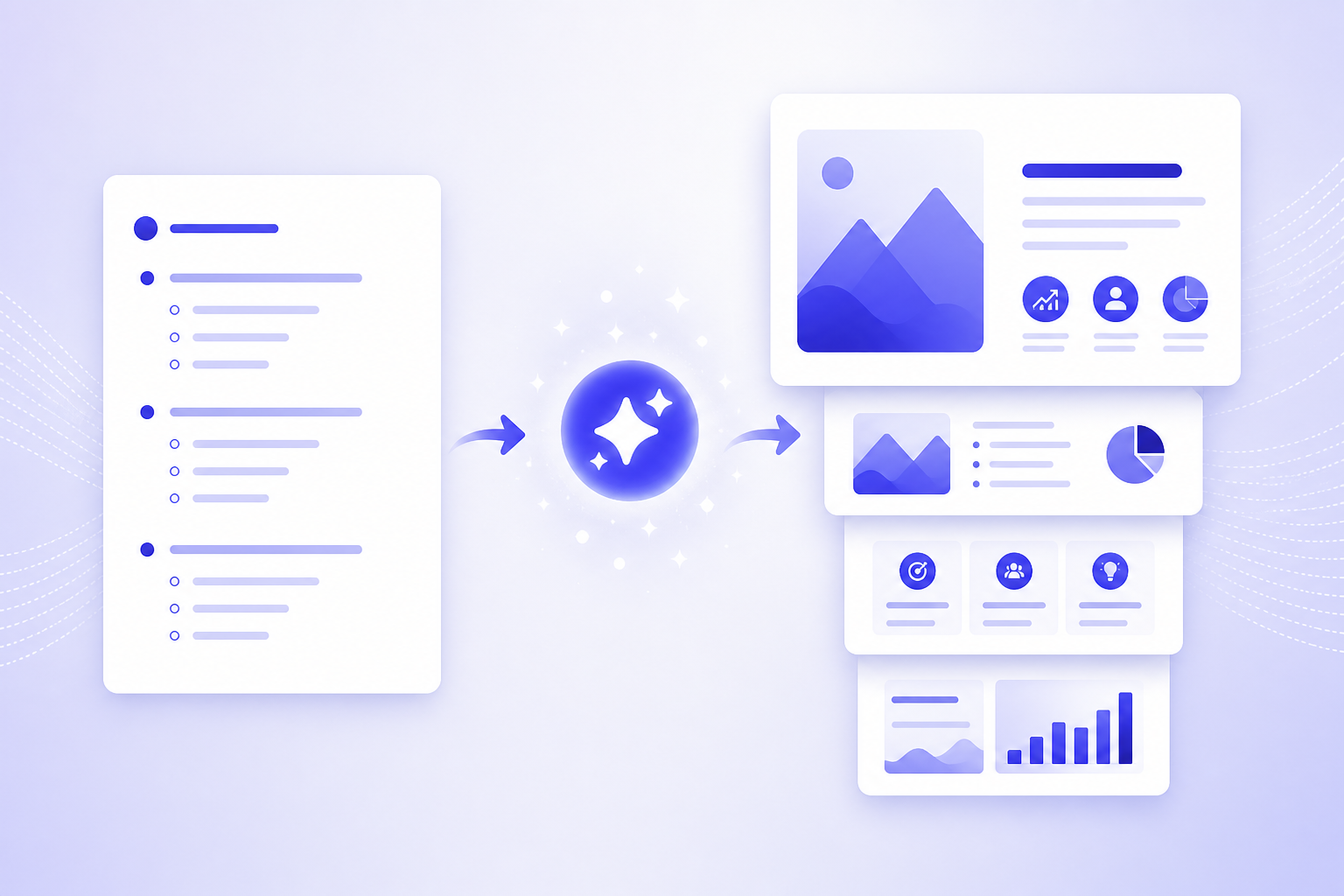
If you already have a rough outline but no finished deck, the fastest path is not to paste it into an AI tool and accept whatever comes out. Clean the outline first, tell the AI who the audience is and what the presentation must achieve, generate a draft deck, review the slide logic, then polish the design and speaker notes.
A prompt is simply the instruction you give the AI. The better your prompt explains the goal, time limit, tone, audience, and expected slide format, the more useful the first draft will be. PopAi AI Presentation is especially helpful when you want to paste notes, upload source material, or start from a rough structure and quickly receive an editable presentation instead of building every slide manually.
AI can speed up structure, drafting, layout suggestions, and visual direction. It does not remove your responsibility to check facts, adjust tone, remove generic claims, and make sure the final deck fits the people in the room.
When you are ready to turn the workflow into slides, PopAi AI Presentation can help transform rough notes, documents, or prompts into an editable deck structure.
Quick Answer: The Fastest Way to Turn an Outline into an AI Presentation
This section gives you the short workflow before we go deeper into prompts, structure, design, and review.
The common situation is simple: you have headings, bullets, meeting notes, a course plan, a product update, or a research structure, but you do not yet have a deck that someone can follow. The mistake is asking AI to make it look polished before the story is clear. A beautiful but poorly organized deck still fails.
- Clean the outline so each section has one main idea and a clear purpose.
- Add audience, goal, context, time limit, tone, and required sections before generating slides.
- Use an AI PPT maker such as PopAi AI Presentation to create an editable deck structure from the outline, notes, or document.
- Review the slide logic before touching colors or images: merge weak slides, split overloaded slides, delete repeats, and reorder the story.
- Polish the slide text, visuals, speaker notes, design consistency, and rehearsal timing.
I use this order because it prevents wasted design time. If the sequence is wrong, changing fonts or adding icons will not fix the presentation. First make the argument work. Then make the deck look credible.
A product manager with a rough launch update can paste the outline into PopAi AI Presentation, ask for a 10-slide internal briefing, review the generated structure, then refine the status, risks, and next steps before sharing it with leadership.
Treat the AI deck as a smart first draft, not as a finished presentation.
Prepare Your Outline So the AI Understands the Story
A clearer outline gives the AI stronger direction and reduces generic, overloaded, or poorly sequenced slides.
A messy outline creates a messy deck, even with a capable AI tool. AI looks for patterns: headings often become sections, subpoints become slide bullets, repeated ideas may become separate slides, and examples may become supporting detail. If your outline mixes goals, evidence, side notes, and random reminders without order, the generated presentation will likely feel scattered.
Before you generate slides, add the information a human designer or presentation writer would ask for. Who is the deck for? What decision, understanding, or action should happen after the presentation? How much time do you have? What tone is appropriate? What must be included? What should be excluded?
- Presentation goal: inform, persuade, teach, sell, align, report, or request approval.
- Target audience: classmates, executives, customers, technical peers, teachers, investors, or internal team members.
- Context: first introduction, follow-up meeting, quarterly review, lecture, workshop, conference talk, or sales call.
- Time limit: five minutes, ten minutes, thirty minutes, or a self-paced deck.
- Tone: academic, executive, friendly, persuasive, technical, practical, or formal.
- Required sections: problem, context, method, solution, results, risks, recommendation, next steps, or Q&A.
- Evidence placeholders: verified data, citations to add later, customer examples, screenshots, charts, or source notes.
Here is a weak outline that will probably produce a vague deck: Marketing plan, social media, email, budget, competitors, next steps. It has topics, but no story. The AI has to guess the audience, objective, level of detail, and order.
Here is an AI-ready version: Goal: persuade the leadership team to approve a three-month campaign for a new productivity app. Audience: non-marketing executives who care about cost, customer acquisition, and launch timing. Time: 12 minutes. Tone: concise and businesslike. Sections: market problem, target user, campaign strategy, channel plan, budget ranges with placeholders for verified costs, risks, measurement plan, approval request. Call to action: approve the pilot campaign and assign an owner by Friday.
- Good outline criterion 1: each section has one main idea instead of several competing ideas.
- Good outline criterion 2: the sequence moves logically from context to problem, solution, evidence, and action.
- Good outline criterion 3: supporting points are connected to the section they belong to.
- Good outline criterion 4: examples, screenshots, data, or citations are marked clearly, even if they are only placeholders.
- Good outline criterion 5: the desired ending is explicit, such as approve, learn, compare, decide, register, or discuss.
If numbers, dates, quotes, or citations are missing, instruct the AI to use qualitative wording or insert placeholders such as [add verified revenue figure] or [insert source]. This keeps the draft useful without making it unsafe.
This preparation matters for school and research decks too. A student outline that says background, method, results, conclusion is a start, but an AI-ready version should add the research question, course level, required citation style if relevant, presentation length, and which findings are confirmed versus still being checked.
Use the Right Prompt to Convert the Outline into Slides
The prompt tells the AI how to interpret your outline and what kind of deck to build from it.
A prompt is the instruction you give the AI. For outline-to-deck work, a strong prompt is not just Please make slides. It includes role, audience, goal, source outline, slide count or time limit, tone, visual style, and output requirements.
- Role: Ask the AI to act as a presentation strategist, teacher, sales deck writer, product marketer, or research communication expert.
- Audience: Explain what the audience already knows and what they care about.
- Goal: State the decision, learning outcome, or action you want.
- Outline: Paste the cleaned structure with headings and supporting points.
- Length: Give slide count, time limit, or both.
- Tone: Specify executive, conversational, academic, persuasive, practical, technical, or beginner-friendly.
- Visual style: Request clean, minimal, data-focused, classroom-friendly, product-demo oriented, or brand-neutral.
- Output: Ask for slide title, key message, concise bullets, speaker notes, and visual suggestions.
Reusable prompt pattern: Act as a [role]. Turn the outline below into a [number]-slide presentation for [audience]. The goal is to [goal]. Use a [tone] tone and a [visual style] style. For each slide, provide a clear title, one key message, no more than three short bullets, speaker notes, and a visual suggestion. Keep slide text brief; put explanation in speaker notes. Do not invent data. Use placeholders where facts need verification.
Business pitch prompt example: Act as a startup pitch deck strategist. Turn the outline below into a 12-slide investor pitch for early-stage investors who understand SaaS but do not know our market yet. The goal is to make the opportunity, customer pain, product value, business model, traction placeholders, and funding ask easy to evaluate. Use a concise, confident tone and a clean business style. For each slide, create a title, one key message, up to three short bullets, speaker notes, and one visual suggestion. Do not invent traction numbers; mark them as [add verified metric].
Class or research prompt example: Act as a university presentation coach. Convert the outline below into an 8-minute class presentation for undergraduate students. The goal is to explain the research question, background, method, main findings, limitations, and conclusion in a clear academic style. Use plain language, define technical terms, and include speaker notes that help me explain each slide. Keep slide text minimal and suggest visuals such as diagrams, simple charts, or source placeholders. Do not create citations that are not in my outline.
Add this sentence when drafts become too wordy: Use slide text only as visual anchors; put the explanation in speaker notes so the presenter, not the slide, carries the detail.
When should you use PopAi directly, and when should you use ChatGPT first? If your outline is already reasonably clear and you want an editable deck quickly, go straight into PopAi AI Presentation. Paste the outline or use source notes, generate the deck, then refine. If your outline is confused, incomplete, or politically sensitive, use ChatGPT first to clarify the storyline, sharpen section headings, and draft a stronger prompt. Then move that improved structure into an AI presentation maker.
Gamma and similar tools can be useful when you want a web-style presentation or document-like scrolling format. Traditional slide decks are often better for classroom delivery, sales calls, executive updates, and conference-style presentations where slide pacing matters.
Generate the Deck, Then Check the Slide Logic Before Design
After AI creates the first deck, review the structure as a communication draft before you worry about colors and images.
The first AI-generated deck should be treated as a draft. PopAi can help you move quickly from notes, documents, or rough ideas into an editable structure, which saves the blank-page struggle. But speed is only useful if you then check whether the deck makes sense.
AI usually decides what becomes a slide by reading hierarchy and density. Major headings often become section dividers or slide titles. Subheadings become slide topics. Bullets become supporting points. Long clusters of related bullets may become multiple slides. If your outline includes a phrase like next steps or recommendation, the AI may treat it as a closing slide. This is useful, but not perfect.
- Does every slide have one job?
- Can you summarize the slide in one sentence?
- Does the sequence move from context to point to evidence to action?
- Are there missing transitions between sections?
- Are any slides repeating the same idea with different wording?
- Are any slides overloaded with two or three ideas that should be split?
- Does the opening establish why the audience should care?
- Does the ending make the next step, decision, or takeaway obvious?
Common AI structure problem 1: a strong opening followed by a weak transition. For example, the deck begins with a clear customer pain but jumps directly to pricing without explaining the solution. Fix it by adding a bridge slide: How our solution addresses the pain.
Common AI structure problem 2: too many overview slides. AI sometimes creates agenda, background, summary, and context slides that all say similar things. Delete or merge them. Your audience does not need four slides to arrive at the main point.
Common AI structure problem 3: an unsupported conclusion. The deck recommends a budget, policy change, product decision, or lesson takeaway without enough evidence. Add proof, examples, constraints, or a more modest recommendation.
- Merge slides when two slides make the same point or one is only a weaker version of another.
- Split slides when a single slide includes multiple messages, such as problem, solution, and timeline together.
- Delete slides that do not help the audience make a decision, learn the concept, or follow the story.
- Reorder slides when evidence appears before the audience understands why it matters.
- Add transition slides only when they clarify movement between major sections.
For an internal quarterly review, paste your outline and source notes into PopAi AI Presentation, generate a draft deck, then spend your first pass only on structure: move risks before the recommendation, merge duplicate progress slides, and add a decision slide at the end.
Turn AI Draft Slides into Presentation-Ready Content
Once the structure works, improve the actual slide writing so the deck supports the speaker instead of replacing the speaker.
AI-generated slides often over-explain. That happens because the AI is trying to be helpful, but a slide is not a document. My rule is simple: slide text should support the talk, not replace it. If the audience can read everything while ignoring you, the slide is probably too dense.
- Find long bullets that contain full sentences or multiple clauses.
- Rewrite each bullet as a short phrase that signals the idea.
- Move the explanation, nuance, and examples into speaker notes.
- Add one concrete example, comparison, use case, or mini-story where the slide feels generic.
- Check terminology against the audience's knowledge level.
For example, an AI draft bullet might say: Our sales team has struggled to convert mid-market prospects because the current demo flow does not clearly connect product features to measurable operational outcomes. A presentation-ready version could be: Demo flow misses business outcomes. The speaker notes can explain the details.
Different deck types need different content improvements. A sales proposal needs customer-specific pain points, proof, and a clear next step. A product update needs what changed, why it matters, launch risks, dependencies, and decisions needed. A lesson deck needs definitions, examples, checks for understanding, and a recap. A research summary needs research question, method, evidence, limitations, and source placeholders. An internal team briefing needs status, blockers, owners, deadlines, and decisions.
- Sales proposal: Replace generic benefits with the prospect's industry, workflow, and likely objection.
- Product update: Turn feature lists into user impact, release status, risk, and next action.
- Lesson deck: Add simple examples, concept checks, and a closing exercise or discussion prompt.
- Research summary: Separate confirmed findings from interpretation and mark citations that need final verification.
- Internal briefing: Clarify ownership, dates, unresolved questions, and decisions needed from the audience.
ChatGPT can be useful here as a writing partner. You can paste one slide and ask: Rewrite this slide for an executive audience. Keep three short bullets and add speaker notes with a stronger example. That kind of targeted rewrite is often better than regenerating the whole deck.
An AI PPT maker like PopAi helps keep the deck format and structure moving forward while you refine content. Instead of staying in a text document forever, you can work inside a presentation draft, see how much space each idea needs, and decide whether a point belongs on the slide or in the notes.
Fact-check claims, remove vague phrases such as innovative and seamless unless you prove them, adjust terminology for the audience, add source placeholders, and make sure every slide has a clear reason to exist.
Improve Visuals, Layout, and Style Without Becoming a Designer
You do not need advanced design skills, but you do need a few practical checks for visual credibility and readability.
Design polish starts with consistency. A deck can look credible with simple layouts if fonts, spacing, alignment, color use, hierarchy, and contrast are controlled. It can look amateur even with beautiful images if every slide uses a different visual style.
- Fonts: Use a small set of fonts and keep title, subtitle, body, and caption styles consistent.
- Spacing: Leave breathing room around text, charts, and images instead of filling every corner.
- Alignment: Align objects to the same visual grid so slides feel intentional.
- Color: Use accent colors to guide attention, not to decorate every bullet.
- Hierarchy: Make the most important point visually larger, bolder, or more central.
- Contrast: Check that text is readable on every background, especially during projection or screen sharing.
Choose visuals based on the job of the slide. Use diagrams for processes, icons for categories, screenshots for product demos, charts for verified data, and photos only when they support the message. A decorative image that does not clarify the point adds noise.
AI can suggest images, icons, diagrams, and layouts, and this is useful when you are not a designer. Still, you should ask a human question for every visual: Does this make the message easier to understand? If the answer is no, remove it.
- Process slide: Use a step diagram instead of a paragraph.
- Comparison slide: Use side-by-side columns instead of mixed bullets.
- Product demo slide: Use a screenshot with one highlighted area instead of a generic product image.
- Data slide: Use a chart only when the data is verified and the chart type matches the message.
- Concept slide: Use a simple icon or metaphor only if it reinforces the explanation.
For each slide, ask: What should the audience notice first? Is the main point obvious in three seconds? Is anything cluttered, misaligned, decorative, or distracting? Does the visual match the slide's message?
PopAi can help you move faster from content to a designed deck, which is valuable when you need a credible first version quickly. The manual review still matters for brand fit, executive polish, classroom accessibility, and final accuracy.
If you are making a branded business deck, compare the generated colors, fonts, and tone against your company's standards. If you are making a school or research deck, prioritize readability and clarity over visual complexity. If you are making a sales deck, make sure the design feels trustworthy and the visuals point back to the customer's problem.
Final Review: Rehearse, Fix Mistakes, and Choose the Best AI Workflow
The final pass turns a good-looking AI draft into a deck you can confidently present, share, or submit.
The final review should happen in a fixed sequence: accuracy, audience relevance, design consistency, timing, then export or sharing. If you rehearse before checking facts, you may practice the wrong message. If you export before checking speaker notes, you may discover missing explanation too late.
- Accuracy check: Verify claims, numbers, dates, definitions, citations, screenshots, names, and product details.
- Audience relevance check: Remove information the audience does not need and add context where they may be unfamiliar.
- Design consistency check: Review fonts, spacing, alignment, colors, image style, and slide title patterns.
- Timing rehearsal: Speak through the deck and mark slides that take too long or feel abrupt.
- Export or sharing review: Test file format, links, embedded media, presenter notes, and screen readability.
Rehearsal is where you discover whether the AI's structure works in real speech. Some slides that look fine on screen feel awkward when spoken. Some transitions need a sentence that is not written anywhere. Some slides need to be deleted because you naturally skip them while practicing.
- Avoid pasting an unclear outline and expecting a perfect deck.
- Avoid accepting every AI-generated slide without checking purpose and sequence.
- Avoid overloading slides with text that belongs in speaker notes.
- Avoid using unverified claims, invented citations, or unsupported numbers.
- Avoid ignoring speaker notes until the final hour.
- Avoid skipping rehearsal because the slides look polished.
Choose the workflow based on your situation. Use PopAi when you want fast outline-to-editable-deck creation from prompts, notes, documents, or rough ideas. Use ChatGPT when you need to refine messy thinking, rewrite slide language, or build a stronger prompt before generating the deck. Use Gamma or similar tools when a web-style presentation or polished narrative page fits the delivery format. Use manual editing for high-stakes executive, legal, investor, brand-sensitive, or research-heavy decks.
Paste a cleaned outline into an AI PPT maker, generate a draft, and spend your first review only on structure. Do not start with colors, images, or animations.
A realistic PopAi workflow for a teacher might look like this: paste a lesson outline on climate systems, ask for a 15-slide beginner-friendly class deck with definitions, diagrams, check-for-understanding questions, and speaker notes, then review the generated slides for curriculum fit and replace any vague examples with course-specific material.
A realistic PopAi workflow for a sales manager might look like this: paste discovery-call notes, the prospect's pain points, and a proposed solution outline, generate a concise sales presentation, then manually adjust the customer examples, proof points, pricing placeholders, and close slide before the meeting.
The best results come from combining AI speed with human judgment: let AI accelerate drafting, but let your goal, audience knowledge, and standards make the final decisions.
FAQ
Can an AI PPT maker turn any outline into a complete presentation?
It can turn most structured outlines into a draft deck, but quality depends on the clarity of your outline, audience, goal, time limit, and instructions. A vague outline usually creates a vague presentation.
What should I include in my outline before using outline to presentation AI?
Include the topic, audience, goal, key sections, supporting points, desired tone, time limit, required examples, and placeholders for any data or citations that still need verification.
How do I stop AI-generated slides from being too wordy?
Ask for one main idea per slide, short slide text, no more than a few concise bullets, and fuller speaker notes. Move explanation off the slide and into what you plan to say.
Is PopAi useful if I already have notes or a document instead of a clean outline?
Yes. PopAi can help convert prompts, documents, notes, and rough ideas into a structured presentation draft. You should still review the organization, accuracy, and tone before presenting.
Should I use ChatGPT before using an AI PPT maker?
Use ChatGPT first if your outline needs clearer messaging, better section order, or stronger prompts. Use an AI PPT maker when you are ready to turn that structure into an editable deck.
Create your presentation with one click now
Start with your outline or notes and turn them into a structured, editable presentation draft faster.
Try PopAi AI Presentation