How to Make Your First AI Slide in Under 5 Minutes: Quick Guide
If you are making a presentation for class, a team update, a sales call, or a founder pitch, the blank slide is usually the slowest part. Your first AI slide does not need to be perfect; it needs to be clear enough to start the deck.
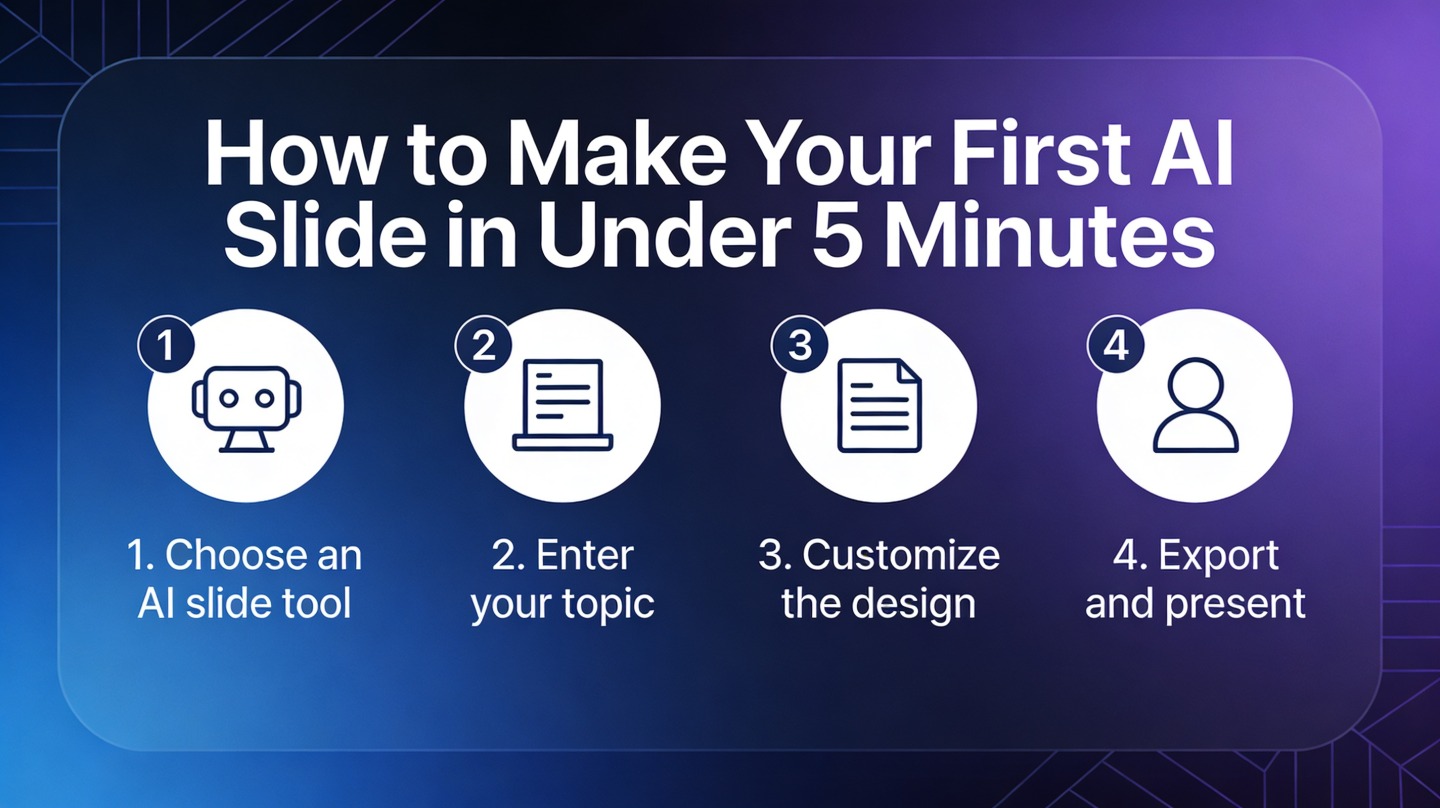
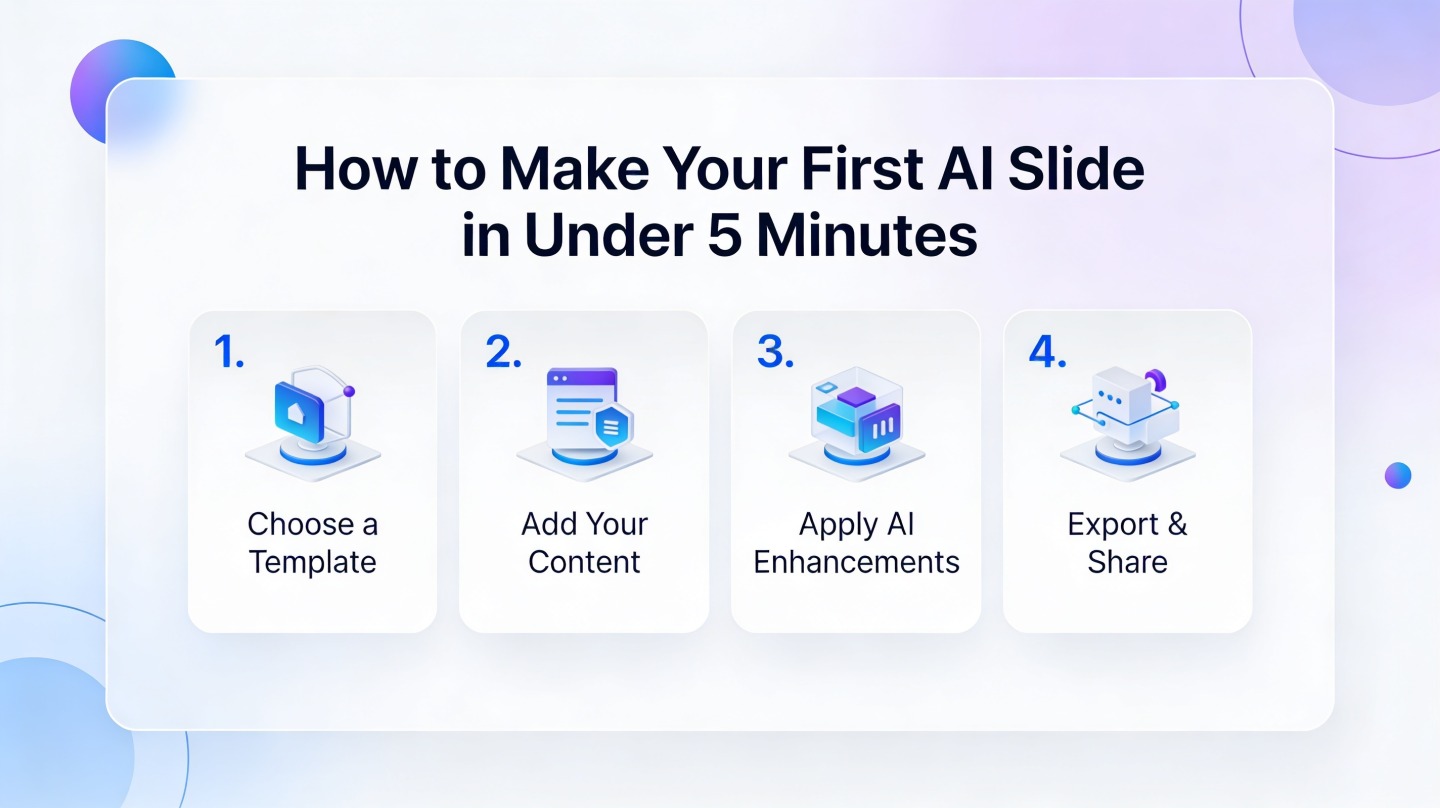
This guide shows a practical five-minute workflow: define the message, prompt the generator, review the layout, and make quick edits. You can follow the same process in PopAi AI Presentation when you need a fast first draft that still looks structured.
The goal of the first slide is not final polish. The goal is to turn an unclear idea into a visible structure you can judge, edit, and present.
What Your First AI Slide Needs Before You Prompt
This section sets up the minimum input an AI tool needs so the output does not feel generic.
Start with one job for the slide
A slide fails when it tries to introduce the topic, prove three points, show data, and ask for a decision at the same time. Before you open any generator, write one sentence that explains what this slide must accomplish.
Good first-slide jobs include:
- Explain a problem: “Show why customer onboarding takes too long.”
- Introduce a proposal: “Present a three-step plan for reducing support tickets.”
- Summarize a result: “Show that the campaign improved qualified leads.”
- Set a meeting agenda: “Preview the three decisions needed today.”
Use a message, not just a topic
“Marketing strategy” is a topic. “Our marketing strategy should shift from broad awareness to account-based campaigns” is a message. AI presentation tools perform better when the prompt contains a viewpoint because the headline, layout, and supporting points can align around it.
In a hands-on timing drill for this article, a vague prompt produced a title slide and four disconnected bullets in about one minute. A message-led prompt produced a recommendation slide with a headline, three supporting reasons, and a stronger visual hierarchy in roughly the same time. The difference was not the tool speed; it was the clarity of the input.
Pro Tip: If you only have a rough idea, generate one draft in PopAi AI Presentation, then refine the prompt based on what looks weak. Iteration is faster than staring at an empty canvas.
The 5-Minute AI Slide Workflow
Use this timed process when you need a credible first draft instead of a perfect design session.
Minute 0–1: Write the prompt components
A fast slide prompt should include six pieces of information. You do not need long paragraphs; concise instructions are easier to control.
- Audience: who will read the slide.
- Goal: what the slide should make them understand or do.
- Main message: the headline idea.
- Evidence: facts, examples, or bullet points to include.
- Format: agenda, comparison, timeline, problem-solution, or data summary.
- Tone: executive, student-friendly, persuasive, analytical, or simple.
Minute 1–3: Generate the slide
Paste the prompt into your AI presentation generator and ask for one slide first. One slide is easier to inspect than a full deck, and it teaches you how the tool interprets your topic.
Use this template:
Create one 16:9 presentation slide for [audience]. The slide goal is [goal]. Main message: [message]. Include these points: [evidence]. Use a [format] layout and a [tone] tone. Keep text concise and make the slide easy to scan.
Minute 3–5: Run the quick quality check
After generation, do not start changing colors immediately. First, check whether the slide communicates clearly. In most business and classroom settings, a slide should be understandable in a short glance before the presenter explains it.
- Headline: Does it state the point, not just the topic?
- Hierarchy: Can the audience tell what to read first?
- Text load: Are there more than three or four major ideas?
- Visual match: Does the diagram, image, or structure support the message?
AI Slide Prompt Examples You Can Copy
These examples show how to adapt the same structure for common first-slide situations.
For a team update
Use this when you need to brief managers or teammates quickly:
Prompt: “Create one 16:9 slide for a product team weekly update. Goal: show that the beta launch is on track but needs faster QA response. Main message: launch readiness is strong, with one operational risk. Include three sections: completed this week, next milestone, blocker. Use an executive update style with concise wording.”
For a student presentation
Students often need a clean opener that explains the topic without sounding overdesigned. Try:
Prompt: “Create one introductory slide for a university presentation on renewable energy storage. Audience: classmates and instructor. Goal: explain why storage matters for solar and wind adoption. Use a simple problem-solution layout with one short headline and three supporting bullets.”
For a sales or client pitch
For client-facing slides, the first draft should be benefit-led. Avoid listing product features too early.
Prompt: “Create one sales presentation slide for a mid-market operations leader. Goal: show how automation reduces manual reporting work. Main message: teams can spend less time compiling reports and more time acting on insights. Use a before-after layout with a professional, persuasive tone.”
How to Fix Your First AI Slide Fast
Even a good AI draft needs human judgment, especially for accuracy and audience fit.
Replace generic headlines with decision-ready headlines
A generic headline says “Quarterly Results.” A decision-ready headline says “Retention improved after onboarding changes.” The second version tells the audience what to notice before they read anything else.
If your AI-generated headline is flat, rewrite it using this pattern: Subject + change or recommendation + reason. Example: “Support tickets dropped after help center redesign” is stronger than “Support Ticket Overview.”
Cut text before changing design
Most first drafts look cluttered because they contain too many words, not because the design is bad. Remove repeated phrases, long qualifiers, and filler adjectives. Keep labels short and put details in speaker notes if needed.
PowerPoint and Google Slides both support widescreen 16:9 layouts in their page setup options, which is the common format for modern screens. If you plan to export your AI-generated slide into another tool, keep the aspect ratio consistent so spacing and visual balance do not break.
Check facts and brand rules
AI can structure your idea quickly, but it should not be treated as the source of truth for financial figures, dates, customer names, or compliance claims. Verify any factual statement against your original document, CRM, spreadsheet, course material, or official source before presenting.
Common AI Slide Mistakes to Avoid
These mistakes are easy to miss when the slide looks visually polished at first glance.
Mistake 1: Asking for a full deck too soon
If your first prompt is unclear, generating ten slides only multiplies the problem. Start with one slide, improve the prompt, then expand into a deck once the message and structure are working.
Mistake 2: Accepting decorative visuals that do not explain anything
Icons, illustrations, and gradients can make a slide feel finished, but they may not help the audience understand the point. Ask whether each visual element clarifies a relationship, contrast, sequence, or priority. If it does not, simplify it.
Mistake 3: Using the same prompt for every audience
An executive audience wants implications and decisions. A classroom audience may need definitions and context. A client audience needs outcomes and proof. Change the audience line in your prompt, and the slide will usually become more relevant.
Fast rule: If you cannot explain why a slide exists in one sentence, the AI will probably struggle to design it clearly. Start with the sentence, then generate.
First AI Slide Checklist Before You Present
Use this final scan to decide whether your first slide is ready to share or needs one more edit.
The 10-second readability test
Show the slide to yourself at laptop size and look away after about ten seconds. If you can repeat the main message, the hierarchy is working. If you only remember the decoration or a vague topic, rewrite the headline and reduce text.
The presenter support test
A slide should support your voice, not replace it. Put supporting details, caveats, and examples into your talk track. Keep the slide focused on the idea the audience must retain.
- The headline communicates a complete point.
- The body has no more than three main supporting ideas.
- The visual structure matches the message type: comparison, timeline, process, or summary.
- Facts, dates, names, and numbers are verified.
- The slide uses the correct aspect ratio and readable font size.
FAQ: Making Your First AI Slide
These answers cover the practical questions beginners usually ask before using an AI-generated slide in a real presentation.
Do I need design experience to make my first AI slide?
No. You need a clear topic, an audience, and one outcome for the slide. The AI can generate structure and visual direction, but you should still review hierarchy, accuracy, and readability before presenting.
What should I put in the prompt for a five-minute slide?
Include the audience, slide goal, key message, supporting points, preferred format, and tone. A strong prompt prevents generic layouts and reduces editing time.
Can I use an AI-generated slide in PowerPoint or Google Slides?
Yes. After generating the slide, export or adapt it into your presentation workflow. Keep the slide size consistent, usually 16:9, and check fonts, spacing, and brand colors after export.
How do I know whether the slide is good enough?
Use three checks: the headline states the main point, the body has no more than three supporting ideas, and the slide can be understood in about ten seconds without narration.
Create your presentation with one click now
Turn your topic, notes, or rough outline into a structured presentation draft faster, then refine the message and design for your audience.
Start with PopAi AI Presentation