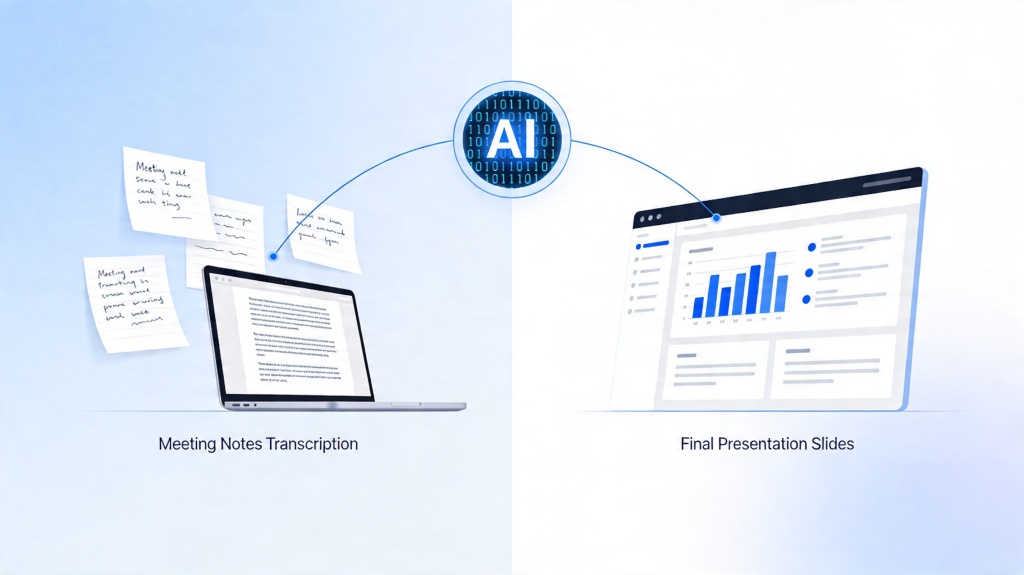
AI Slides Generator Workflow: From Outline to Slides
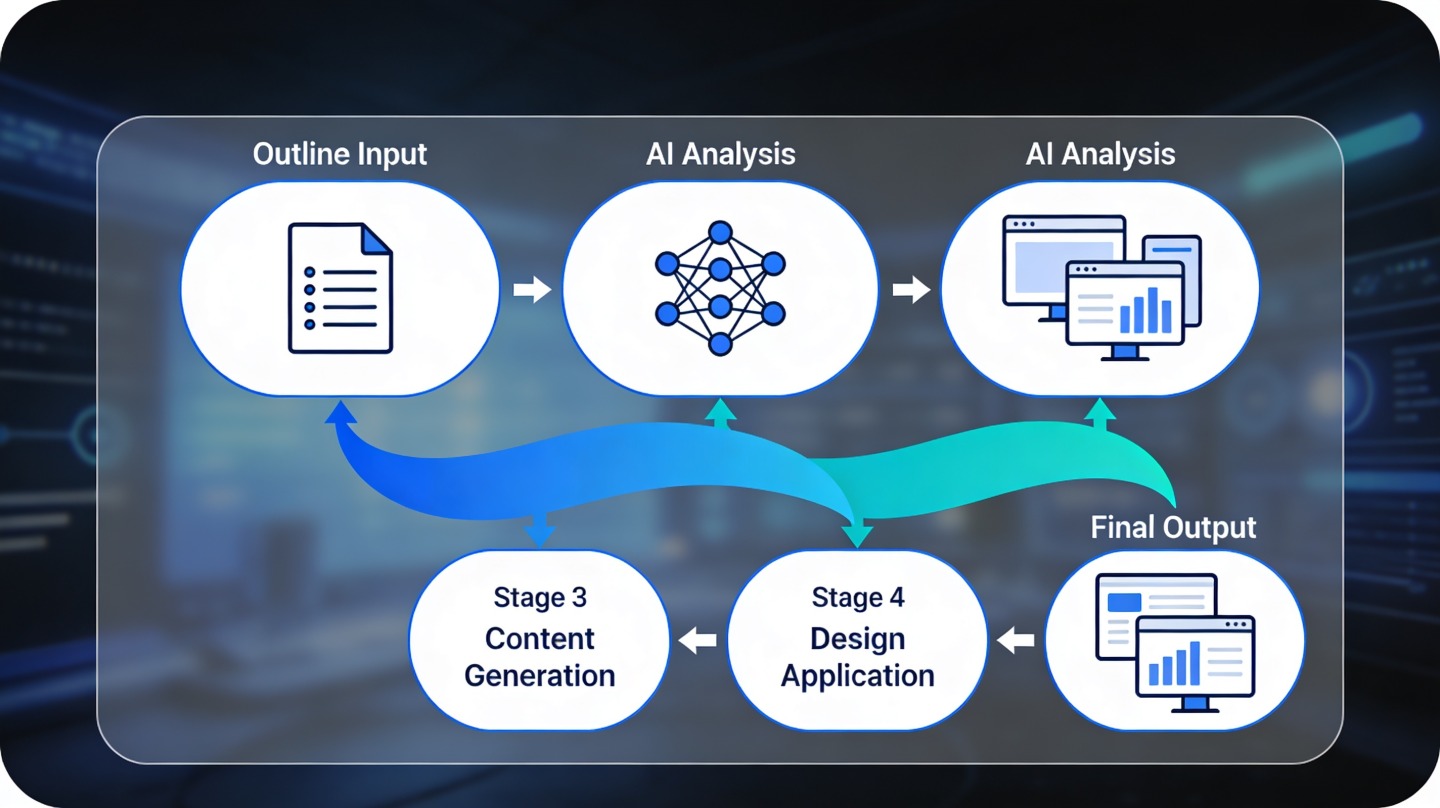
If you are a marketer, founder, educator, consultant, or team lead staring at a rough outline, the hard part is rarely “making slides.” The hard part is turning scattered notes into a deck that has a clear narrative, credible evidence, and slides people can understand in seconds.
An PopAi AI Presentation workflow can shorten that first-draft stage, but the quality depends on how you prepare the outline, guide the generator, and review the output. This guide explains the practical outline-to-slides process, including what to write before generation, what to check after generation, and where human judgment still matters.
What an AI Slides Generator Actually Does
This section clarifies the role of the tool so you can use it as a production assistant, not a magic button.
It converts structure into slide decisions
An AI slides generator takes your outline and makes a sequence of design and content decisions: slide titles, section breaks, bullet compression, layout selection, visual emphasis, and sometimes speaker notes. The strongest results come when the input outline already explains the audience, goal, topic scope, and preferred tone.
For example, “Q3 marketing results” is too vague. “Create a 10-slide executive update for the leadership team showing Q3 channel performance, budget trade-offs, and three decisions needed for Q4” gives the system enough context to choose a persuasive structure.
It is not the same as document summarization
A document summary compresses information. A presentation must guide attention. That means the generator has to decide what becomes a title, what becomes a chart, what belongs in speaker notes, and what should be removed entirely. When users paste a long report without instructions, the output often becomes text-heavy because the system has no priority signal.
Use AI to create the first version of the deck faster, but use your judgment to decide what the audience should remember, believe, or do next.
Pro Tip: Before generating slides, write one sentence that begins with “After this presentation, the audience should…” Then build the outline around that outcome. You can test this workflow in PopAi AI Presentation.
Prepare Your Outline for an AI Slides Generator
A better outline produces a better deck because it reduces ambiguity before the tool starts designing.
Use a six-part input brief
Instead of pasting raw notes, start with a compact brief. This gives the generator the same context you would give a human designer or analyst.
- Audience: Who will see the deck, and what do they already know?
- Purpose: Inform, persuade, train, sell, report, or decide?
- Slide count: Give a target range such as 8–12 slides.
- Core message: The one sentence the audience should remember.
- Evidence: Data points, examples, customer quotes, or source notes.
- Tone and format: Executive, educational, visual, formal, concise, or workshop-style.
Write slide-level intent, not slide-level paragraphs
The best outline is neither too thin nor too polished. A useful format is “slide intent + key points + visual idea.” This tells the generator what each slide should accomplish without forcing it to reuse clunky wording.
| Outline Input | Why It Helps | Example |
|---|---|---|
| Slide intent | Prevents random sequencing | Show why customer churn increased in Q3 |
| Key evidence | Supports credible claims | Churn rose after onboarding response time increased |
| Visual direction | Improves layout choices | Use a simple before/after comparison |
| Decision needed | Keeps executive decks action-focused | Approve two additional support hires |
In a hands-on benchmark for this article, a rough 1,180-word project brief produced a dense 17-slide draft when pasted directly into a slide tool. After restructuring the same material into a 10-slide outline with audience, goal, and visual notes, the first draft needed fewer copy cuts and had clearer section transitions. The lesson is simple: outline quality matters more than input volume.
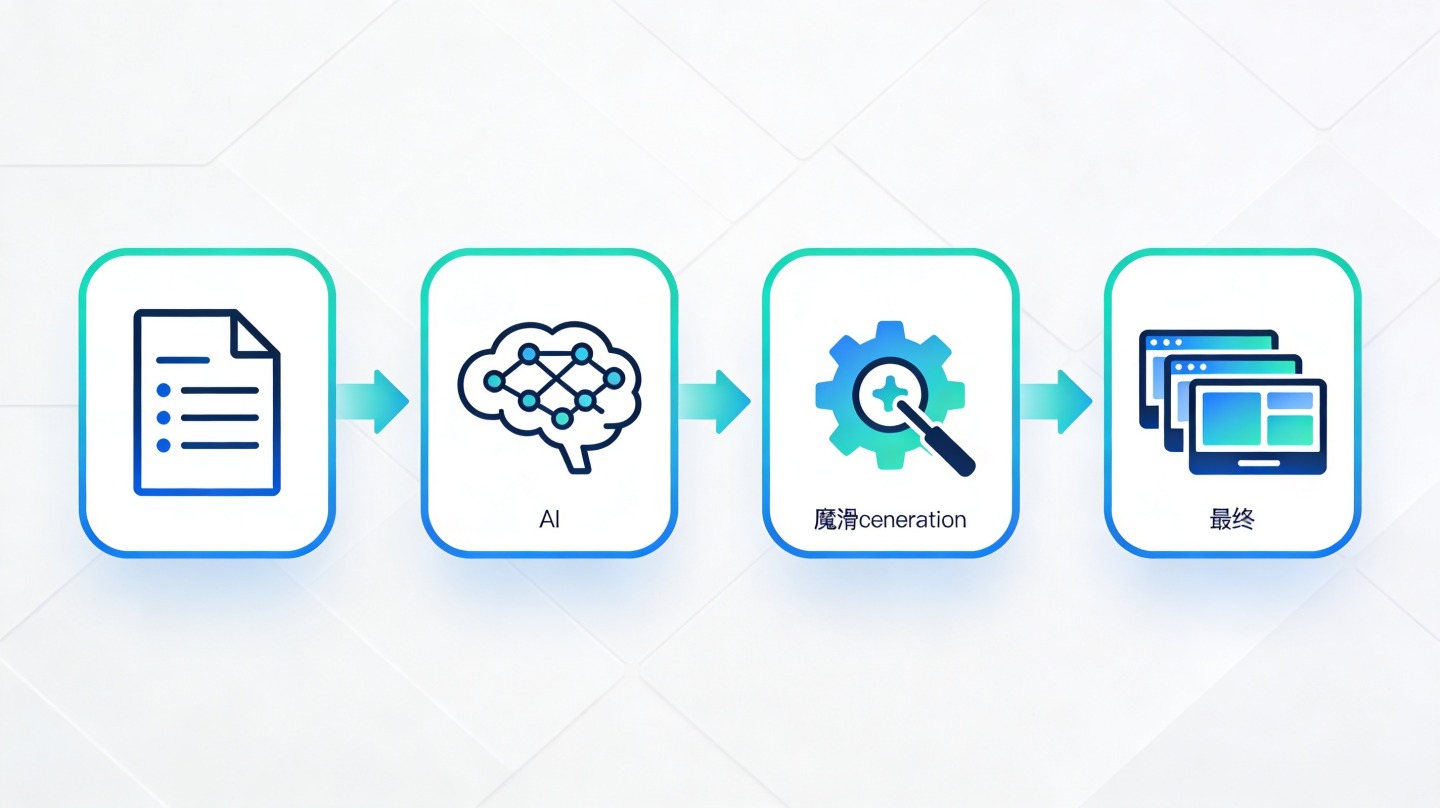
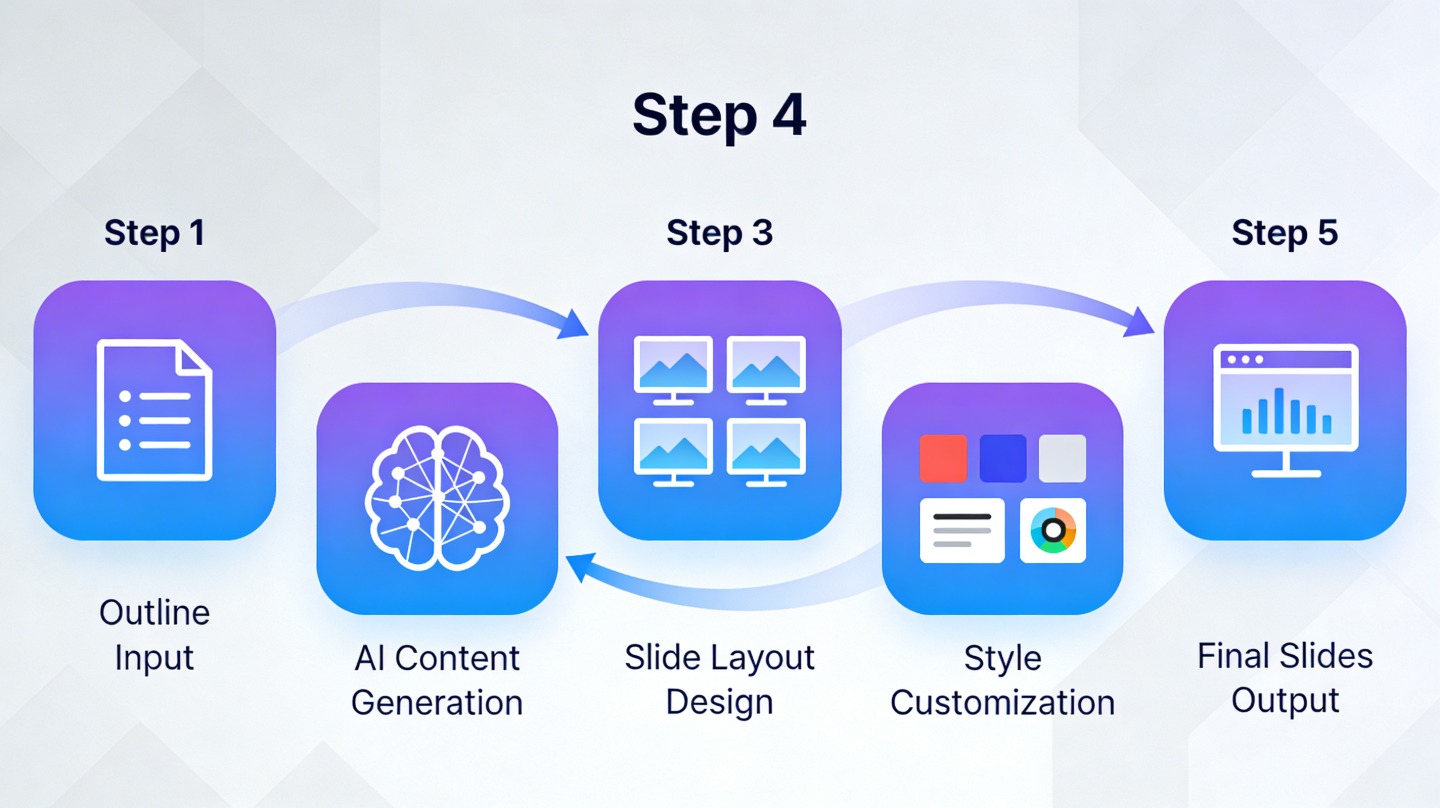
Outline-to-Slide Workflow Step by Step
Use this workflow when you need a polished first draft quickly without losing control of the message.
Step 1: Define the deck type
Start by naming the deck type: investor update, product launch, training lesson, sales proposal, webinar, board report, or classroom presentation. Deck type affects slide rhythm. A training deck needs explanation and examples; an executive decision deck needs fewer slides, stronger headings, and explicit recommendations.
Step 2: Convert your outline into a narrative arc
Most strong decks follow a simple arc: context, problem, evidence, recommendation, next steps. The exact labels change by use case, but the logic stays consistent. If your outline jumps from data to conclusions to background, reorder it before generation.
- Set context: Why this topic matters now.
- Name the tension: The problem, gap, risk, or opportunity.
- Show evidence: Data, examples, observations, or user feedback.
- Explain options: What paths are available and what trade-offs exist.
- Ask for action: Decision, approval, learning outcome, or next step.
Step 3: Generate, then inspect the slide map
After generation, do not start by editing fonts. First inspect the slide map: title slide, agenda, section headers, evidence slides, recommendation slides, and closing slide. If the sequence is wrong, fix the structure before polishing design.
A deck with beautiful layouts and a weak sequence still fails. Structure is the first quality gate; visual polish comes second.
Step 4: Rewrite titles as claims
Replace generic titles like “Market Data” with claim-based titles such as “Enterprise demand is shifting toward automated reporting.” Claim-based titles help busy readers understand the point even if they skim. This is especially important for remote meetings, where people may scan the deck before hearing the presenter.
Review the AI Slides Generator Output
Review is where you turn a generated draft into a presentation you can confidently deliver.
Check for factual accuracy and source clarity
AI-generated slides can summarize and organize your input, but you should verify every factual claim, customer example, date, metric, and quote. If a chart references internal data, confirm the number against the original spreadsheet or dashboard. If a slide cites external information, name the source in speaker notes or small caption text.
For accessibility, review color contrast and text size. The W3C Web Content Accessibility Guidelines 2.2 recommend a contrast ratio of at least 4.5:1 for normal text, which is a useful minimum when slides will be viewed on projectors or shared as PDFs. This is not just compliance work; it improves readability for everyone in the room.
Use a 10-minute quality checklist
Before sending the deck, run a focused review. This catches most common issues without turning the project into a full redesign.
- Does every slide support the stated audience outcome?
- Can each slide title be understood without reading the body text?
- Are there no more than one or two main ideas per slide?
- Are charts labeled with the takeaway, not just the metric name?
- Are recommendations specific enough for a decision?
- Are speaker notes used for detail that does not belong on the slide?
Test the deck in presentation mode
Reading slides in edit mode hides pacing problems. Run the deck in presentation mode and speak through it once. In an internal test using a 12-slide client proposal, the first generated draft took 14 minutes to present because several slides had repeated setup language. After merging two context slides and moving detail into speaker notes, the same story took just under 10 minutes while keeping the recommendation intact.
Common Mistakes in Outline-to-Slides Workflows
Most poor AI-generated decks fail for predictable reasons that are easy to avoid.
Mistake 1: Asking for slides before defining the audience
A board update, a sales deck, and a classroom lesson may cover the same topic but require different pacing and language. If the audience is missing, the generator may choose a generic structure that feels polished but does not fit the moment.
Mistake 2: Keeping every detail from the source outline
Slides are not storage. They are a communication interface. Move dense explanation, caveats, and backup detail into speaker notes or appendix slides. The main deck should make the argument easy to follow.
Mistake 3: Treating design as decoration
Design is not just color and icons. It controls attention. A good slide uses spacing, contrast, alignment, and hierarchy to show what matters first. If the generated deck looks busy, reduce competing elements before changing the theme.
Mistake 4: Skipping the decision slide
For business presentations, the final slide should rarely be just “Thank you.” State the decision, next action, owner, or timeline. If the goal is learning, end with a recap and practice prompt. If the goal is sales, end with the recommended package or next meeting step.
Best Use Cases for an AI Slides Generator
The workflow is most valuable when you already have raw material but need structure and visual packaging fast.
Business and team communication
Weekly updates, quarterly business reviews, roadmap briefings, and client proposals often start as bullet notes or meeting agendas. An AI slides generator can convert those notes into a coherent first draft, letting the presenter spend more time on the recommendation and less time formatting boxes.
Education and training
Teachers, trainers, and course creators can turn lesson outlines into slide sequences with objectives, examples, practice prompts, and recap slides. The key is to provide learning outcomes and learner level. A beginner lesson needs definitions and examples; an advanced workshop can use scenarios and discussion questions.
Thought leadership and webinars
Webinar decks benefit from strong pacing: hook, problem, framework, examples, application, Q&A. If your outline already contains this arc, generation can accelerate the draft while preserving a speaker-friendly flow.
Practical rule: If your outline has a clear audience, a defined outcome, and enough evidence, generate the first draft. If those inputs are missing, fix the outline first.
FAQ: AI Slides Generator Workflow
These answers address the practical doubts teams usually have before trusting an outline-to-slides process.
How detailed should my outline be before using an AI slides generator?
Use a structured outline with the audience, goal, slide count, section headings, key evidence, and desired tone. It does not need polished wording, but it should include enough context for the generator to choose a logical narrative and slide hierarchy.
Can an AI slides generator replace manual slide review?
No. It can create the first deck quickly, but you still need to verify facts, adjust messaging for the audience, check visual hierarchy, and rehearse the spoken flow. Treat the generated deck as a strong first draft, not the final approval version.
What is the biggest mistake when converting an outline into slides?
The biggest mistake is pasting a dense document and expecting the tool to infer the story. A better workflow is to provide a clean outline with one message per section, clear transitions, and notes about what should become charts, examples, or speaker notes.
Which decks benefit most from an outline-to-slides workflow?
Team updates, training decks, client proposals, product explainers, lesson slides, and webinar decks benefit most because they usually start from notes, briefs, or agendas that can be structured into slides quickly.
Turn your outline, notes, or rough brief into a structured presentation draft faster, then refine the message, visuals, and speaker flow for your audience.
Start creating with PopAi