AI Data Report Presentation: Charts, KPIs, and Slide Workflow
Updated August 10, 2026 · Alex Rivera
An AI data report presentation turns raw KPIs, CSVs, dashboard notes, and business context into slides that explain what changed and what to do next.
This tutorial covers inputs, a five-step workflow, chart prompts, examples, editing and export checks, failure fixes, FAQ, and the PopAi presentation pillar.
AI Data Report Presentation: Start with the Decision
A data slide is useful only when it answers a question. Before creating charts, define the audience, decision, target KPI, source data, and the action the deck should support.
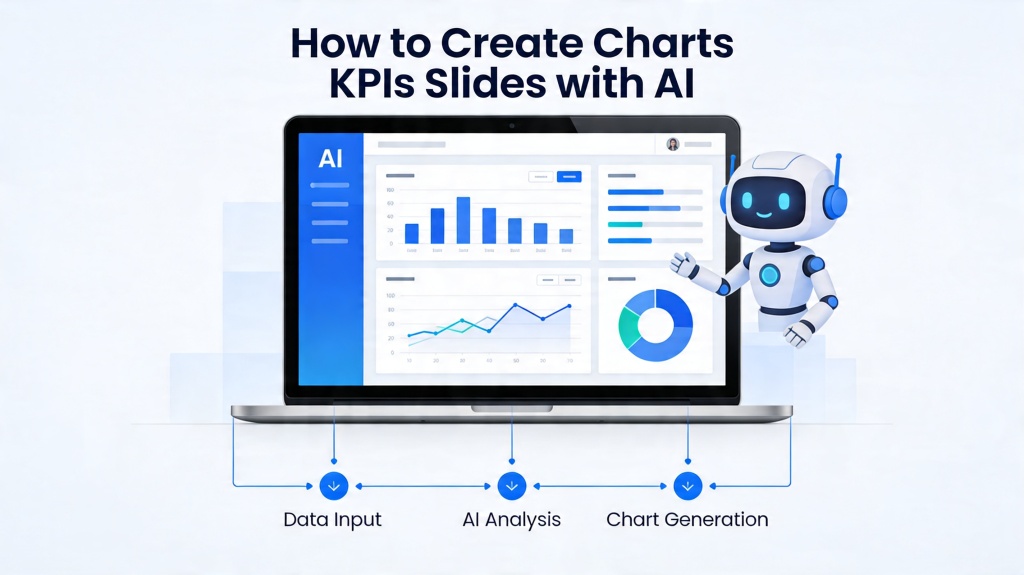
Input Materials and Five-Step Workflow
- Inputs: CSV/Excel data, KPI definitions, time range, targets, audience, and business context.
- Step 1: clean headers and remove merged cells.
- Step 2: choose the 3-5 KPIs that support the decision.
- Step 3: ask AI for chart options and slide takeaways.
- Step 4: verify numbers and add the why.
- Step 5: export and test chart readability.
| Data job | Best chart | Slide takeaway |
|---|---|---|
| Trend over time | Line chart | What changed and why it matters |
| Category comparison | Bar chart | Which segment leads or lags |
| Progress to target | Gauge or KPI card | How close the team is to goal |
| Part of whole | Stacked bar or limited pie | Which component drives the total |
Copyable Prompt and Real Examples
Example: marketing KPI report
Show demo requests, conversion rate, CAC by channel, activated trials, and sales-qualified opportunities. Highlight the channel that improved and the experiment to repeat.
Example: customer success health report
Show NRR, churn risk, adoption, support volume, and expansion pipeline. Tie each metric to a recovery action or next-quarter priority.
Failure Reasons, Fixes, and Related Guides
- Wrong chart type: ask AI to explain why each chart fits the data.
- Hallucinated trend: verify every insight against source numbers.
- Too many KPIs: keep only metrics tied to the decision.
- Unreadable labels: enlarge labels and simplify axes before export.
For chart-specific rules, use AI data report presentation chart rules. For quarterly review structure, use AI QBR deck generator. For document reports, use document to slides AI.
Frequently Asked Questions
What is an AI data report presentation?
It is a presentation workflow that uses AI to turn KPI data, reports, and business context into chart slides with clear takeaways and recommendations.
What data should I prepare first?
Prepare clean CSV or spreadsheet data, KPI definitions, time period, targets, audience, and the decision the report should support.
Can AI choose the right chart type?
AI can suggest chart types, but you should verify whether the chart answers the audience's question and keeps labels readable.
What should I check before exporting?
Verify every number, check chart readability, add business context, reduce KPI overload, and ensure the slide takeaway is clear.