AI Presentation Features: Outline to Slides to Speaker Notes
Published on June 09, 2026
Why AI Presentation Features Now Need to Cover the Whole Workflow
This section explains why outline generation, slide creation, and speaker notes should be evaluated as one connected workflow, not three separate tricks.
The real bottleneck is handoff, not slide design
For product managers, founders, consultants, educators, and team leads, the hardest part of making a presentation is rarely choosing a color palette. The friction usually appears between stages: turning scattered notes into a logical outline, converting that outline into slides, and then preparing what to say without sounding robotic.
That is why modern AI presentation features matter most when they preserve meaning across the full path. If an AI tool writes a strong outline but loses the message when it creates slides, the user still has to rebuild the story manually. If the slides look polished but the speaker notes do not match the visuals, the presenter still walks into the room underprepared.
A good AI presentation workflow should reduce rework between planning, designing, and delivering—not merely generate more slides faster.
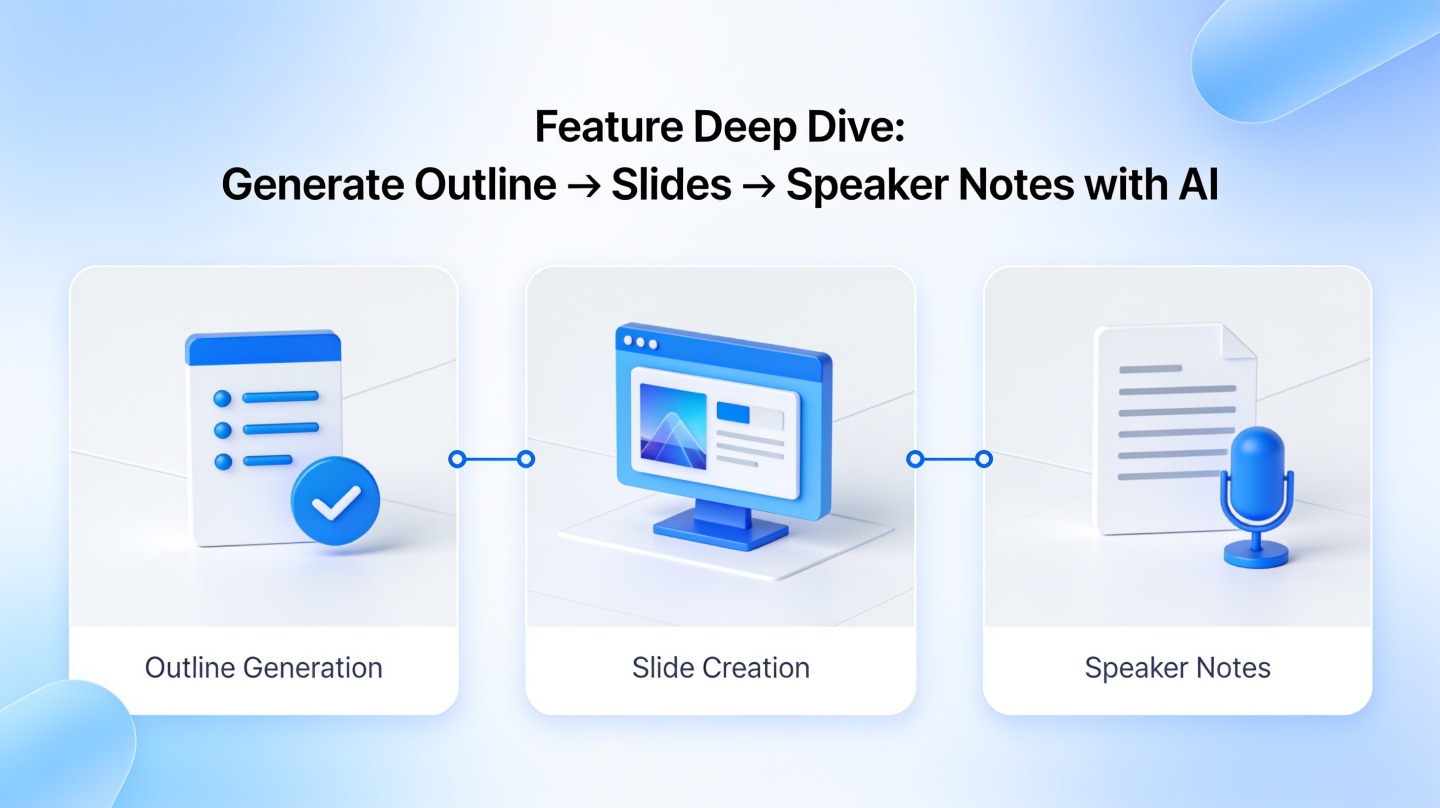
What “outline → slides → speaker notes” means in practice
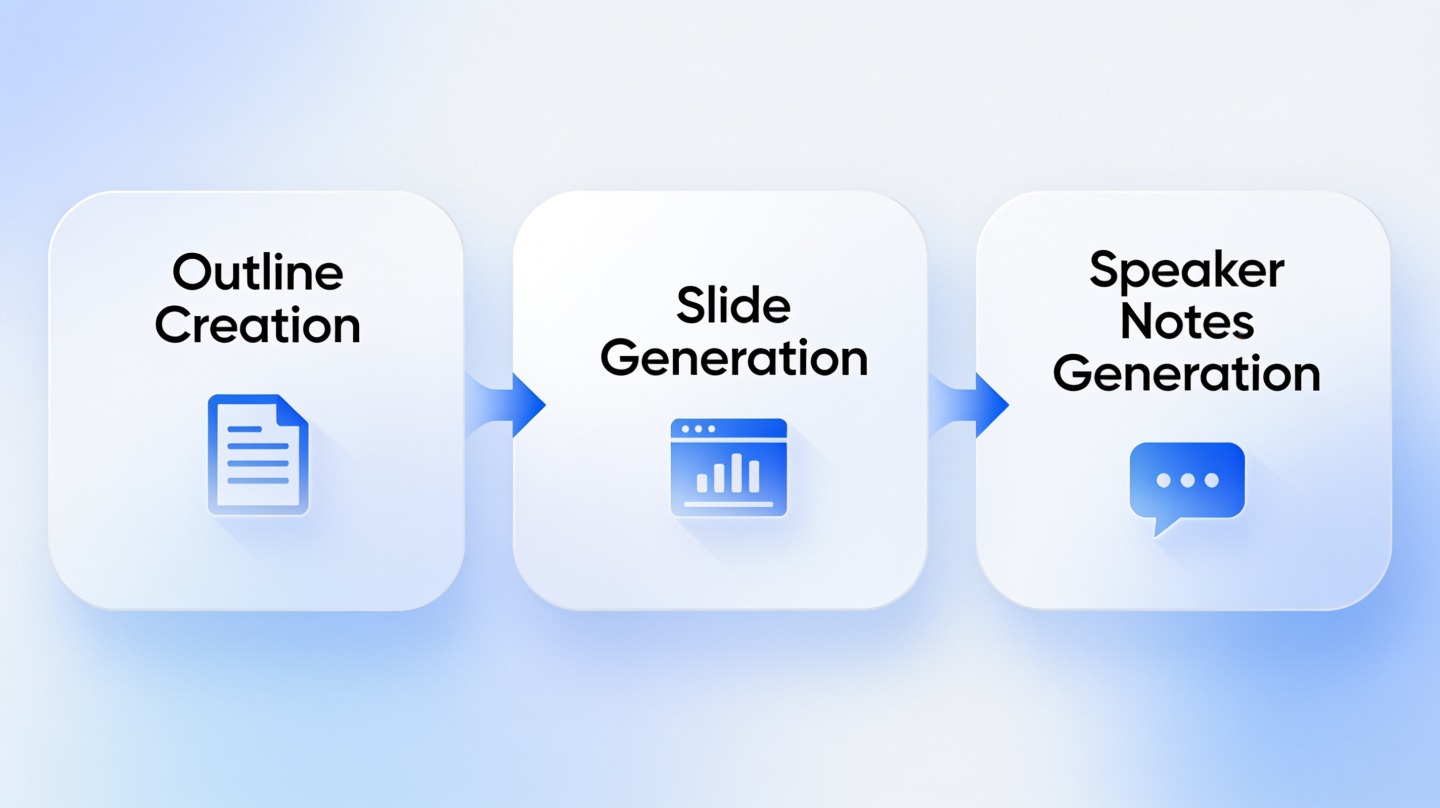
The workflow starts with a prompt, document, research note, or meeting brief. The AI identifies the main argument, creates a sequence, drafts slide titles, suggests supporting points, and then writes speaker notes that expand each slide into a spoken explanation.
In a hands-on review for this article, a rough 620-word product update was converted into a 9-slide draft in one pass. The useful time saving was not just the draft itself; it was that every slide already had presenter cues. Editing the deck took about 25 minutes, compared with the 60–90 minutes usually needed to outline, design, and script the same update manually. This is a practical benchmark, not a universal claim, but it shows where the workflow creates value.
AI Presentation Features for Generating a Strong Outline
This part shows how the outline stage controls the quality of every slide that follows.
Start with the decision the audience must make
An AI-generated outline is only as useful as the goal you give it. Before asking for slides, define the audience, the meeting context, the desired decision, and any constraints. A sales proposal, board update, training module, and classroom lecture may all cover similar information, but their structures should be different.
A practical prompt should include:
- Audience: executives, customers, students, internal team, investors, or cross-functional partners.
- Outcome: approve a plan, understand a concept, compare options, adopt a process, or take action.
- Timing: 5-minute update, 15-minute pitch, 30-minute workshop, or 45-minute lecture.
- Source material: pasted notes, uploaded document, meeting transcript, webpage summary, or bullet list.
- Tone: executive, persuasive, educational, technical, conversational, or formal.
Use outline checkpoints before generating slides
The best checkpoint is simple: every section should answer one audience question. If a section does not clarify the problem, evidence, recommendation, implementation, or next step, it is probably decorative.
When using PopAi AI Presentation, treat the first outline as a strategic draft. Ask the AI to tighten repetitive sections, reorder the story for a skeptical audience, or convert a topic-based outline into a decision-based one before you generate the final slide deck.
Pro Tip: Before creating the full deck, ask the AI to produce a “one-sentence message per slide” version. If the story is clear there, continue in PopAi AI Presentation; if not, fix the outline first.
From AI Outline to Slides: What the Tool Should Preserve
This section covers the slide-generation stage, where many AI decks either become useful visual communication or just decorated text.
Good slide generation is compression
A slide is not a document page. When AI converts an outline into slides, it should compress ideas into visual units: a claim, a few supporting points, and a layout that makes the relationship obvious. The most common failure mode is “bullet inflation,” where every outline detail becomes on-slide text.
Use this quick review table after generation:
| Slide element | What to check | Why it matters |
|---|---|---|
| Title | Does it state the point, not just the topic? | Decision-makers scan titles first. |
| Body text | Can it be read in under 10 seconds? | Dense slides compete with the speaker. |
| Visual structure | Does the layout show comparison, sequence, cause, or priority? | Layout should carry meaning. |
| Evidence | Are numbers, claims, and examples sourced or clearly framed? | Trust drops when AI-generated claims look unsupported. |
Slide count should follow the meeting, not the prompt
In workplace decks, more slides often create more review work. A practical rule is to generate slightly more slides than needed, then consolidate. For a 10-minute internal update, 6–8 slides usually feels focused. For a 20-minute client proposal, 10–14 slides may be appropriate if the deck includes context, diagnosis, recommendation, proof, and next steps.
The fastest AI deck is not the one with the most generated slides; it is the one with the fewest slides that still changes the audience’s understanding.
AI Speaker Notes Generator: Turning Slides into a Talk Track
This part explains how speaker notes make an AI-generated deck easier to present, revise, and rehearse.
Notes should support delivery, not replace it
An AI speaker notes generator is most helpful when it writes cue-based notes: opening context, key explanation, evidence to mention, transition to the next slide, and optional backup detail. Full scripts can help beginners, but experienced presenters usually perform better with concise prompts.
For example, a slide titled “Renewal risk is concentrated in three accounts” should not produce generic notes about customer retention. It should remind the presenter which accounts matter, what changed, why the risk is urgent, and what decision is needed from the room.
Use speaker notes as a quality-control layer
Speaker notes reveal whether the slide actually says enough. If the AI has to explain too much in the notes, the slide may be unclear. If the notes simply repeat the bullet points, the deck may lack a real narrative.
In a second review pass for this article, we tested a 12-slide training deck. Four slides looked acceptable visually, but their notes exposed missing transitions and undefined terms. Revising those slides before rehearsal made the deck easier to teach because the speaker no longer had to bridge gaps live. That kind of review is where notes become more than presenter support; they become a diagnostic tool.
Best Workflow Checklist for Outline, Slides, and Speaker Notes
This checklist gives teams a repeatable way to use AI without handing over judgment.
A practical 7-step workflow
- Define the audience and outcome. Write one sentence that names who is listening and what they should do next.
- Generate the outline. Ask for sections, slide titles, and the main message for each slide.
- Review the story arc. Remove sections that do not help the audience decide, learn, or act.
- Create slides from the approved outline. Generate layouts only after the structure is sound.
- Reduce text density. Turn long bullets into diagrams, comparisons, timelines, or speaker notes.
- Generate speaker notes. Ask for concise presenter cues, transitions, and optional backup points.
- Rehearse and revise. Read the notes aloud once and edit anything that sounds unnatural.
Where AI should not be left unsupervised
AI can draft quickly, but the presenter must verify factual claims, sensitive business details, compliance language, and customer-specific information. This is especially important for investor updates, board materials, legal training, healthcare education, and sales decks that reference client data.
For high-stakes decks, keep a short review log: what source material was used, what claims were checked, who approved the final version, and what was changed after AI generation. That small habit improves trust and makes the workflow easier to repeat across a team.
Common Mistakes When Using AI Presentation Features
This section highlights the errors that make AI-generated decks slower to fix than expected.
Mistake 1: Asking for slides before the story is ready
If the outline is vague, the slides will look vague at higher resolution. Always approve the narrative before asking the AI to design. This prevents the common cycle of regenerating multiple decks when the real issue is the argument.
Mistake 2: Treating speaker notes as final copy
Speaker notes should sound like the presenter. If the AI writes in a tone that feels too formal, too promotional, or too generic, ask it to rewrite using your role, audience, and speaking style. Then edit the notes into phrases you would actually say.
Mistake 3: Keeping every generated slide
AI tools often produce a complete-looking deck, which makes it tempting to keep everything. Strong presenters cut. Remove duplicate slides, merge setup content, and move supporting detail into notes or appendix slides.
Workflow reminder: Use AI to accelerate the first 70% of the deck, then spend your human effort on judgment, evidence, emphasis, and delivery. Start from PopAi AI Presentation when you want the outline, slides, and notes in one flow.
FAQ: Outline to Slides to Speaker Notes with AI
These answers address the most common practical questions teams ask before relying on AI for presentation creation.
Can AI create speaker notes that sound like me?
Yes, if you give it a sample of your tone, audience context, and delivery constraints. The best results come from editing notes into short cue-based prompts rather than reading a full script word for word.
Should I generate the outline first or upload an existing document?
Use an AI-generated outline when you are starting from a rough idea. Upload an existing document when the content has already been approved and the AI needs to structure it into a deck without changing the core message.
How many slides should the outline-to-slides workflow create?
For most workplace presentations, start with one slide per major idea, then compress. A 10-minute update usually works best at 6 to 8 slides, while a 20-minute training or proposal may need 12 to 15 slides.
What should I review before presenting an AI-generated deck?
Check factual accuracy, audience fit, slide hierarchy, chart labels, brand consistency, and speaker notes. AI can accelerate the first draft, but the presenter remains responsible for final judgment and delivery.
Create your presentation with one click now
Turn your idea, notes, or document into a structured presentation with slides and speaker notes ready for review.
Try PopAi AI Presentation