AI Presentation Builder: The Complete Guide for Beginners
What Is an AI Presentation Builder?
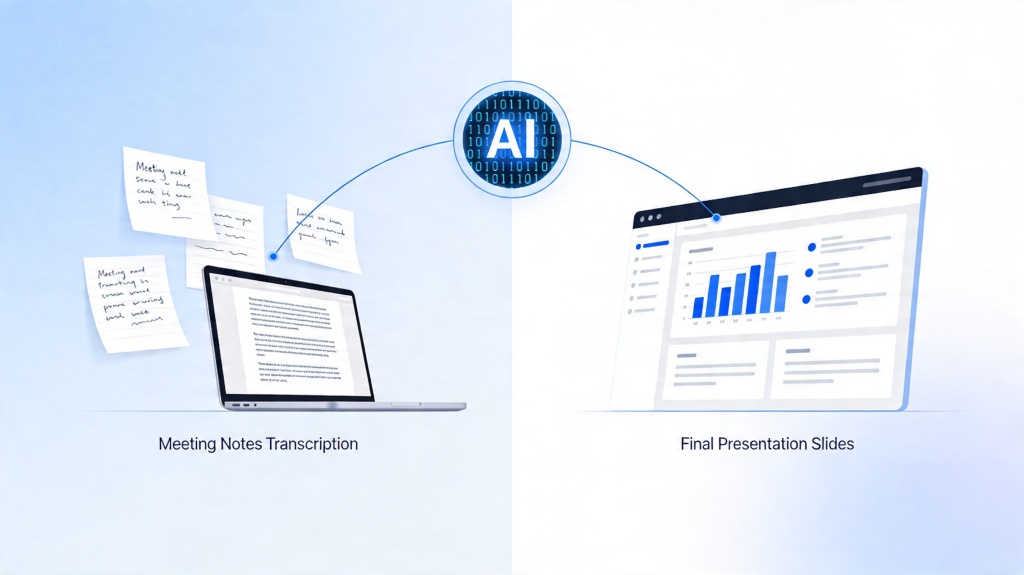
An AI presentation builder helps beginners turn messy notes, documents, or a simple topic into a structured slide deck. If you are making your first business update, class report, training deck, or pitch presentation, the biggest challenge is rarely “adding slides”—it is deciding what to say, what to cut, and how to make the deck look consistent.
The plain-English definition
An AI presentation builder is a tool that uses artificial intelligence to generate presentation outlines, slide titles, layouts, visuals, speaker notes, and design suggestions from your input. Instead of starting with a blank slide, you start with a draft that already has a logical flow.
For beginners, that matters because a blank canvas creates too many decisions at once: topic, audience, structure, wording, hierarchy, design, and timing. A good AI workflow separates those decisions so you can improve the deck step by step.
The best way to use AI for presentations is not to accept the first draft. Use it to create a fast starting point, then apply human judgment to sharpen the story.
What the tool can and cannot do
AI can create a strong first version, but it does not know your audience as well as you do. It may over-explain obvious points, miss internal context, or generate claims that need verification. Treat the output like a junior assistant’s draft: useful, fast, but still requiring review.
- Good at: outlines, first-draft slides, summarizing long content, consistent layout, speaker notes, and quick variations.
- Weak at: company-specific nuance, sensitive data judgment, source verification, and final presentation strategy.
- Your role: define the goal, check facts, choose the message, and rehearse the delivery.
If you want a beginner-friendly place to start, PopAi AI Presentation can help you move from a prompt or source content to an editable deck without building every slide manually.
Before Using an AI Presentation Builder: Define the Brief
This part prevents the most common beginner mistake: asking AI for “a presentation about X” and getting a generic deck back.
Use a five-part presentation brief
The quality of your deck depends heavily on the quality of your brief. Before generating slides, write a short answer to these five questions. You do not need perfect wording; you need enough direction for the AI to make useful choices.
- Audience: Who will watch this presentation, and what do they already know?
- Goal: Should the deck inform, persuade, train, report, or sell?
- Core message: What should the audience remember after the meeting?
- Format: How long is the talk, and how many slides do you want?
- Inputs: What notes, documents, links, data, or examples should shape the content?
A beginner prompt you can reuse
Here is a practical prompt structure for your first draft. Replace the bracketed text with your own details:
Prompt template: Create a [number]-slide presentation for [audience] about [topic]. The goal is to [inform/persuade/train/report]. The tone should be [professional/simple/energetic]. Include a clear title slide, problem or context, key points, examples, recommendation, and closing slide. Use the following source notes: [paste notes].
For a work presentation, add your meeting context. For a school presentation, add the grading criteria. For a sales or pitch deck, add the desired action you want the audience to take after the presentation.
Pro Tip: If your source material is long, generate an outline first, then create slides from the approved outline in PopAi AI Presentation. This reduces rework.
AI Presentation Builder Workflow: Step-by-Step for Beginners
This workflow keeps you from getting stuck in endless editing because each step has one clear decision.
Step 1: Generate an outline before slides
Ask for the deck outline first. A slide outline is easier to fix than a fully designed deck. Check whether the story has a beginning, middle, and end: context, key evidence, recommendation, and next step.
Step 2: Create the first slide draft
Once the outline looks right, generate the deck. Do not worry about perfect visuals yet. Review slide order, titles, and the amount of text. A beginner deck often fails because each slide tries to do too much.
Step 3: Rewrite slide titles as messages
Replace vague labels like “Market Overview” with message-based titles such as “Demand is rising among small business teams.” Message titles help skimmers understand your point even if they only read the headings.
Step 4: Simplify each slide to one job
Every slide should answer one question. If a slide explains the problem, compares solutions, and asks for approval, split it. This one-slide-one-job rule is especially helpful for beginners because it prevents clutter.
| Slide type | Main job | Beginner check |
|---|---|---|
| Title slide | Set topic and expectation | Does it say who the deck is for? |
| Context slide | Explain why the topic matters | Can the audience understand the problem quickly? |
| Evidence slide | Support the point with data or examples | Is the source or basis clear? |
| Recommendation slide | Tell the audience what to do next | Is the action specific? |
Step 5: Add speaker notes after the slides work
Speaker notes should support your delivery, not repeat every bullet. Ask the AI to create short talking points for each slide, then edit them into your natural voice. Rehearse out loud once before finalizing.
A presentation is not a document with animations. It is a guided conversation. Build slides that help you explain, not slides that replace you.
Design Basics for AI-Generated Slides
Good design makes your message easier to understand, and beginners can improve most AI slides with a few simple checks.
Use a standard slide size unless told otherwise
For most modern screens, use a 16:9 widescreen format. Microsoft PowerPoint’s support documentation identifies widescreen as the common modern slide size, while older 4:3 formats are mainly used for legacy projectors. If your school, company, or event gives a required format, follow that instead.
Check contrast and font size
Accessibility is not just a compliance issue; it makes slides easier to read from the back of a room. The W3C Web Content Accessibility Guidelines define a contrast ratio of at least 4.5:1 for normal text and 3:1 for large text. For presentation slides, use that as a practical minimum and avoid pale gray text on white backgrounds.
- Use one main font family and no more than two font weights.
- Keep body text short; use phrases instead of full paragraphs.
- Use consistent spacing so slides feel intentional.
- Choose icons and visuals that clarify the message, not decoration that competes with it.
Follow the “glance test”
Show a slide for three seconds, then hide it. If you cannot name the main point, the slide needs a clearer title, fewer words, or a stronger visual hierarchy. This is a fast quality check for beginners because it reveals clutter immediately.
Review and Fact-Check Your AI Presentation Builder Output
This stage turns an AI-generated deck into a presentation you can trust in front of a real audience.
Check claims, numbers, and examples
AI-generated slides may sound confident even when a statistic is missing context. If a slide includes a number, ask: Where did it come from? Is the time period clear? Is it relevant to this audience? If you cannot verify it, remove it or rewrite it as a qualitative observation.
A useful benchmark comes from Guy Kawasaki’s well-known 10/20/30 rule for pitch presentations: 10 slides, 20 minutes, and 30-point font. You do not have to follow it for every deck, but the rule is valuable because it gives beginners a concrete reminder to limit slide count, respect time, and keep text readable.
Review the story flow
Read only the slide titles from top to bottom. They should form a mini-story without the body text. If the titles feel like disconnected labels, rewrite them until the audience can follow the logic.
Use a final QA checklist
- Does the first slide make the topic and audience clear?
- Does every slide support the main goal?
- Are all claims, charts, and examples verified?
- Is the text readable on a laptop and a projector?
- Do the speaker notes sound like a human presenter?
- Is the final slide asking for a clear next step?
If you have time, send the deck to one colleague or classmate and ask them to summarize the main point after a quick scan. If their summary differs from your intended message, fix the structure before polishing visuals.
Common Beginner Mistakes With an AI Presentation Builder
Most beginner issues are easy to avoid once you know what to look for.
Mistake 1: Starting with a vague prompt
“Make a presentation about marketing” gives the AI too little direction. Add audience, purpose, slide count, tone, and source notes. Specific input produces a more useful draft.
Mistake 2: Keeping every generated slide
AI often creates more content than you need. Delete slides that repeat ideas or do not support the goal. A shorter focused deck usually performs better than a long complete-looking deck.
Mistake 3: Over-polishing before the story works
Beginners often spend time changing colors before fixing the argument. Sequence matters: brief, outline, draft, story review, fact-checking, design polish, rehearsal.
Mistake 4: Reading the slides word for word
If the slide contains your full script, the audience will read ahead and stop listening. Keep slides concise and place fuller explanations in speaker notes.
Pro Tip: Build your first version quickly, then improve one layer at a time. A structured tool like PopAi AI Presentation is most useful when paired with your own review checklist.
FAQ: AI Presentation Builder for Beginners
Do I still need design skills to use an AI presentation builder?
No. You need a clear goal, a specific audience, and a basic review process. The tool can draft layouts, structure, and visuals, but you should still check accuracy, tone, and whether each slide supports your message.
What should a beginner put in the first prompt?
Include the presentation goal, audience, time limit, preferred slide count, tone, and source material. A strong prompt is specific enough to shape the outline but not so long that the main point gets buried.
How many slides should I generate first?
Start with 6 to 10 slides for most beginner decks. That range is enough for a complete story without overwhelming the review process. After rehearsal, add or remove slides based on timing and clarity.
Can I use AI-generated slides for work or school?
Yes, but review the deck before presenting. Check source accuracy, remove unsupported claims, follow your organization or school policy, and make sure the final voice sounds like you.
Create your presentation with one click now
Turn your topic, notes, or document into a structured, editable presentation draft—then refine the message, design, and speaker notes in minutes.
Start with PopAi AI Presentation