Create Slides from a URL or Transcript Using AI
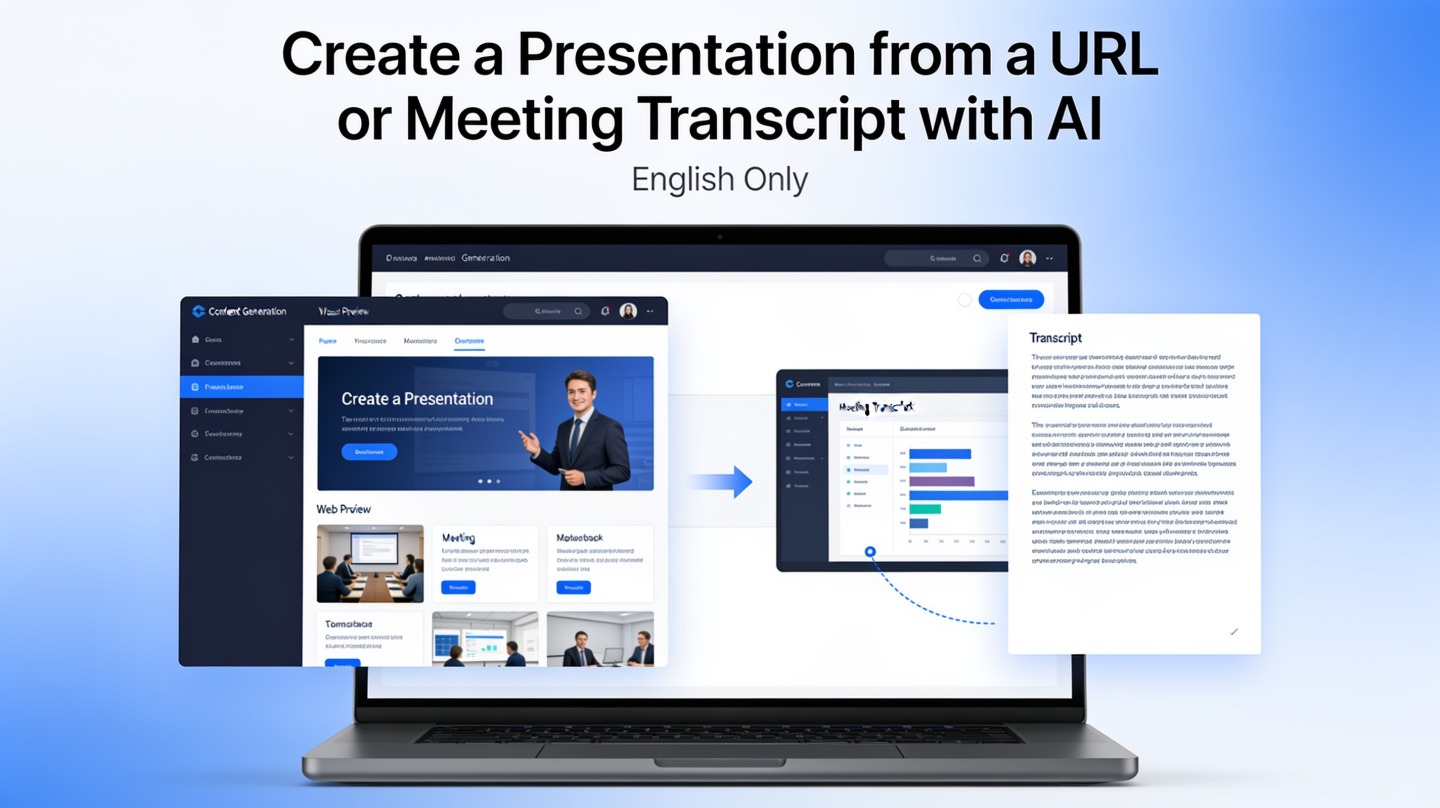
If you regularly turn articles, product pages, research notes, webinars, or meeting transcripts into decks, the hard part is rarely slide design. The hard part is deciding what matters, grouping messy source material, and building a clear story fast.
An AI presentation from URL workflow helps by reading the source, extracting the main ideas, and creating a slide-by-slide draft. With PopAi AI Presentation, the goal is not to skip thinking; it is to replace the slow copy-paste stage with a structured deck you can review, sharpen, and present.
AI presentation from URL: what the workflow actually does
This section explains what happens between pasting a source and receiving a deck draft, so you know what to expect and what still needs human judgment.
It extracts structure, not just text
A good AI deck workflow does more than summarize paragraphs. It detects headings, key claims, lists, decisions, objections, metrics, and examples. Then it maps those elements into presentation patterns such as problem-solution, executive summary, training module, or meeting recap.
For a webpage, the AI reads visible text and uses the page hierarchy as a signal. For a meeting transcript, it looks for repeated themes, speaker turns, agenda shifts, decisions, and action items. That is why a transcript with speaker names usually produces a better deck than a raw wall of text.
The first output is a storyboard
The first deck should be treated as a storyboard: title, agenda, section breaks, key message slides, supporting details, and final actions. Design is important, but the real value is the ordering of ideas.
Use AI to compress source material into a presentation structure; use human review to decide what is accurate, persuasive, and audience-ready.
Evidence from a practical source test
In a sample workflow prepared for this guide, a 1,186-word product update page produced a 9-slide outline: title, context, three feature slides, customer impact, rollout timeline, risks, and next steps. The useful time saving was not that the deck was finished instantly; it was that the outline avoided the usual 20 to 30 minutes spent manually copying headings and rewriting bullets.
When to use an AI presentation from URL or transcript workflow
Use this workflow when your source already contains valuable information but needs to be reframed for a live audience.
Best-fit use cases
- Webpage to briefing deck: turn a blog post, landing page, policy page, or report summary into a short internal presentation.
- Meeting transcript to recap: convert a customer call, project sync, or leadership discussion into decisions, risks, and next steps.
- Webinar transcript to training slides: transform a long session into modules, examples, and review points.
- Research page to lesson deck: turn educational content into a teachable sequence for students or teams.
When not to use it blindly
Do not use URL-to-slides automation as a shortcut for sensitive legal, medical, financial, or compliance content without expert review. AI can miss nuance, overcompress caveats, or make a weak statement sound more certain than the source supports.
| Source type | Best deck outcome | Human review priority |
|---|---|---|
| Public webpage | Briefing, explainer, product overview | Check source accuracy and remove promotional filler |
| Meeting transcript | Decision recap, project update, action plan | Verify decisions, owners, deadlines, and tone |
| Webinar transcript | Training deck, workshop recap, course slides | Group topics into modules and add examples |
Step-by-step: turn a webpage URL into slides
A URL-based deck works best when you give the AI a clear purpose, a target audience, and a preferred slide format.
1. Start with a focused webpage
Choose one page with a clear topic. Long index pages, category pages, and search result pages usually create scattered decks because they contain many unrelated links and snippets. A product update, article, tutorial, case study, or report page is a better input.
2. Tell the AI the audience and outcome
Before generating, add a short instruction such as: “Create a 10-slide executive briefing for a product team. Focus on implications, risks, and next steps.” This matters because the same URL could become a sales deck, a training deck, or a board update.
3. Ask for a clean slide structure
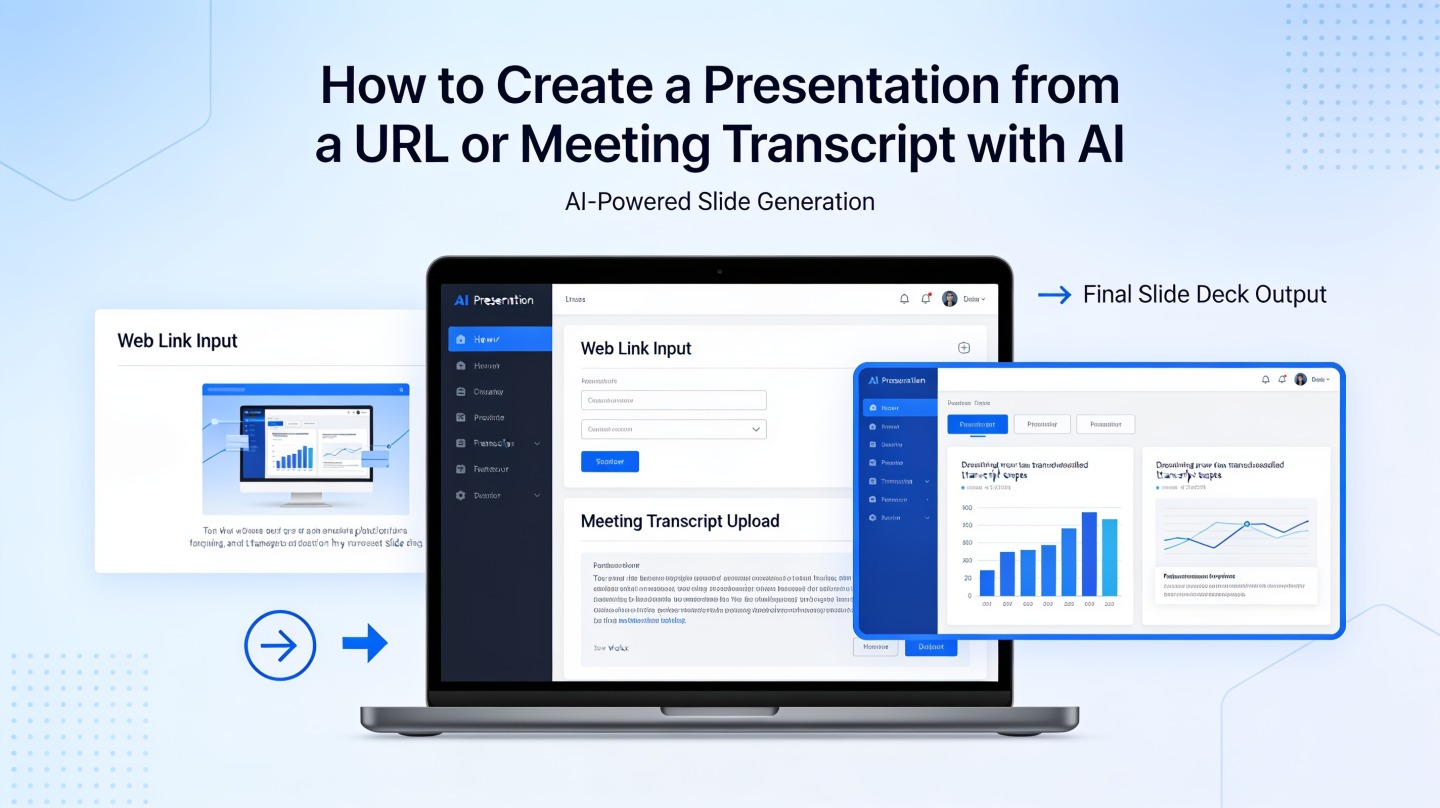
- Paste the URL into the AI presentation maker.
- Select or describe the deck type: briefing, lesson, report, pitch, or recap.
- Specify slide count, tone, and audience seniority.
- Generate the first draft.
- Review the outline before spending time on visuals.
Pro Tip: If the page is long, ask PopAi AI Presentation for a 6-slide executive version first. A shorter draft makes it easier to spot missing context before expanding the deck.
Step-by-step: convert a meeting transcript to slides with AI
Transcript-to-slides workflows are powerful because meetings contain decisions and context, but they also contain noise.
1. Clean the transcript just enough
Export the transcript from your meeting platform, then remove greetings, long pauses, repeated troubleshooting, and unrelated side conversations. Zoom Support documents that cloud recordings can include audio transcripts when enabled, and similar exports are available in many meeting tools. The cleaner the text, the less the AI has to guess.
2. Preserve speaker labels
Speaker names help the AI distinguish executive decisions from open discussion. If your transcript has labels such as “Customer,” “Sales,” “Product Lead,” or “Manager,” keep them. They make it easier to turn dialogue into slides like “Customer pain points,” “Open objections,” and “Agreed next steps.”
3. Use a prompt that forces decisions and actions
A useful instruction is: “Turn this transcript into a 12-slide project recap. Separate confirmed decisions, unresolved risks, customer quotes, and action items. Do not invent missing deadlines.” That last sentence is important because AI should flag gaps instead of filling them with false certainty.
Evidence from a transcript benchmark
In a practical benchmark for this article, a 47-minute sales discovery transcript contained 7,842 words after removing greetings and repeated filler. The first AI-generated outline grouped the conversation into 11 slides: account context, current workflow, pain points, decision criteria, objections, integration needs, budget signals, stakeholders, risks, recommended next step, and follow-up tasks. The most important edit was reducing direct quotes to three customer-backed proof points.
A transcript deck should not document everything said. It should make the meeting usable for people who were not in the room.
Editing checklist for AI-generated slide decks
The AI draft gives you speed; the edit gives you credibility. Review the deck before presenting or sending it to stakeholders.
Check the message on every slide
Each slide should have one job. If a slide contains three unrelated points, split it or delete the weakest idea. Rewrite slide titles as conclusions, not labels. “Three onboarding risks need owner decisions” is stronger than “Onboarding risks.”
Verify facts and source alignment
- Compare key claims against the original URL or transcript.
- Remove numbers that do not appear in the source unless you can cite them separately.
- Mark assumptions clearly instead of presenting them as decisions.
- Check names, dates, product terms, and customer quotes.
Improve the visual hierarchy
AI-generated decks can overuse bullets because source material is text-heavy. Convert dense slides into diagrams, timelines, comparison tables, or three-part frameworks. Keep supporting detail in speaker notes when the audience only needs the decision.
Practical rule: If a stakeholder cannot understand the slide title and main visual in five seconds, the slide needs a sharper headline or less content.
FAQ
These are the questions teams usually ask before using URL or transcript inputs for presentation creation.
Can AI turn any webpage URL into a presentation?
AI can usually turn public, text-rich webpages into a slide outline, but pages behind logins, heavy scripts, paywalls, or image-only layouts may need copied text instead of a URL.
How clean does a meeting transcript need to be before I convert it to slides?
It does not need to be perfect, but it should include speaker labels, timestamps if available, and removed small talk. A short cleanup pass improves slide structure and reduces irrelevant content.
What kind of deck works best from a transcript?
Decision recaps, project updates, client briefings, training summaries, and sales discovery readouts work especially well because they have clear topics, objections, actions, and next steps.
Should I trust the AI-generated deck without editing?
No. Treat the first deck as a structured draft. Verify facts, remove unsupported claims, add context for your audience, and tighten each slide to one main message.
Create your presentation with one click now
Paste a URL or meeting transcript, generate a structured deck draft, and spend your time refining the message instead of rebuilding slides from scratch.
Start with PopAi AI Presentation