How Interactive AI Presentations Improve Audience Engagement
July 2, 2026
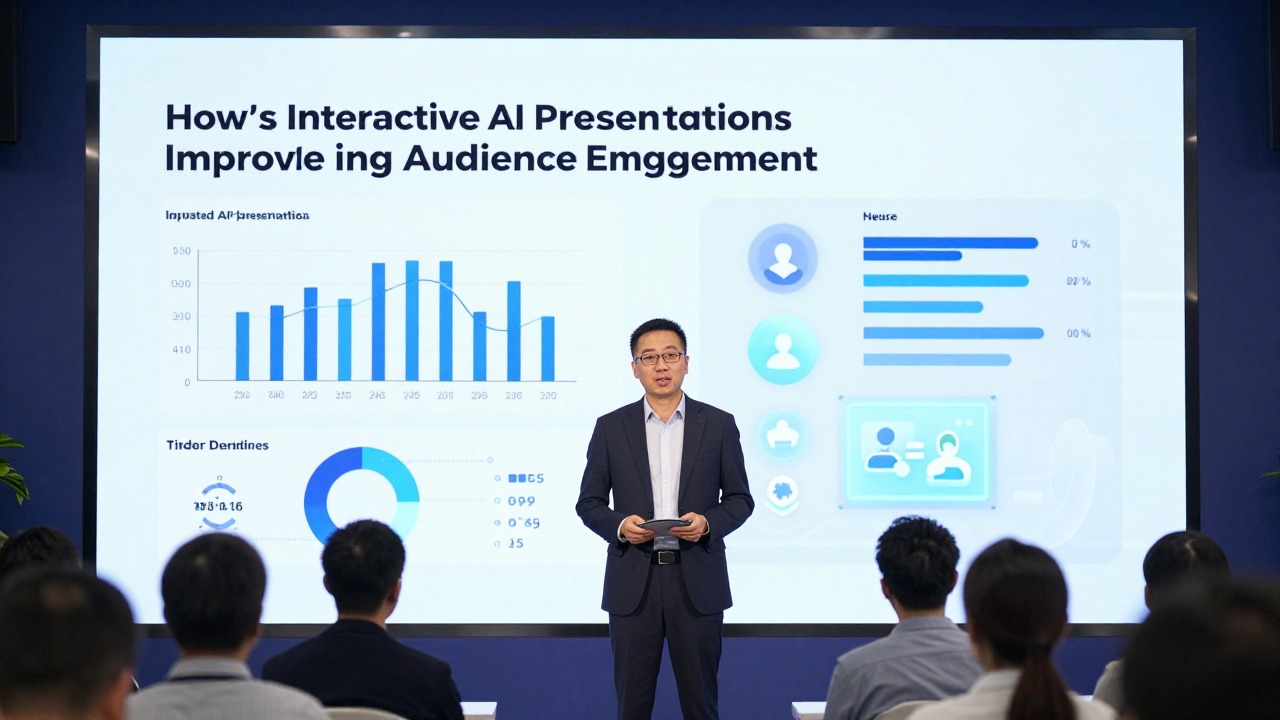
Interactive AI presentations are AI-assisted slide decks designed for audience participation, not just polished slides generated from a prompt. They include planned moments such as polls, quizzes, planned choice prompts, discussion prompts, planned Q&A, reveal-based explanations, and decision checkpoints that help people think, respond, choose, or remember.
The goal is not to add flashy effects to every slide. The goal is to build a better exchange between presenter and audience. AI can help you structure the deck, rewrite dense content, create cleaner layouts, and draft engagement prompts, but you still decide which interaction fits the room, timing, and outcome.
If your current slides feel static, text-heavy, or easy to ignore, the fix is usually a mix of clear design principles and intentional participation. A strong interactive deck makes the main message obvious, gives the audience a simple action, and connects their response back to the story you are telling.
When you are ready to turn the workflow into slides, PopAi AI Presentation can help transform rough notes, documents, or prompts into an editable deck structure.
Important Boundary: AI Structure vs. Live Interaction Tools
An AI slide generator can help design interaction moments, but it should not be described as a native live-polling or live-Q&A platform unless that functionality is actually integrated.
Use AI presentation software or another AI presentation tool to draft the interaction structure: where to pause, what question to ask, what quiz prompt to show, what discussion choice to offer, and how to summarize audience responses afterward.
- AI can generate: poll slide wording, quiz questions, discussion prompts, branching storyboards, facilitator notes, recap slides, and follow-up summaries.
- Separate live tools may be needed for: real-time polling, audience response collection, planned Q&A queues, chat moderation, clickable in-meeting choices, and analytics.
- The safest page copy: “AI helps you plan and create interactive slide moments,” not “AI automatically runs live audience interaction.”
What Interactive AI Presentations Actually Do for Engagement
This section defines interactive AI presentations and explains why engagement depends on planned audience exchange, not decoration.
A normal AI-generated deck may give you a title slide, section dividers, body slides, and a conclusion. That can be useful, especially when you are starting from rough notes or a long document. But a deck becomes interactive only when the slide structure asks the audience to participate in a meaningful way. The audience might vote on a pain point, answer a quiz, choose a scenario path, submit questions, compare options, or reflect on what they would do next.
Think of a familiar poor-slide scenario: a slide has twelve bullets, three mismatched icons, a blurry stock image, and a chart squeezed into the corner. The presenter talks for five minutes while the audience scans, checks out, or waits for the next slide. There is no clear hierarchy, no question for the audience to consider, and no reason to respond. Even if AI created that slide quickly, it is not an engaging experience.
Interactive design starts by asking, “What should the audience do with this idea?” In a business review, they may need to prioritize a recommendation. In a class, they may need to retrieve a concept from memory. In a sales call, they may need to reveal which challenge matters most. In training, they may need to apply a rule to a realistic scenario. The interaction is valuable when it moves the presentation toward that outcome.
- AI-generated means the tool helped create content, structure, wording, or design.
- Interactive means the presenter built in a planned audience action, such as voting, answering, choosing, asking, discussing, or reflecting.
- Engaging means the action supports the message instead of interrupting it.
- Well-designed means the audience can understand the prompt, see the choices, and respond without confusion.
This distinction matters because many presenters mistake motion for engagement. Animated icons, dramatic transitions, and reveal effects can help when used carefully, but they do not automatically make a presentation interactive. A simple slide with one bold question and three clear options can be more engaging than a complex animated slide if it makes the audience think and respond.
Interactivity is not a visual trick. It is a planned moment where the audience has a role in the presentation.
AI is most useful before and during the design process. It can summarize a long report into slide-ready points, suggest a logical sequence, rewrite a dense paragraph as a question, or propose where to place audience checkpoints. AI presentation software fits this stage well because it can help turn prompts, documents, notes, and rough ideas into a structured editable deck. From there, you can add the interaction moments that fit your actual audience.
Before adding any interactive element, finish this sentence: “I want the audience to respond here because…” If you cannot complete the sentence clearly, the slide may not need interaction.
Choose the Right Interactive Element for Your Presentation Goal
This section helps you match polls, quizzes, Q&A, clickable navigation, and other participation formats to the right use case.
The right interaction depends on the audience size, meeting format, time available, and desired outcome. A 10-person strategy workshop can handle discussion and branching choices. A 200-person webinar may need polls and moderated Q&A. A five-minute pitch usually needs one carefully placed question, not a sequence of activities.
- Polls: Best for sales discovery, stakeholder alignment, webinars, and opening engagement. Example: a sales deck begins with “Which challenge is slowing your team most right now?” followed by three or four pain-point options.
- Quizzes: Best for classes, training, onboarding, and knowledge checks. Example: after teaching a compliance rule, show a short scenario and ask which action is correct.
- Planned Q&A: Best for town halls, product demos, expert sessions, and complex topics where audience concerns may shape the discussion. Place it after a major section rather than waiting until everyone forgets their questions.
- Clickable agenda navigation: Best for workshops, product demos, internal reviews, and nonlinear meetings. It lets the presenter jump to sections based on audience needs, but it should be simple enough that the presenter never gets lost.
- Scenario choices: Best for training, consulting, leadership workshops, and product education. The audience chooses between realistic options, then the presenter reveals consequences or trade-offs.
- Reflection prompts: Best for coaching, education, team retrospectives, and strategy sessions. Example: “What is one assumption in this plan that your team would challenge?”
- Reveal-based slides: Best for explaining layered ideas, processes, frameworks, or chart insights. Reveal one point at a time to control attention, not to create suspense for its own sake.
- Feedback checkpoints: Best for proposal reviews, roadmap discussions, and project updates. Example: “Before we move to budget, which risk needs more detail?”
For a business audience, use interaction to clarify priorities, surface objections, or drive decisions. A strategy deck might include a decision slide with three investment options. Instead of asking, “Any thoughts?” the slide asks, “Which option would you prioritize for the next quarter, and what trade-off are you willing to accept?” This focuses the room and turns discussion into useful input.
For education, use interaction to support retrieval and application. A class deck can introduce a concept, show an example, then include a quick quiz slide: “Which principle is being used here: contrast, alignment, proximity, or repetition?” The quiz helps students check understanding before the instructor moves to the next concept.
For sales and product demos, use interaction to make the presentation feel relevant instead of scripted. A pain-point poll at the start can shape which proof points the presenter emphasizes. A clickable agenda can let the buyer choose whether to start with workflow, integrations, reporting, or implementation. The slide deck still has a planned structure, but the audience has a meaningful choice.
- If the goal is to diagnose needs, use a poll or discovery question.
- If the goal is to check understanding, use a quiz or scenario question.
- If the goal is to collect concerns, use planned Q&A or a feedback checkpoint.
- If the goal is to compare paths, use a decision slide or branching choice.
- If the goal is to manage a flexible meeting, use clickable navigation.
Not every slide needs interaction. Overuse can slow momentum and make the presentation feel like a series of disconnected activities. The best interactive decks usually have a rhythm: a strong opening prompt, one or two mid-deck checkpoints, and a final decision or reflection moment. Longer workshops can include more, but each activity still needs a clear job.
Choose interaction by outcome, not by novelty. If you need a decision, design a decision slide. If you need memory, design a quiz. If you need objections, design a Q&A checkpoint.
Design Engagement AI Slides with Clear Visual Hierarchy
This section shows how core design principles make engagement AI slides easier to understand and act on.
Engagement fails when the audience cannot quickly understand what to do. Interactive slides need stronger visual hierarchy than ordinary content slides because they contain both information and an action. The question, instruction, or choice area must be obvious within a few seconds.
- Hierarchy: Make the main question the largest or boldest text on the slide. Move supporting context into a smaller line below it.
- Contrast: Use a readable color difference between text and background. Use a clear accent color for response options, buttons, or the action area.
- Alignment: Align answer choices, icons, and labels to the same grid. Do not let options float randomly around the slide.
- Proximity: Group related items together. Put each answer label near its description, and keep instructions close to the response area.
- Repetition: Use the same style for every poll, quiz, or decision slide so the audience learns how to interact quickly.
- Consistency: Keep font families, icon style, button shapes, and color meanings stable across the deck.
- White space: Leave open space around the question and options. A crowded interactive slide feels harder than it is.
A crowded question slide might start with a long heading, a paragraph of background, five answer choices, a screenshot, and a decorative illustration. The audience spends more effort decoding the slide than answering the question. A better version uses one bold question at the top, one short context sentence, and three clean options in equal-sized cards. The slide now says, “Here is the decision. Here are your choices. Respond now.”
A messy quiz slide can be improved the same way. Before: a full concept explanation, a tiny question at the bottom, four cramped answer choices, and inconsistent icons. After: a short prompt, one visual clue or example, and a clearly separated answer area. The correct answer reveal can appear after discussion, but the initial slide should not hide the task.
Typography should guide the audience through the interaction. Limit the deck to one or two font families. Use font weight, not extra fonts, to separate the question from supporting text. For example, set the question in bold, the instruction in regular weight, and the answer labels in medium weight. Avoid tiny instructions such as “scan code to vote” or “choose one” in the corner; if participation matters, the instruction deserves visible space.
Color should clarify action. A useful approach is to keep most of the slide neutral and reserve one accent color for clickable elements, response cards, or active choices. If every object is bright, nothing feels important. If the same blue is always used for audience action, the audience learns to recognize where to look. Keep contrast high enough for readable text, especially in rooms with projectors or on shared screens.
AI tools can help with this cleanup. You can ask AI to rewrite a dense question into a shorter prompt, suggest three concise answer choices, or convert a paragraph into a decision slide. Design-focused tools may suggest cleaner layouts or style consistency. AI presentation software can help move from rough material to a structured deck, then you can refine key engagement slides by checking whether the question, options, and response instructions are visually dominant.
- Read the slide from five feet away or zoom out to 50 percent.
- Identify the first thing your eye sees.
- If it is not the audience prompt, enlarge or reposition the prompt.
- Remove any text that does not help the audience answer.
- Use the same option style for every choice so no answer looks accidentally favored.
An interactive slide should make the desired audience action visually unavoidable.
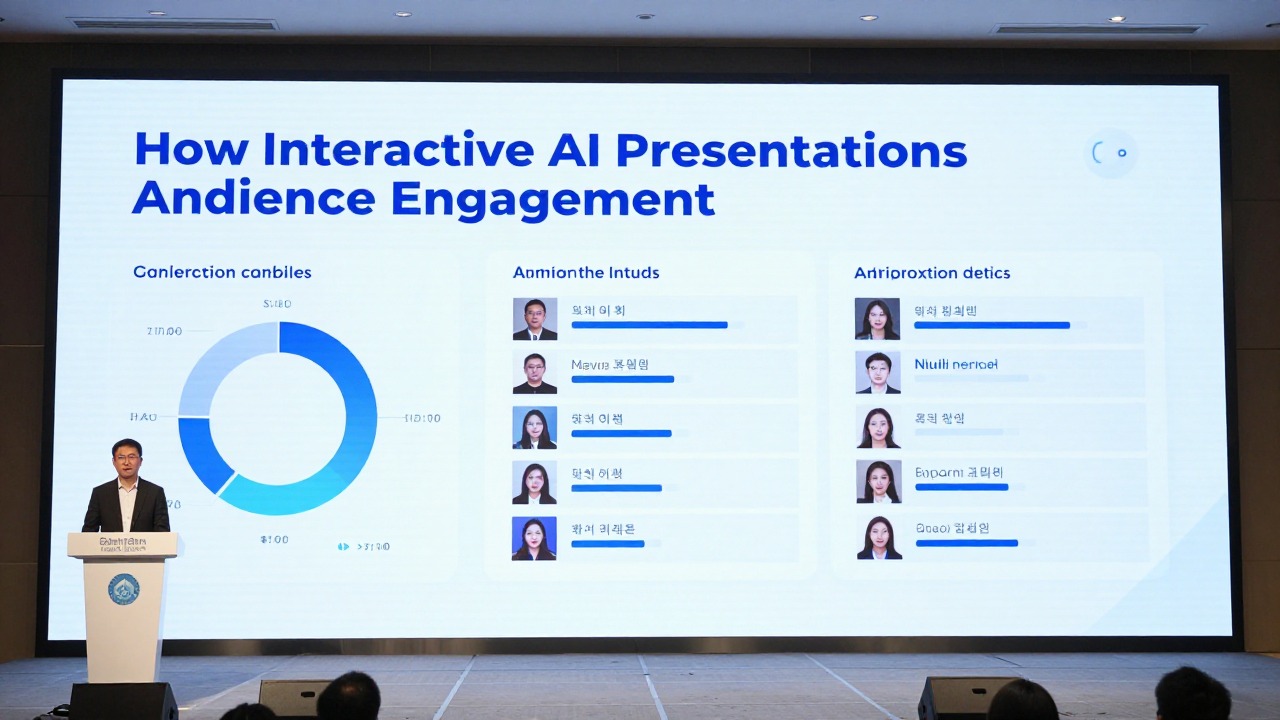
Build an Interactive Presentation Workflow with AI
This section gives you a repeatable process for creating interactive AI presentations from notes, documents, or rough ideas.
The fastest way to build an interactive deck is not to generate slides first and sprinkle activities later. Start with the audience goal, create a clear outline, then place interaction checkpoints where they support attention, understanding, or decision-making. AI can accelerate each step, but your judgment keeps the experience from feeling generic.
- Define the audience decision or learning goal. Write what the audience should know, choose, believe, or do by the end.
- Create a slide outline. Use AI to turn your notes, report, lesson plan, or pitch points into a logical sequence.
- Identify where attention may drop. Look for dense explanations, data-heavy sections, transitions between topics, or moments before a recommendation.
- Add interaction points after major sections. Use an opening question, a mid-deck check, and a final decision or reflection prompt as a simple baseline.
- Simplify each slide message. Rewrite dense content into one key message and one supporting visual, example, or question.
- Polish the layout. Improve hierarchy, contrast, alignment, spacing, and consistency before rehearsing.
- Rehearse the transitions. Practice how you will introduce the activity, wait for responses, discuss input, and connect it back to the main point.
AI presentation software fits naturally at the outline and first-draft stage. If you have a business idea, it can help shape a pitch deck outline. If you have a long report, it can help summarize the material into presentation-ready sections. If you have lesson notes, sales talking points, research findings, or product messaging, it can help you move from a blank page to an editable deck structure faster.
Workflow example one: a consultant has a 15-page operations report and needs a stakeholder alignment deck. The first AI-assisted step is to turn the report into a deck outline with sections such as current state, key bottlenecks, options, recommendation, and next steps. The consultant then adds an opening poll: “Which bottleneck is most visible to your team?” After the bottleneck section, a decision slide asks stakeholders to choose between three improvement paths. The final slide asks, “What must be true for this recommendation to succeed?”
Workflow example two: an educator has lecture notes for a 40-minute class. AI presentation software can help organize the notes into a concept introduction, worked example, practice question, misconception check, and summary. The educator then adds a quiz after the core concept, a reveal-based slide for the worked example, and a final reflection prompt asking students to apply the concept to a new situation. The deck is interactive because the learning moments are placed where students need retrieval and application, not because every slide moves.
- Prompt to create a discussion slide: “Turn this report section into one slide with a short decision prompt and three options for stakeholders to discuss.”
- Prompt to create poll questions: “Create three audience poll questions for a sales presentation about project management pain points. Keep each question under 12 words and include four answer choices.”
- Prompt to simplify a slide: “Rewrite this slide into one key message, one supporting point, and one audience prompt.”
- Prompt to place checkpoints: “Review this outline and suggest where to add an opening question, a mid-presentation check, and a final decision prompt.”
- Prompt to adapt tone: “Make this activity suitable for senior executives with limited time. Remove playful wording and focus on decision value.”
After AI drafts the structure and prompts, review every activity for accuracy, tone, audience level, and timing. A question that works for students may feel too basic for executives. A poll that works in a webinar may slow down a five-minute investor pitch. A branching choice that works in a workshop may be too complex for a formal board update.
Before presenting, confirm that each interactive slide has one message, one clear action prompt, readable text, consistent visual style, enough white space, and no unnecessary animation.
Examples of Interactive Presentation Tools and AI-Assisted Features
This section explains the tool landscape and how to combine AI deck creation with live participation features when needed.
Interactive presentation tools fall into several categories. Some help you generate or design the deck. Others help you collect audience responses during the session. The best setup depends on whether you need speed, design control, live polling, collaboration, export flexibility, or privacy.
- AI deck generators: Useful for turning prompts, documents, notes, and rough ideas into structured slides. AI presentation software is a strong fit when you need a first editable deck from class notes, reports, sales points, marketing ideas, product content, or pitch material.
- Live polling tools: Useful when you need real-time audience voting in webinars, workshops, sales discovery sessions, or large meetings.
- Audience Q&A tools: Useful when you need structured question collection, moderation, or upvoting during town halls, product demos, or expert presentations.
- Quiz tools: Useful for education, training, onboarding, and certification-style knowledge checks.
- Collaborative whiteboards: Useful when the audience needs to brainstorm, cluster ideas, map processes, or co-create decisions.
- Presentation platforms with interactive features: Useful when you want navigation, embedded activities, or presenter-controlled participation inside the delivery environment.
- AI design assistants: Useful for layout suggestions, auto-color support, font consistency, and visual cleanup, especially when the presenter is not a designer.
A realistic workflow often combines tools instead of expecting one platform to do everything. You might use AI presentation software to create the initial deck structure from a document, refine the key messages, and organize the slide flow. Then you might add live polling or Q&A through the presentation platform you already use, or through a dedicated participation tool if your event requires it.
For example, a marketing team preparing a campaign review could start by using AI to summarize research notes, campaign results, audience insights, and proposed next steps into a deck. The team then adds a feedback checkpoint after the insights section, a prioritization poll before the budget recommendation, and a final decision slide. If the meeting is remote, they can use built-in meeting chat, a polling tool, or a dedicated Q&A feature depending on the audience size and formality.
Other AI-assisted presentation tools may help with auto-design, layout suggestions, color choices, or guided slide creation. Tools such as Gamma, Beautiful.ai, and similar platforms are often considered by users looking for faster visual structure or design support. The right choice depends on your preferred editing workflow, output needs, and how much manual control you want over slide details.
- Check ease of editing. Can you quickly adjust wording, layout, and sequence after AI creates the draft?
- Check export and delivery needs. Do you need PowerPoint, PDF, web presentation, or in-platform presenting?
- Check audience device requirements. Will participants need phones, accounts, QR codes, or a shared link?
- Check collaboration needs. Will teammates review, edit, or present from the same deck?
- Check content privacy requirements. Are you uploading confidential reports, student data, customer information, or internal strategy documents?
- Check design control. Do you want fast templates, detailed manual editing, or a balance of both?
- Check compatibility. Confirm current features, pricing, limits, and integrations on official product pages before committing.
Separate deck creation from live participation planning. First build a clear deck, then decide whether you need built-in interactivity, external polling, Q&A, or simple verbal discussion.
Common Mistakes That Make Interactive Slides Less Engaging
This section highlights design and facilitation mistakes that can make interactive slides confusing, slow, or ineffective.
The most common mistake is adding interaction for novelty rather than purpose. A random poll, a playful quiz, or a clickable path can feel energetic for a moment, but if it does not support the point of the presentation, the audience may see it as a delay. Good interaction earns its place by improving understanding, relevance, memory, or decision quality.
- Too many animations: Movement competes with the message and can make the presenter seem less in control.
- Confusing click paths: Hidden links, unclear navigation, and too many branching options can derail the flow.
- Vague prompts: “Any thoughts?” usually produces silence. “Which option would you prioritize first and why?” gives the audience a specific task.
- Low contrast: If answer choices are hard to read, participation drops before it starts.
- Tiny text: Instructions, QR codes, and response options must be readable from the back of the room or on a small shared screen.
- Inconsistent buttons: If clickable elements change color, shape, or position every time, the audience has to relearn the interface.
- Cluttered charts: A chart used for discussion should highlight the decision or insight, not show every available data point.
- Mismatched icons: Mixed icon styles make the slide feel unplanned and can weaken trust in the material.
- Too many answer choices: More choices can create cognitive load. Use three to five options unless the situation truly requires more.
Facilitation mistakes can damage engagement even when the slide looks good. If you ask a question but move on after two seconds, the audience learns not to participate. If you collect responses but ignore them, the activity feels performative. If you do not explain how to participate, people may hesitate because they are unsure whether to speak, vote, type, scan, or wait.
Always connect the response back to the main point. After a poll, summarize what the result suggests. After a quiz, explain why the correct answer is correct and why the tempting answer is wrong. After Q&A, group similar concerns and show how they affect the recommendation. The slide interaction is only half the work; the presenter’s response turns it into value.
AI-generated content also needs review. AI may create a polished-looking prompt that is too broad, too easy, too advanced, or slightly off-brand. It may generate answer choices that overlap or imply a bias. It may simplify a technical concept too aggressively. Review for accuracy, relevance, tone, brand fit, classroom fit, and whether the activity supports the objective.
- Replace vague prompts with specific tasks.
- Limit interaction styles to a few repeated patterns.
- Remove decorative motion that does not guide attention.
- Test clickable navigation before presenting.
- Plan what you will say after the audience responds.
- Keep a simple backup if live technology fails.
Audience participation only improves engagement when the presenter uses the response to advance the conversation.
When an AI Presentation Tool Fits This Workflow
Use AI for structure, drafting, and slide clarity; keep strategy, facts, and final approval human-owned.
PopAi can be useful when you already have notes, documents, or a rough outline and need to turn them into an editable presentation draft. The strongest use is speeding up the first version, not replacing review.
- Good fit: outline generation, slide titles, summary slides, speaker-note drafts, and alternative wording.
- Needs review: facts, claims, data, customer examples, legal language, and final storyline.
- Not a substitute for: audience judgment, business strategy, source verification, and rehearsal.
FAQ
What is an interactive AI presentation?
An interactive AI presentation is an AI-assisted deck designed with audience participation, such as polls, quizzes, Q&A, clickable sections, decision prompts, or discussion moments. It is not simply a slide deck generated by AI.
How do interactive AI presentations improve audience engagement?
They encourage the audience to think, respond, choose, reflect, or ask questions during the presentation. This makes the content feel more relevant and reduces passive listening.
What are examples of engagement AI slides?
Examples include a pain-point poll at the start of a sales deck, a quiz after a lesson concept, a scenario choice slide in training, a planned Q&A checkpoint, a clickable agenda, or a final prioritization slide.
Can AI create the interactive parts of a presentation for me?
AI can suggest questions, simplify dense content, structure the slide flow, and draft interaction prompts. The presenter should still review whether each activity fits the audience, timing, tone, and goal.
How many interactive slides should I include?
Use a few well-placed checkpoints rather than making every slide interactive. For many presentations, an opening question, one mid-deck checkpoint, and one final decision or reflection prompt are enough.
Build slides faster from your source material
Turn notes, prompts, documents, or rough outlines into a clearer presentation draft, then edit the story, facts, and visual details before presenting.
Try PopAi AI Presentation